How to Share on Poshmark on iPhone or iPad
Open the Poshmark app on your iPhone or iPad.. Tap your profile icon on the bottom-right.. Tap My Closet.
Steps
1
Open the Poshmark app on your iPhone or iPad.
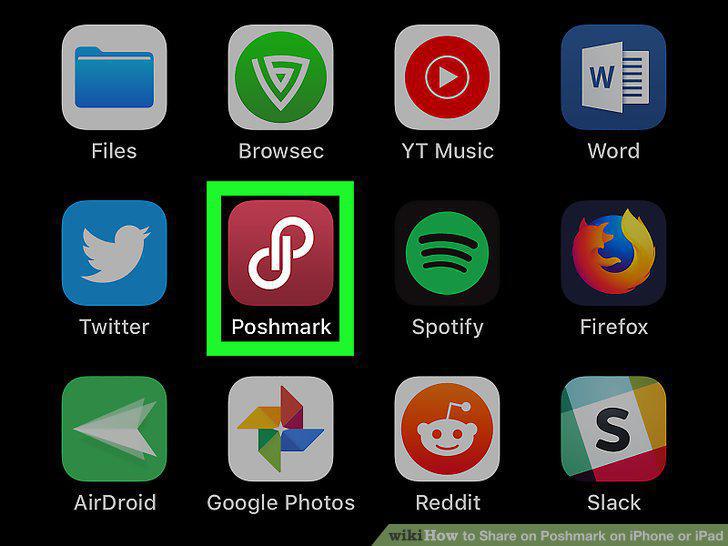
Open the Poshmark app on your iPhone or iPad.
2
Tap your profile icon on the bottom-right.
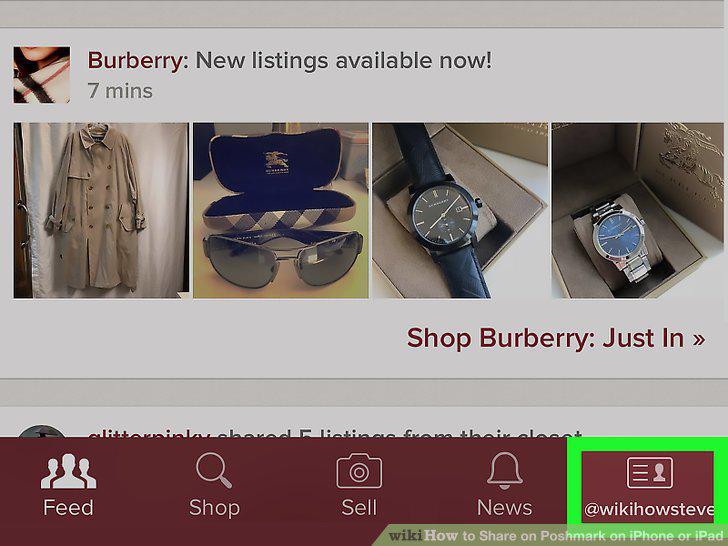
Tap your profile icon on the bottom-right.
3
Tap My Closet.
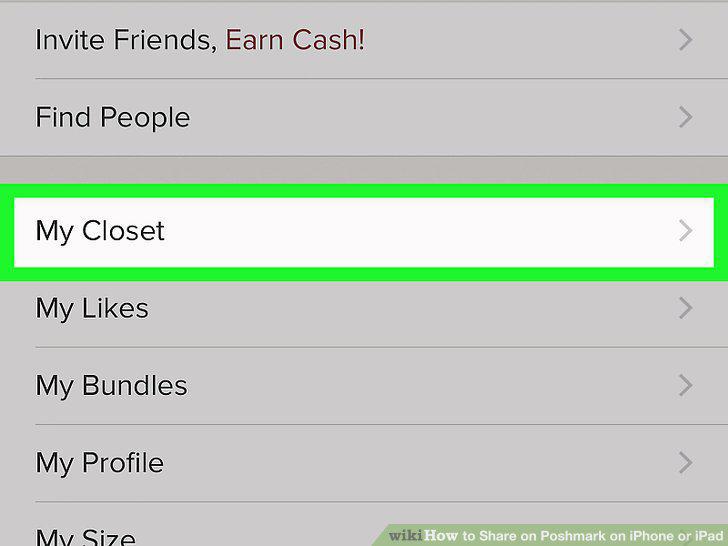
Tap My Closet.
4
Tap the item you want to share.
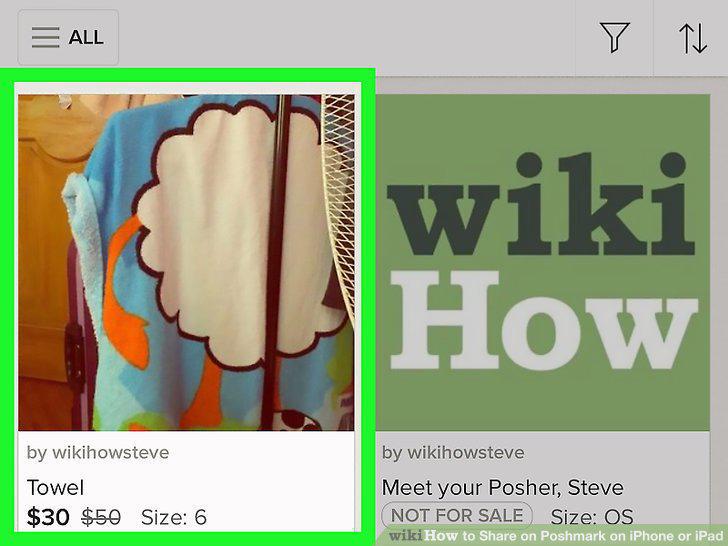
Tap the item you want to share.
5
Scroll down to the bottom and tap Share.
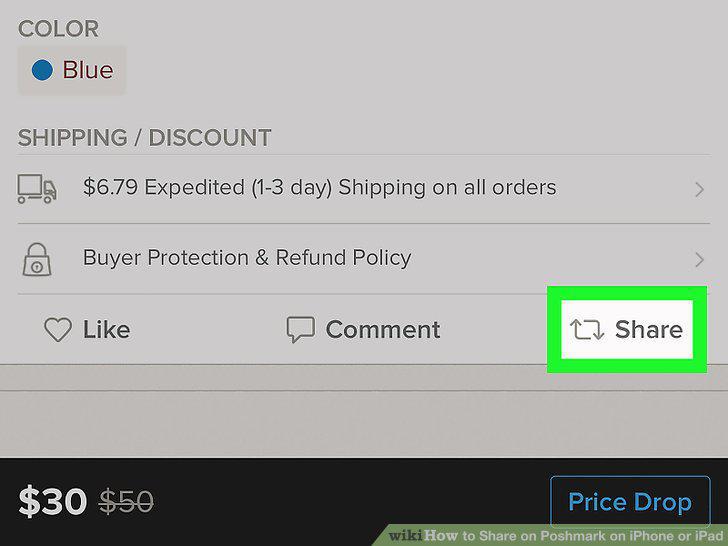
Scroll down to the bottom and tap Share.
6
Tap Copy Link.
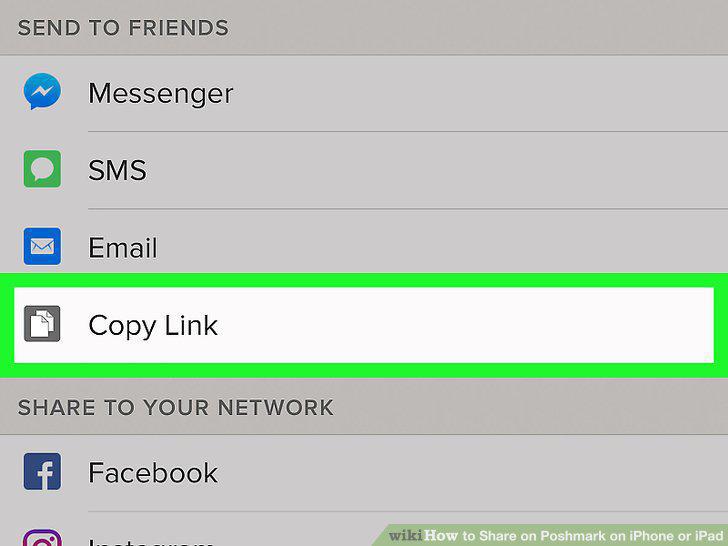
Tap Copy Link.
7
Paste the copied link anywhere to share your listing.
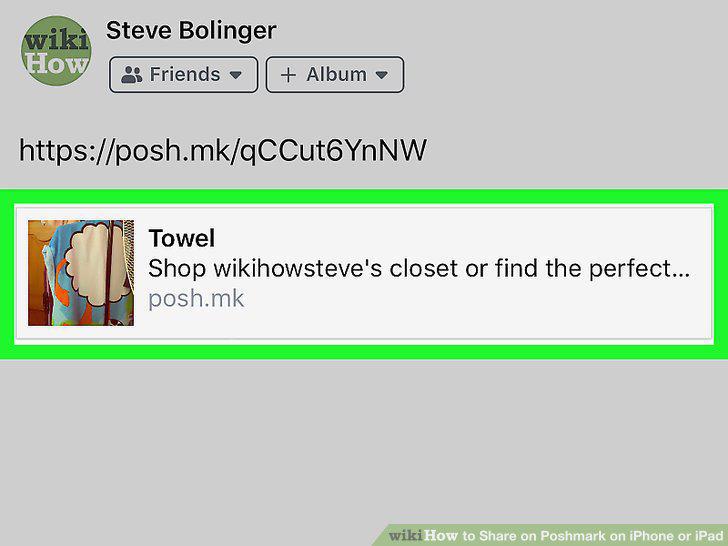
Paste the copied link anywhere to share your listing.
8
Open the Poshmark app on your iPhone or iPad.
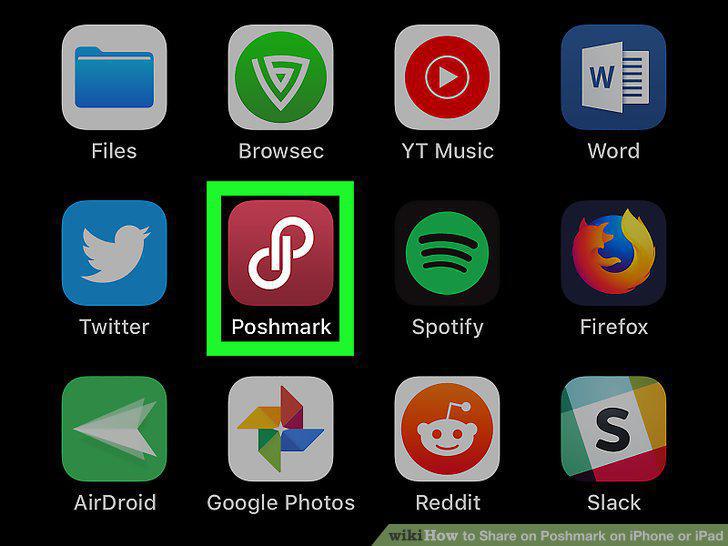
Open the Poshmark app on your iPhone or iPad.
9
Find and tap the listing you want to share.
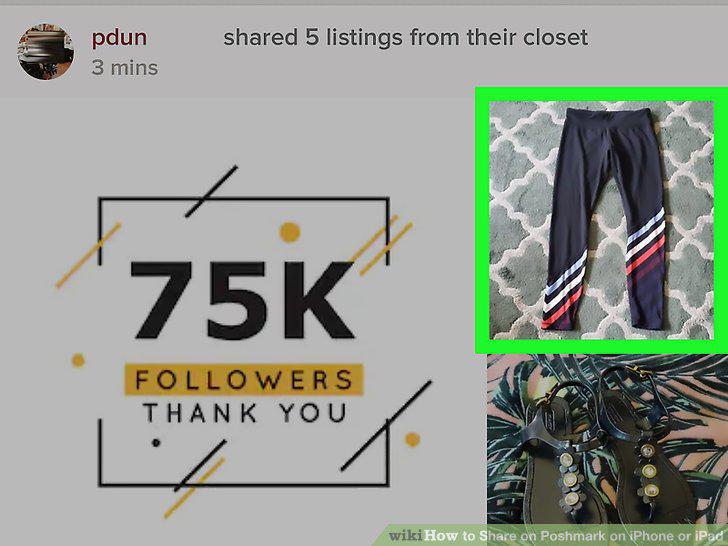
Find and tap the listing you want to share.
10
Tap the three dots icon on the top-right.
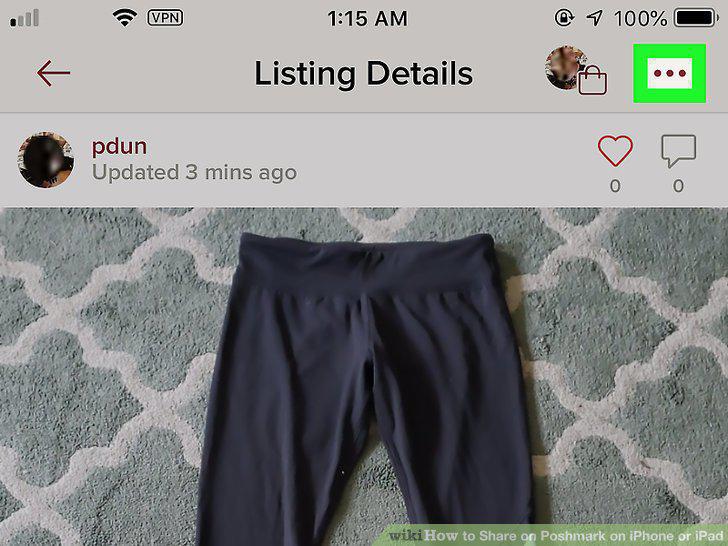
Tap the three dots icon on the top-right.
11
Tap Share Listing on the menu.
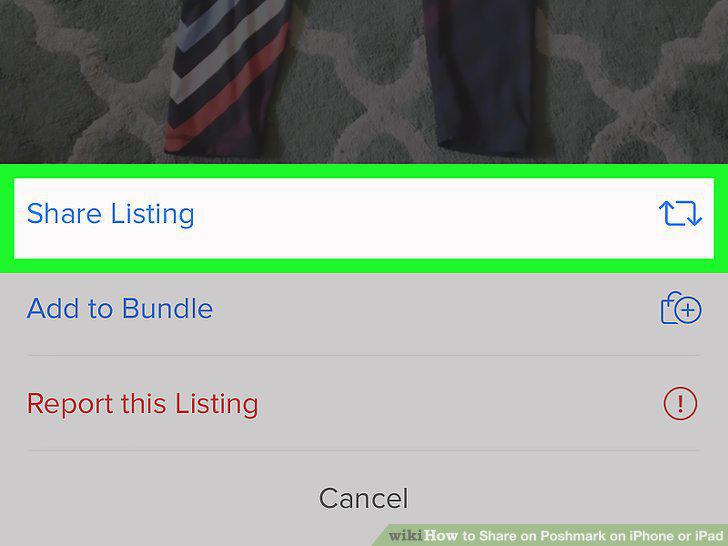
Tap Share Listing on the menu.
12
Tap Copy Link on the sharing menu.
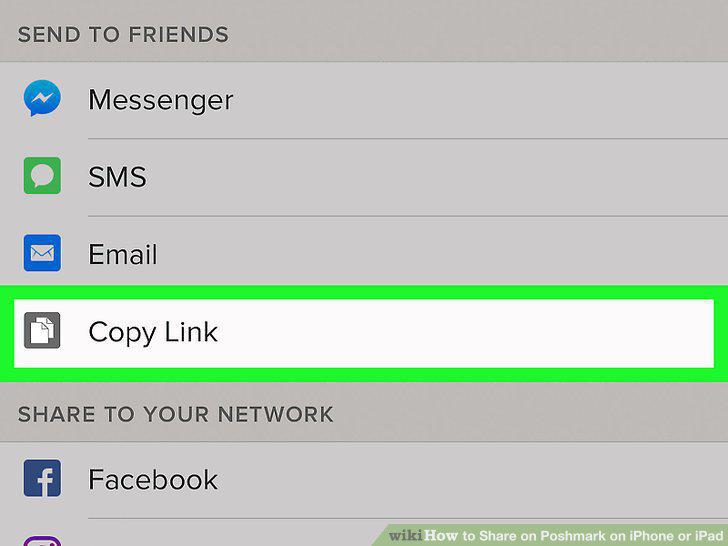
Tap Copy Link on the sharing menu.
13
Paste the copied link anywhere to share the listing.
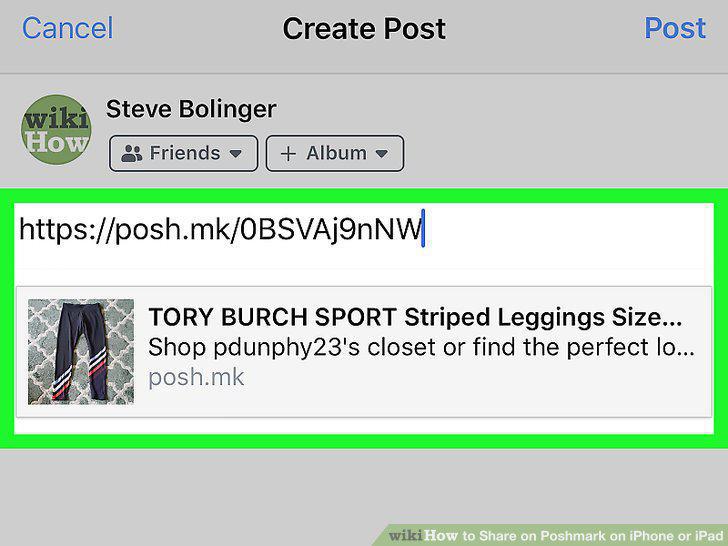
Paste the copied link anywhere to share the listing.
Comments (0)
No comments yet. Be the first to share your thoughts!