How to Link Twitch with Amazon Prime on iPhone or iPad
Open Safari on your iPhone or iPad.. Go to https://www.twitch.tv/prime in your browser.. Tap the Try Prime button.
Steps
1
Open Safari on your iPhone or iPad.
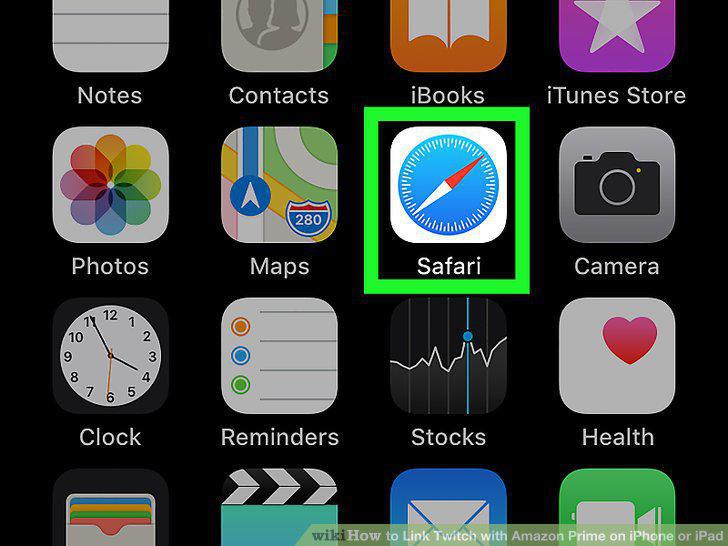
Open Safari on your iPhone or iPad.
2
Go to https://www.twitch.tv/prime in your browser.
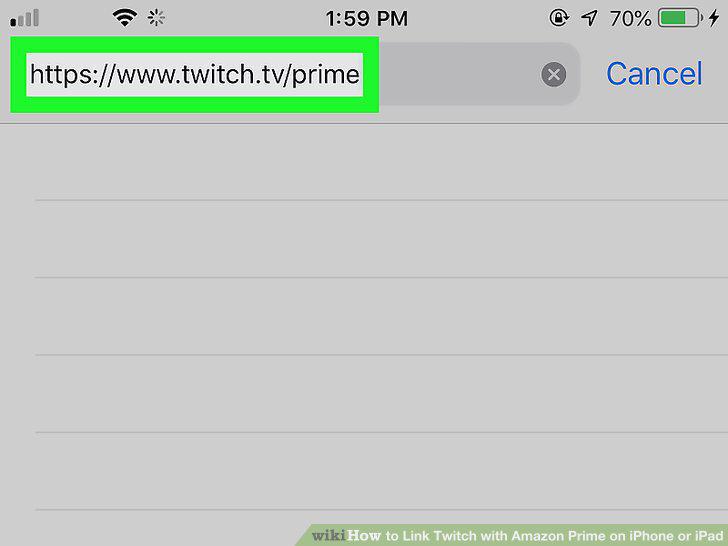
Go to https://www.twitch.tv/prime in your browser.
3
Tap the Try Prime button.
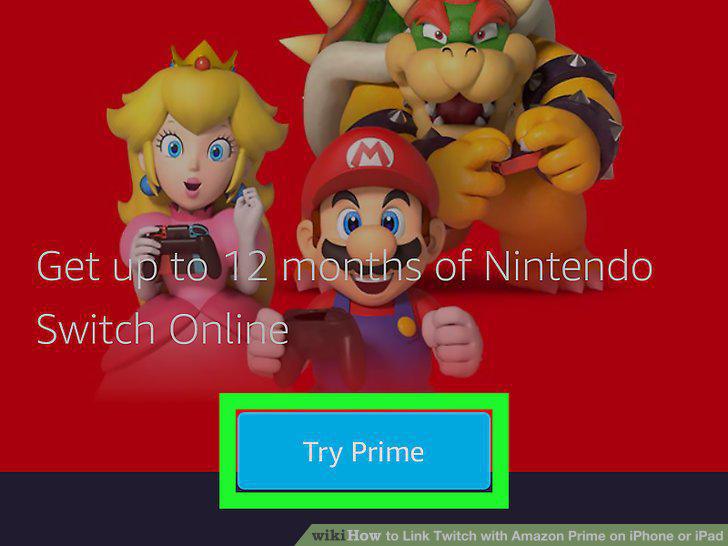
Tap the Try Prime button.
4
Tap the blue Continue signing in button.
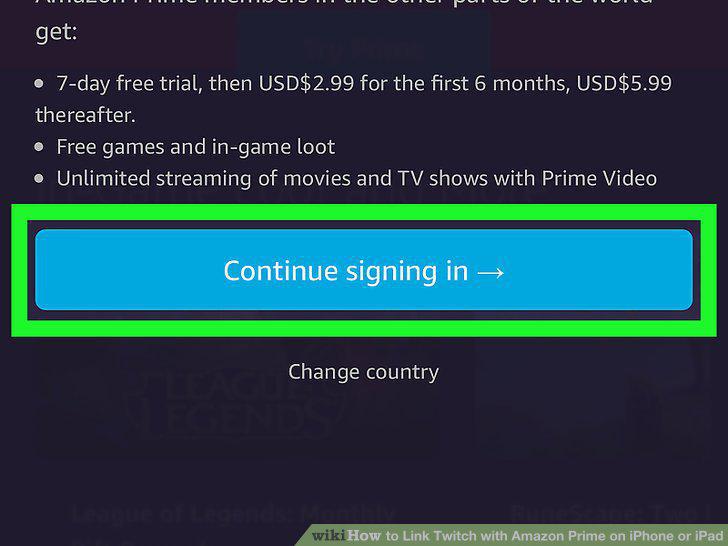
Tap the blue Continue signing in button.
5
Sign in to your Amazon Prime account.
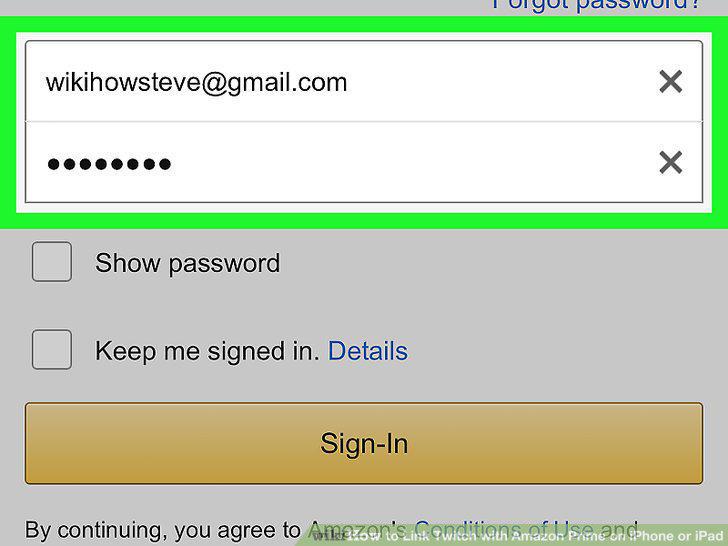
Sign in to your Amazon Prime account.
6
Sign in to your Twitch account.
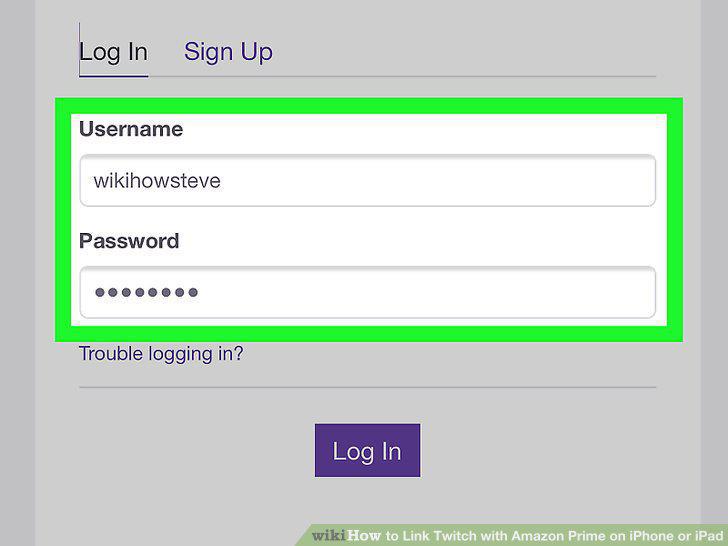
Sign in to your Twitch account.
7
Tap Confirm on the "Link Twitch Account" page.
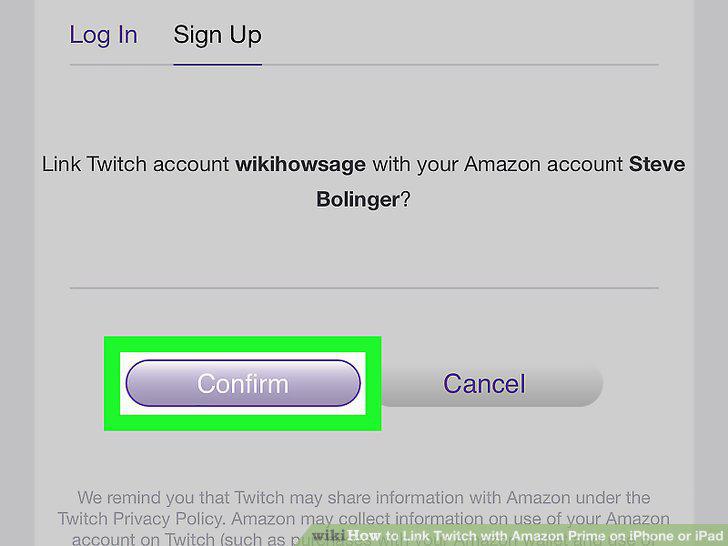
Tap Confirm on the "Link Twitch Account" page.
Comments (0)
No comments yet. Be the first to share your thoughts!