How to Use Instagram Collections
Go to your homepage and tap on the bookmark icon on the right.. Tap the + in the top right corner or click "Collections" on the right.. Name your Collection and hit the "Next" button.
Steps
Go to your homepage and tap on the bookmark icon on the right.
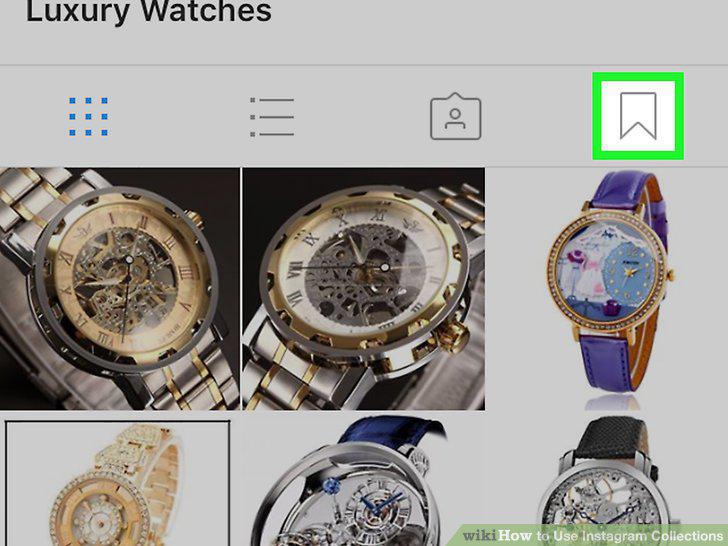
Go to your homepage and tap on the bookmark icon on the right.
Tap the + in the top right corner or click "Collections" on the right.
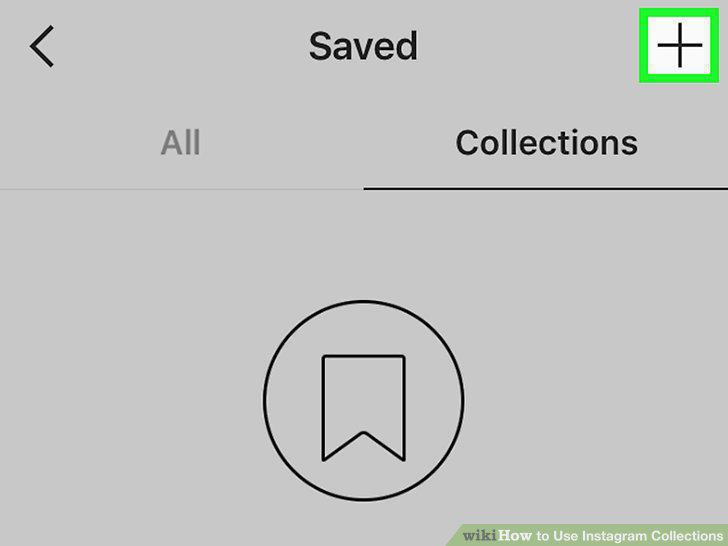
Tap the + in the top right corner or click "Collections" on the right.
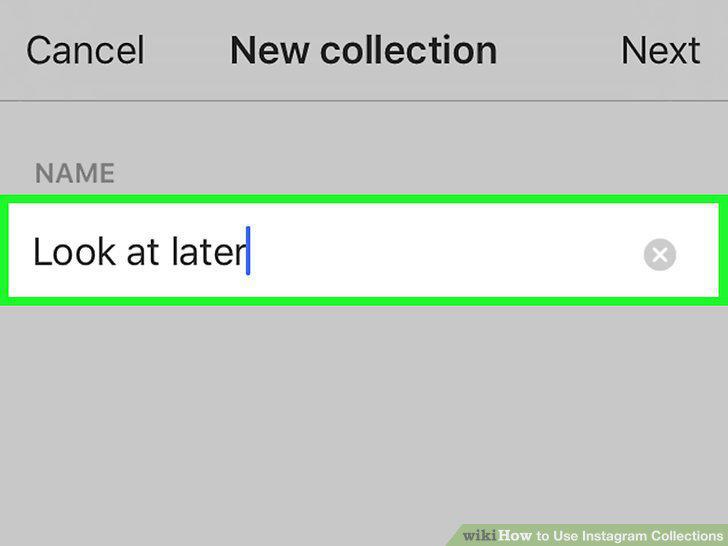
Name your Collection and hit the "Next" button.
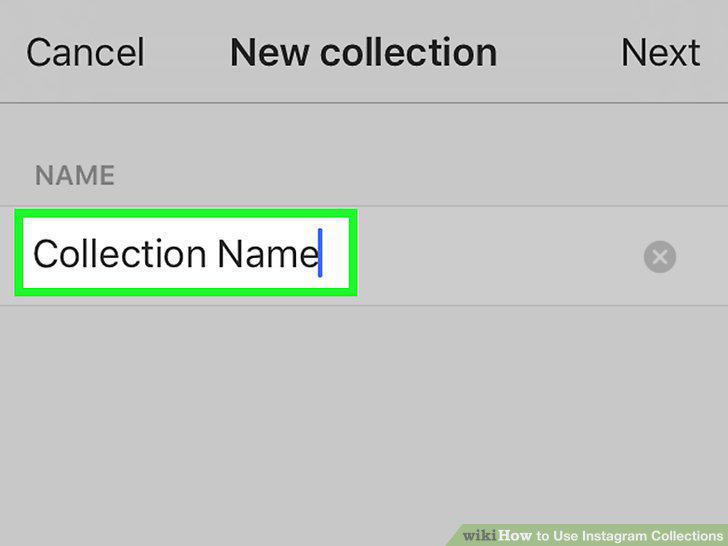
Name your Collection and hit the "Next" button.
Select the photos you want in your collection.
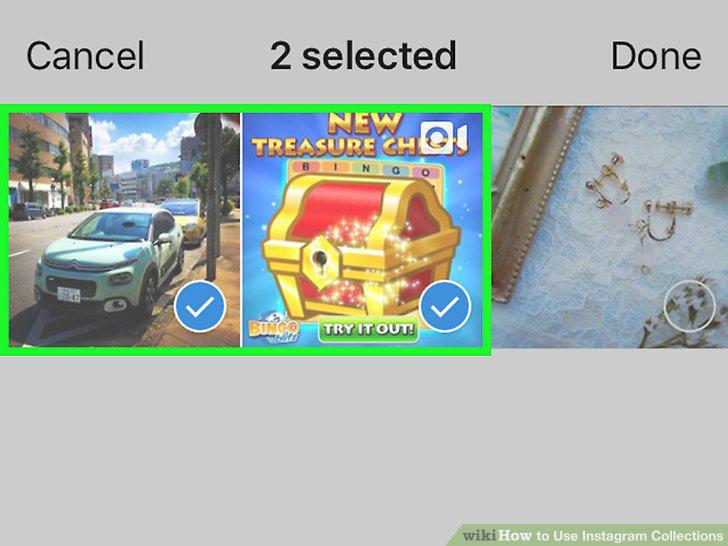
Select the photos you want in your collection.
Hit the "Done" button.
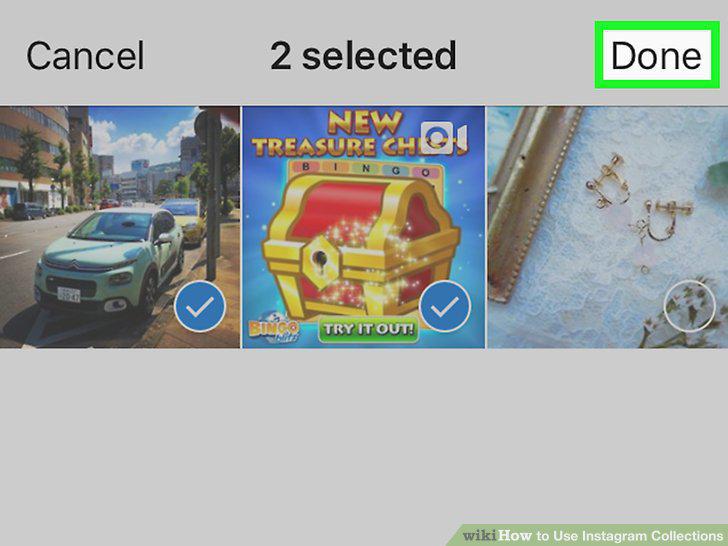
Hit the "Done" button.
Select the post that you want to add to a collection.
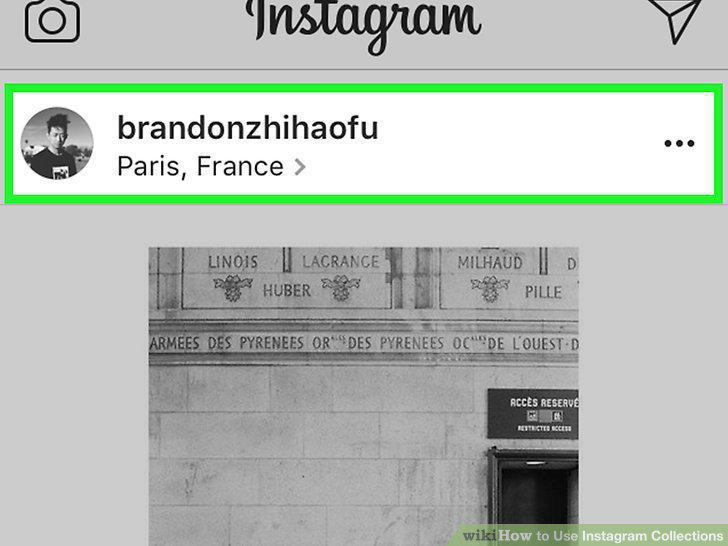
Select the post that you want to add to a collection.
Tap and hold the flag icon on the bottom right of the photo.
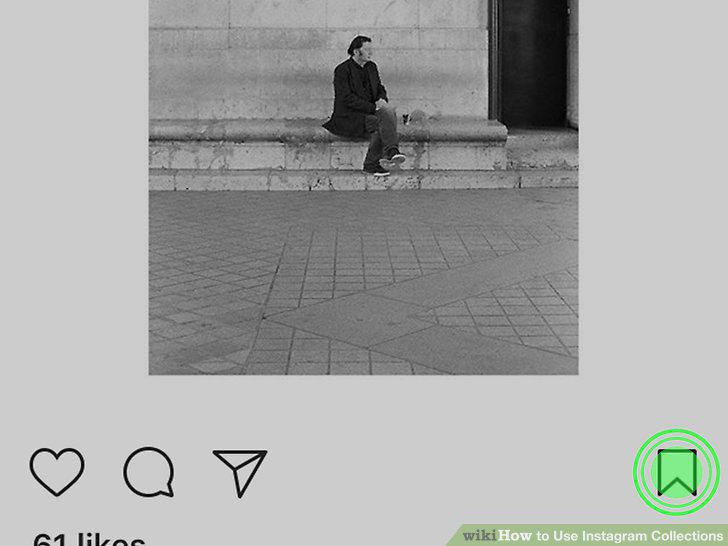
Tap and hold the flag icon on the bottom right of the photo.
Select a collection.
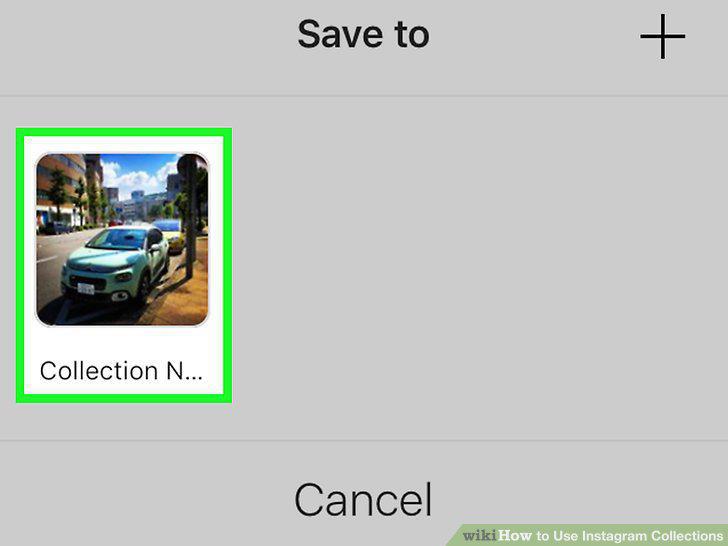
Select a collection.
Tap the "Done" button.
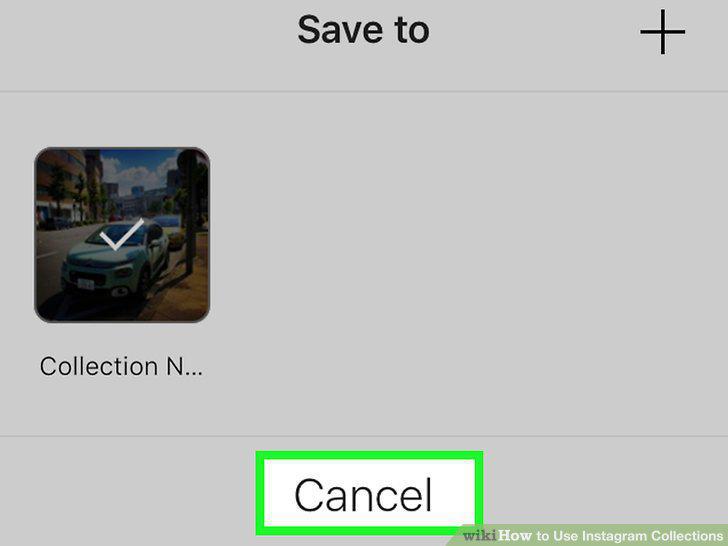
Tap the "Done" button.
Tap the flag icon on the right of your homepage.
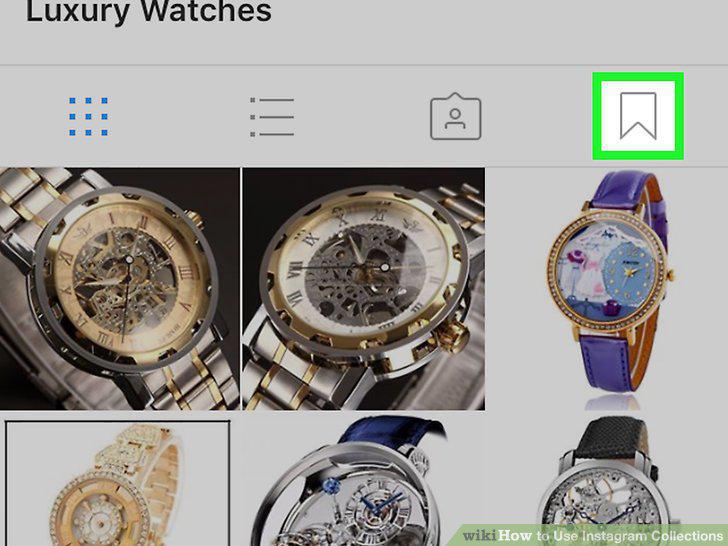
Tap the flag icon on the right of your homepage.
Hit the "Collections" button.
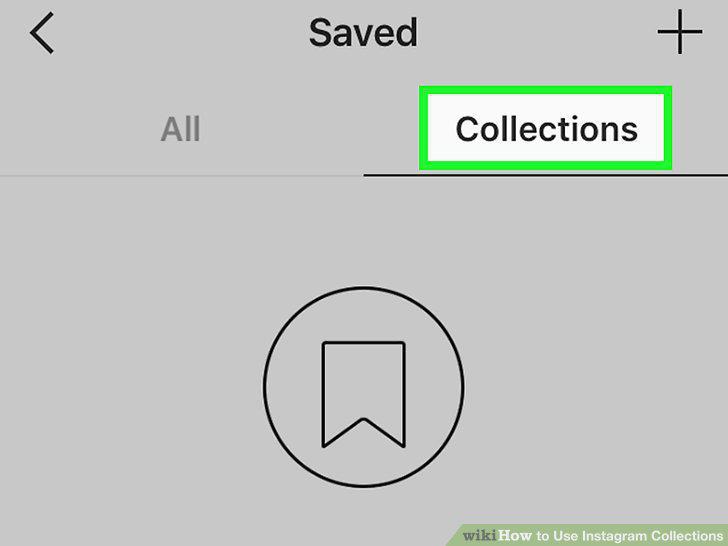
Hit the "Collections" button.
Select the Collection you want to rename or delete.
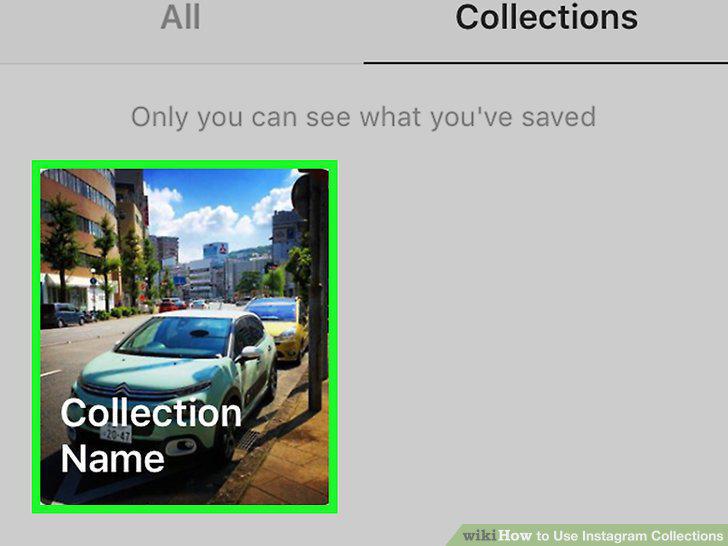
Select the Collection you want to rename or delete.
Tap the ellipses button in the top right and hit the "Edit Collection" button.
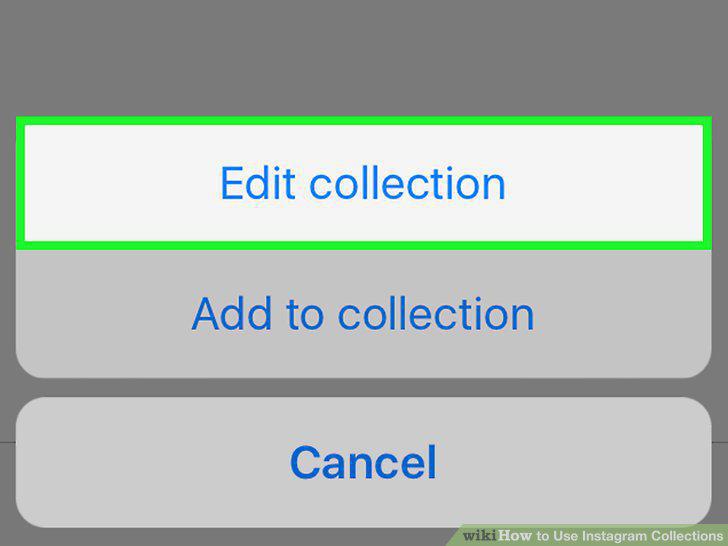
Tap the ellipses button in the top right and hit the "Edit Collection" button.
Rename your collection or tap the "Delete Collection" text.
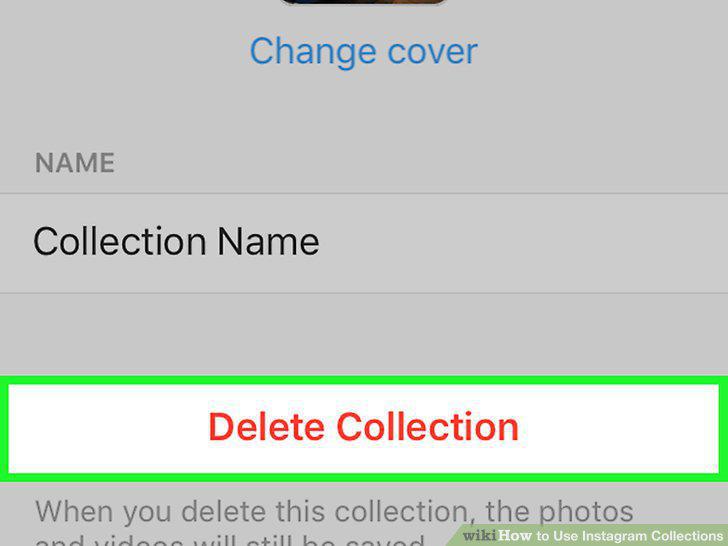
Rename your collection or tap the "Delete Collection" text.
Use it to organize posts you like.
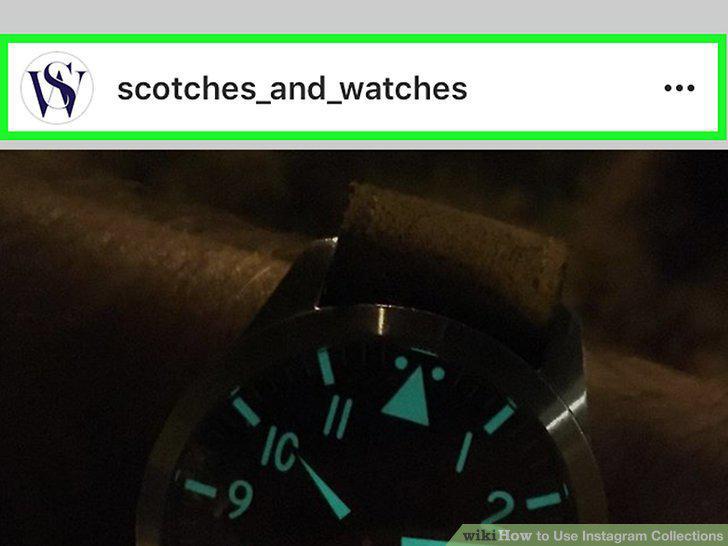
Use it to organize posts you like.
Use collections to help track your popularity.
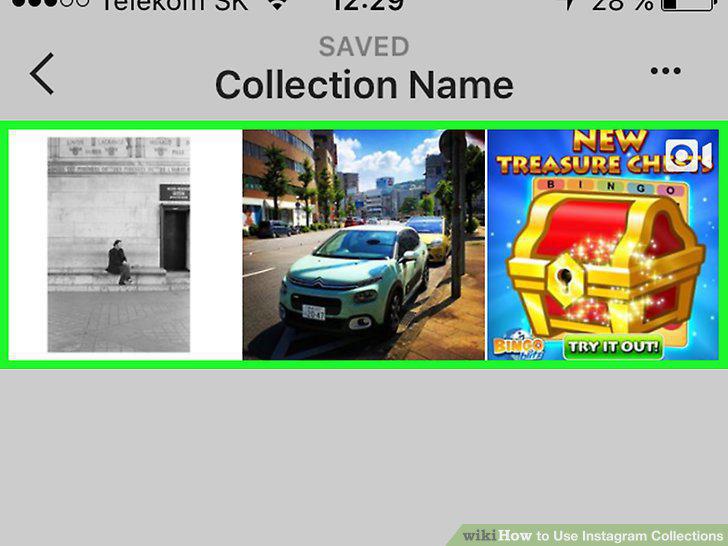
Use collections to help track your popularity.
Set reminders for yourself using collections.
Set reminders for yourself using collections.
Comments (0)
No comments yet. Be the first to share your thoughts!