How to Delete Videos on Facebook on iPhone or iPad
Open the Facebook app on your iPhone or iPad.. Go to your profile page.. Scroll down and tap Photos.
Steps
1
Open the Facebook app on your iPhone or iPad.
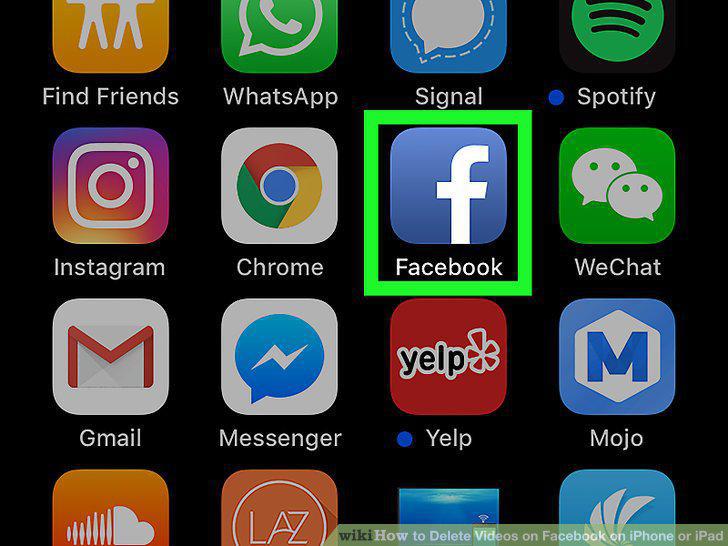
Open the Facebook app on your iPhone or iPad.
2
Go to your profile page.
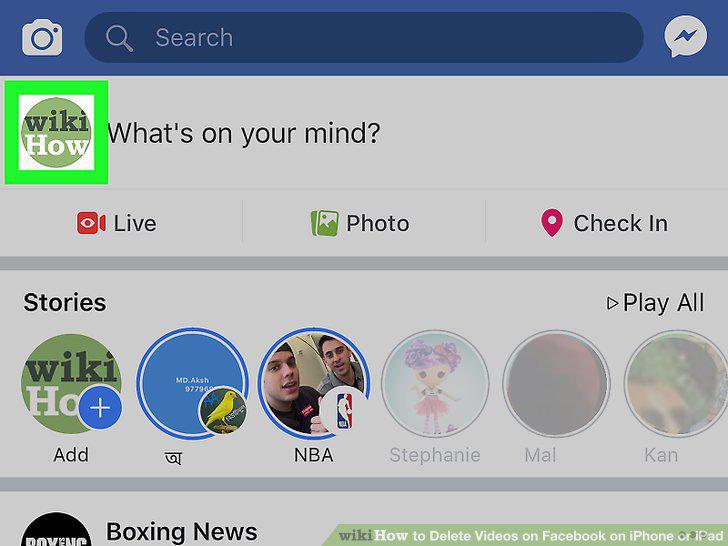
Go to your profile page.
3
Scroll down and tap Photos.
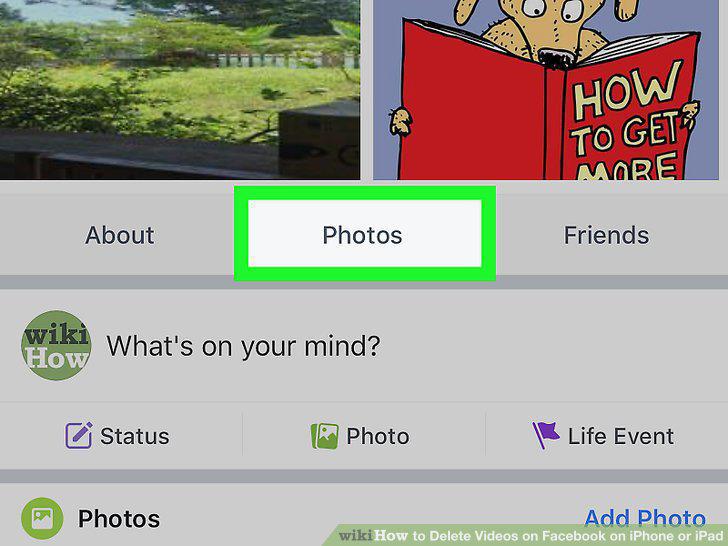
Scroll down and tap Photos.
4
Tap the Albums tab on the navigation bar at the top.
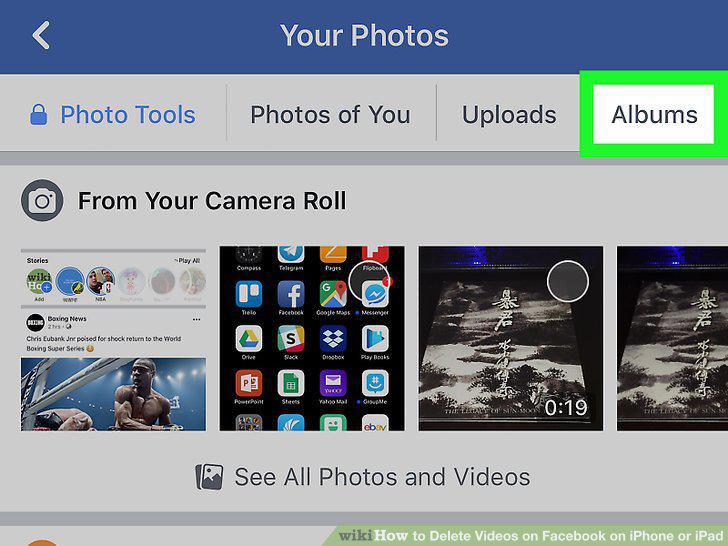
Tap the Albums tab on the navigation bar at the top.
5
Tap the Videos album.
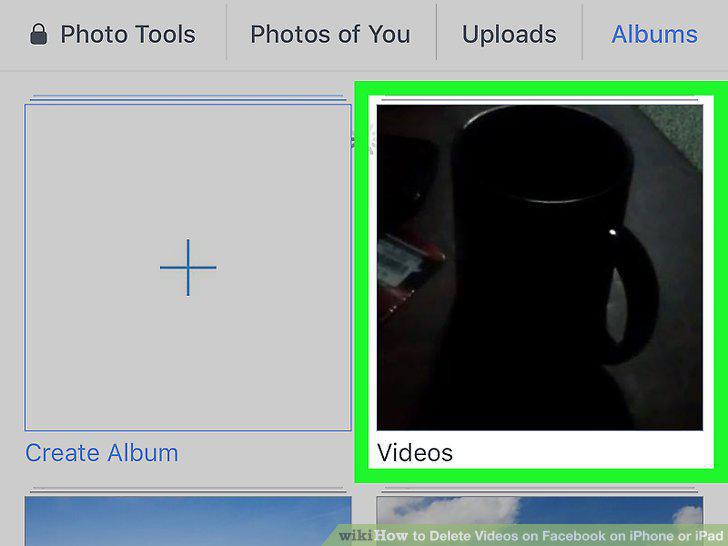
Tap the Videos album.
6
Tap the video you want to delete.
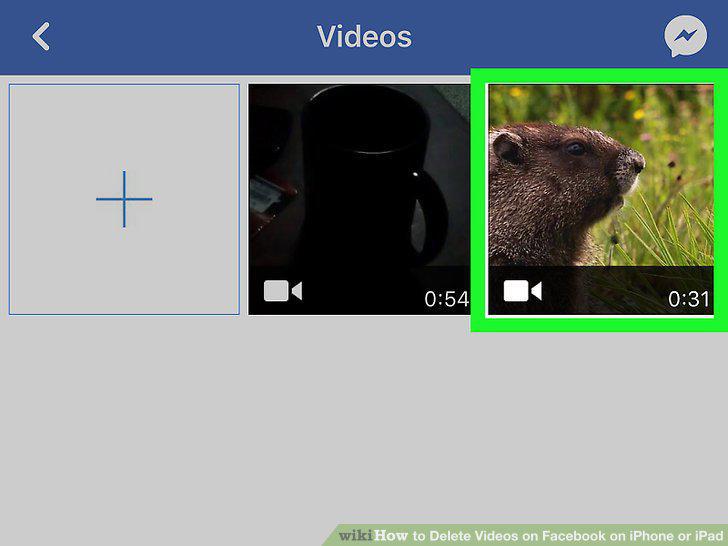
Tap the video you want to delete.
7
Tap on the video.

Tap on the video.
8
Tap the three dots icon on the video.
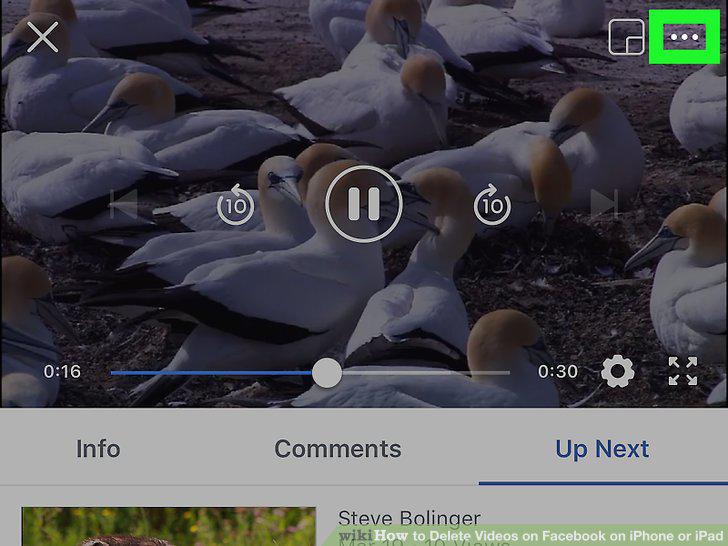
Tap the three dots icon on the video.
9
Tap Delete on the menu.
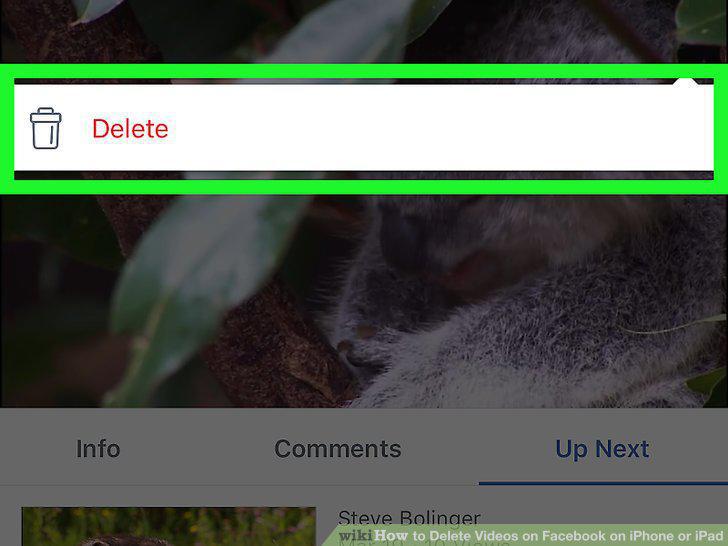
Tap Delete on the menu.
10
Tap Delete in the confirmation pop-up.
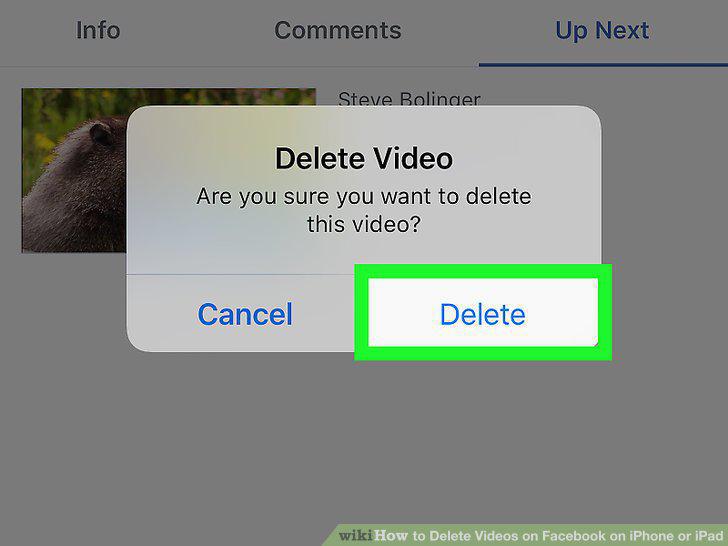
Tap Delete in the confirmation pop-up.
11
Open the Facebook app on your iPhone or iPad.
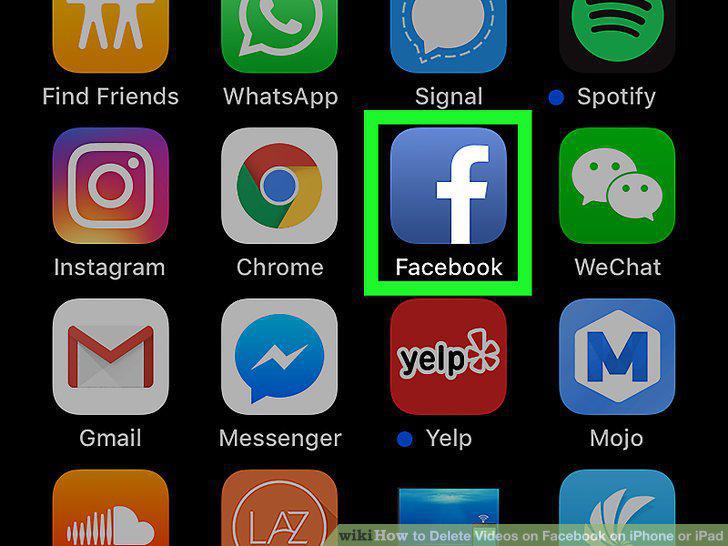
Open the Facebook app on your iPhone or iPad.
12
Go to your profile page.
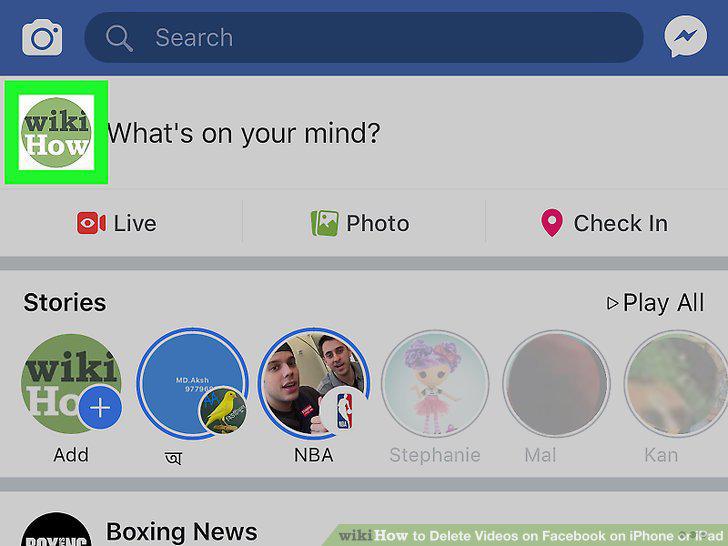
Go to your profile page.
13
Scroll down and find the post you want to delete on your Timeline.
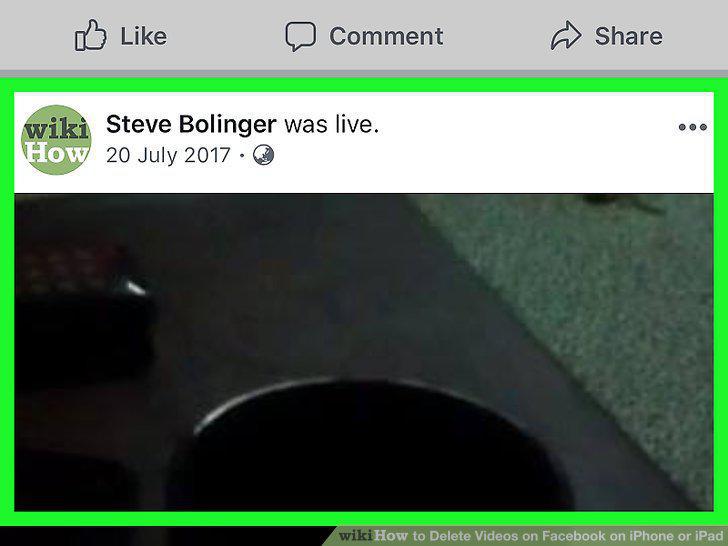
Scroll down and find the post you want to delete on your Timeline.
14
Tap the three dots icon next to the post you want to delete.
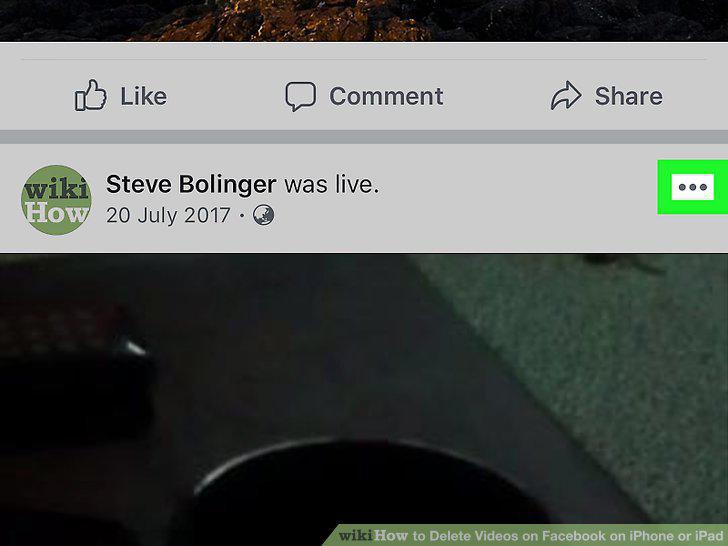
Tap the three dots icon next to the post you want to delete.
15
Tap Delete on the menu.
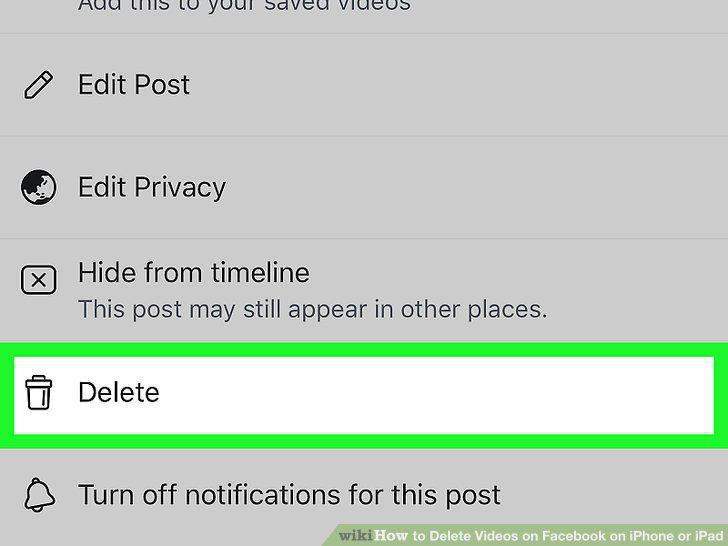
Tap Delete on the menu.
16
Tap Delete Post in the confirmation pop-up.
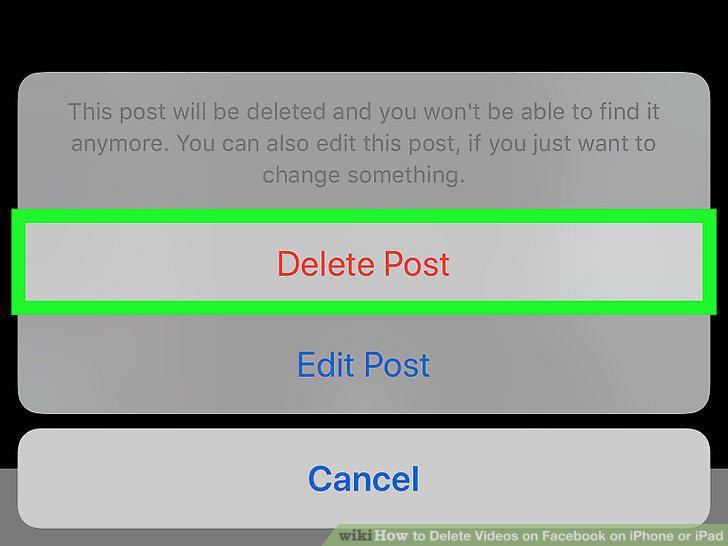
Tap Delete Post in the confirmation pop-up.
Comments (0)
No comments yet. Be the first to share your thoughts!