How to Make a Video Call on iPhone or iPad
Open the FaceTime app on your iPhone or iPad.. Tap the Video tab at the top.. Tap the search bar at the top.
Steps
Open the FaceTime app on your iPhone or iPad.
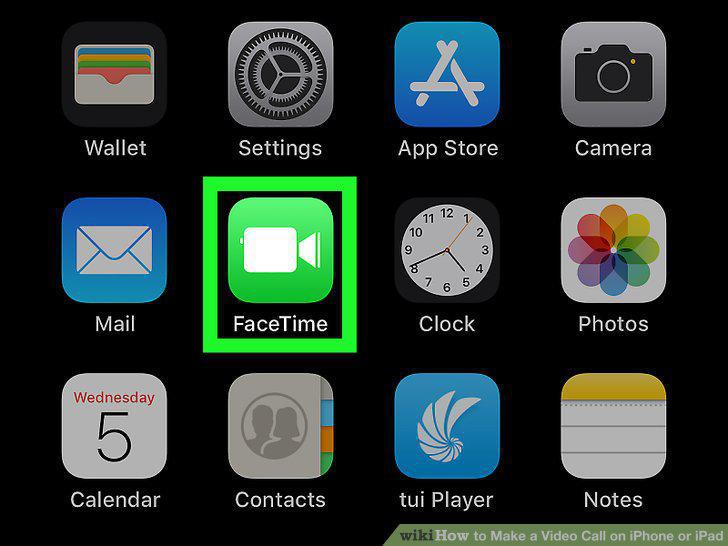
Open the FaceTime app on your iPhone or iPad.
Tap the Video tab at the top.
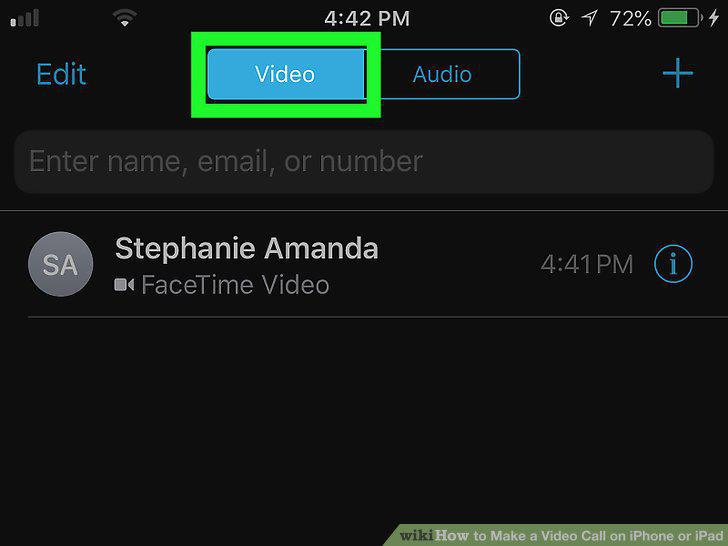
Tap the Video tab at the top.
Tap the search bar at the top.
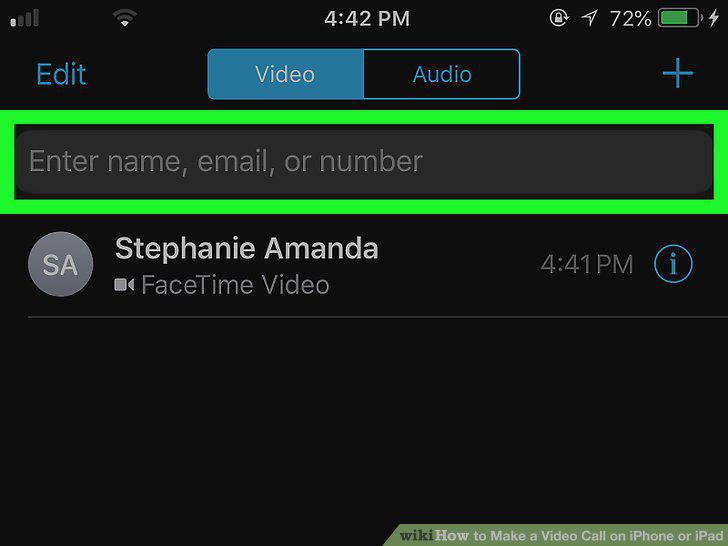
Tap the search bar at the top.
Enter your contact's name, email address, or phone number.
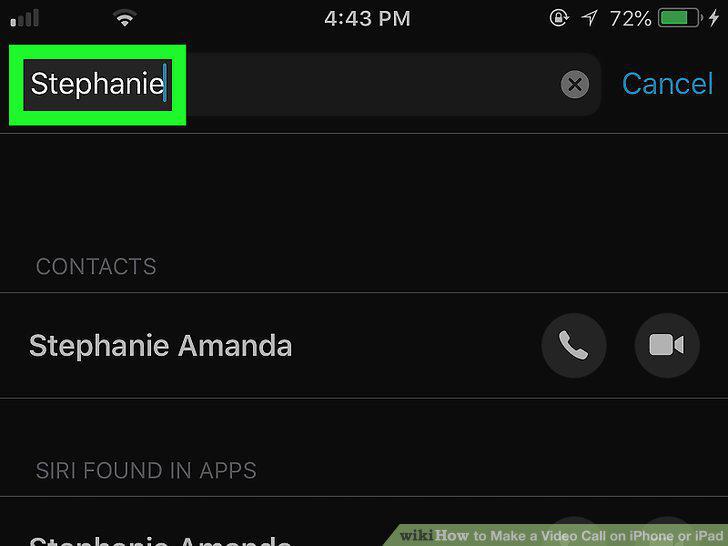
Enter your contact's name, email address, or phone number.
Tap the video camera icon next to your contact's name.
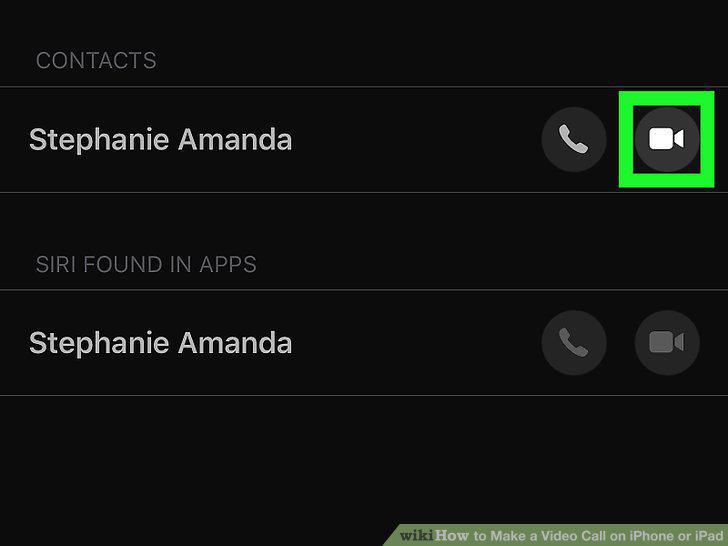
Tap the video camera icon next to your contact's name.
Open the Messenger app on your iPhone or iPad.
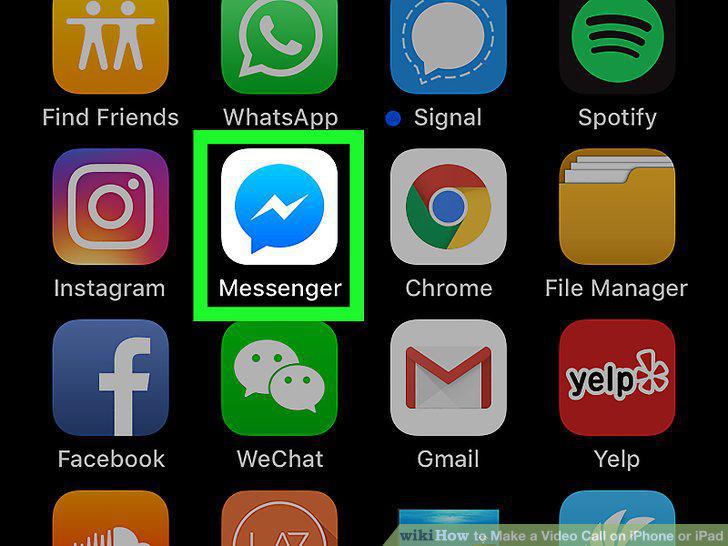
Open the Messenger app on your iPhone or iPad.
Tap the People tab at the bottom.

Tap the People tab at the bottom.
Tap the contact you want to call.
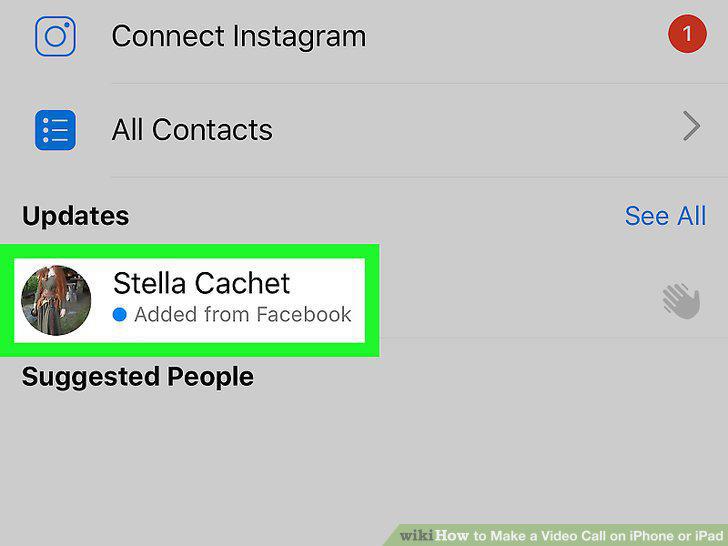
Tap the contact you want to call.
Tap the video camera icon on the top-right.
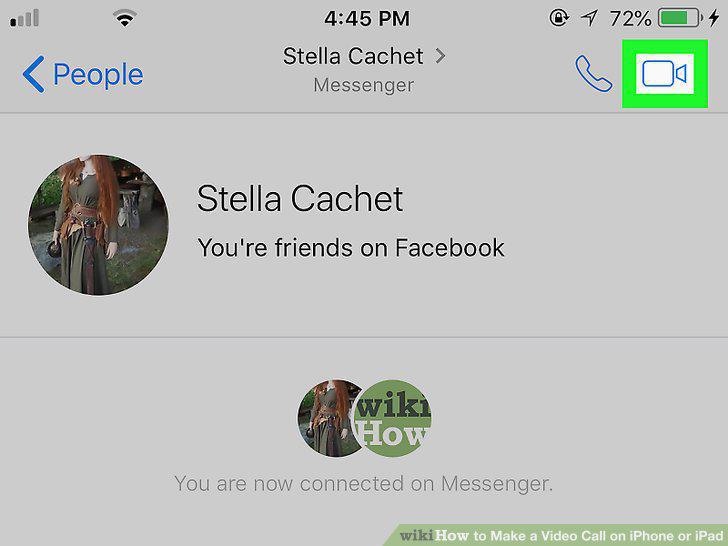
Tap the video camera icon on the top-right.
Open the Google Duo app on your iPhone or iPad.
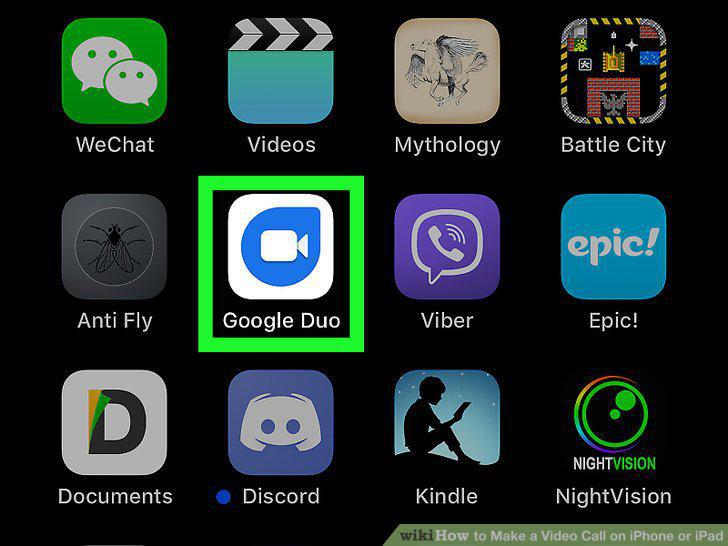
Open the Google Duo app on your iPhone or iPad.
Tap the icon.
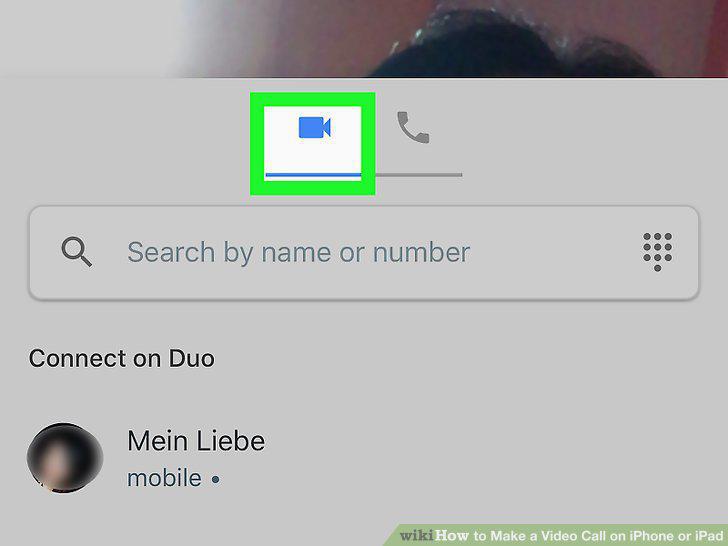
Tap the icon.
Swipe up from the bottom of your screen.
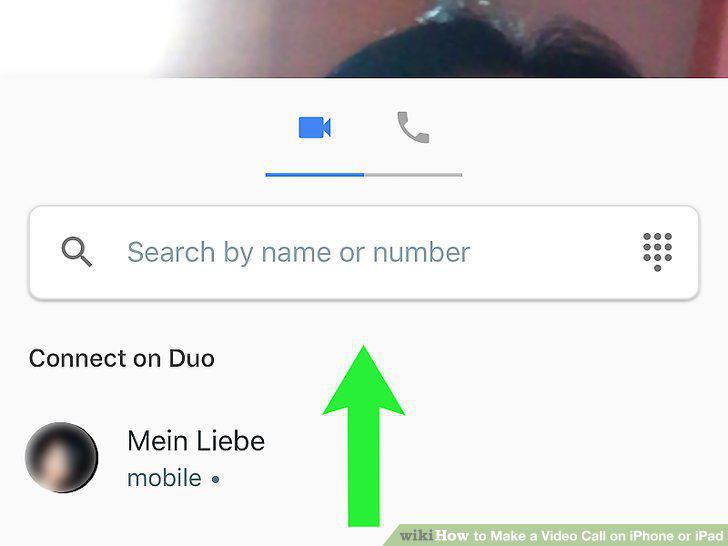
Swipe up from the bottom of your screen.
Tap the contact you want to video call.
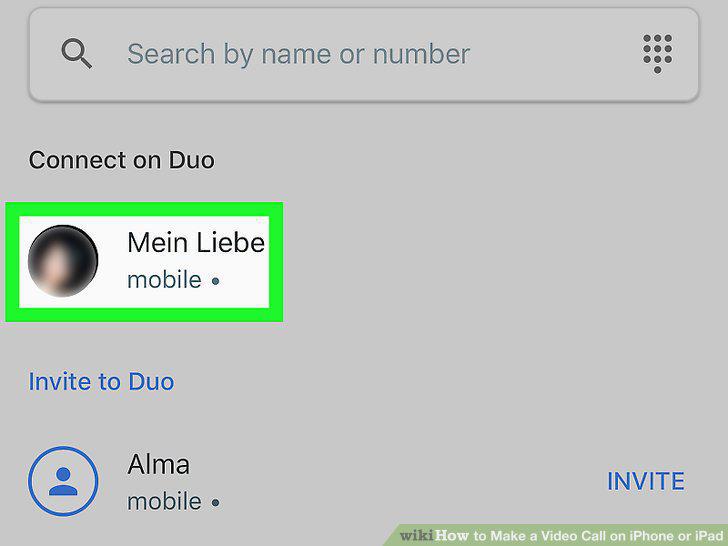
Tap the contact you want to video call.
Open the Viber app on your iPhone or iPad.
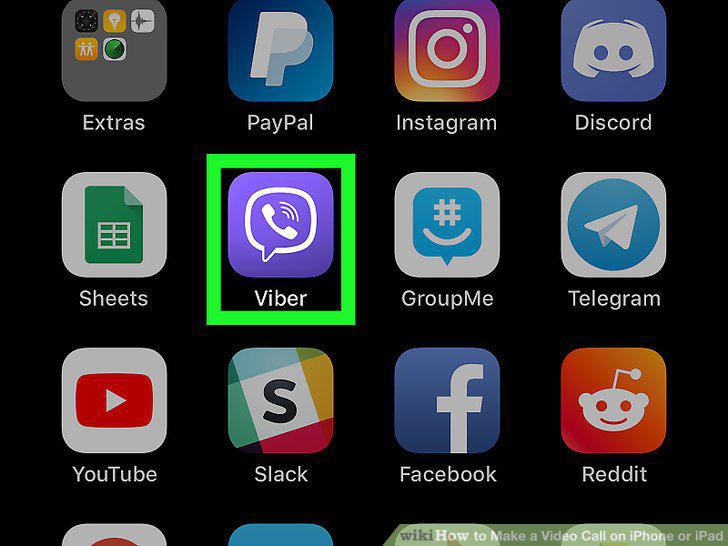
Open the Viber app on your iPhone or iPad.
Tap the Chats tab on the bottom-left.

Tap the Chats tab on the bottom-left.
Tap the person you want to video call.
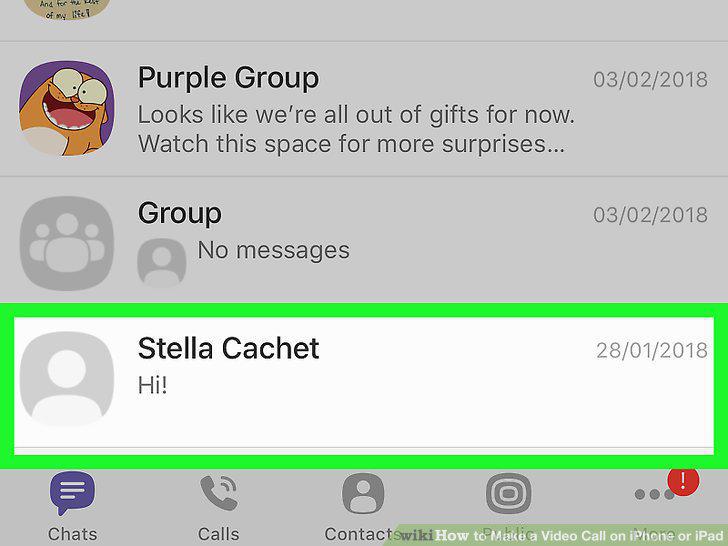
Tap the person you want to video call.
Tap the video camera icon on the top-right.
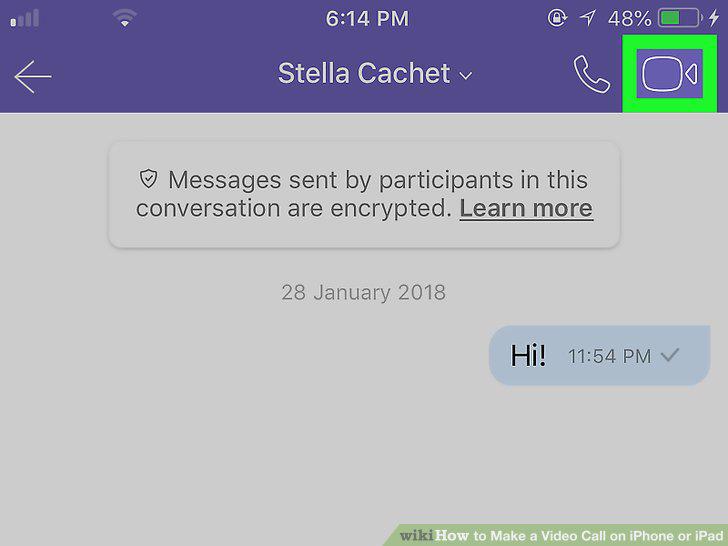
Tap the video camera icon on the top-right.
Comments (0)
No comments yet. Be the first to share your thoughts!