How to Search in Google Sheets on iPhone or iPad
Open the Sheets app on your iPhone or iPad.. Tap the spreadsheet you want to edit.. Tap the three dots icon on the top-right.
Steps
1
Open the Sheets app on your iPhone or iPad.
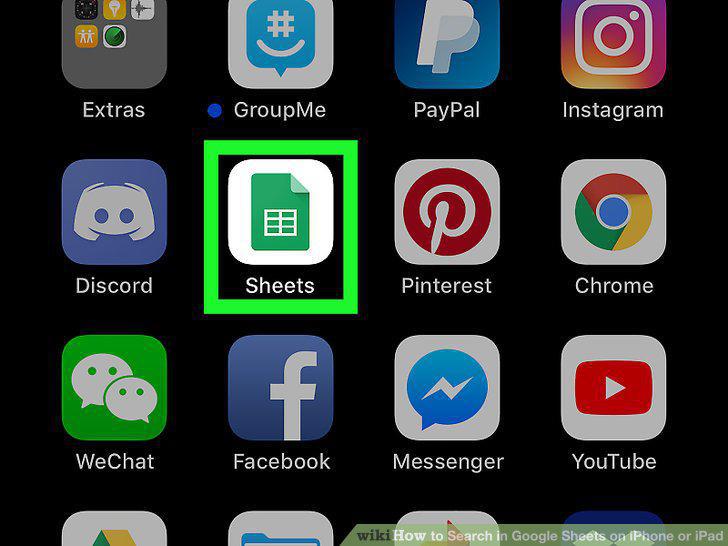
Open the Sheets app on your iPhone or iPad.
2
Tap the spreadsheet you want to edit.
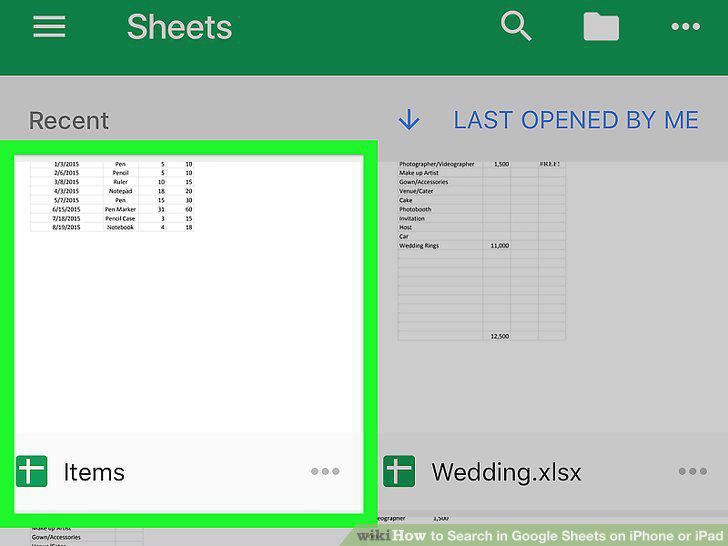
Tap the spreadsheet you want to edit.
3
Tap the three dots icon on the top-right.
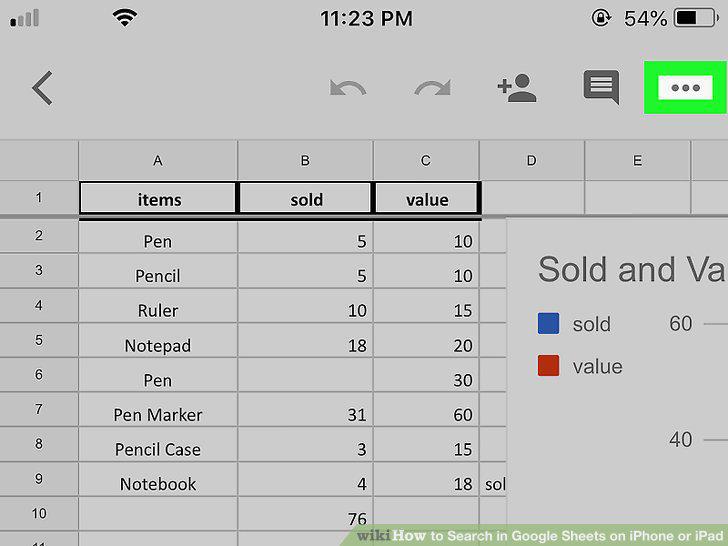
Tap the three dots icon on the top-right.
4
Tap Find and replace on the menu.
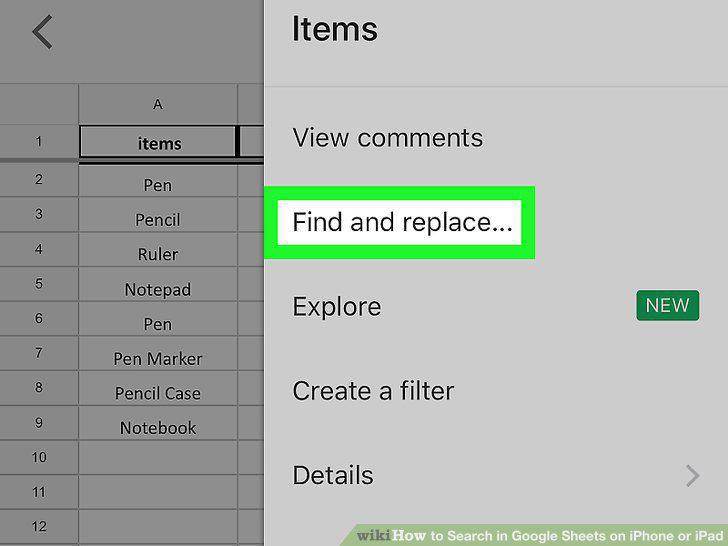
Tap Find and replace on the menu.
5
Tap the Find in document field at the top.
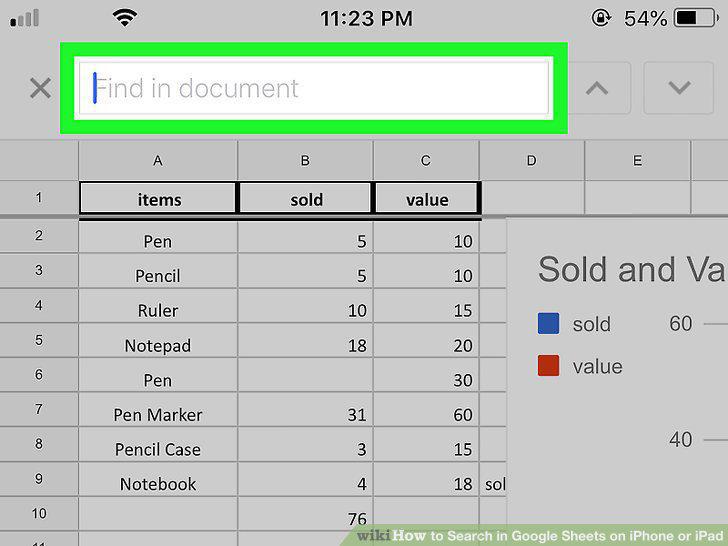
Tap the Find in document field at the top.
6
Enter your search keyword.
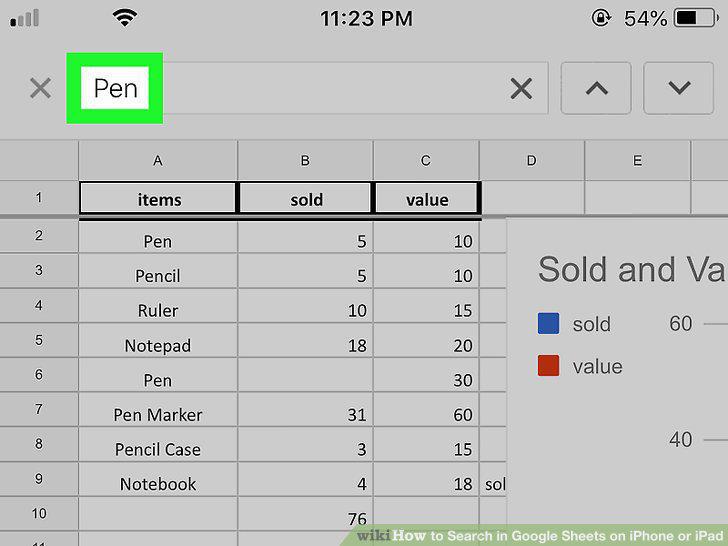
Enter your search keyword.
7
Tap the blue Search button on your keyboard.
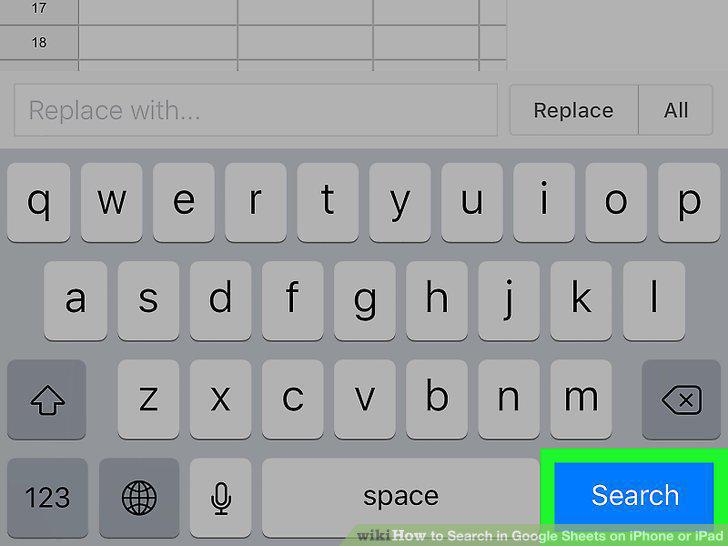
Tap the blue Search button on your keyboard.
8
Use the and icons to browse all the matches.
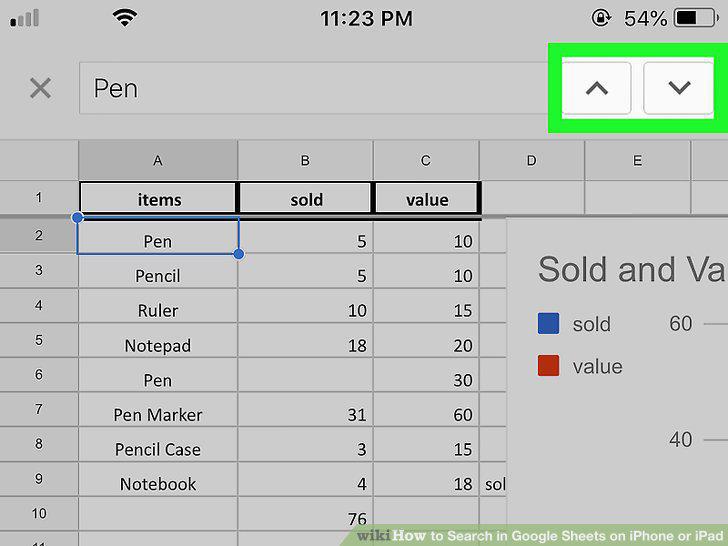
Use the and icons to browse all the matches.
9
Open the Sheets app on your iPhone or iPad.
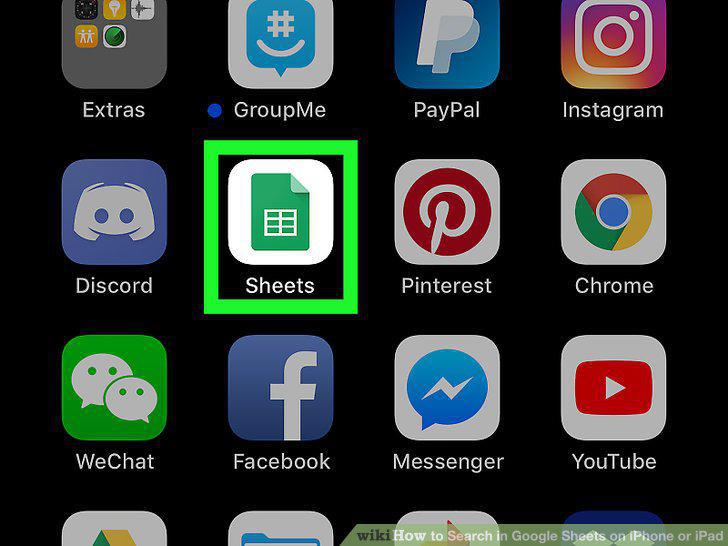
Open the Sheets app on your iPhone or iPad.
10
Tap the icon on the top-right.
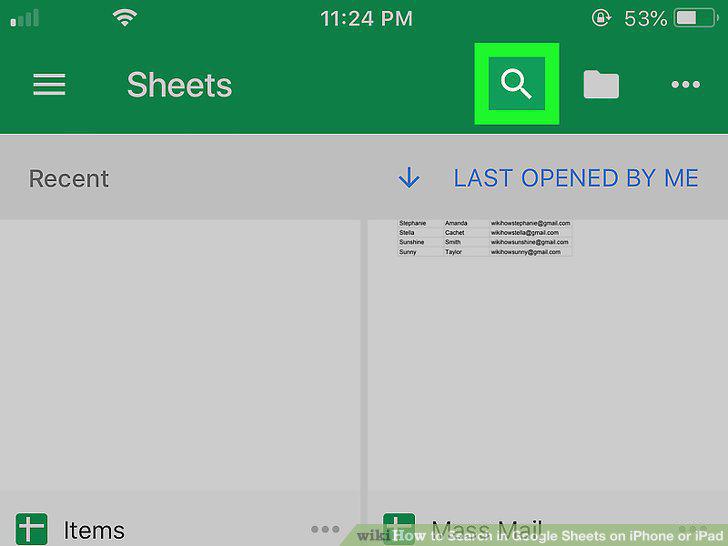
Tap the icon on the top-right.
11
Enter a keyword into the search bar.
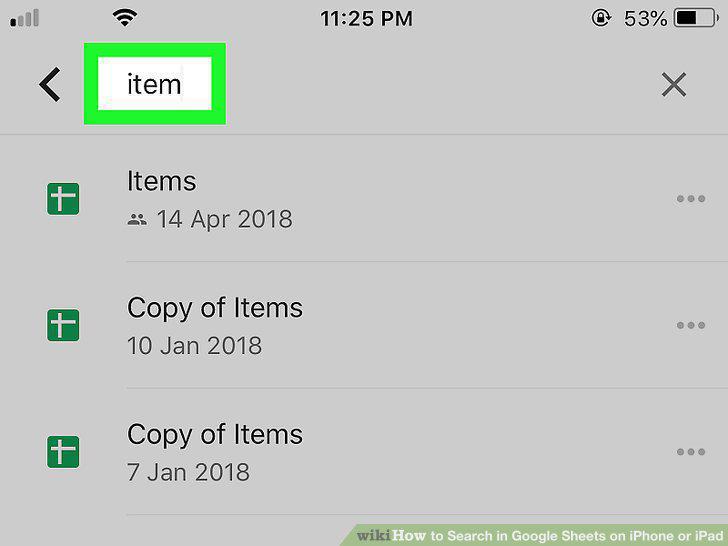
Enter a keyword into the search bar.
12
Tap the blue Done button on your keyboard.
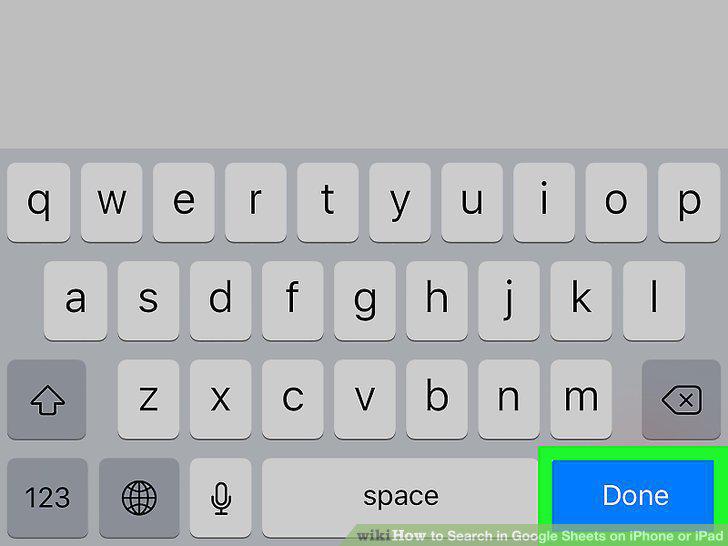
Tap the blue Done button on your keyboard.
13
Tap a spreadsheet to open it.
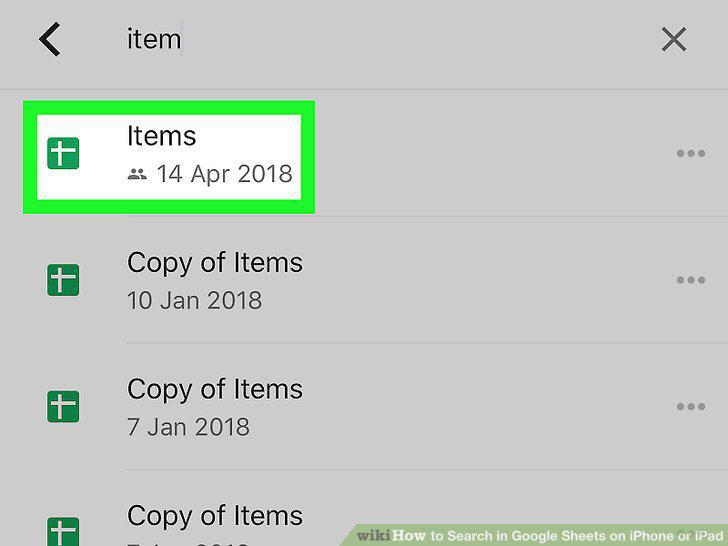
Tap a spreadsheet to open it.
Comments (0)
No comments yet. Be the first to share your thoughts!