How to Stream Your GoPro to Your PC Using VLC Media Player
Turn on your GoPro Wi-Fi.. Connect your PC to the GoPro.. Get the URL of your GoPro stream.
Steps
1
Turn on your GoPro Wi-Fi.
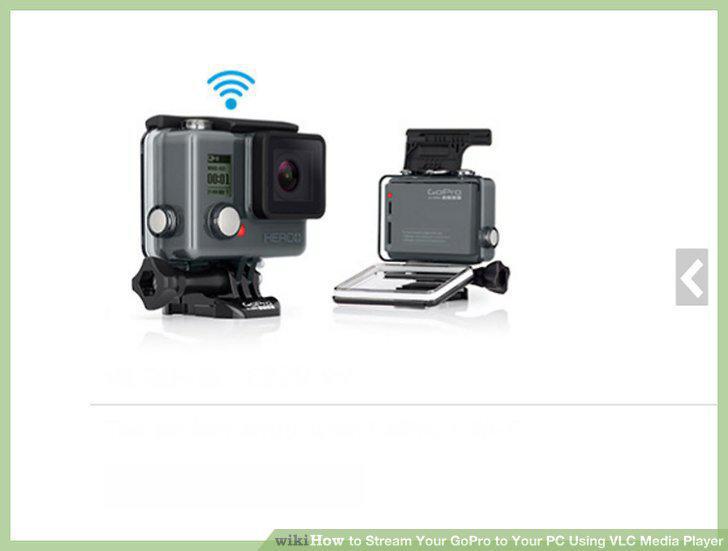
Turn on your GoPro Wi-Fi.
2
Connect your PC to the GoPro.
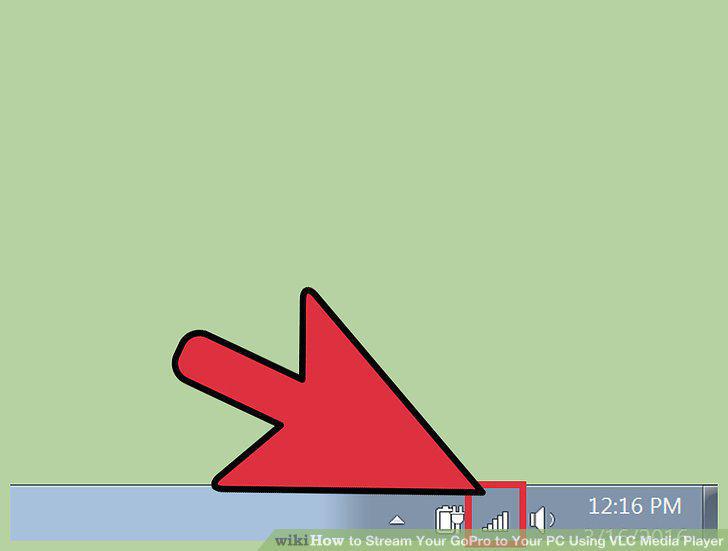
Connect your PC to the GoPro.
3
Get the URL of your GoPro stream.
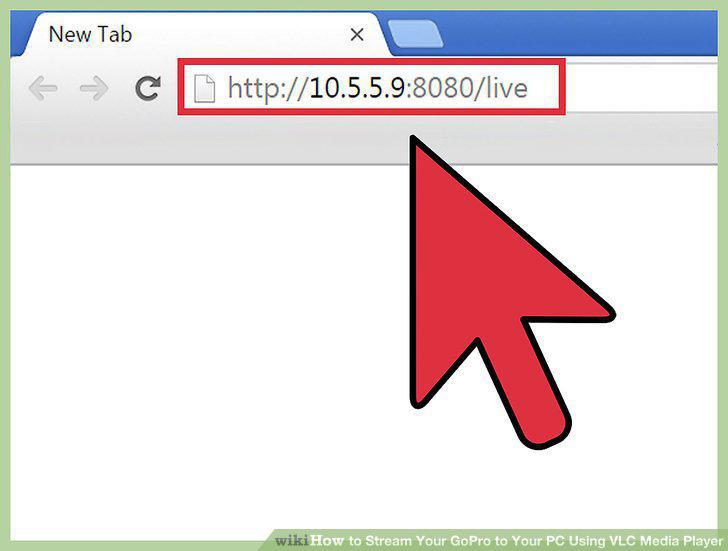
Get the URL of your GoPro stream.
4
Configure VLC Media Player.
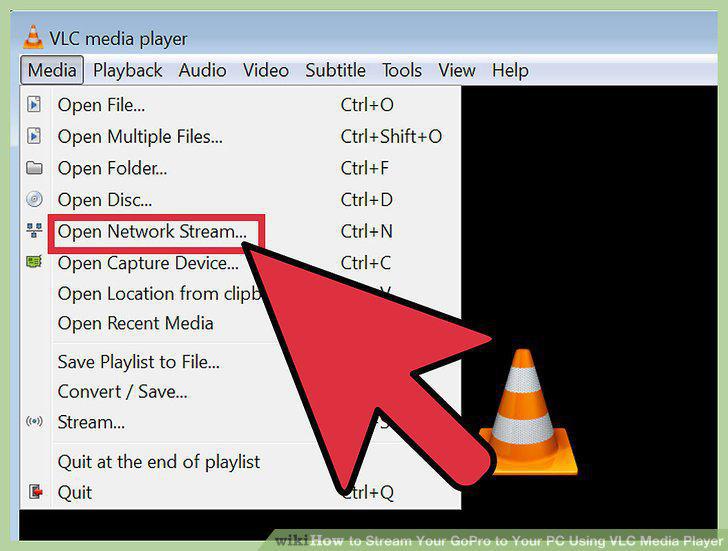
Configure VLC Media Player.
5
View your live stream.
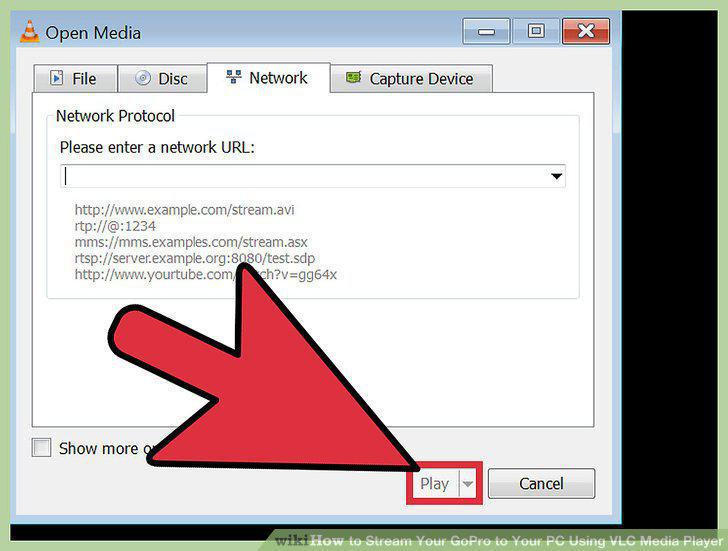
View your live stream.
6
Download and Install Camera Suite from camerasuite.org.
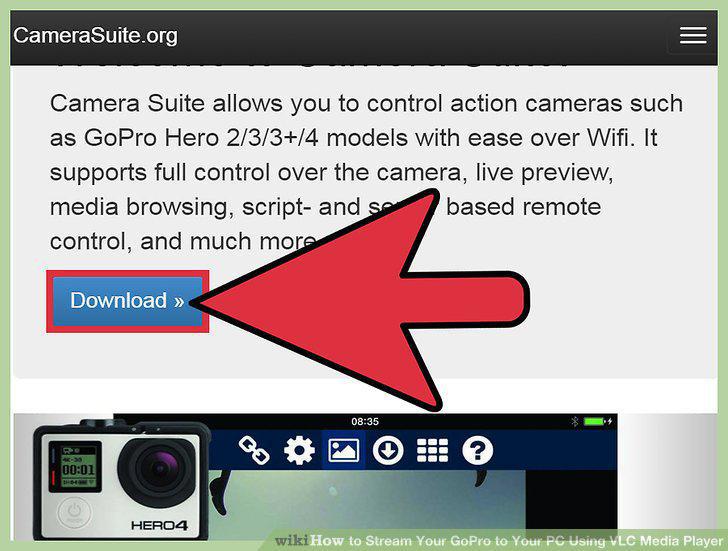
Download and Install Camera Suite from camerasuite.org.
7
Create a new connection in your GoPro.
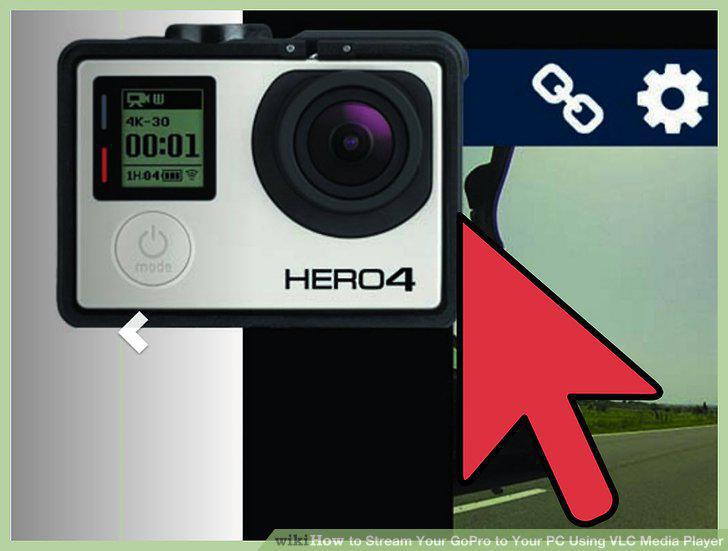
Create a new connection in your GoPro.
8
Pair your PC with GoPro.
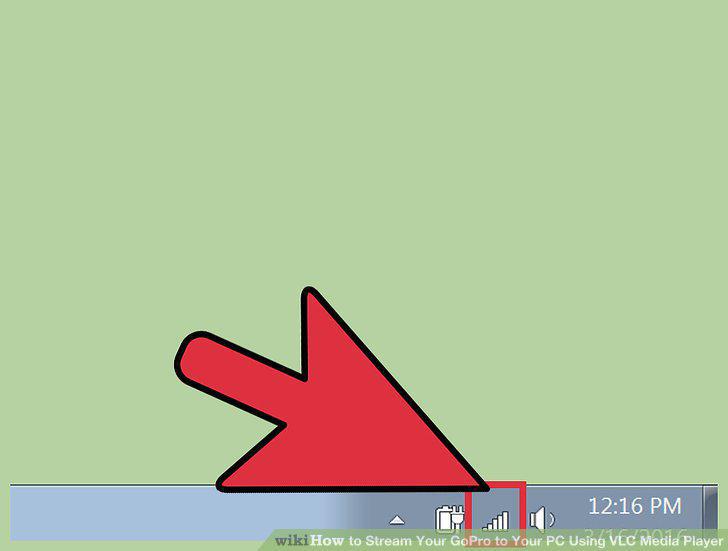
Pair your PC with GoPro.
9
Run the video streamer.
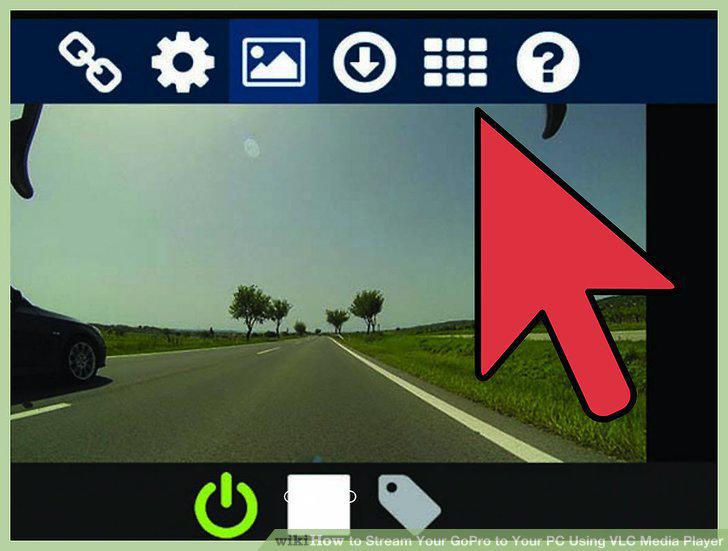
Run the video streamer.
10
Configure VLC Media Player.
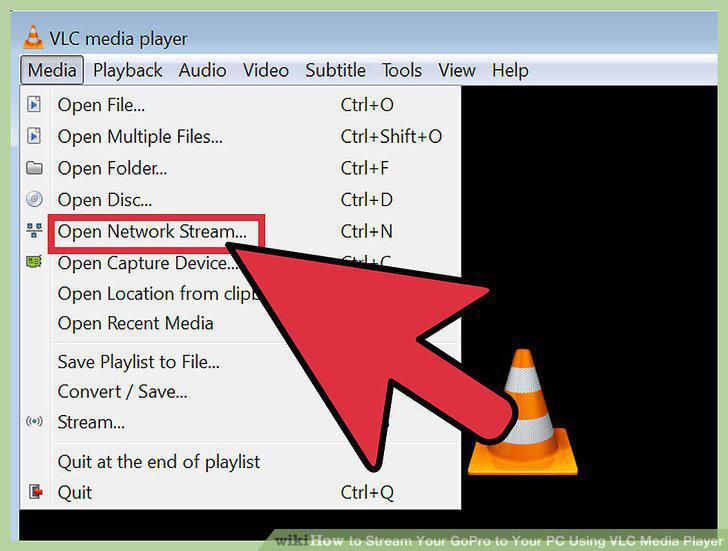
Configure VLC Media Player.
11
View your live stream.
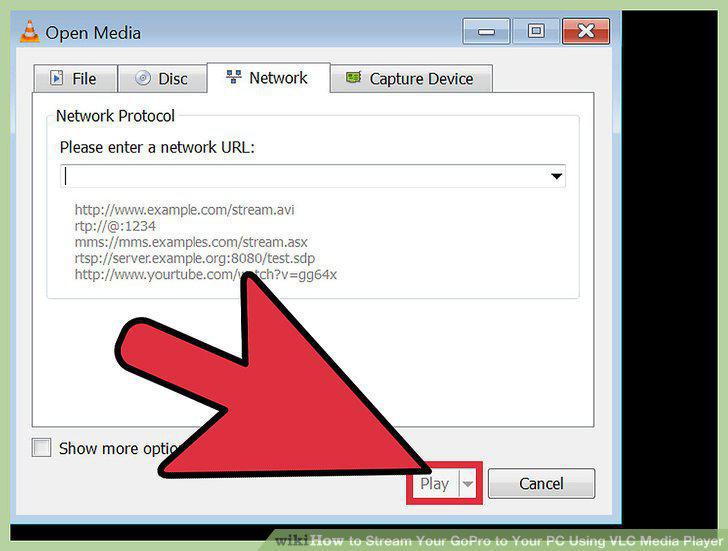
View your live stream.
12
Find another PC media player.
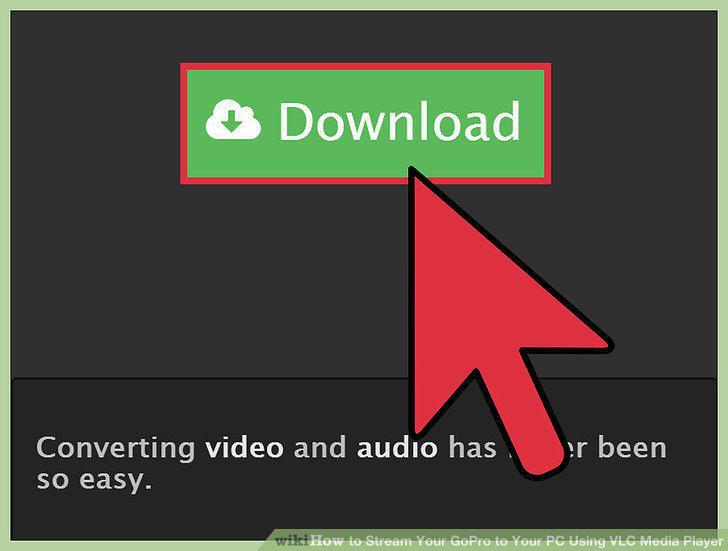
Find another PC media player.
13
Stream to your mobile device.
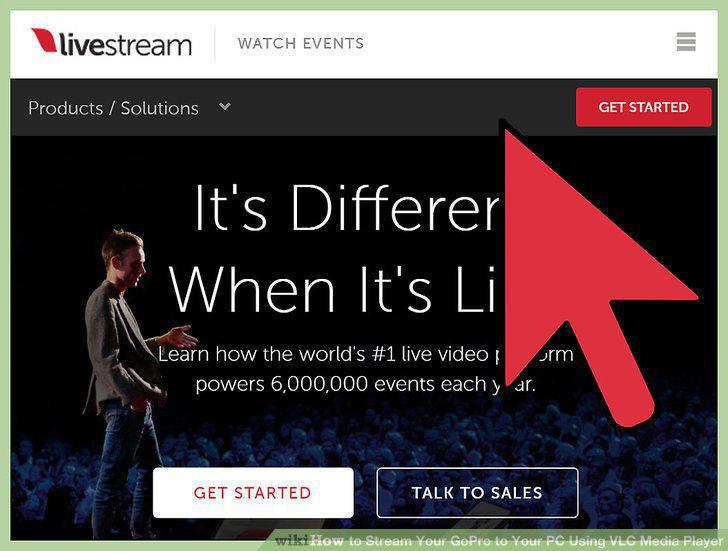
Stream to your mobile device.
14
Try a PC webcam.
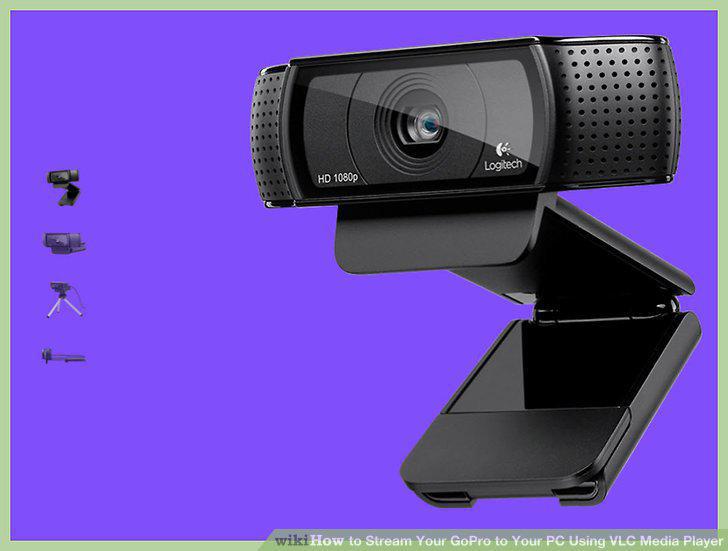
Try a PC webcam.
Comments (0)
No comments yet. Be the first to share your thoughts!