How to Print Mirror Image
Open the photo or graphic in Preview.. Click the Tools menu.. Click Flip Horizontal on the menu.
Steps
Open the photo or graphic in Preview.
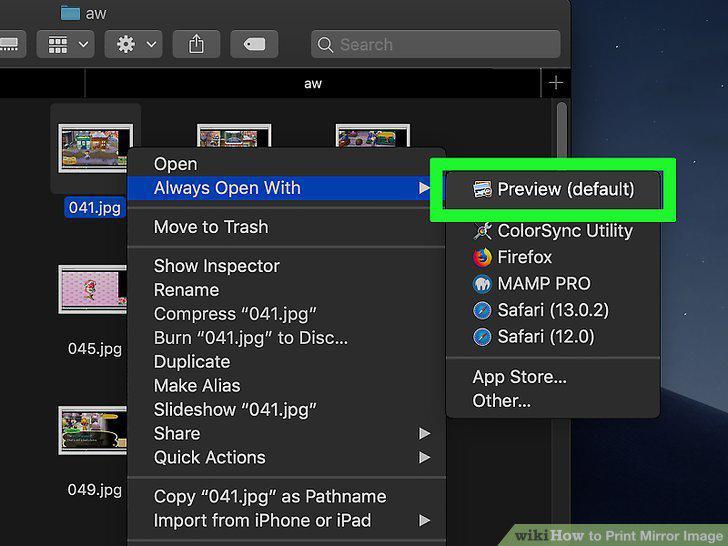
Open the photo or graphic in Preview.
Click the Tools menu.
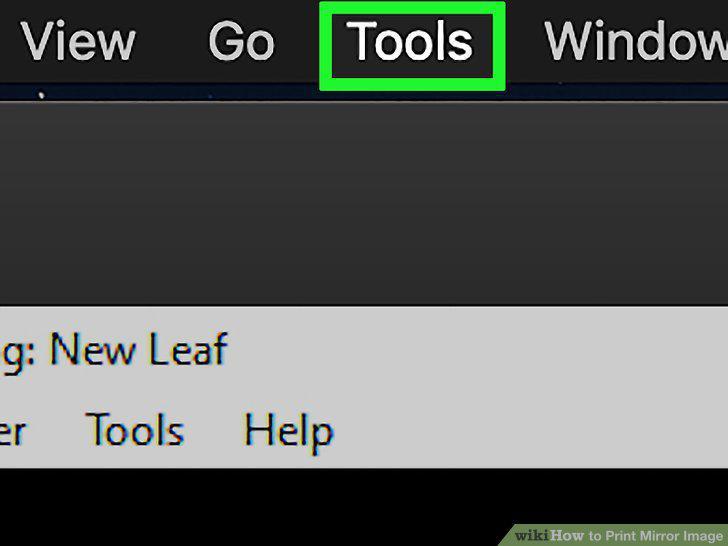
Click the Tools menu.
Click Flip Horizontal on the menu.
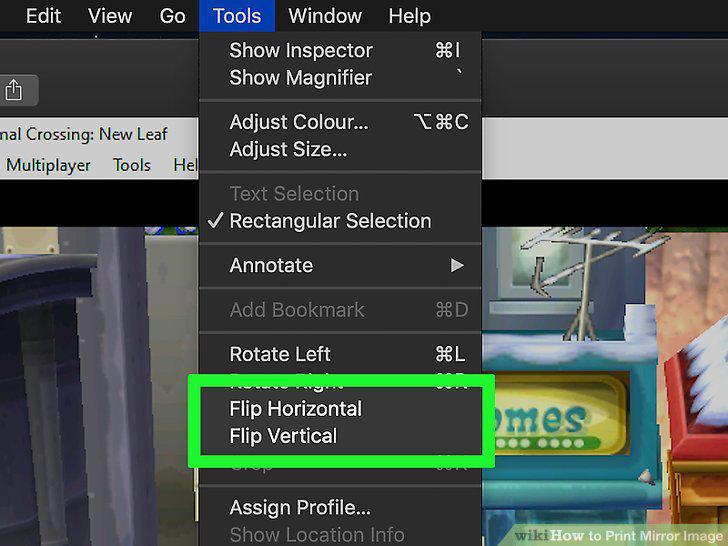
Click Flip Horizontal on the menu.
Print your image.
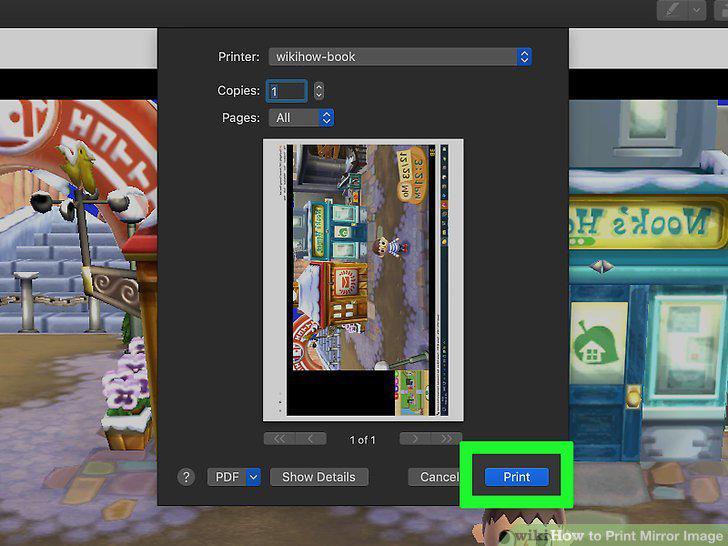
Print your image.
Open the photo or graphic in Microsoft Photos.
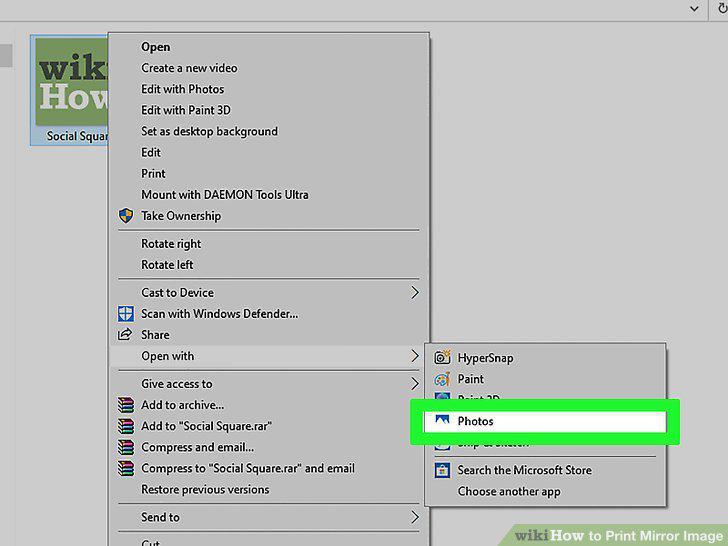
Open the photo or graphic in Microsoft Photos.
Click Edit & Create.
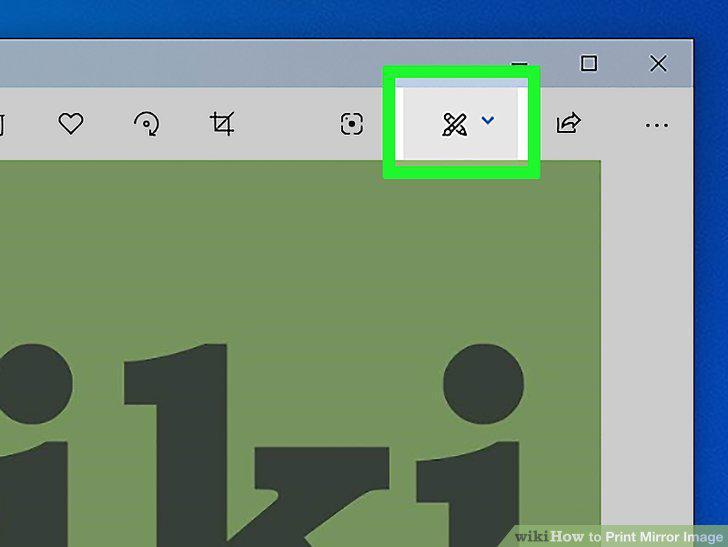
Click Edit & Create.
Click Edit at the top of the menu.
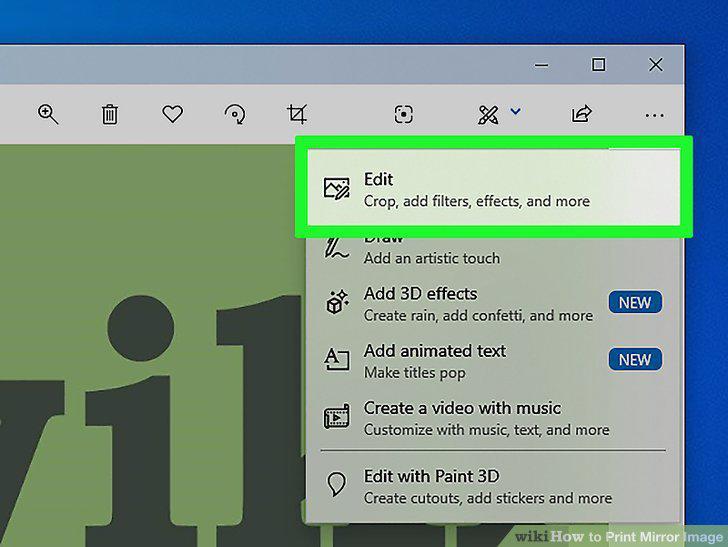
Click Edit at the top of the menu.
Click Flip on the right panel.
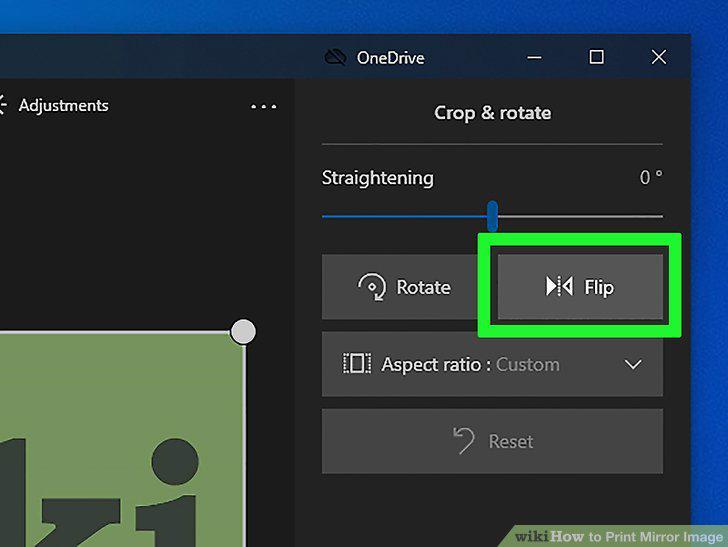
Click Flip on the right panel.
Click the Save a copy button.
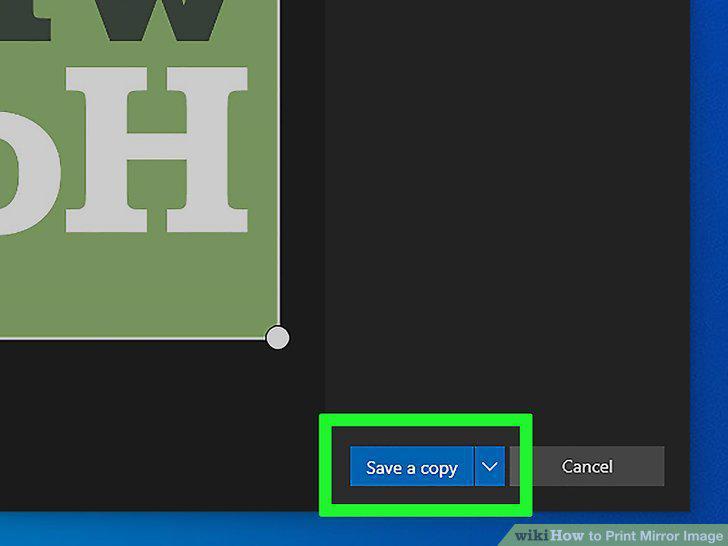
Click the Save a copy button.
Print your image.
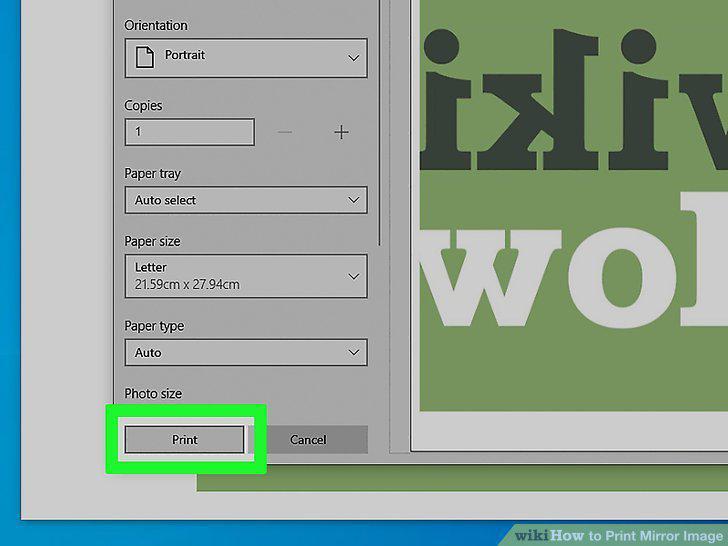
Print your image.
Insert your text into a text box.
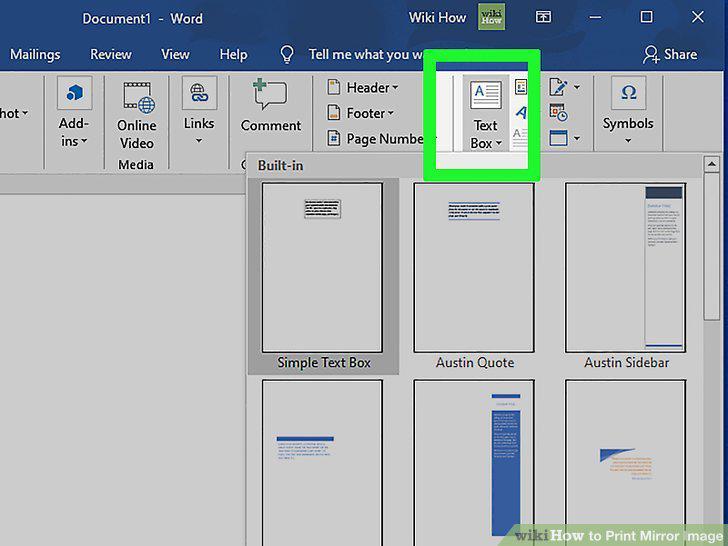
Insert your text into a text box.
Right-click the image or text box you want to mirror.
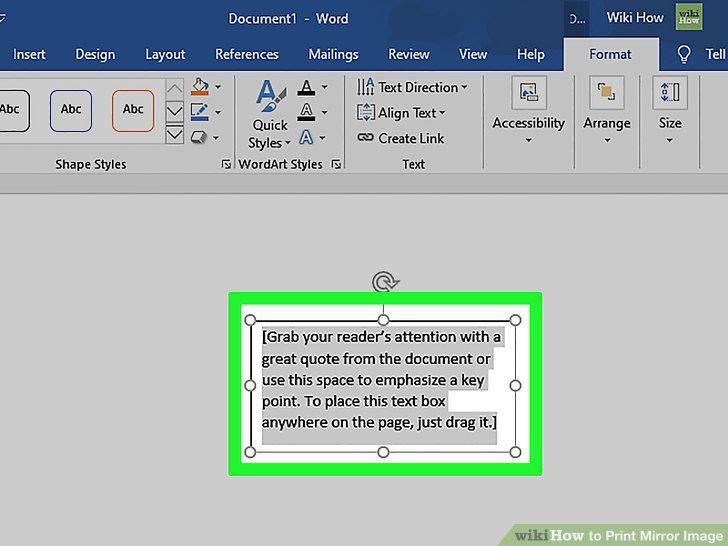
Right-click the image or text box you want to mirror.
Click Format Shape on the menu.
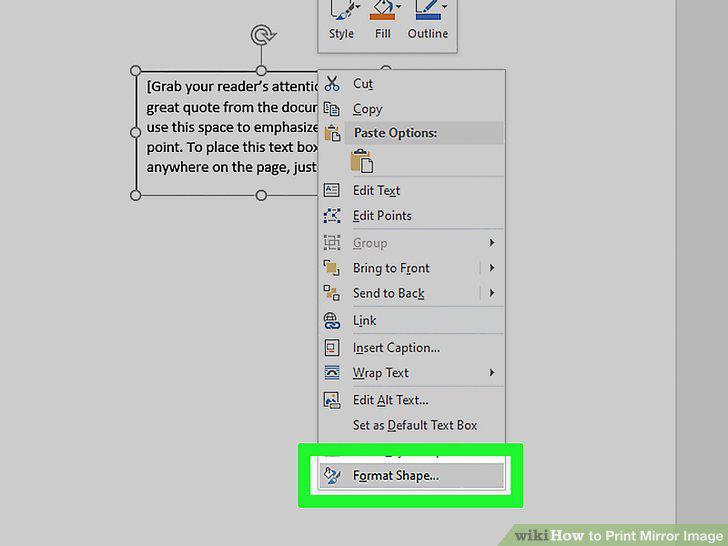
Click Format Shape on the menu.
Click Effects (2013 and later) or 3-D Rotation (2010).
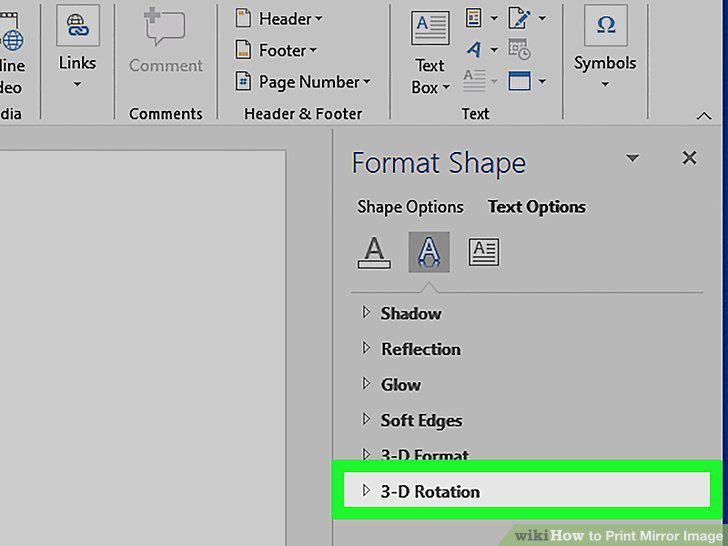
Click Effects (2013 and later) or 3-D Rotation (2010).
Type 180 into the "X Rotation" box.
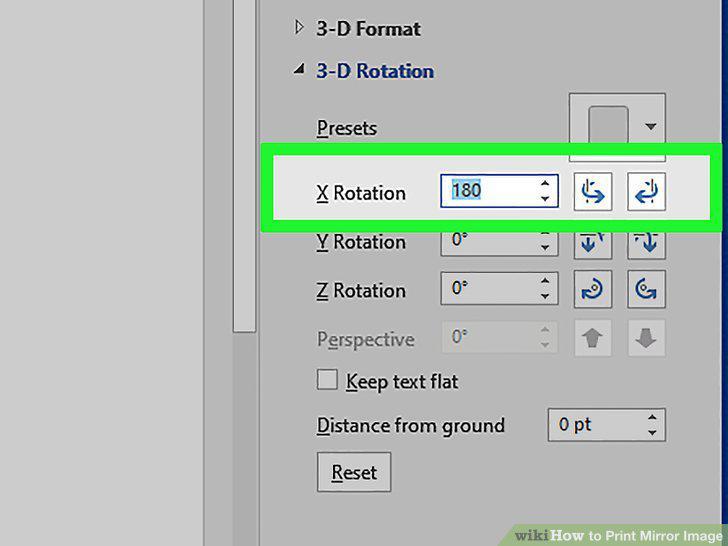
Type 180 into the "X Rotation" box.
Print your document.
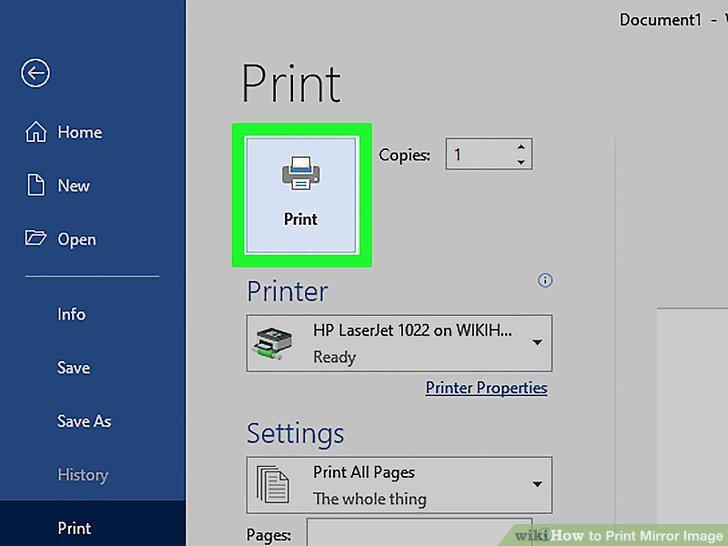
Print your document.
Choose the Print option in your desired program.
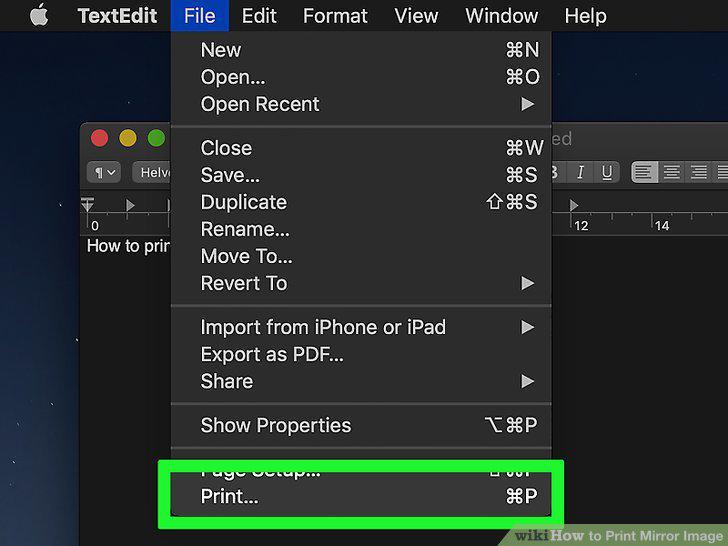
Choose the Print option in your desired program.
Select the printer you want to use.
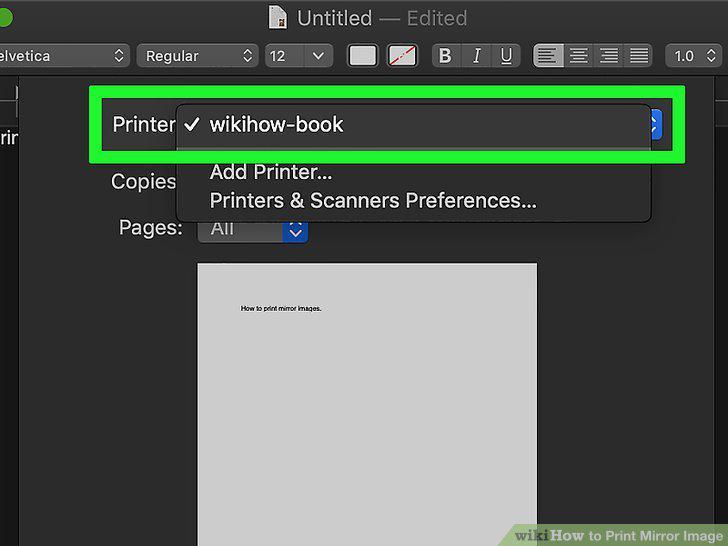
Select the printer you want to use.
Click Show Details if you see it.
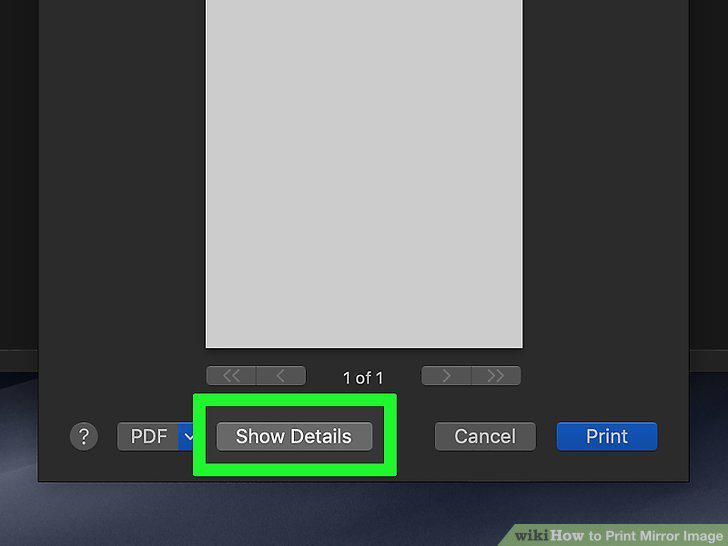
Click Show Details if you see it.
Select Layout on the unnamed menu.
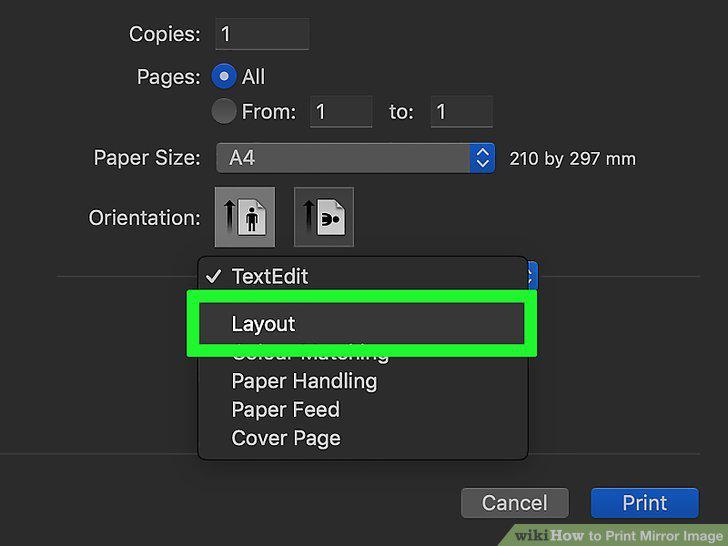
Select Layout on the unnamed menu.
Select Flip Horizontally.
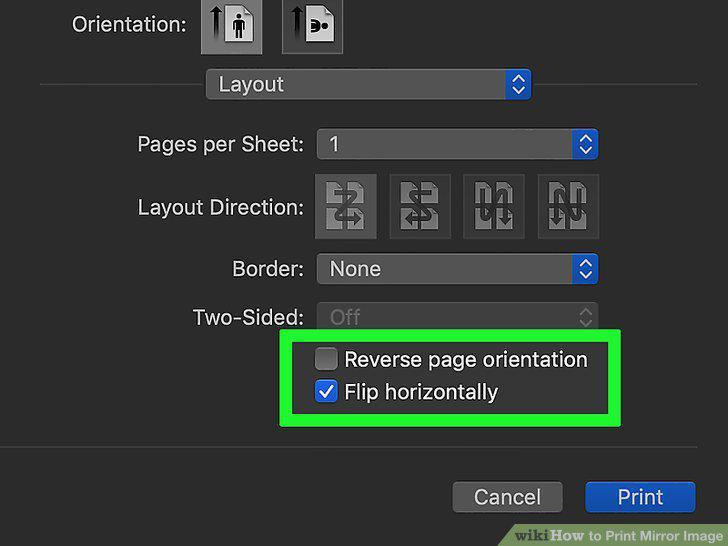
Select Flip Horizontally.
Print the document.
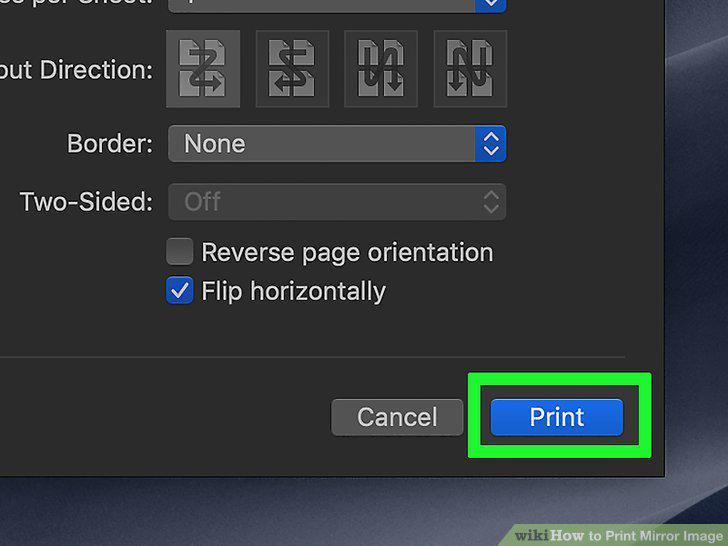
Print the document.
Choose the Print option in your desired program.
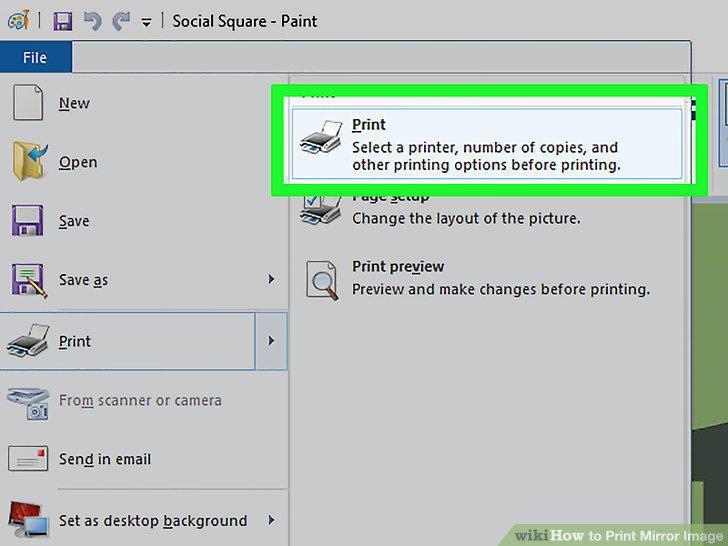
Choose the Print option in your desired program.
Select the printer you'd like to use.
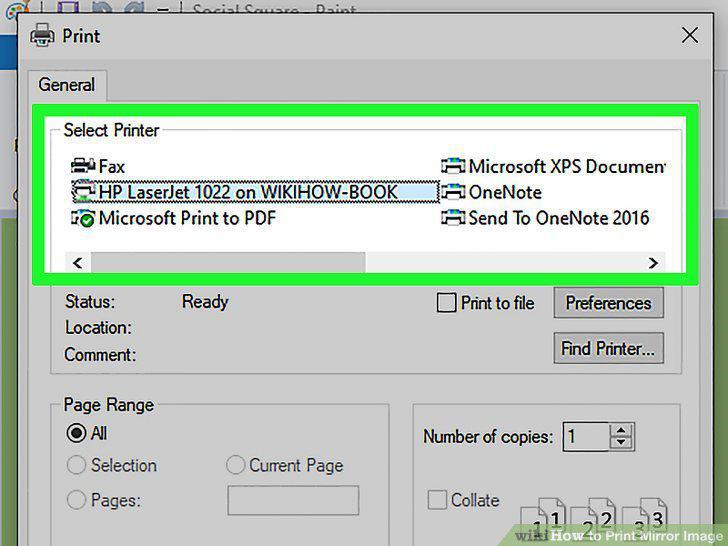
Select the printer you'd like to use.
Click Printer Properties on the print screen.
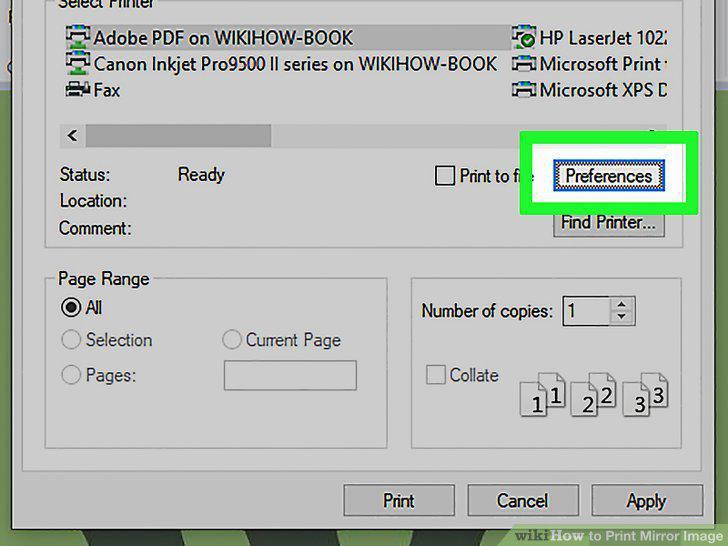
Click Printer Properties on the print screen.
Look for a "Mirror" or "Flip Horizontally" option.
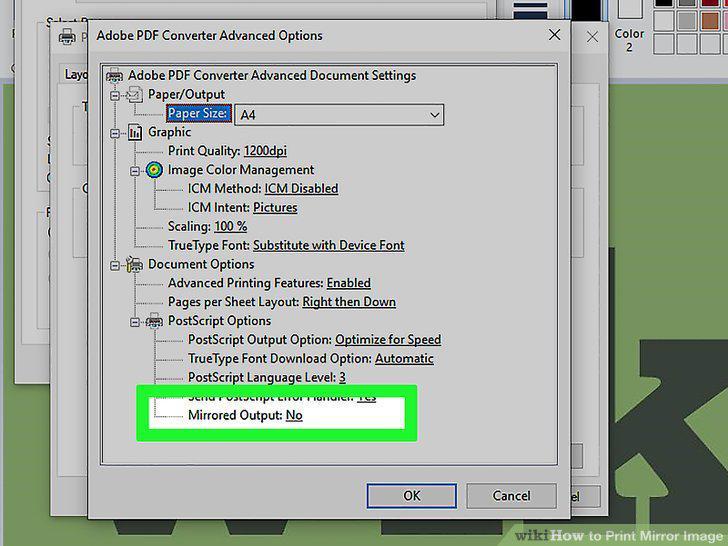
Look for a "Mirror" or "Flip Horizontally" option.
Click Advanced if there's no mirror option.
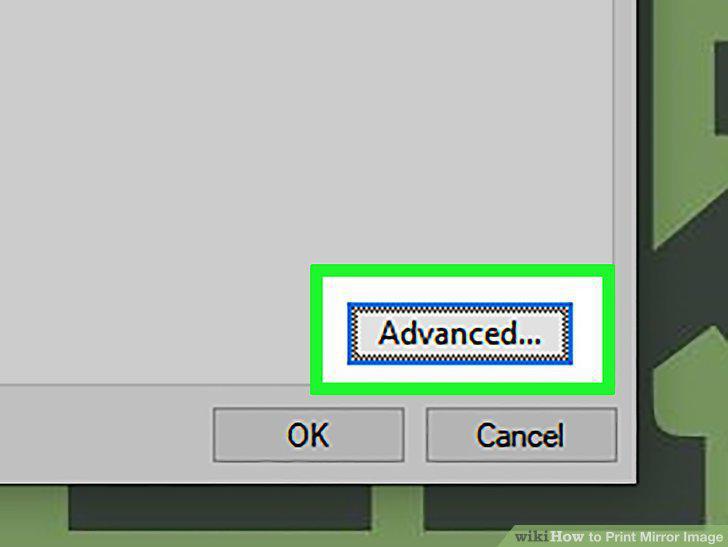
Click Advanced if there's no mirror option.
Select the "Mirrored" or "Flip Horizontally" option if displayed.
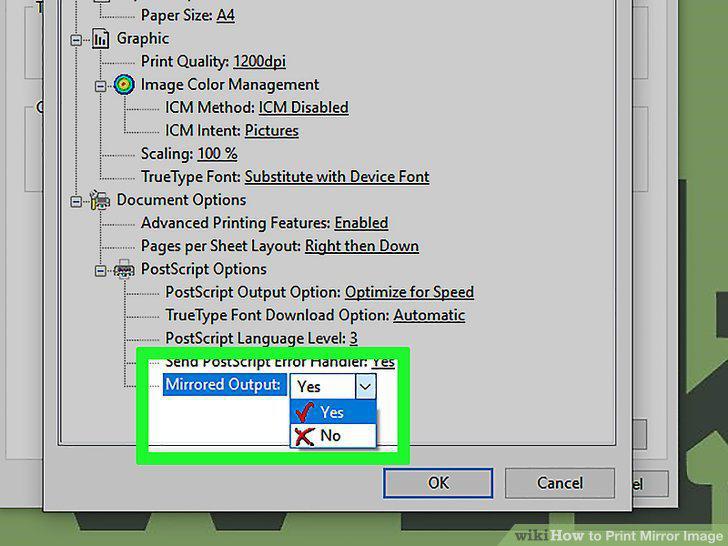
Select the "Mirrored" or "Flip Horizontally" option if displayed.
Click OK to save your changes.
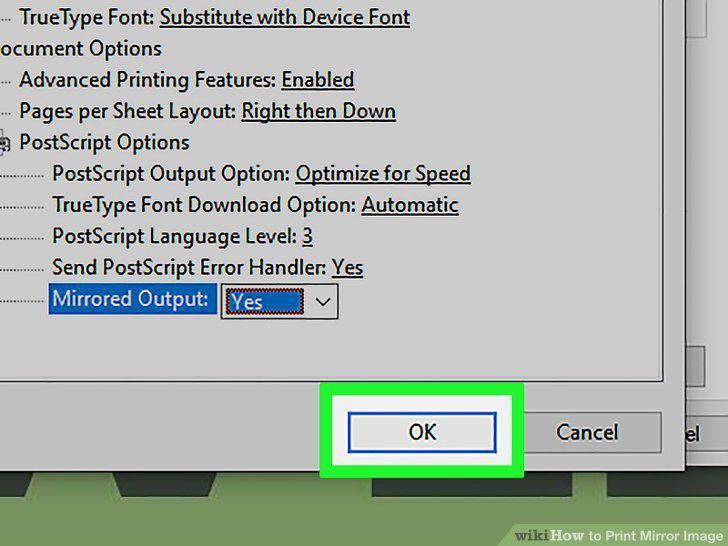
Click OK to save your changes.
Click OK again to close your print settings.
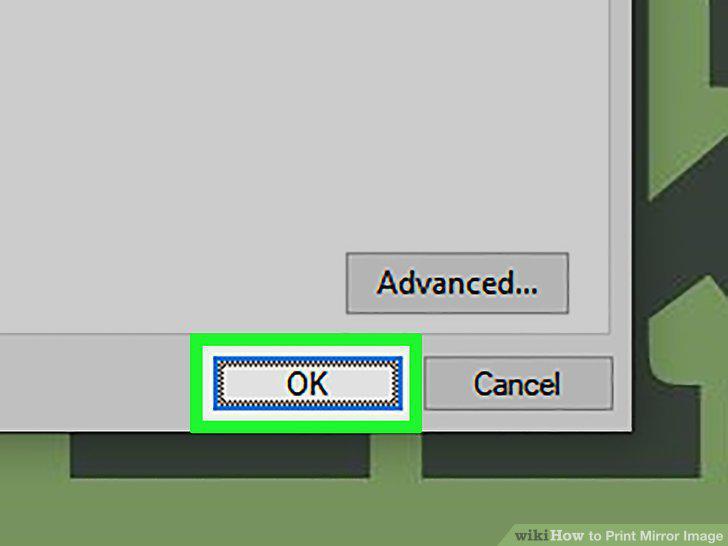
Click OK again to close your print settings.
Choose your print preferences and click Print.
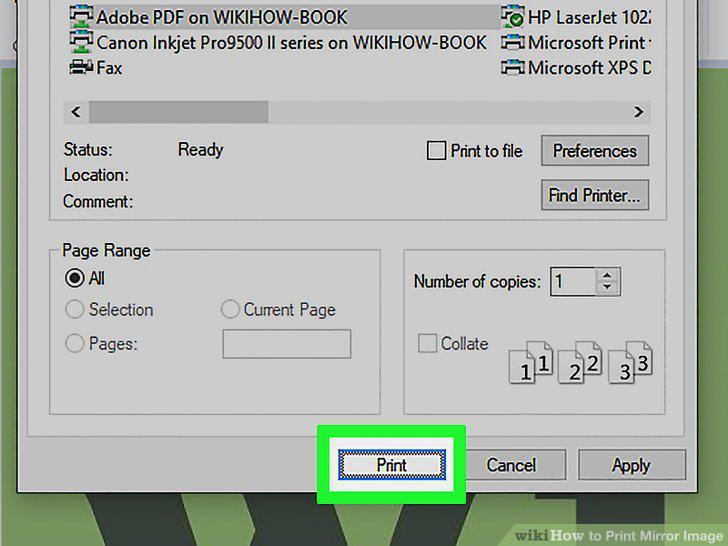
Choose your print preferences and click Print.
Disable mirrored printing.
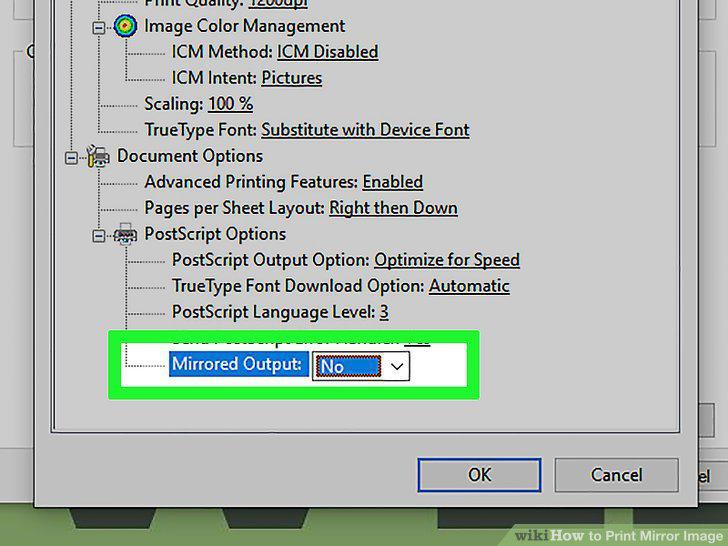
Disable mirrored printing.
Click the object you want to flip.
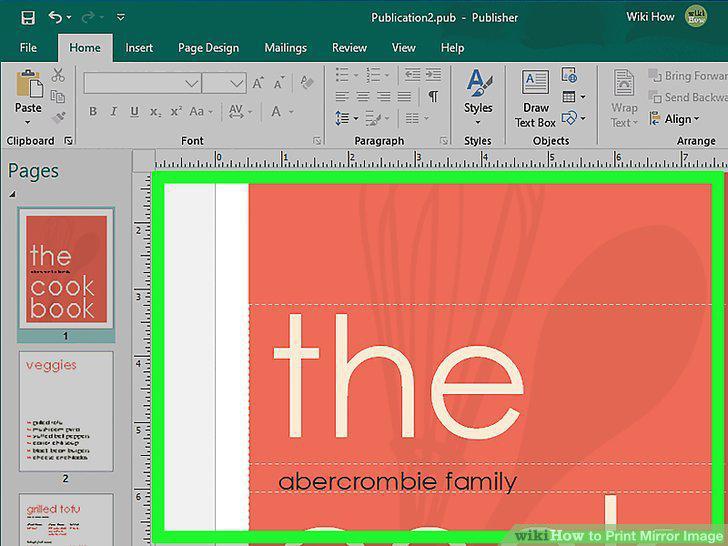
Click the object you want to flip.
Click the Arrange menu.
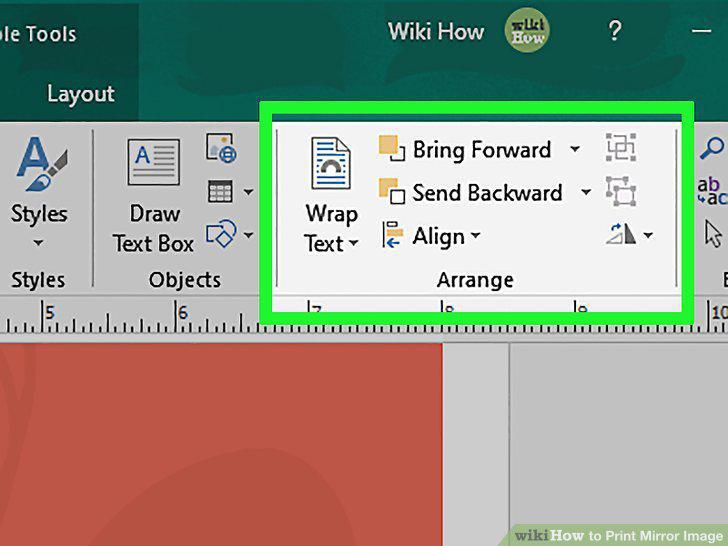
Click the Arrange menu.
Select Rotate or Flip on the menu.
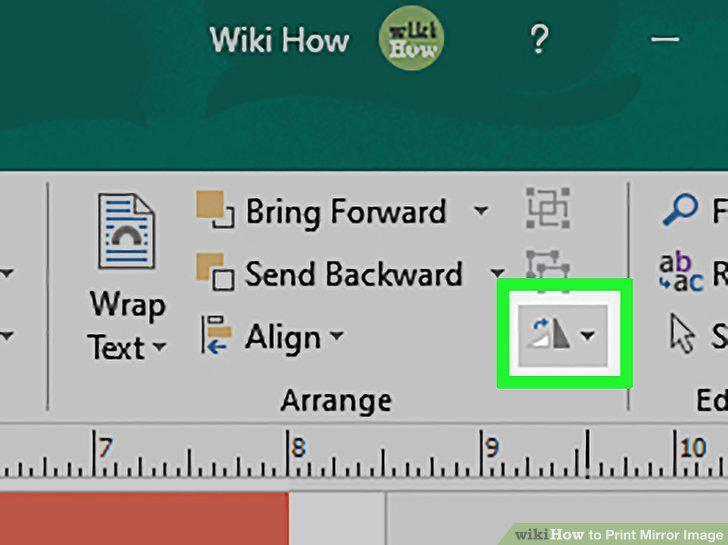
Select Rotate or Flip on the menu.
Click Flip Horizontal.
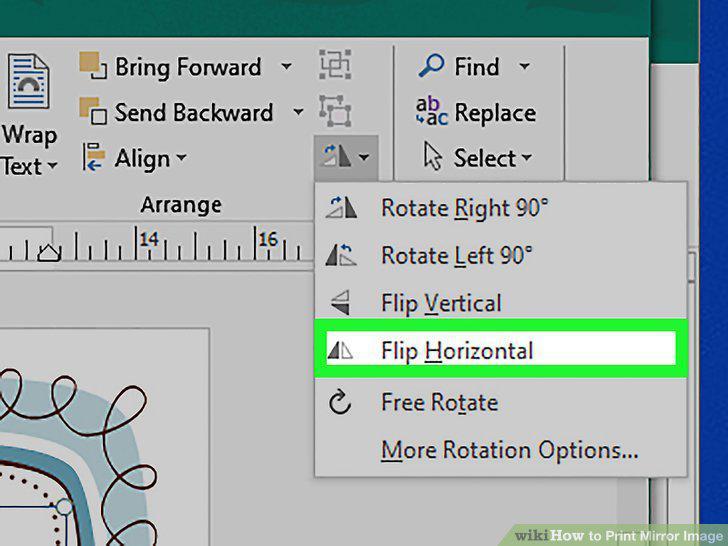
Click Flip Horizontal.
Print your document.
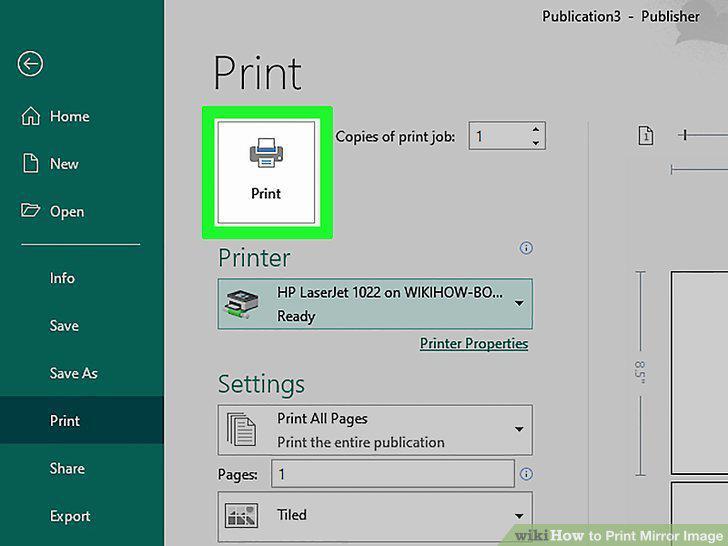
Print your document.
Comments (0)
No comments yet. Be the first to share your thoughts!