How to Add Captions on Google Photos on iPhone or iPad
Open the Google Photos app on your iPhone or iPad.. Tap the Photos tab.. Tap the image you want to edit.
Steps
1
Open the Google Photos app on your iPhone or iPad.
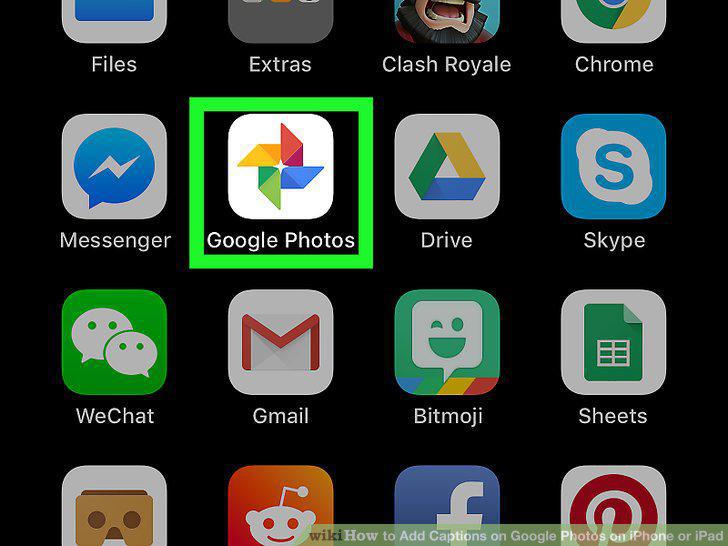
Open the Google Photos app on your iPhone or iPad.
2
Tap the Photos tab.
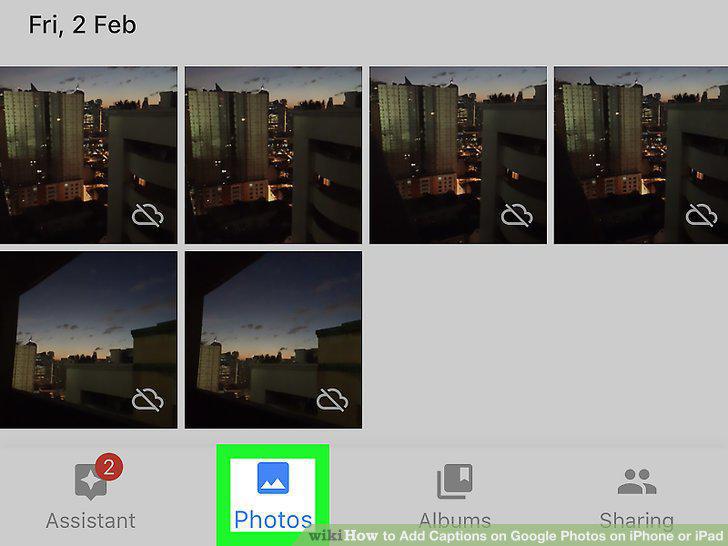
Tap the Photos tab.
3
Tap the image you want to edit.
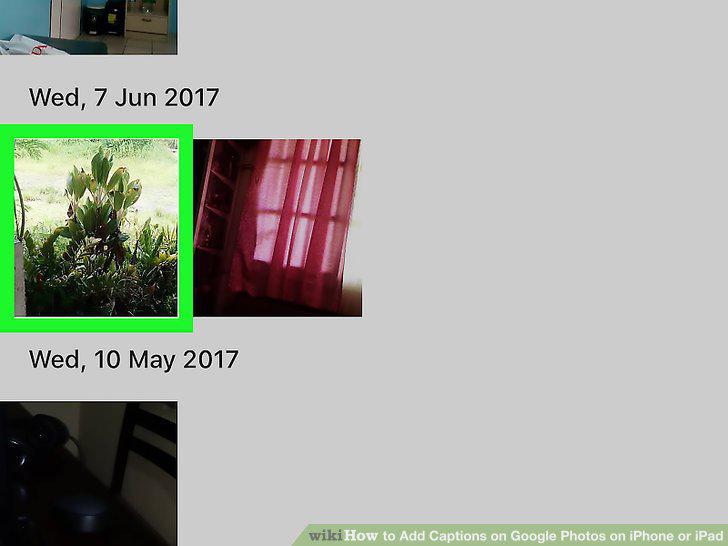
Tap the image you want to edit.
4
Tap the icon at the bottom.
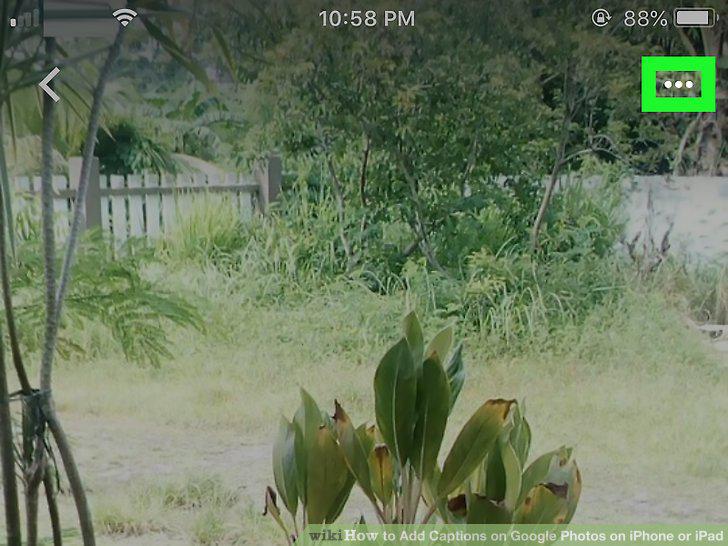
Tap the icon at the bottom.
5
Tap the Add a description field.
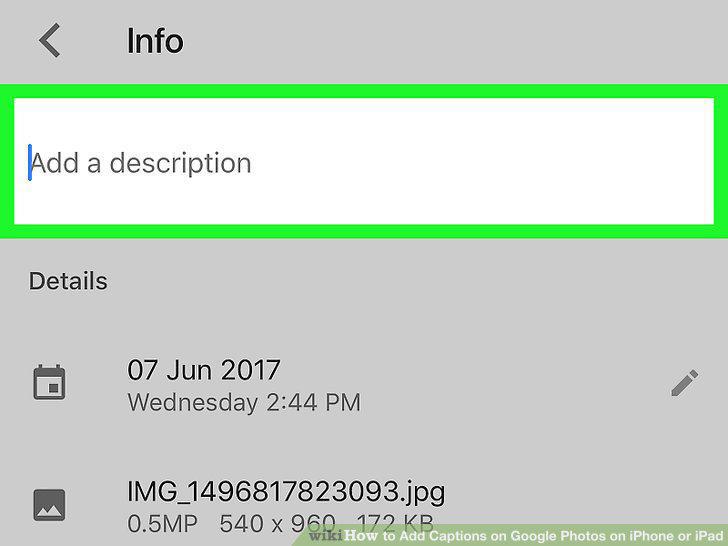
Tap the Add a description field.
6
Enter a description or caption for your image.
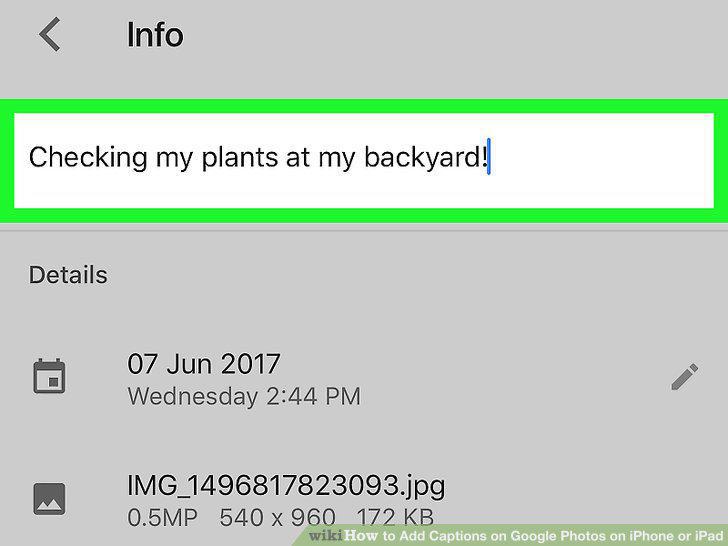
Enter a description or caption for your image.
7
Tap the icon on the top-left.
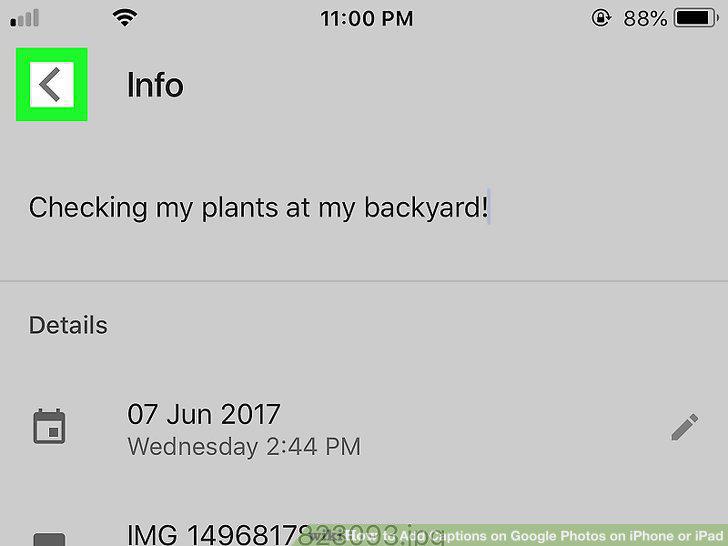
Tap the icon on the top-left.
Comments (0)
No comments yet. Be the first to share your thoughts!