How to Check for and Install Updates on a Mac Computer
Click the Apple menu and select "App Store.". Click the "Updates" tab.. Click "Update" next to any available update to install it.
Steps
Click the Apple menu and select "App Store."
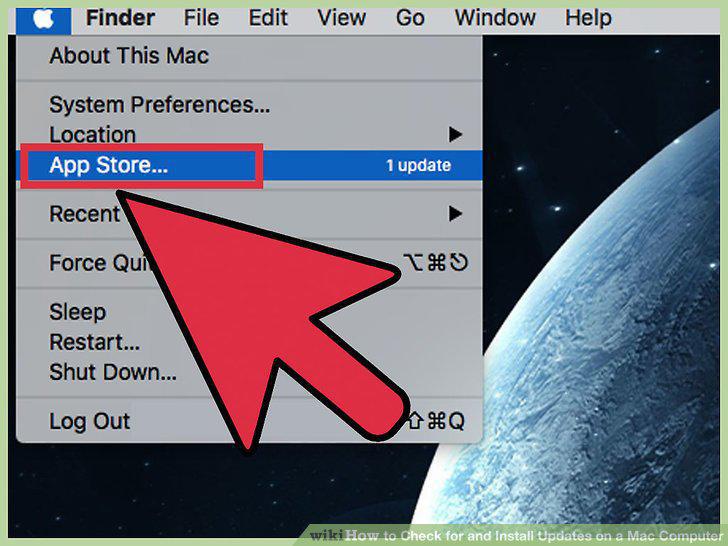
Click the Apple menu and select "App Store."
Click the "Updates" tab.
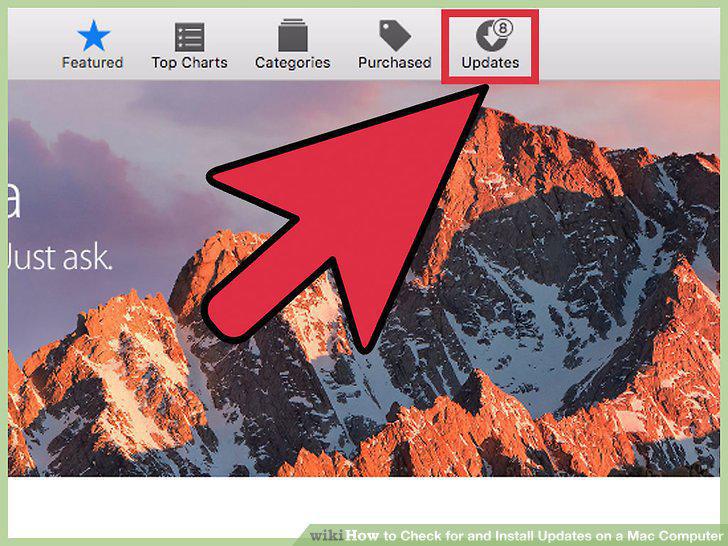
Click the "Updates" tab.
Click "Update" next to any available update to install it.
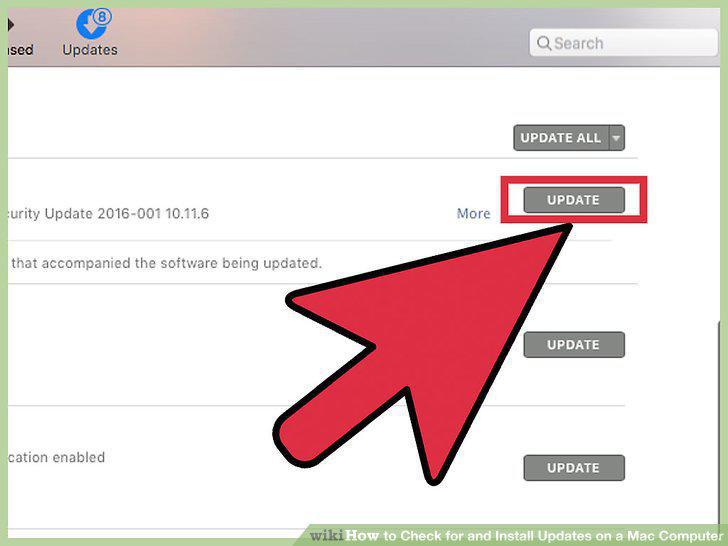
Click "Update" next to any available update to install it.
Click "Update All" to download and install every available update.
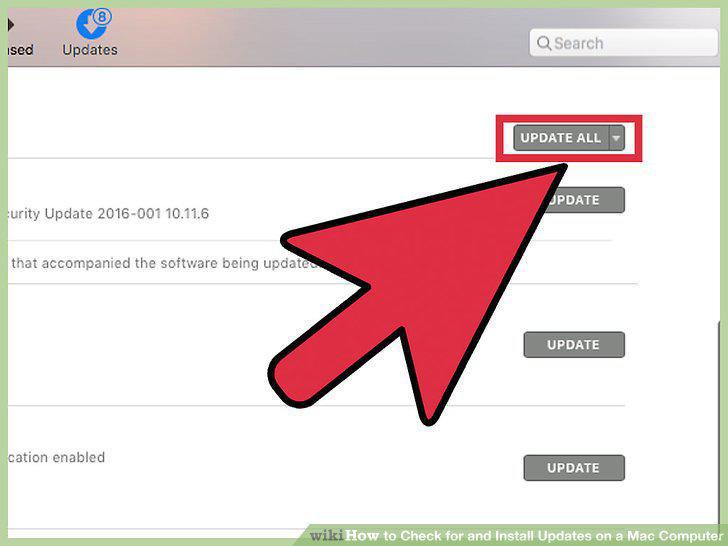
Click "Update All" to download and install every available update.
Check for updates after installing the updates you had available.
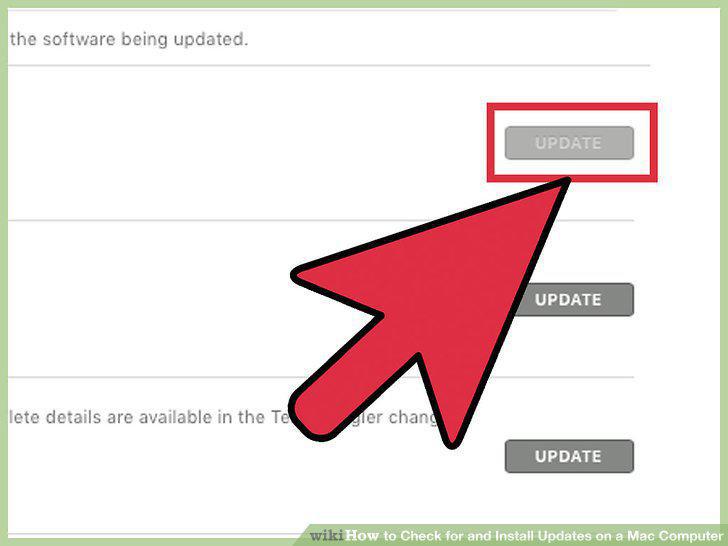
Check for updates after installing the updates you had available.
Open the Apple menu and select "System Preferences."
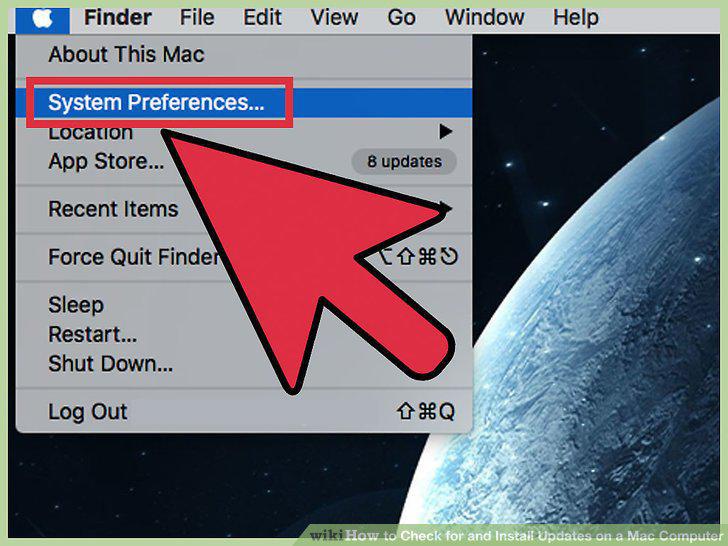
Open the Apple menu and select "System Preferences."
Click the "App Store" option.
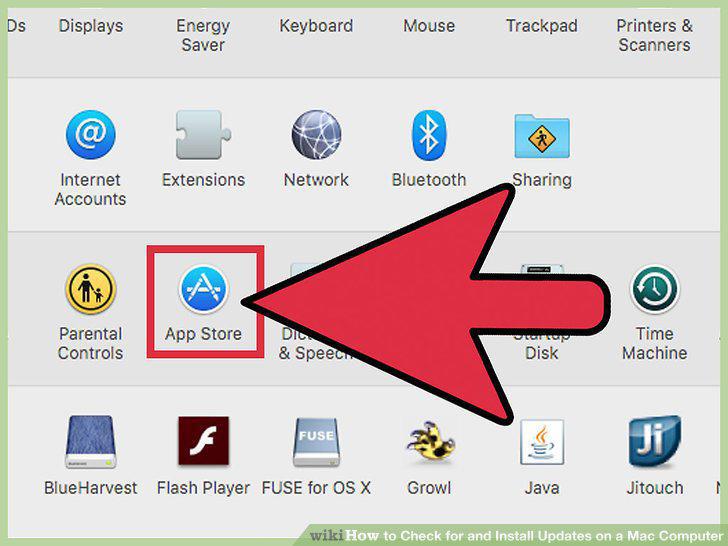
Click the "App Store" option.
Check the "Automatically check for updates" box.
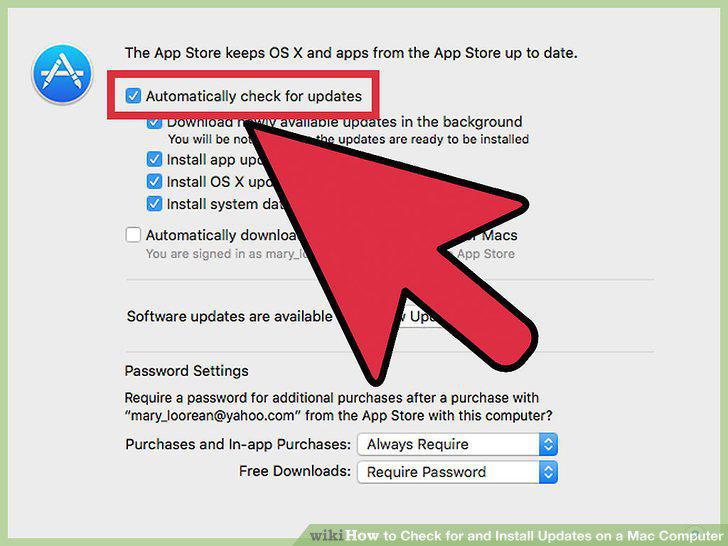
Check the "Automatically check for updates" box.
Check all four boxes underneath "Automatically check for updates."
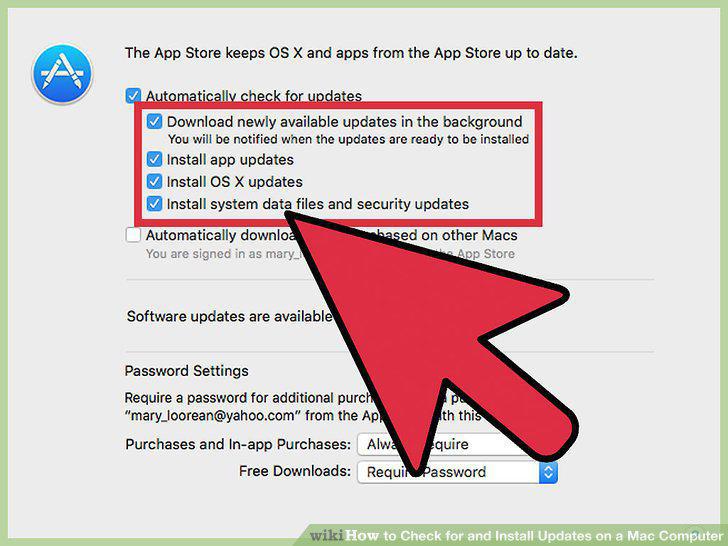
Check all four boxes underneath "Automatically check for updates."
Click "Check Now" to see if any new updates are available.
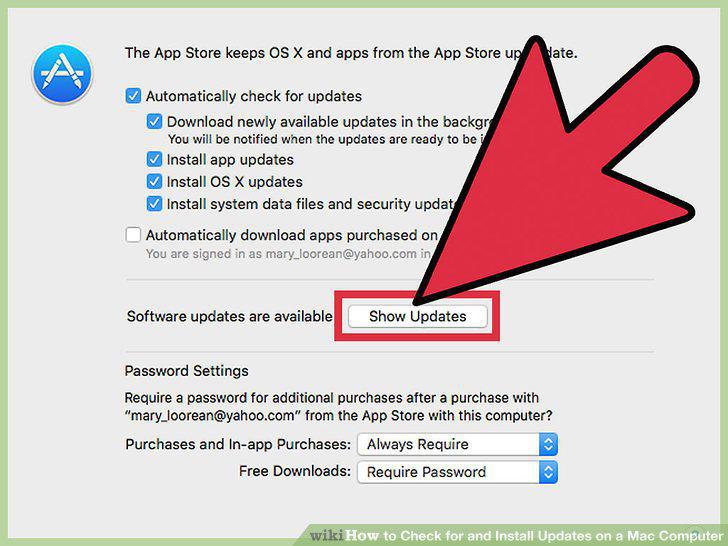
Click "Check Now" to see if any new updates are available.
Check for updates within the app (if available).
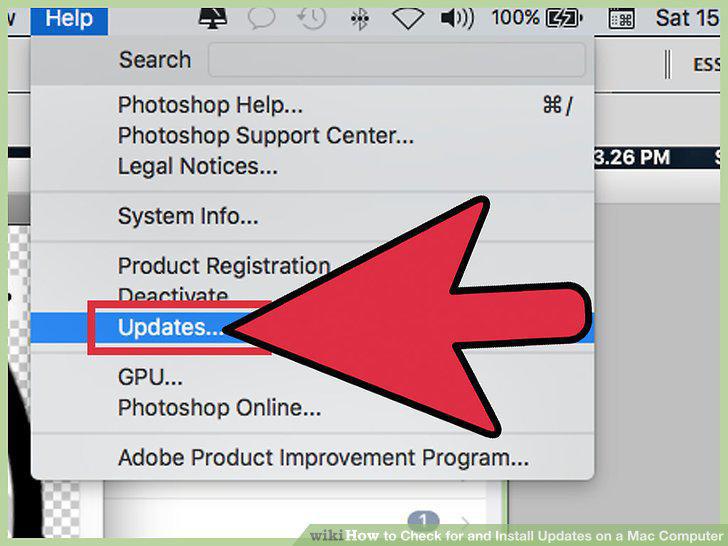
Check for updates within the app (if available).
Visit the developer's website.
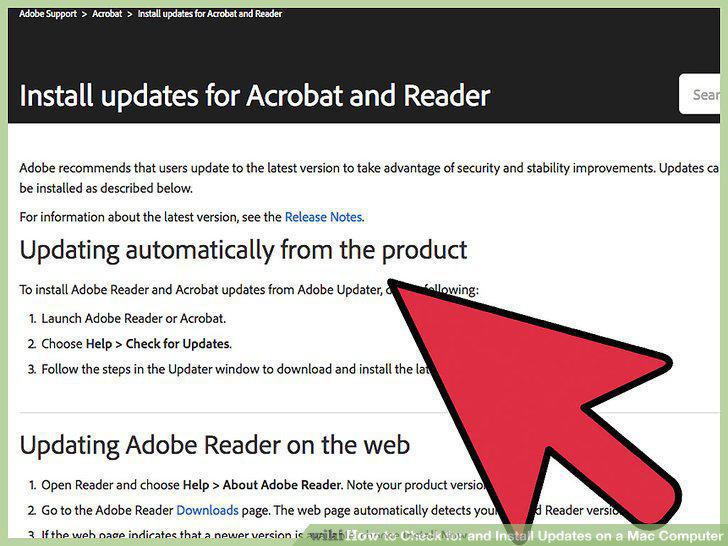
Visit the developer's website.
Download and install the newest version.

Download and install the newest version.
Open the App Store.
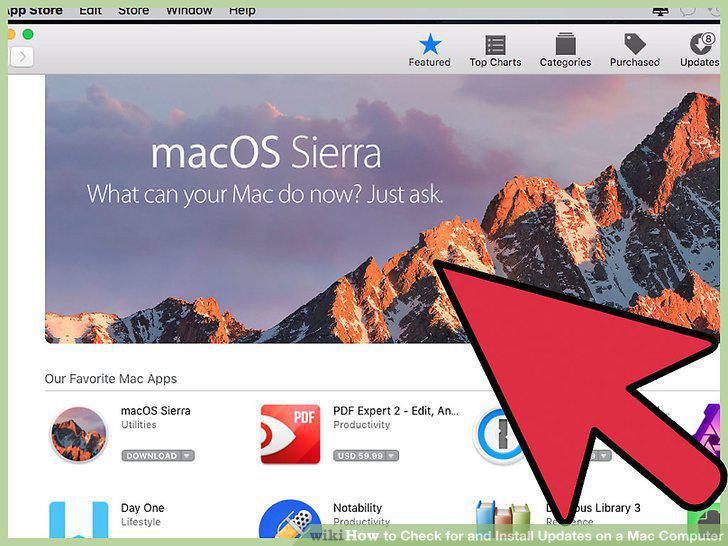
Open the App Store.
Find the page in the App Store for the latest version of OS X.
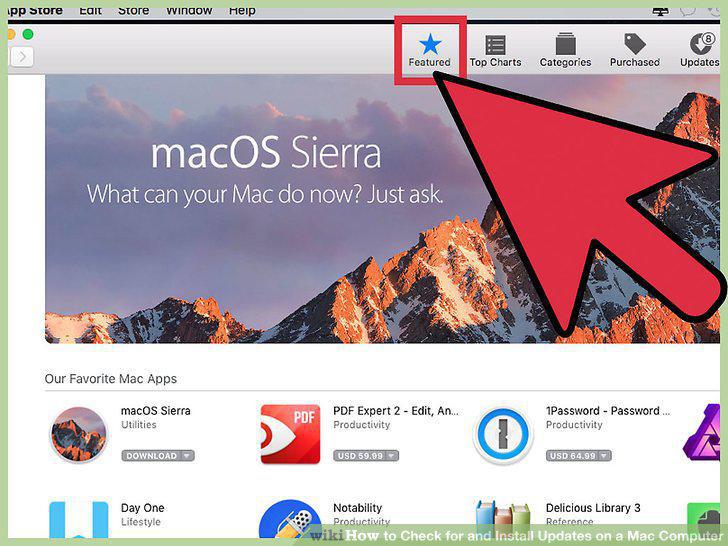
Find the page in the App Store for the latest version of OS X.
Click the "Download" button to begin downloading the upgrade.
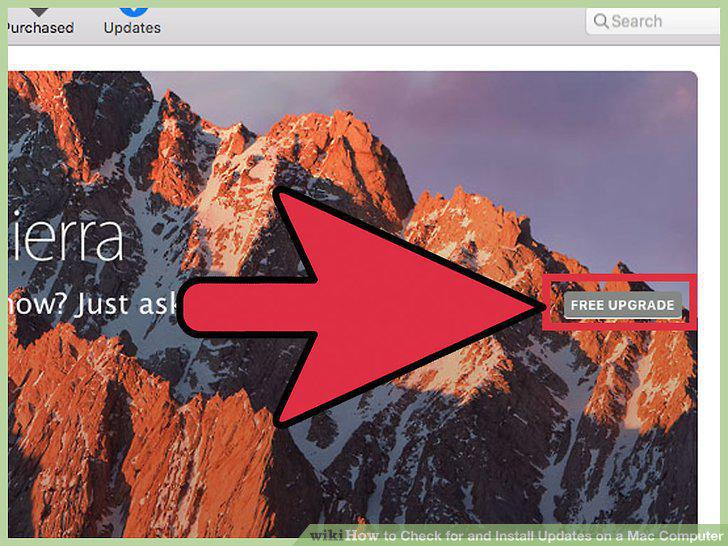
Click the "Download" button to begin downloading the upgrade.
Run the "Install OS X Name" program in your Applications directory.
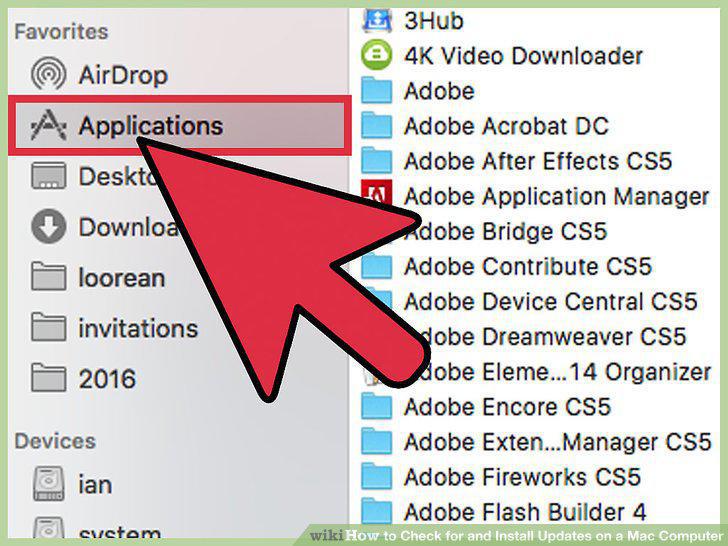
Run the "Install OS X Name" program in your Applications directory.
Follow the prompts to install the upgrade.
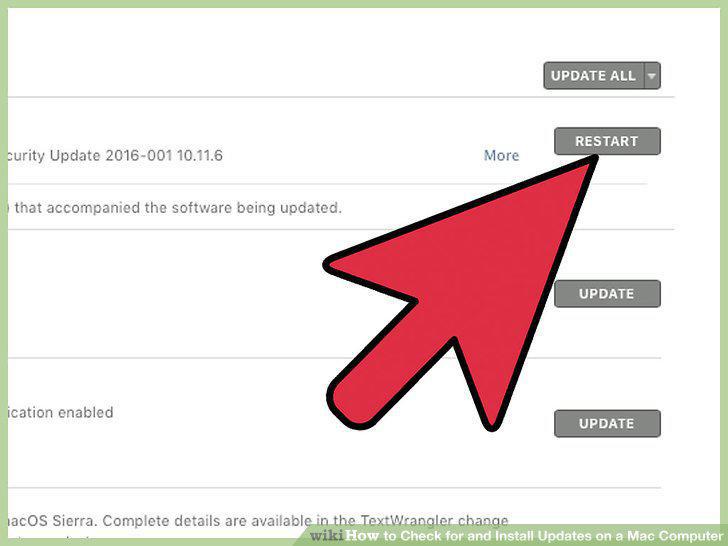
Follow the prompts to install the upgrade.
Wait for the installation to finish.
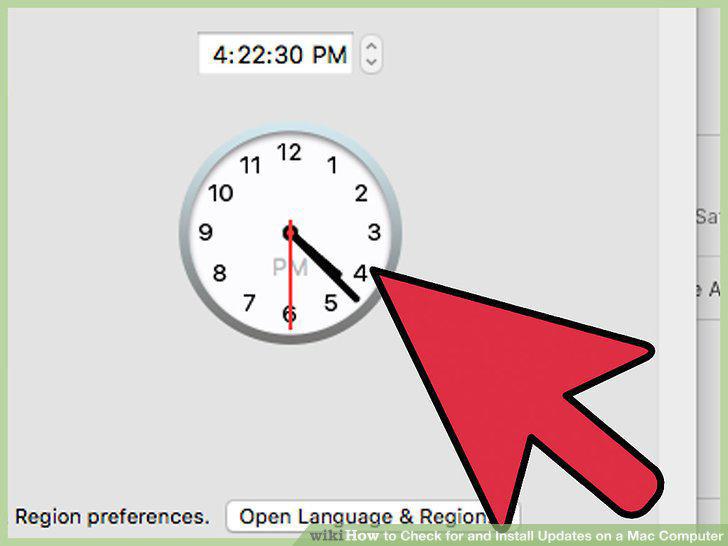
Wait for the installation to finish.
Open the Apple menu and select "Software Update."
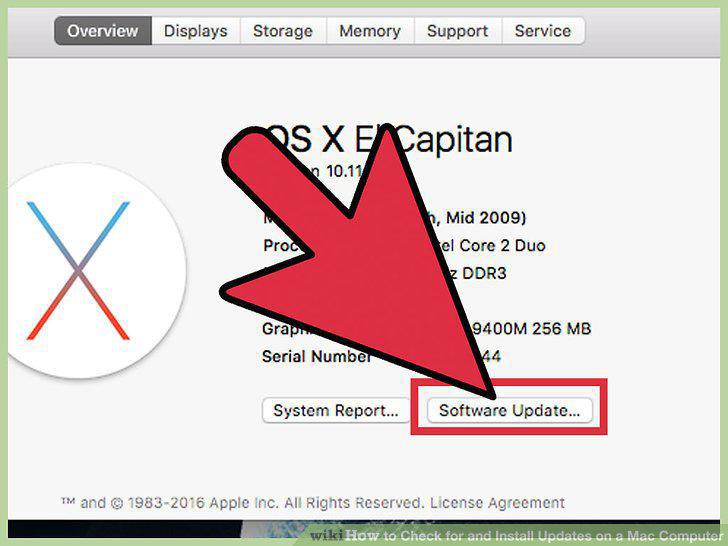
Open the Apple menu and select "Software Update."
Manage your software update preferences.
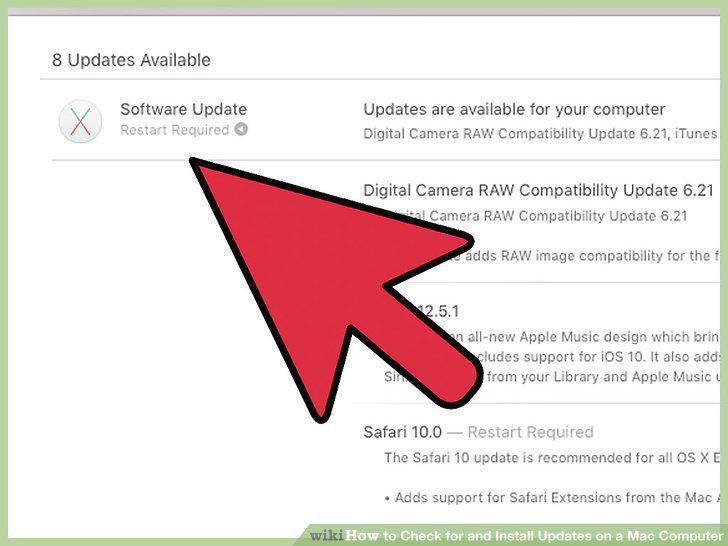
Manage your software update preferences.
Click the "Check Now" button.
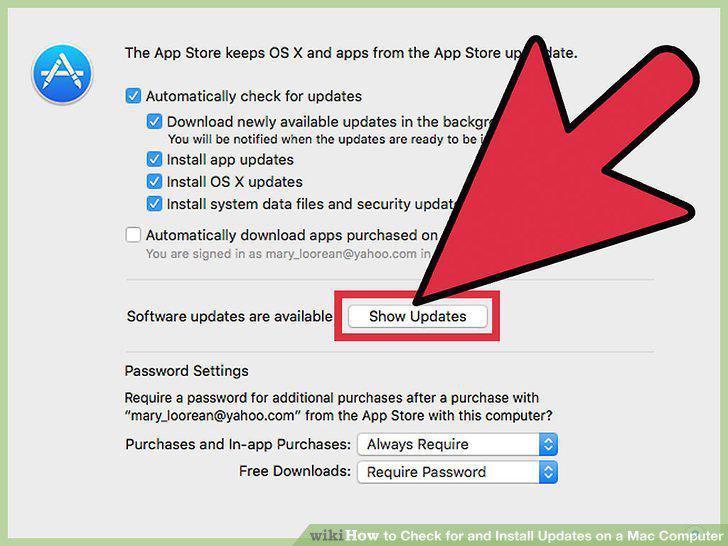
Click the "Check Now" button.
Check the box for each update you want to install.
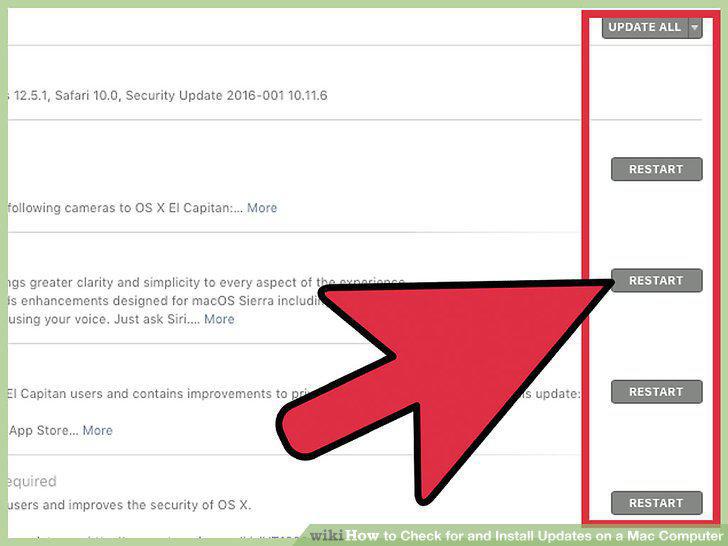
Check the box for each update you want to install.
Click the "Install # Items" button.
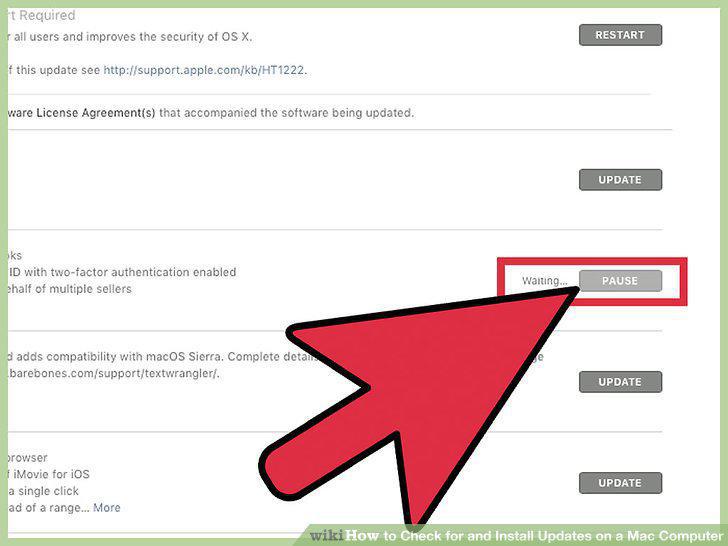
Click the "Install # Items" button.
Open the App Store to check for app updates.
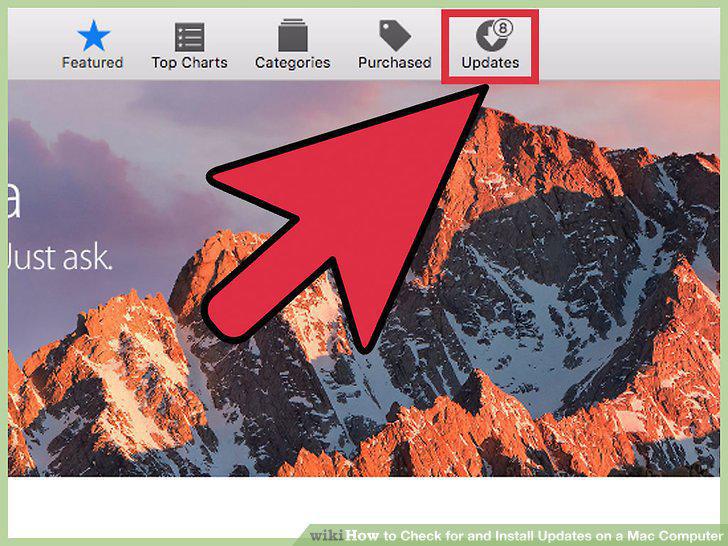
Open the App Store to check for app updates.
Comments (0)
No comments yet. Be the first to share your thoughts!