How to Add to Watchlist on Hulu on iPhone or iPad
Open the Hulu app on your iPhone or iPad.. Tap the SEARCH tab at the bottom.. Tap the search bar.
Steps
Open the Hulu app on your iPhone or iPad.

Open the Hulu app on your iPhone or iPad.
Tap the SEARCH tab at the bottom.
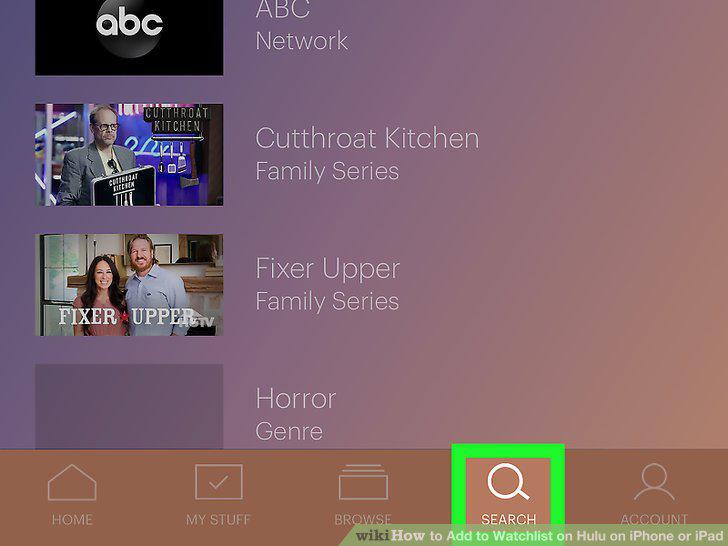
Tap the SEARCH tab at the bottom.
Tap the search bar.
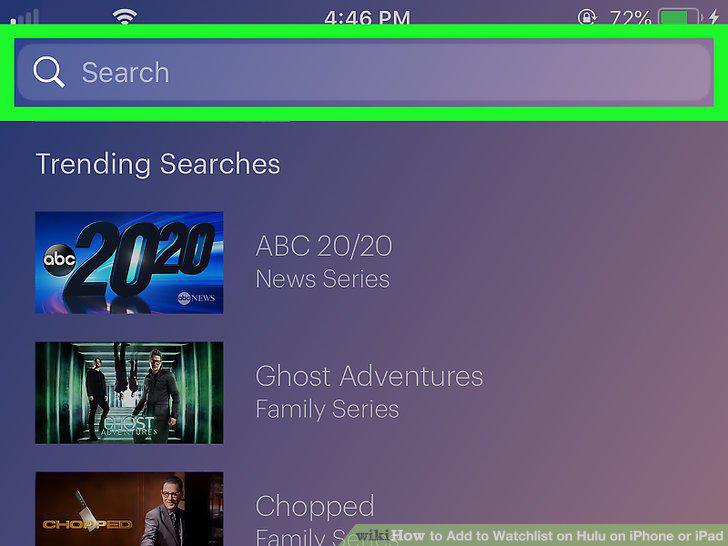
Tap the search bar.
Search the show or movie you want to add.
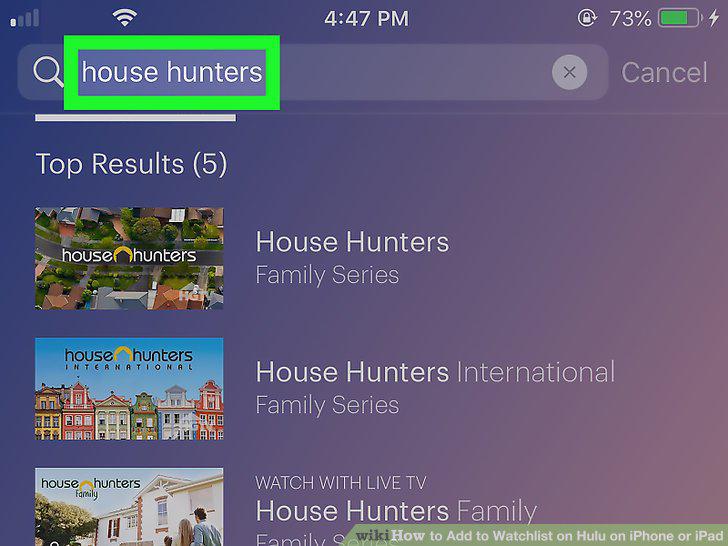
Search the show or movie you want to add.
Tap the show or movie you want to add.
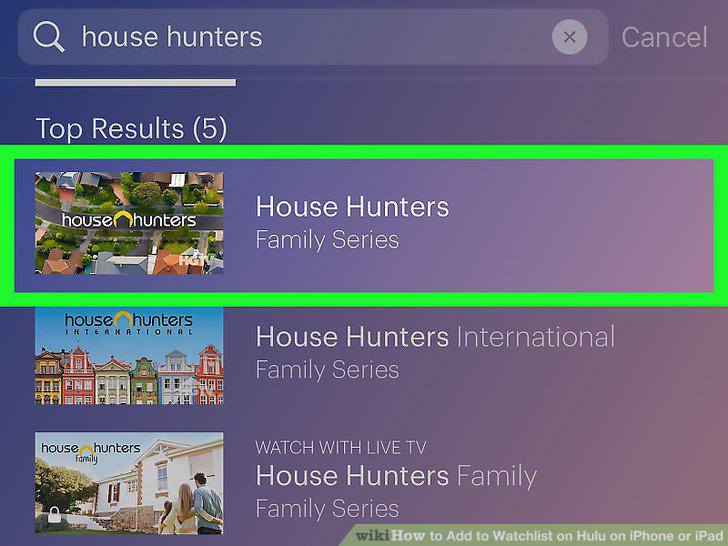
Tap the show or movie you want to add.
Tap the + MY STUFF below the show or movie's name.
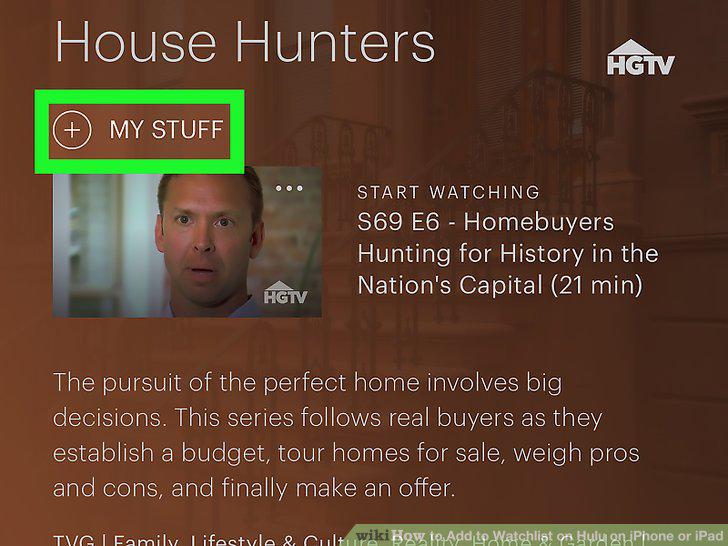
Tap the + MY STUFF below the show or movie's name.
Open the Hulu app on your iPhone or iPad.

Open the Hulu app on your iPhone or iPad.
Tap the BROWSE tab on the bottom-left.
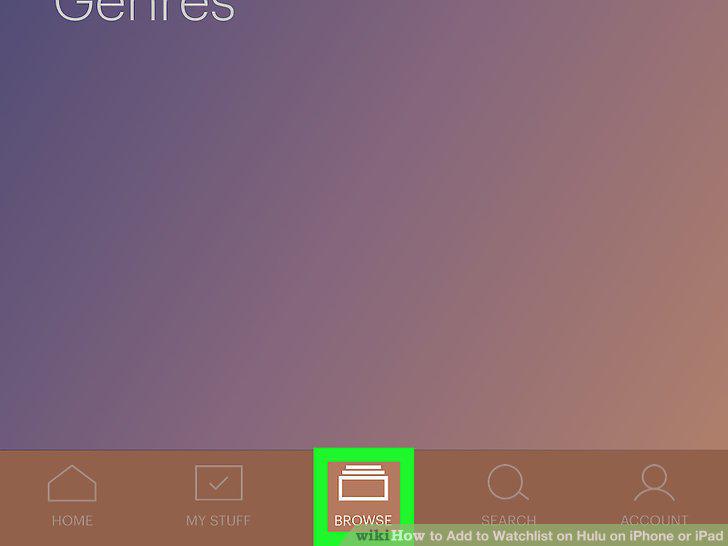
Tap the BROWSE tab on the bottom-left.
Select a category to view.
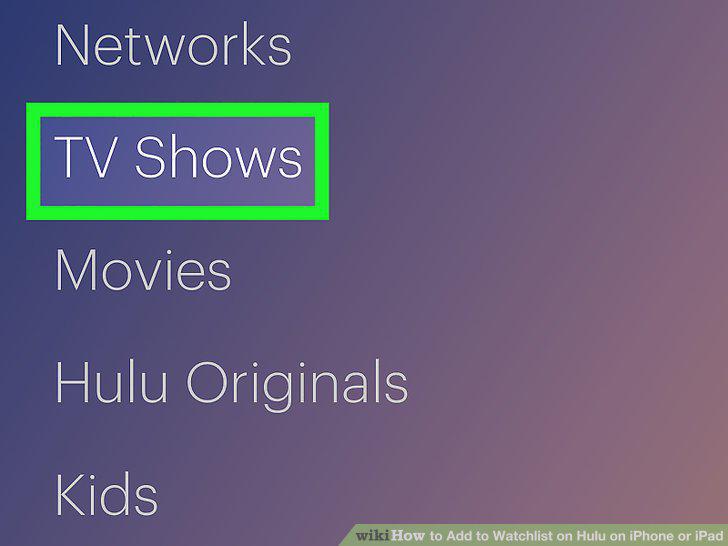
Select a category to view.
Tap the three dots icon on the top-right of a video thumbnail.
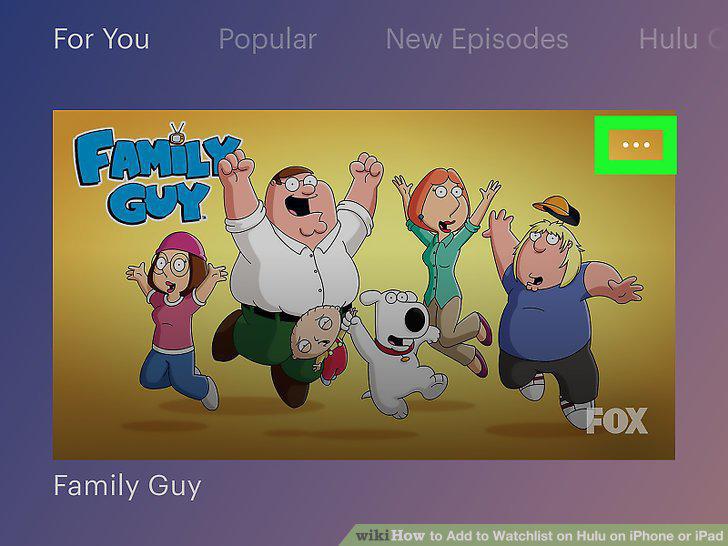
Tap the three dots icon on the top-right of a video thumbnail.
Tap the + My Stuff button on the pop-up menu.
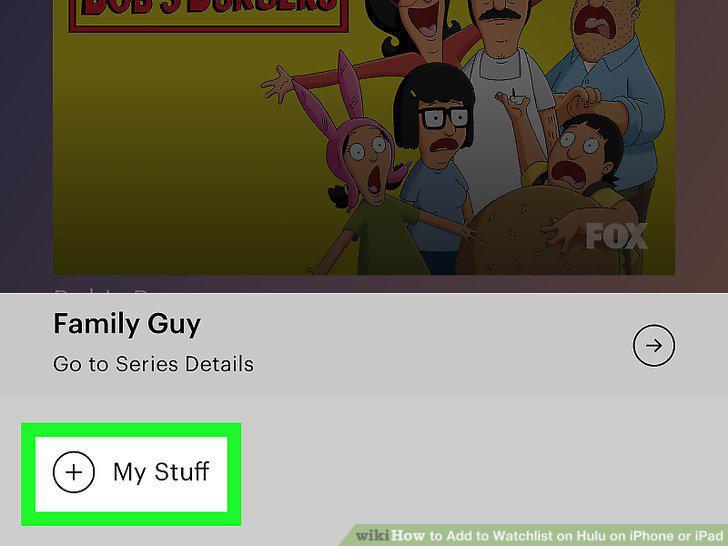
Tap the + My Stuff button on the pop-up menu.
Open the Hulu app on your iPhone or iPad.

Open the Hulu app on your iPhone or iPad.
Tap the HOME tab at the bottom.
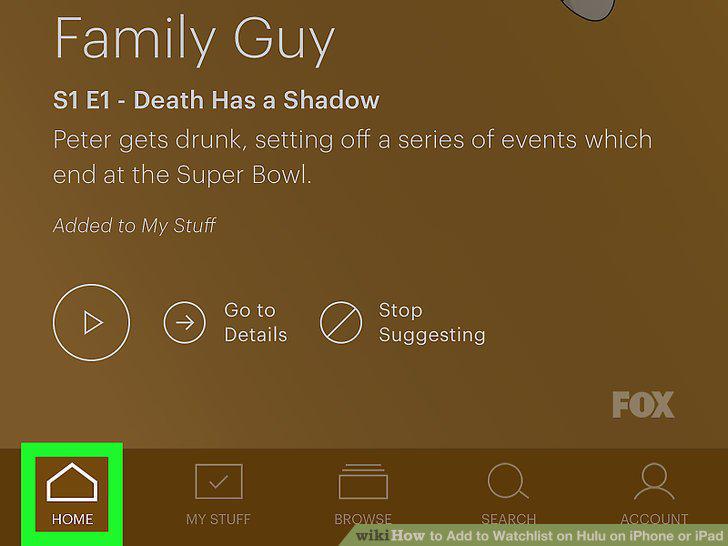
Tap the HOME tab at the bottom.
Find a movie or TV show you want to add on your Home feed.
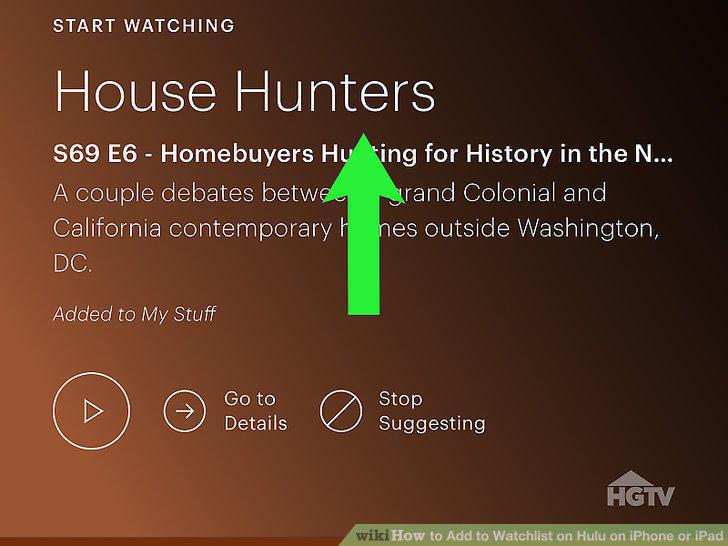
Find a movie or TV show you want to add on your Home feed.
Tap Go to Details below the show or movie's title.
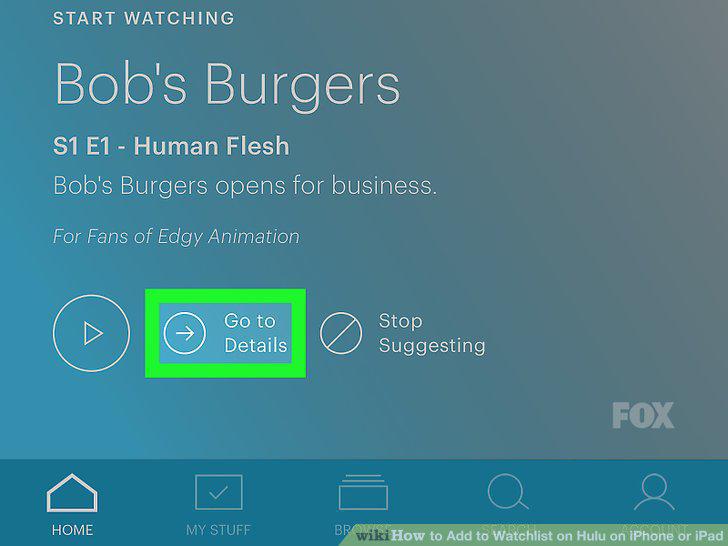
Tap Go to Details below the show or movie's title.
Tap the + MY STUFF button at the top.
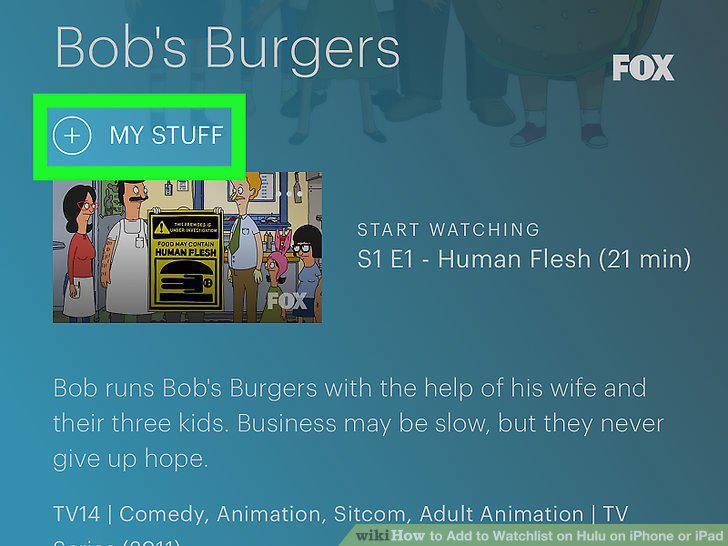
Tap the + MY STUFF button at the top.
Open the Hulu app on your iPhone or iPad.

Open the Hulu app on your iPhone or iPad.
Find and tap the TV show you want to add an episode of.
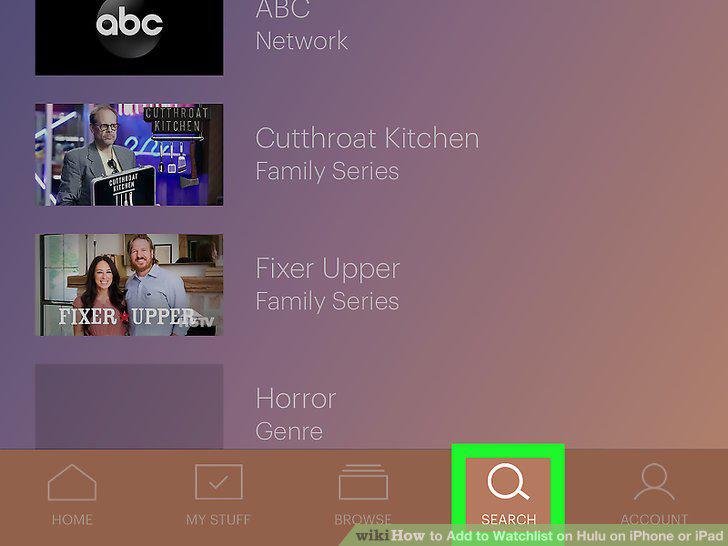
Find and tap the TV show you want to add an episode of.
Swipe left on the show's details page.

Swipe left on the show's details page.
Tap the three dots icon on the top-right of a video thumbnail.

Tap the three dots icon on the top-right of a video thumbnail.
Tap the + My Episodes button on the pop-up menu.
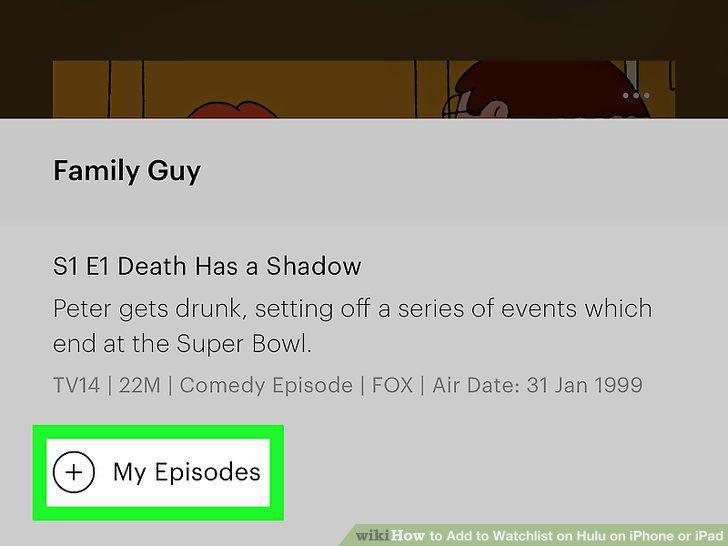
Tap the + My Episodes button on the pop-up menu.
Comments (0)
No comments yet. Be the first to share your thoughts!