How to Replace a File on Google Drive on PC or Mac
Open your web browser.. Enter https://drive.google.com/drive/my-drive in the address bar at the top.. Sign in to your Google account.
Steps
1
Open your web browser.
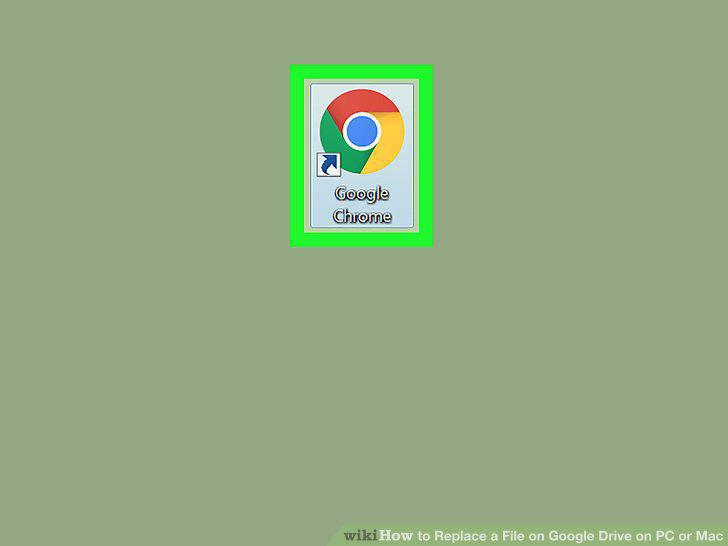
Open your web browser.
2
Enter https://drive.google.com/drive/my-drive in the address bar at the top.
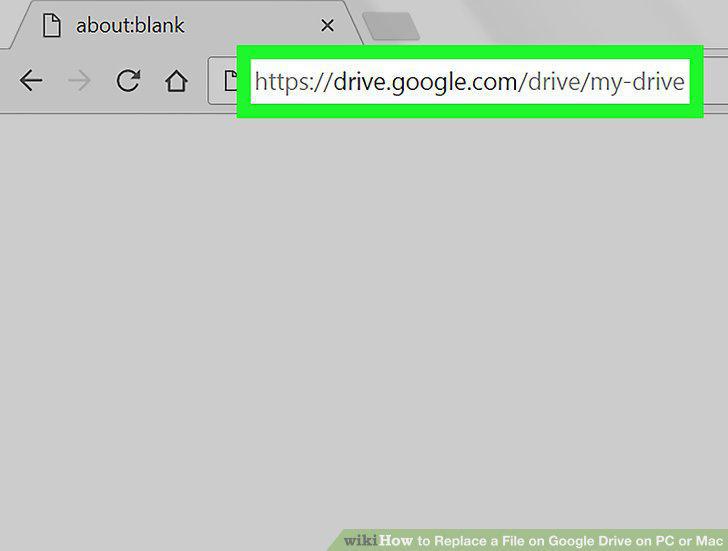
Enter https://drive.google.com/drive/my-drive in the address bar at the top.
3
Sign in to your Google account.
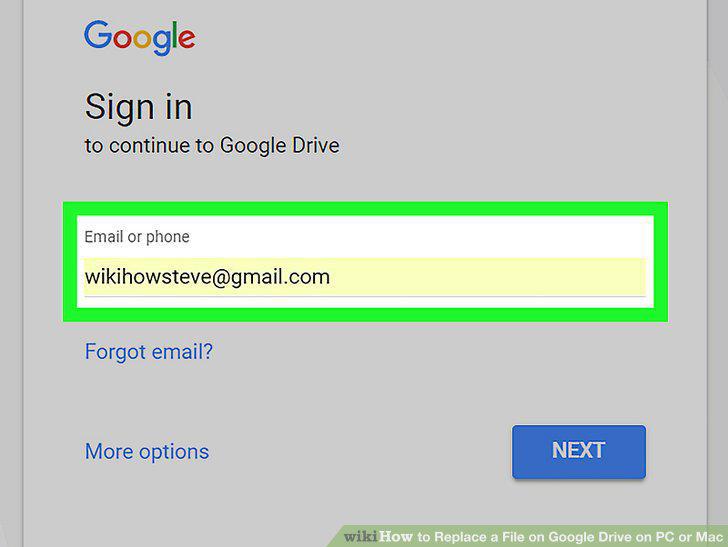
Sign in to your Google account.
4
Select file you wish to replace.
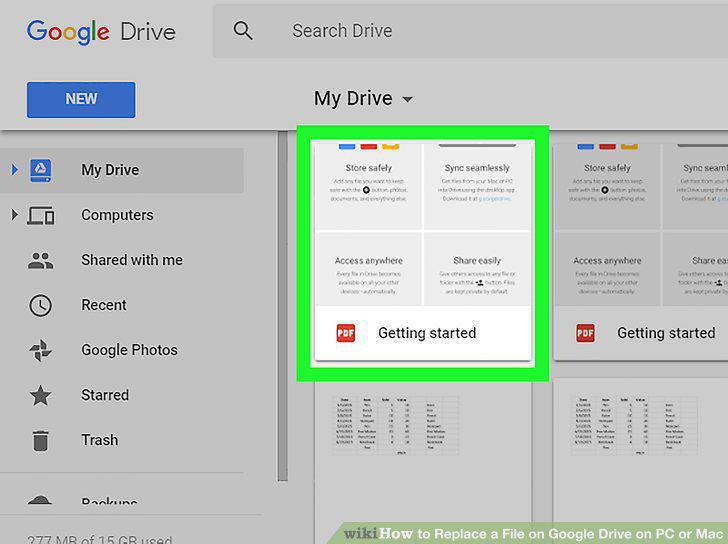
Select file you wish to replace.
5
Right click on file and select Manage Versions.
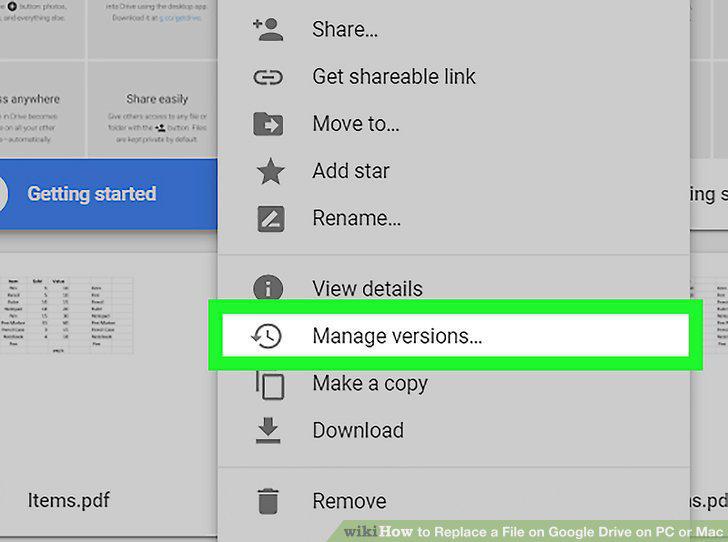
Right click on file and select Manage Versions.
6
Click Upload New Version.
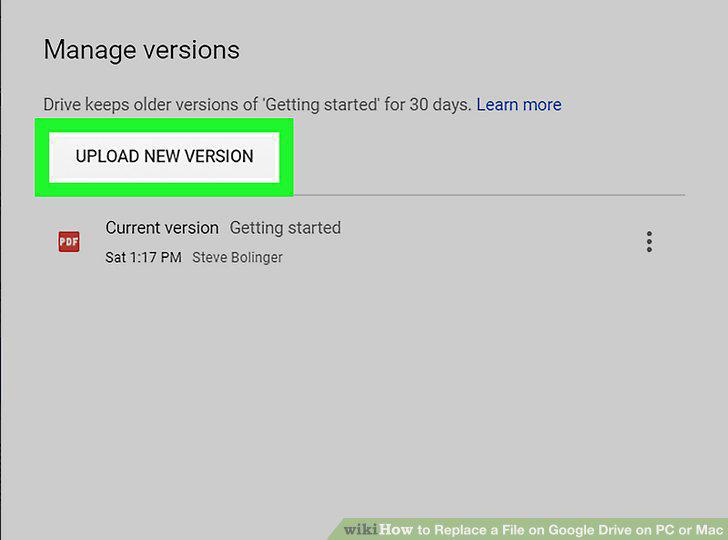
Click Upload New Version.
7
Use the popup File browser to select new file.
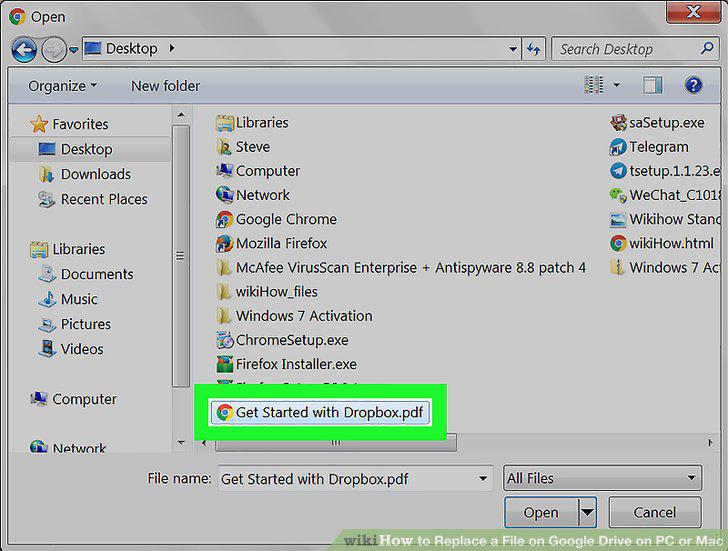
Use the popup File browser to select new file.
8
Click Open
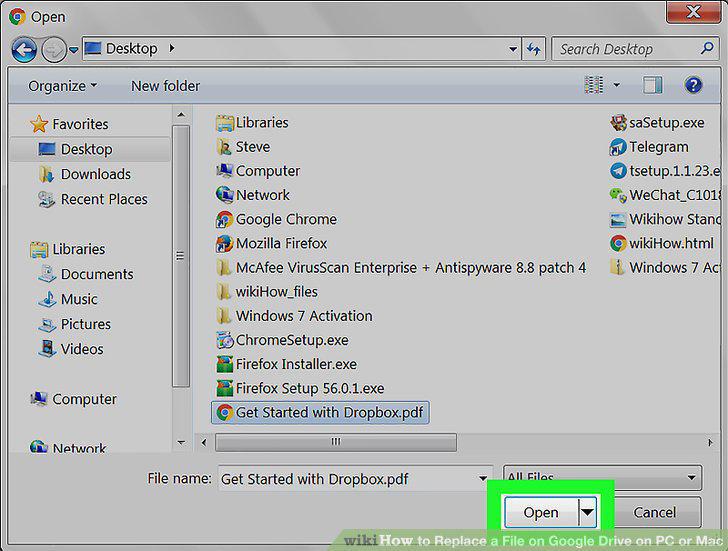
Click Open
9
Click Close once file is uploaded.
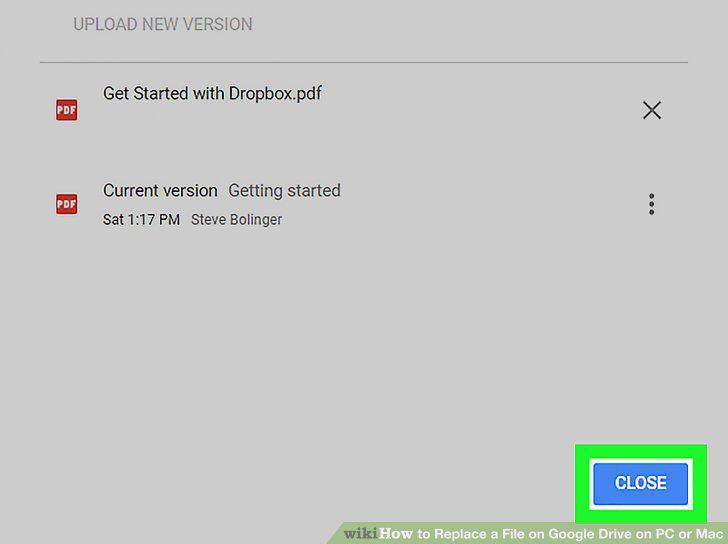
Click Close once file is uploaded.
Comments (0)
No comments yet. Be the first to share your thoughts!