How to Use Cellular Data for Apple Music Downloads
Open your iPhone's Settings.. Scroll down and tap Music.. Tap Cellular Data.
Steps
1
Open your iPhone's Settings.
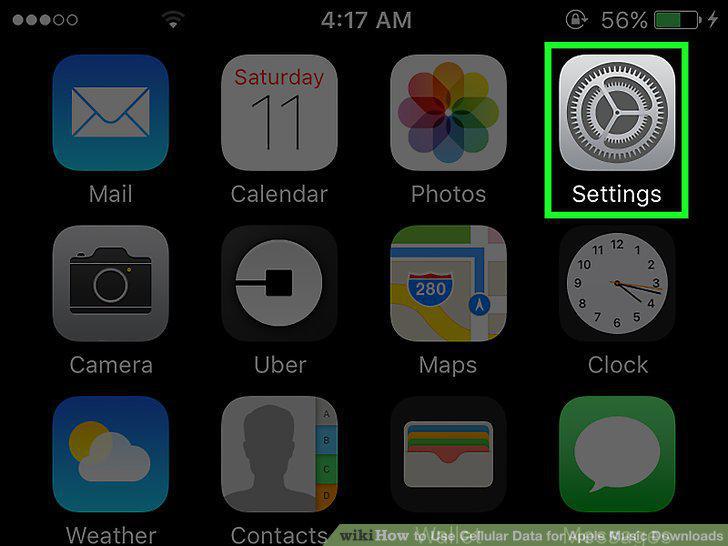
Open your iPhone's Settings.
2
Scroll down and tap Music.
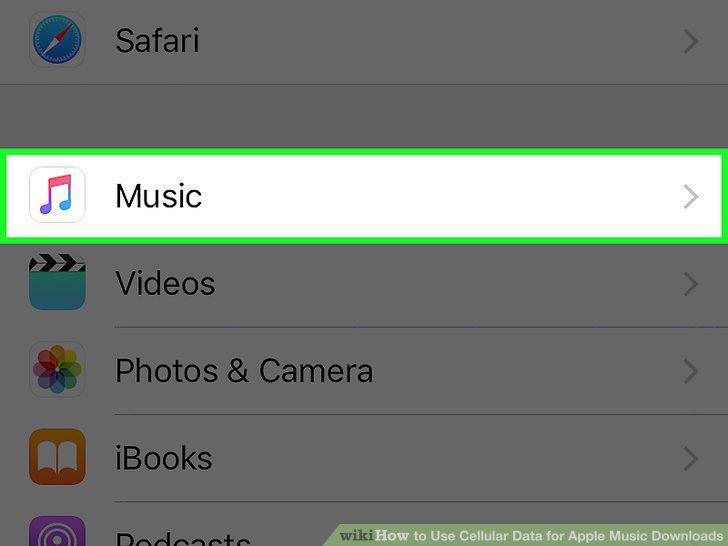
Scroll down and tap Music.
3
Tap Cellular Data.
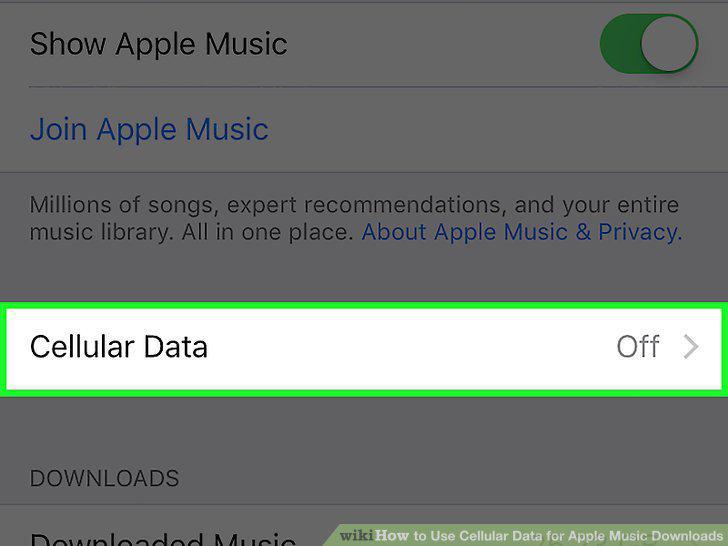
Tap Cellular Data.
4
Slide the Cellular Data switch to on position.
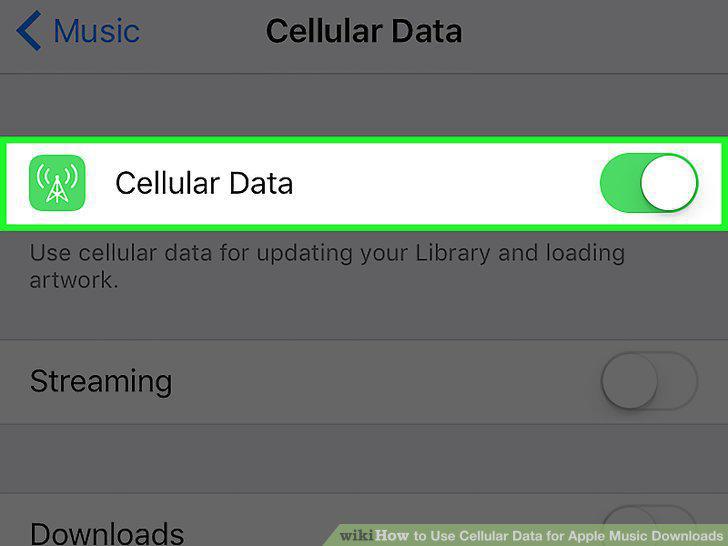
Slide the Cellular Data switch to on position.
5
Slide the Downloads switch to on position.
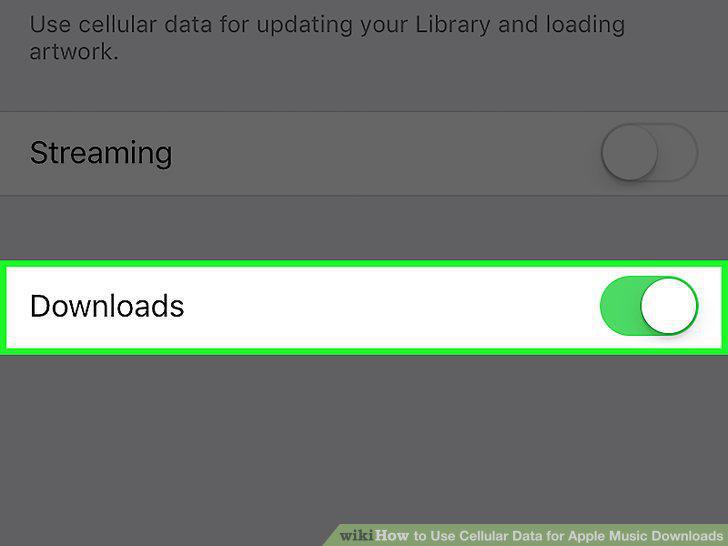
Slide the Downloads switch to on position.
6
Return to the Settings menu.
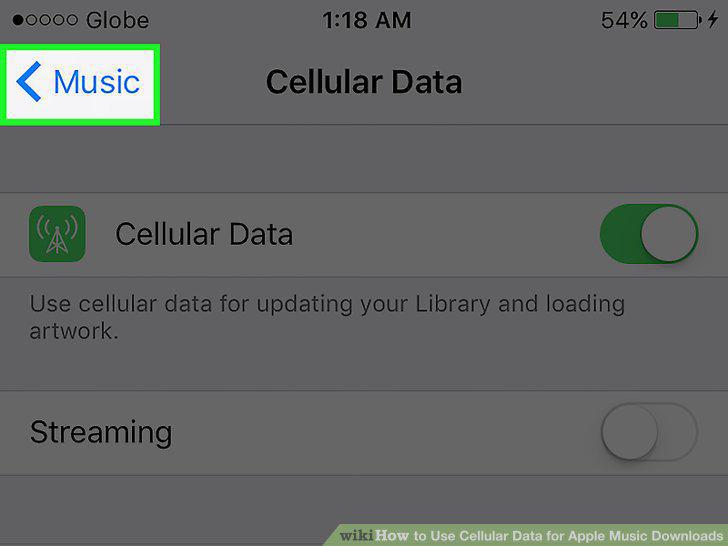
Return to the Settings menu.
7
Scroll up and tap iTunes & App Store.
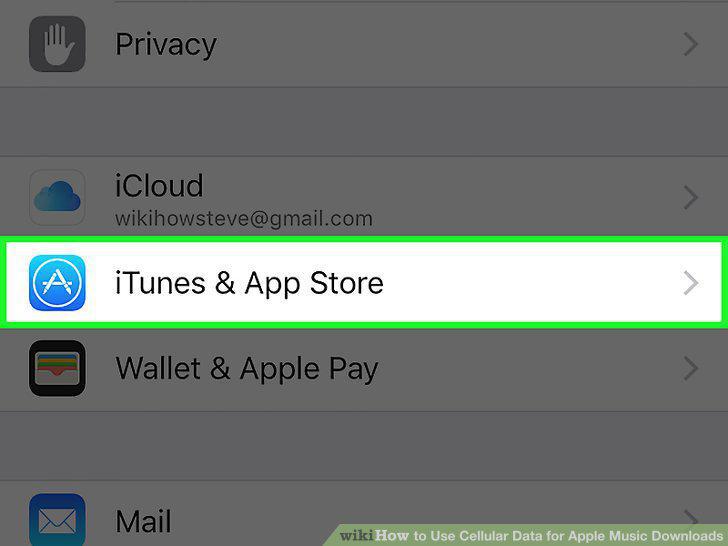
Scroll up and tap iTunes & App Store.
8
Slide the Music switch to on position.
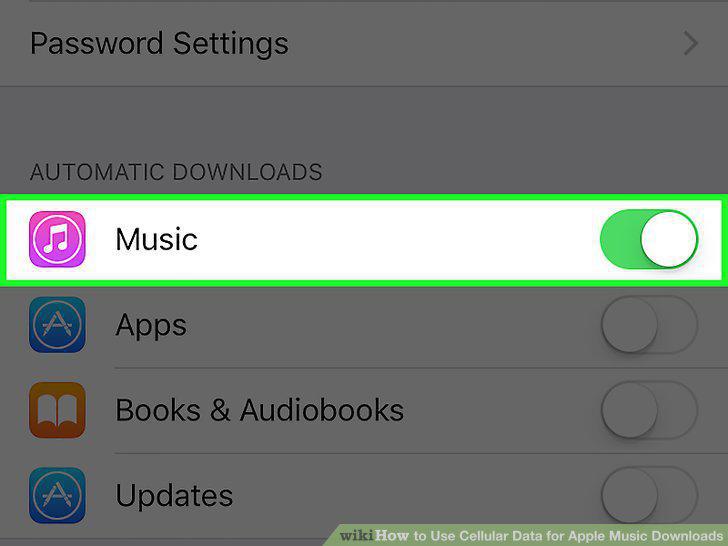
Slide the Music switch to on position.
9
Slide the Use Cellular Data switch to on position.
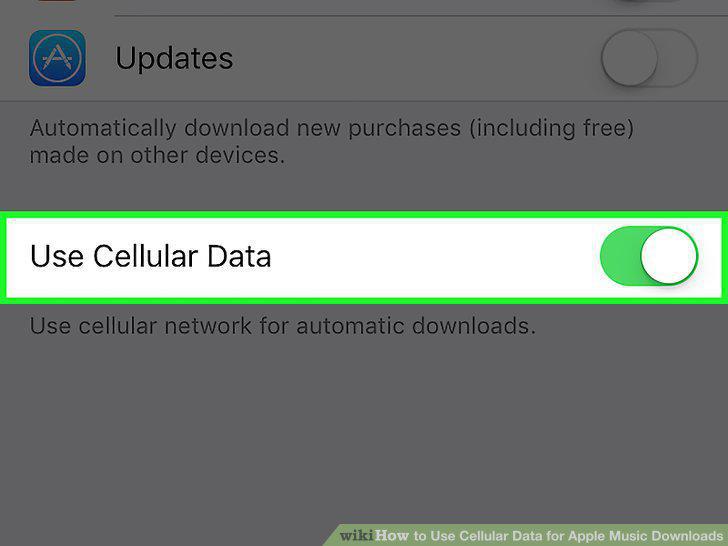
Slide the Use Cellular Data switch to on position.
Comments (0)
No comments yet. Be the first to share your thoughts!