How to Face Swap on Snapchat
Update Snapchat to the latest available version.. Line up your face in the Snapchat camera.. Press and hold on your face until a wireframe appears.
Steps
Update Snapchat to the latest available version.

Update Snapchat to the latest available version.
Line up your face in the Snapchat camera.
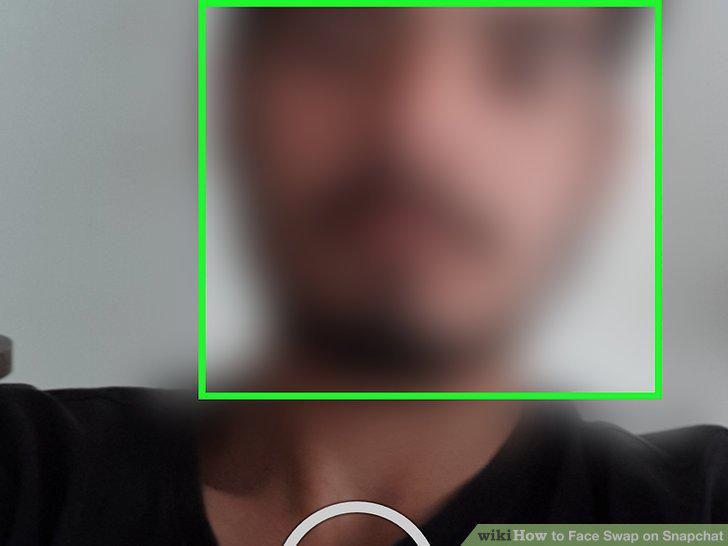
Line up your face in the Snapchat camera.
Press and hold on your face until a wireframe appears.
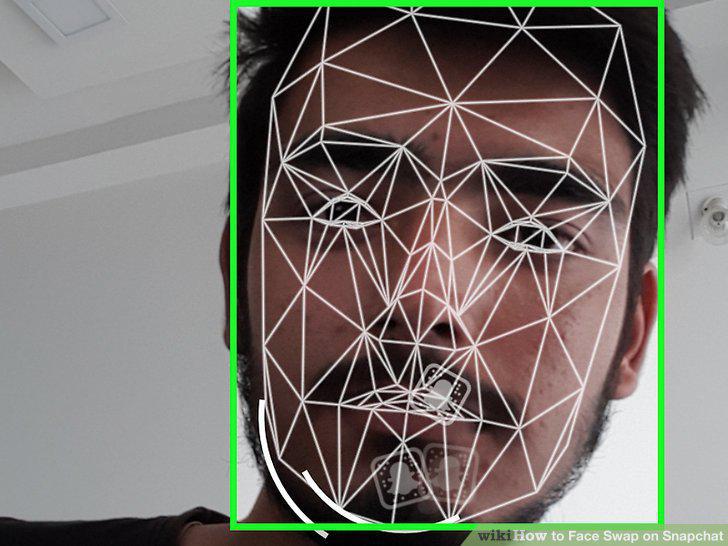
Press and hold on your face until a wireframe appears.
Select the yellow Face Swap Lens effect.
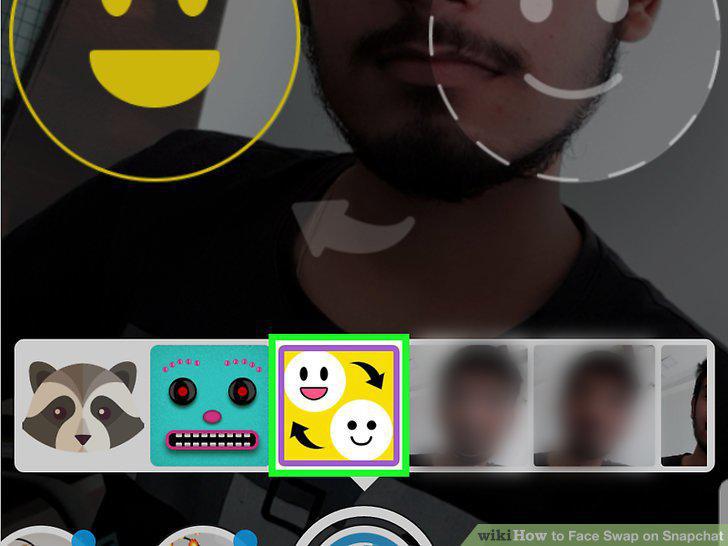
Select the yellow Face Swap Lens effect.
Line up your faces with the two smiley face overlays.
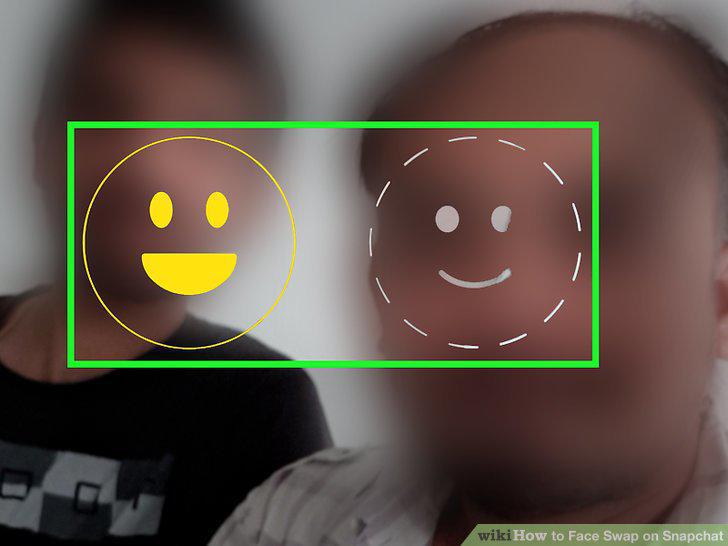
Line up your faces with the two smiley face overlays.
Take a Snap with your swapped faces.
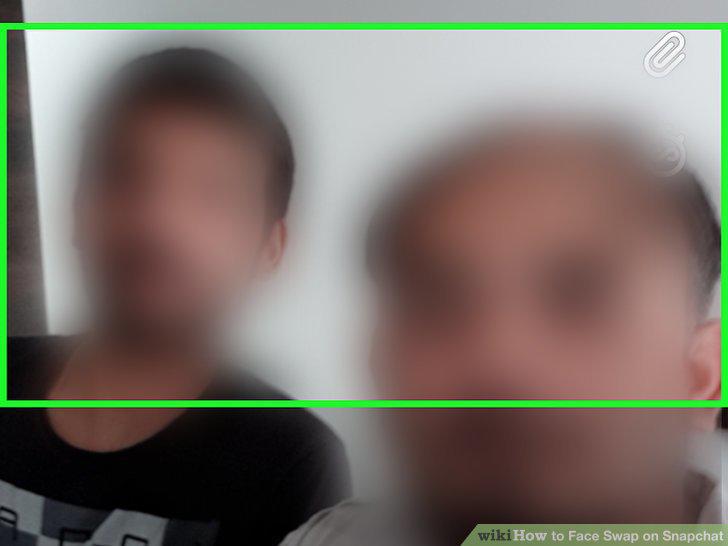
Take a Snap with your swapped faces.
Save and send your Snap.
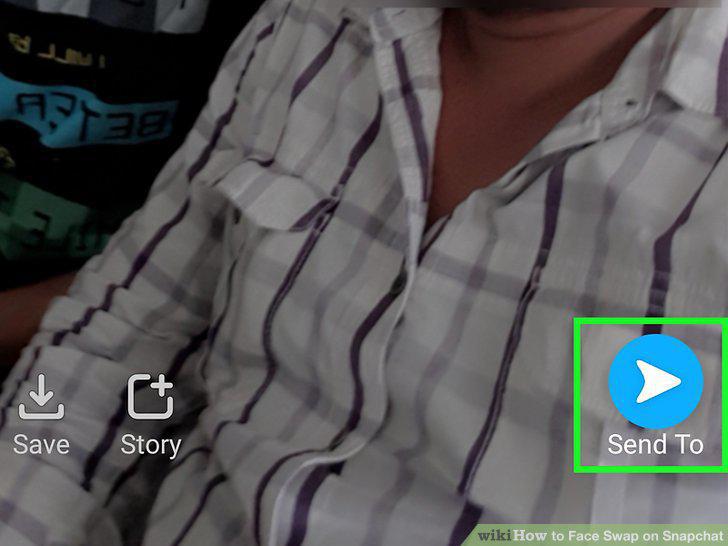
Save and send your Snap.
Make sure Snapchat is up to date.

Make sure Snapchat is up to date.
Make sure the photos you want to face swap with are on your device.
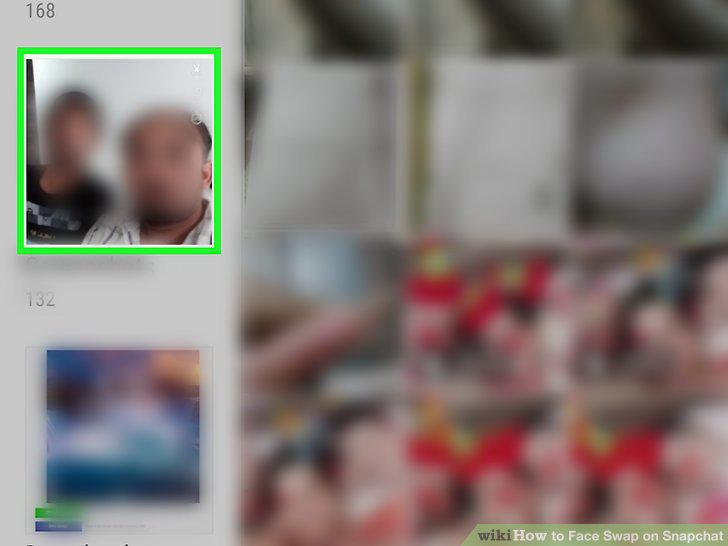
Make sure the photos you want to face swap with are on your device.
Launch Snapchat and line up your face.
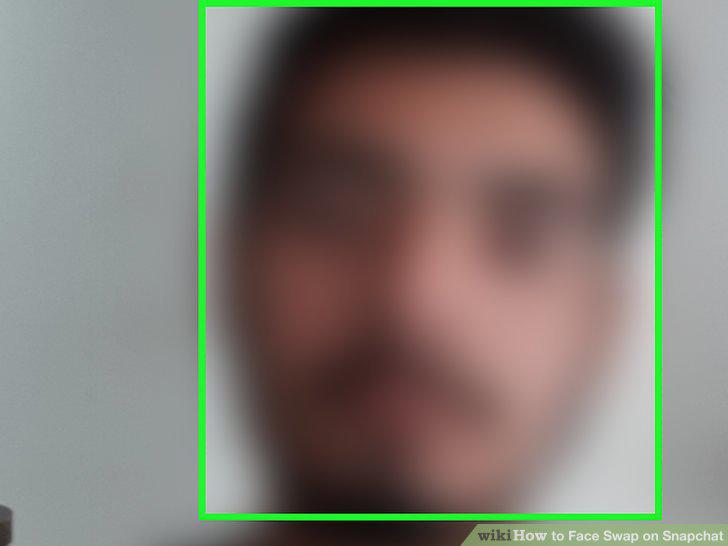
Launch Snapchat and line up your face.
Press and hold on your face.
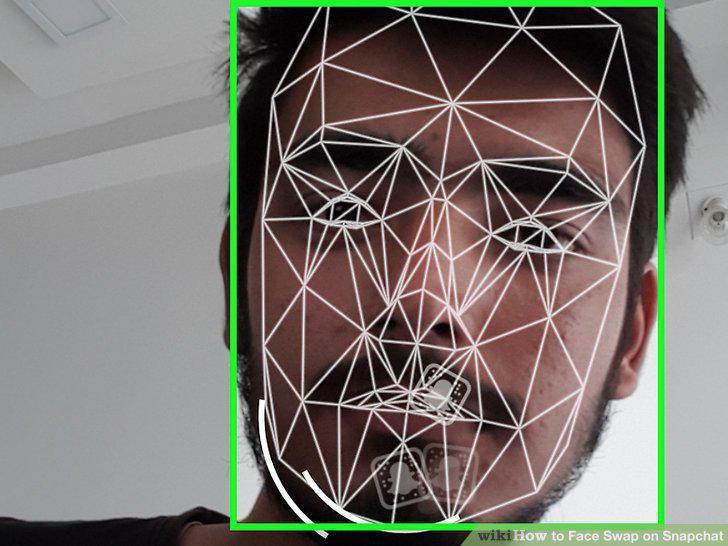
Press and hold on your face.
Select the purple Face Swap Lens effect.
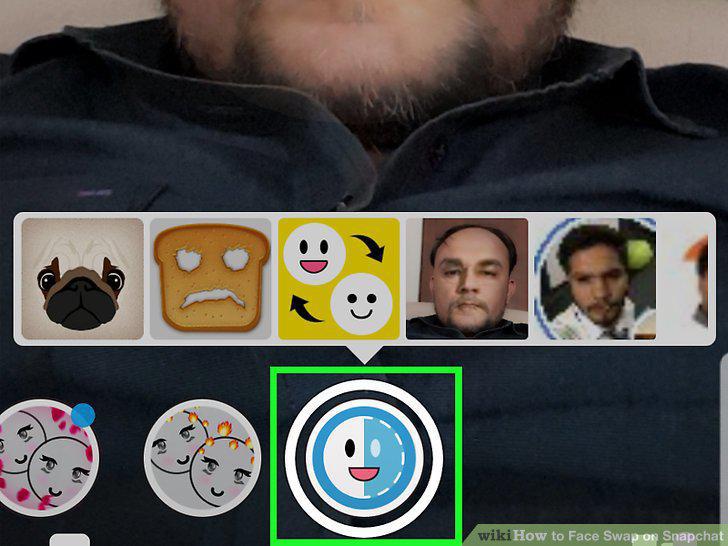
Select the purple Face Swap Lens effect.
Allow Snapchat access to your photos if prompted.
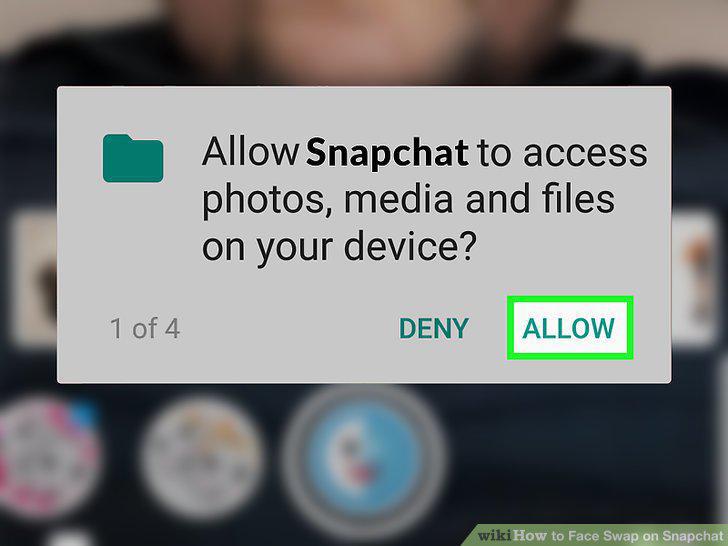
Allow Snapchat access to your photos if prompted.
Select the face you want to swap with.
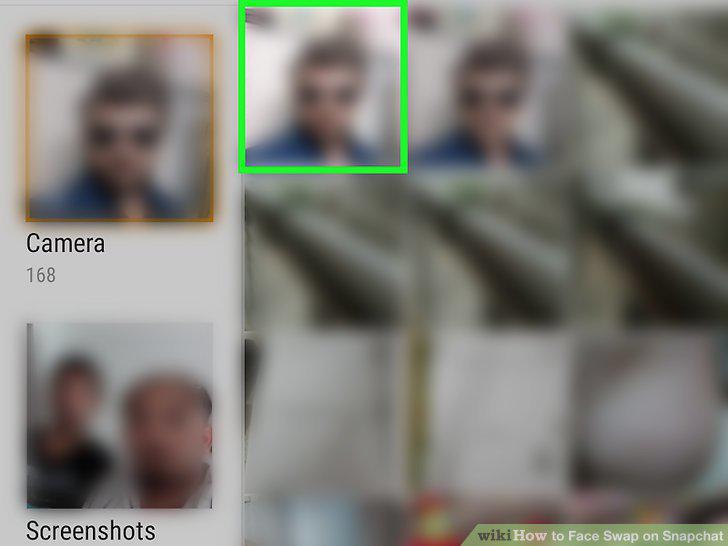
Select the face you want to swap with.
Take a Snap with the face you've selected.
Take a Snap with the face you've selected.
Save and send the Snap.
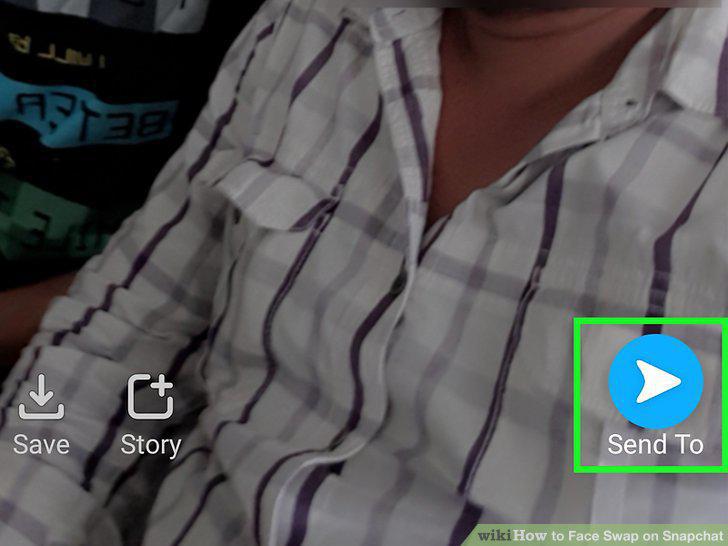
Save and send the Snap.
Comments (0)
No comments yet. Be the first to share your thoughts!