How to Turn Off Notifications on an Apple Watch
Open the Notification Center.. Swipe left on a notification from an app.. Tap on the 3 dots.
Steps
1
Open the Notification Center.
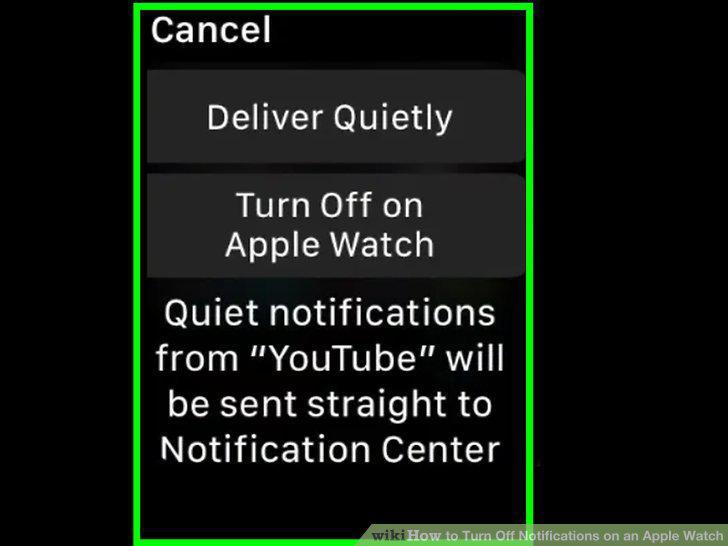
Open the Notification Center.
2
Swipe left on a notification from an app.
Swipe left on a notification from an app.
3
Tap on the 3 dots.
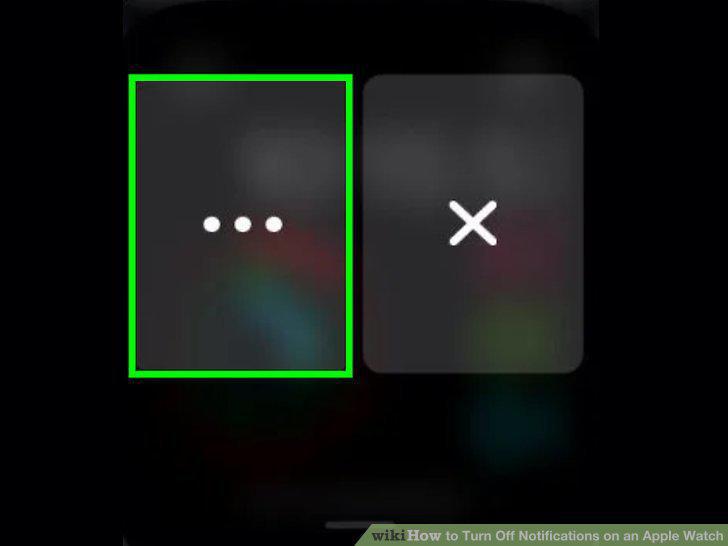
Tap on the 3 dots.
4
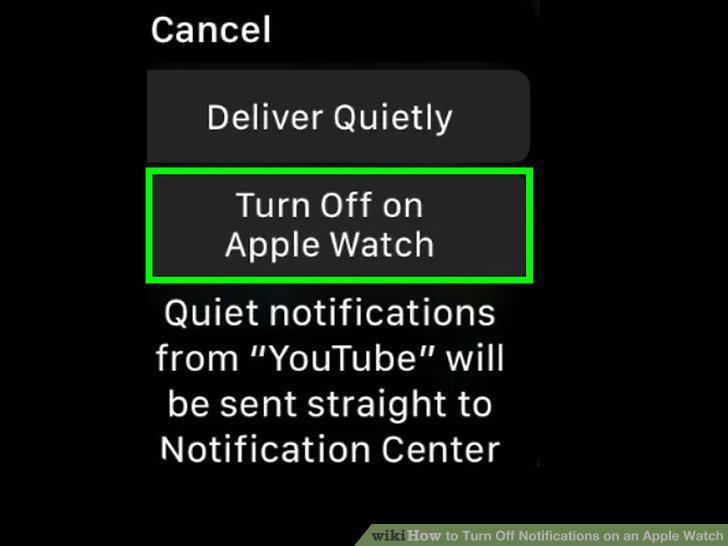
Tap Turn Off on Apple Watch to disable completely.
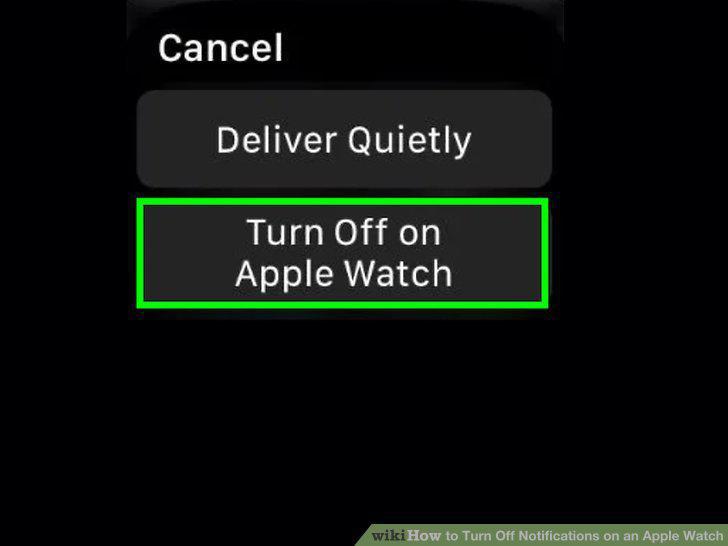
Tap Turn Off on Apple Watch to disable completely.
5
Launch the Apple Watch app on your iPhone.
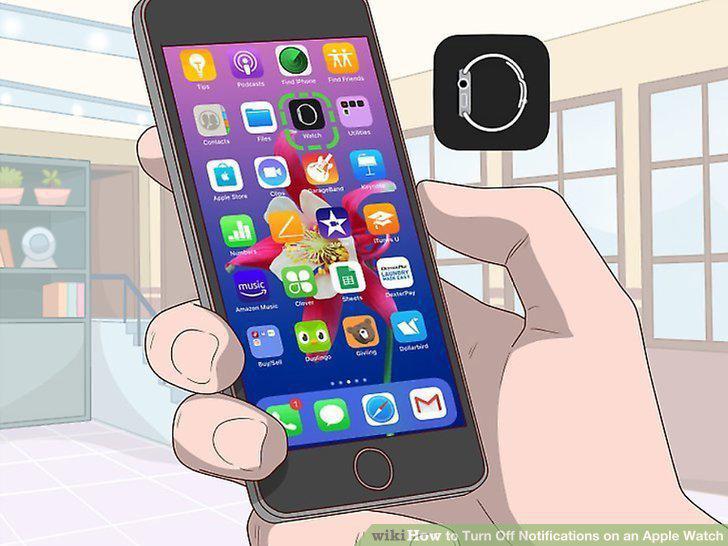
Launch the Apple Watch app on your iPhone.
6
Tap My Watch.

Tap My Watch.
7
Tap Notifications.
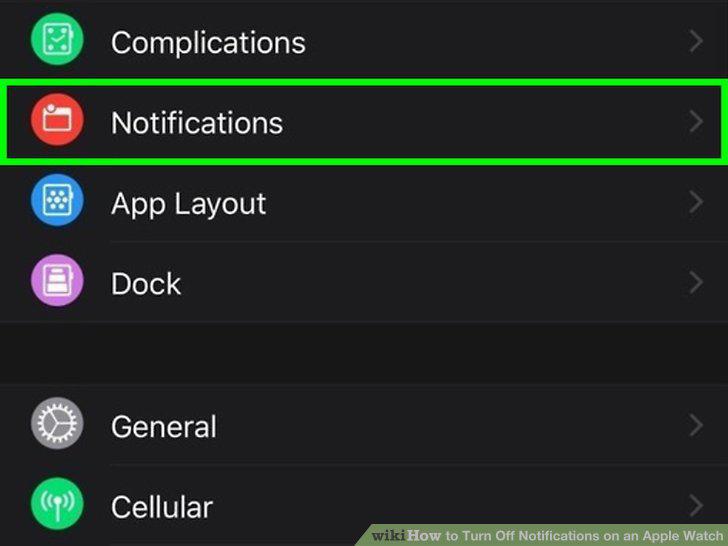
Tap Notifications.
8
Tap an app at the top.
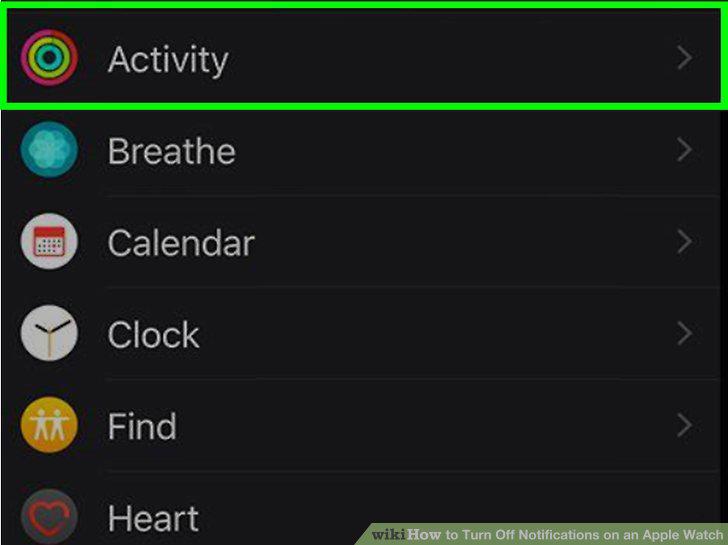
Tap an app at the top.
9
Tap Notifications Off.
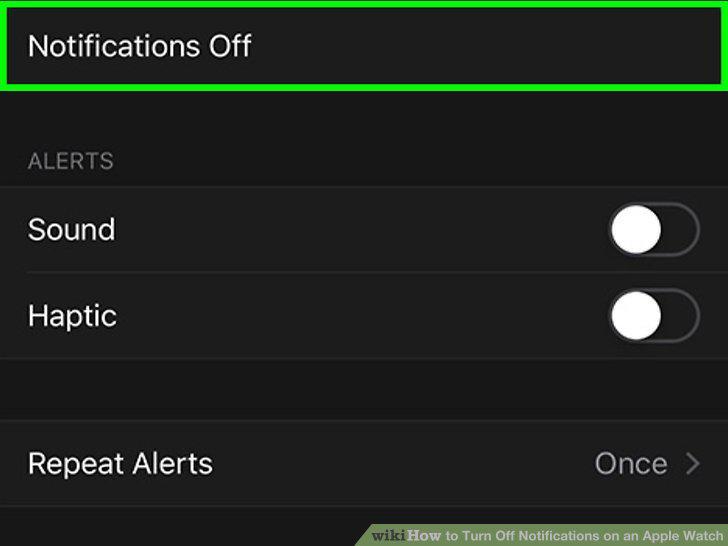
Tap Notifications Off.
10
Slide the "Mirror iPhone alerts from" switch to Off .
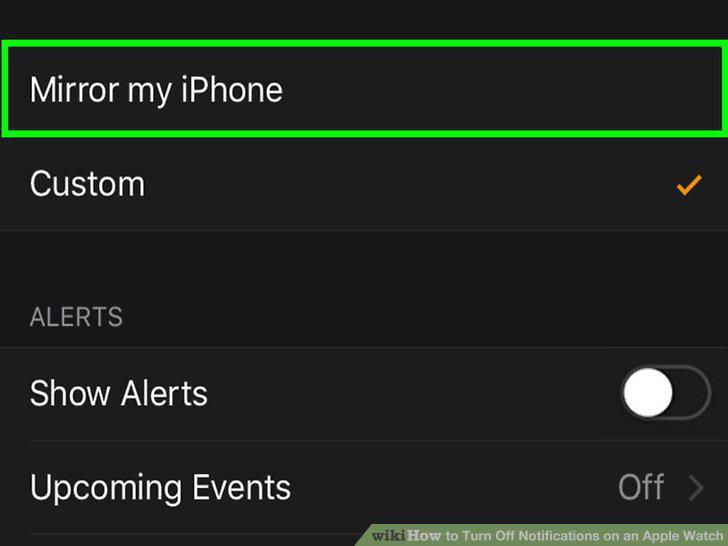
Slide the "Mirror iPhone alerts from" switch to Off .
Comments (0)
No comments yet. Be the first to share your thoughts!