How to Start a Room in Clubhouse
Open Clubhouse on your iPhone.. Tap the green Start a Room button.. Select a room type.
Steps
1
Open Clubhouse on your iPhone.
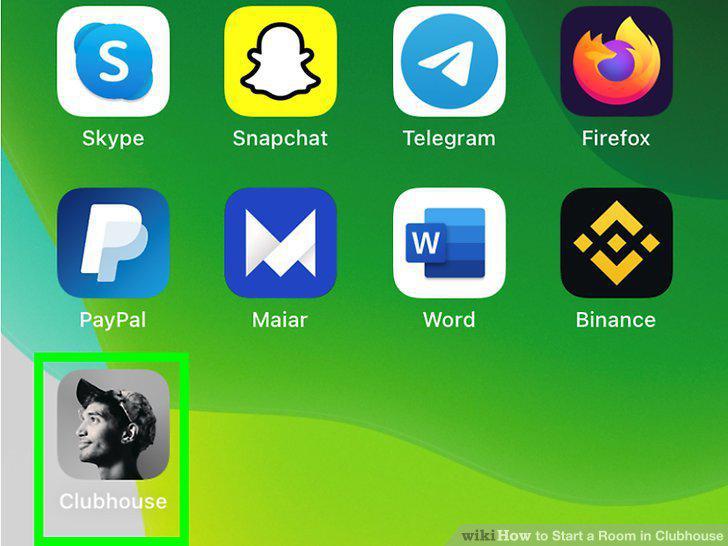
Open Clubhouse on your iPhone.
2
Tap the green Start a Room button.
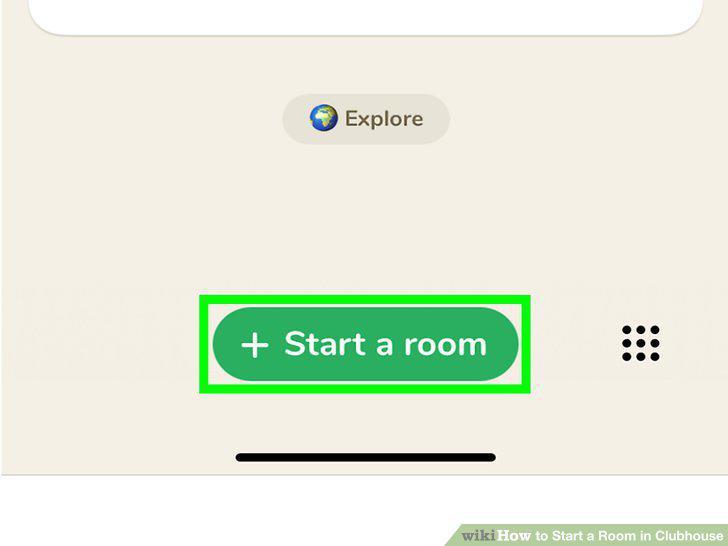
Tap the green Start a Room button.
3
Select a room type.
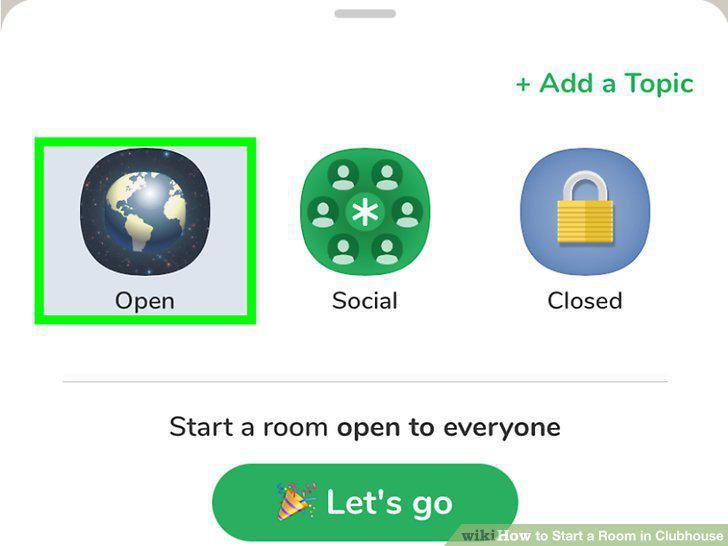
Select a room type.
4
Tap Add a Topic to name the room.
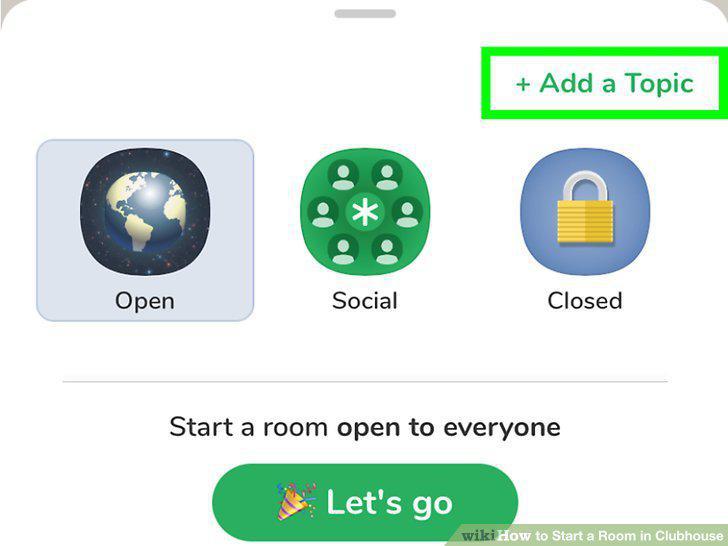
Tap Add a Topic to name the room.
5
Invite people (closed room only).
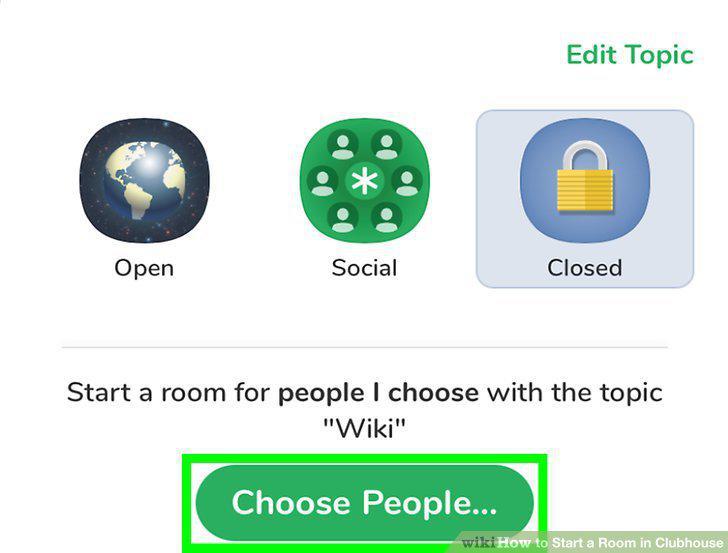
Invite people (closed room only).
6
Tap Let's Go to create your room.
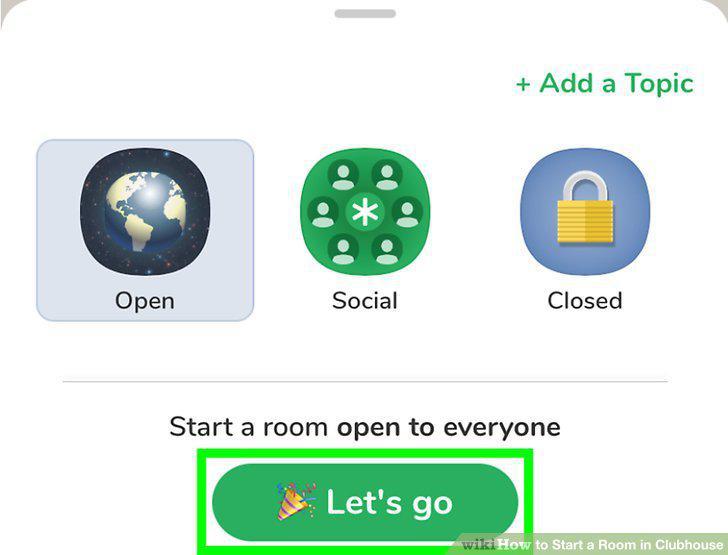
Tap Let's Go to create your room.
7
Open Clubhouse on your iPhone.
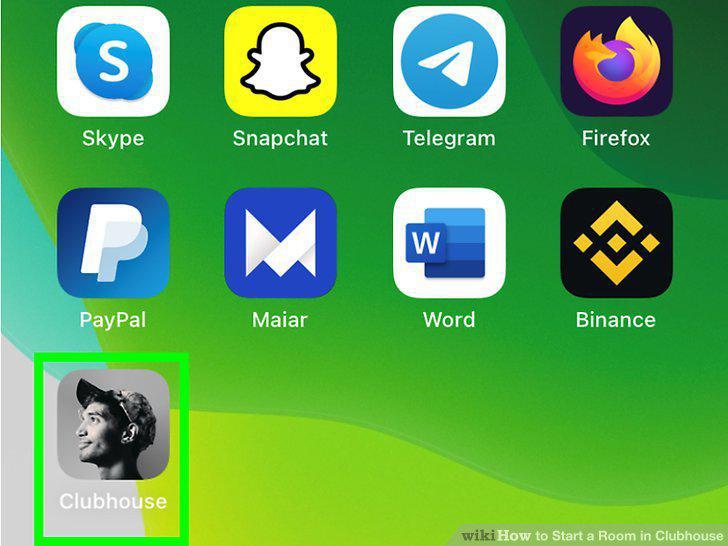
Open Clubhouse on your iPhone.
8
Tap the calendar icon.
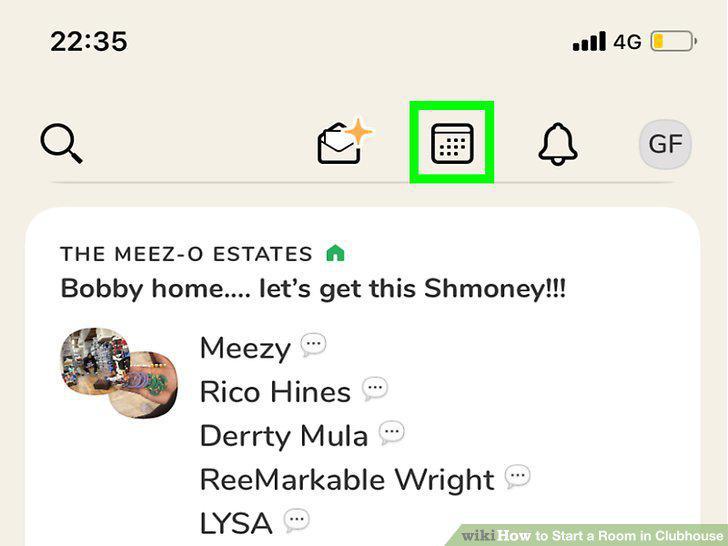
Tap the calendar icon.
9
Tap the calendar icon with a plus sign.
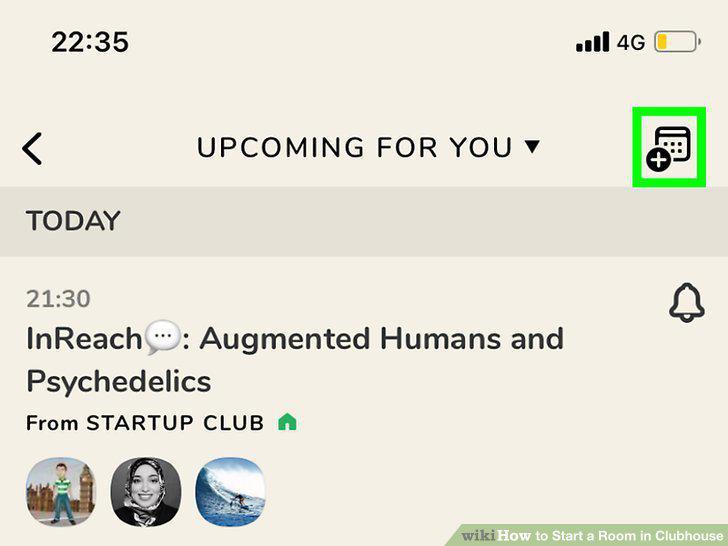
Tap the calendar icon with a plus sign.
10
Enter a name for your event.
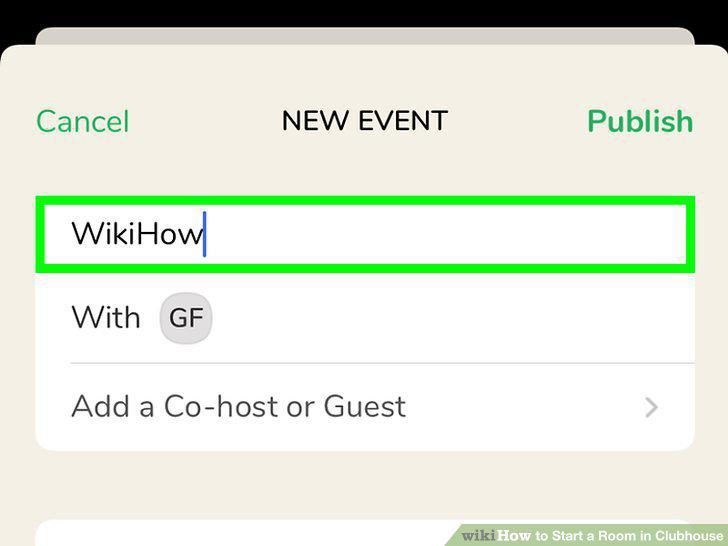
Enter a name for your event.
11
Tap Add a Co-host or Guest to add a co-host or featured guest.
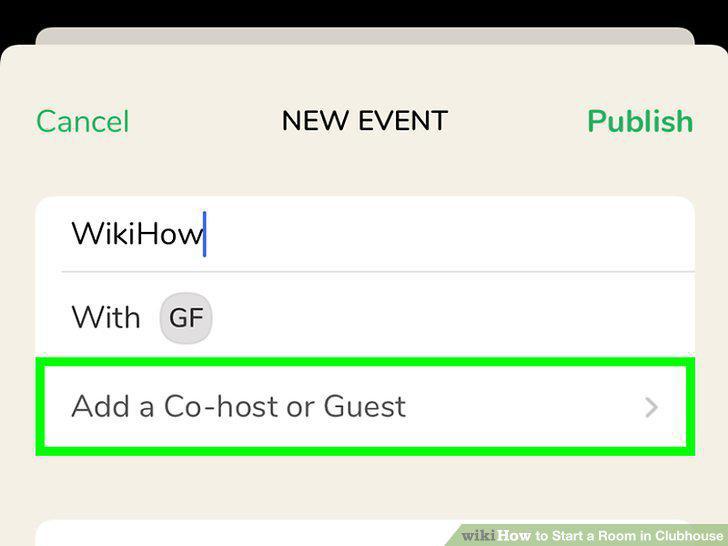
Tap Add a Co-host or Guest to add a co-host or featured guest.
12
Enter the date, time, and description.
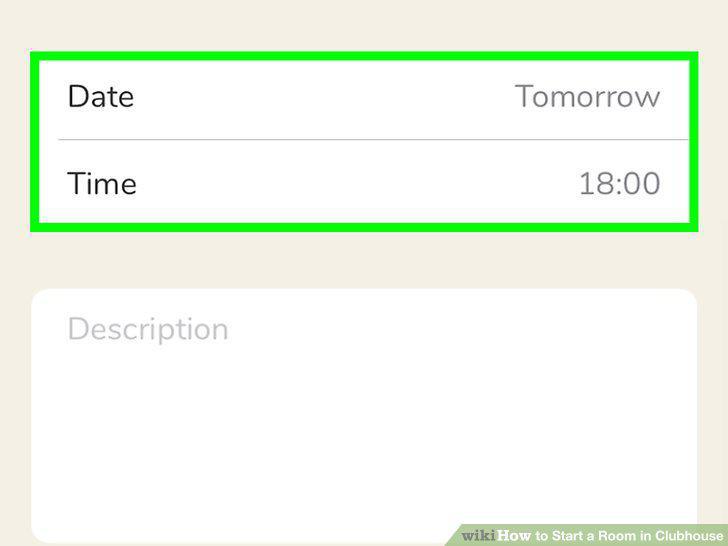
Enter the date, time, and description.
13
Tap Publish.
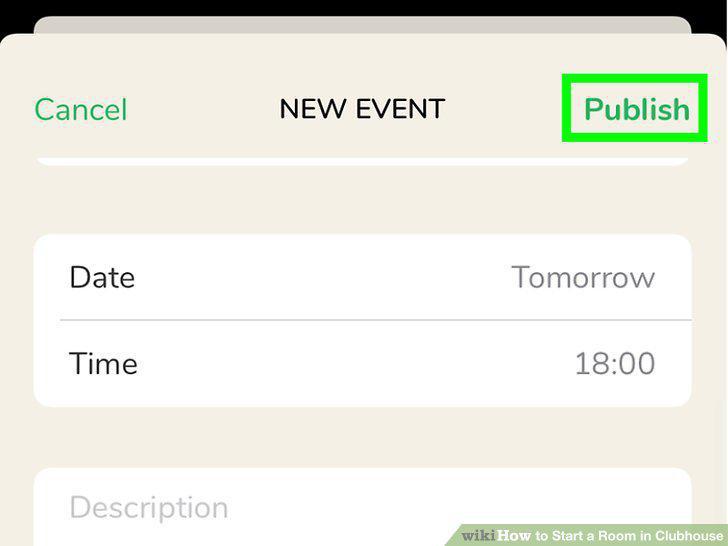
Tap Publish.
14
Share the event link with others.
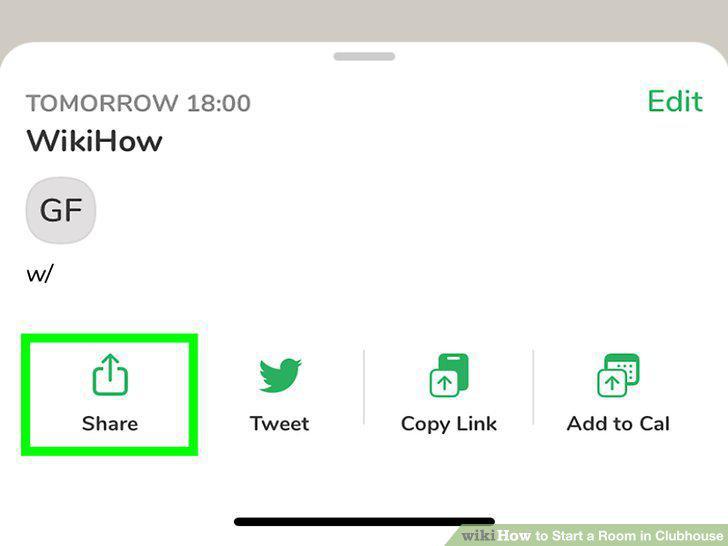
Share the event link with others.
15
View your scheduled rooms.
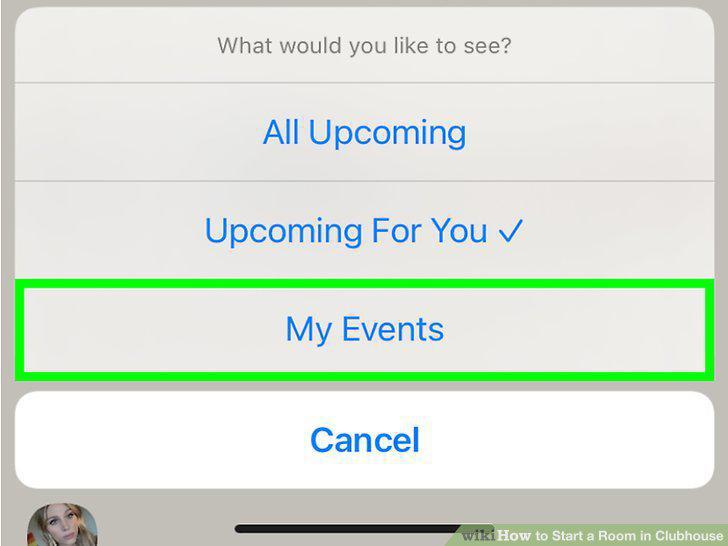
View your scheduled rooms.
16
Start your room at the scheduled time.
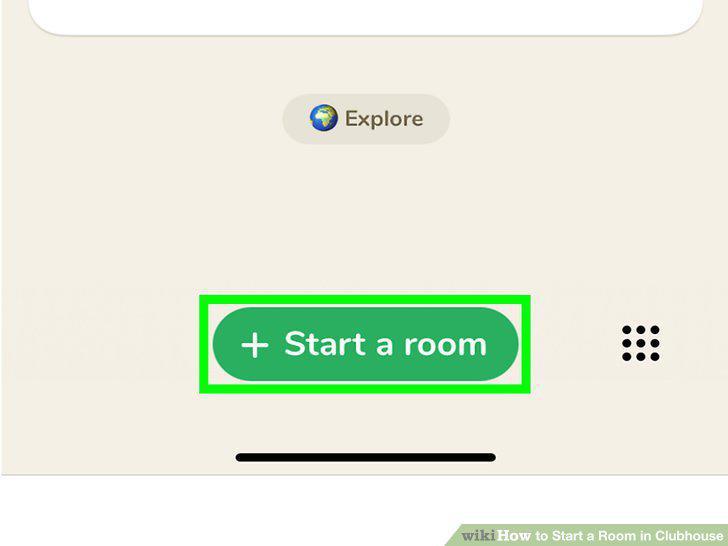
Start your room at the scheduled time.
Comments (0)
No comments yet. Be the first to share your thoughts!