How to Fix a Disabled Apple ID on iPhone or iPad
Type your Apple ID when prompted.. Tap Unlock Account.. Type your phone number and tap Next.
Steps
1
Type your Apple ID when prompted.
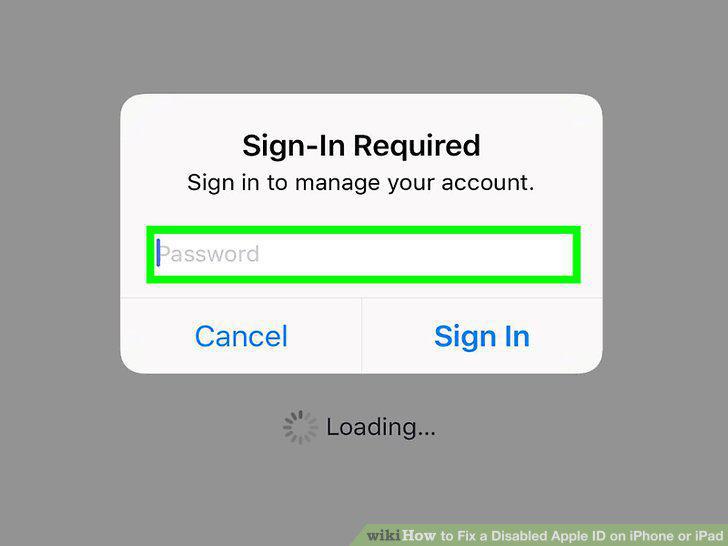
Type your Apple ID when prompted.
2
Tap Unlock Account.
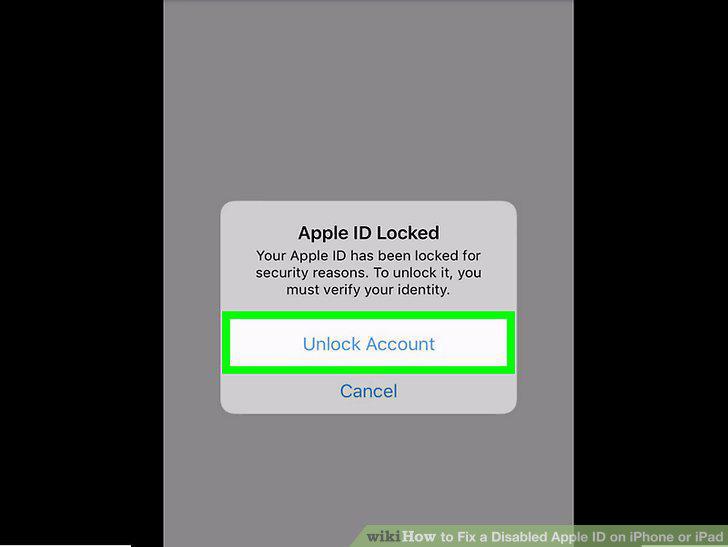
Tap Unlock Account.
3
Type your phone number and tap Next.
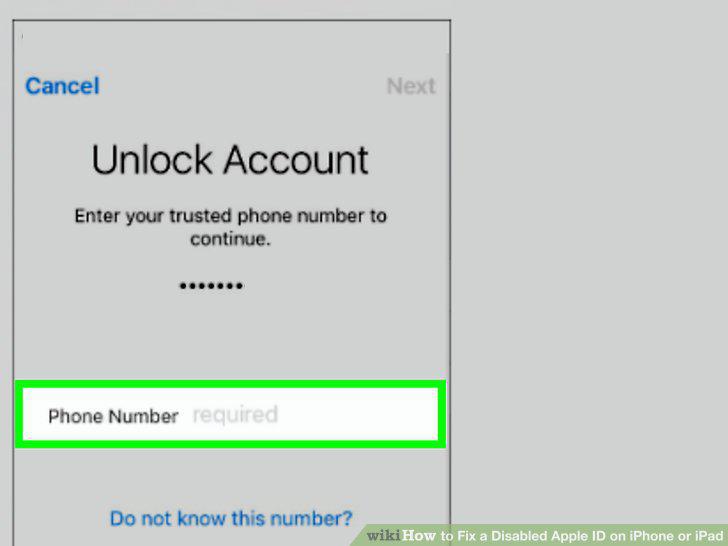
Type your phone number and tap Next.
4
Tap Unlock with Phone Number.
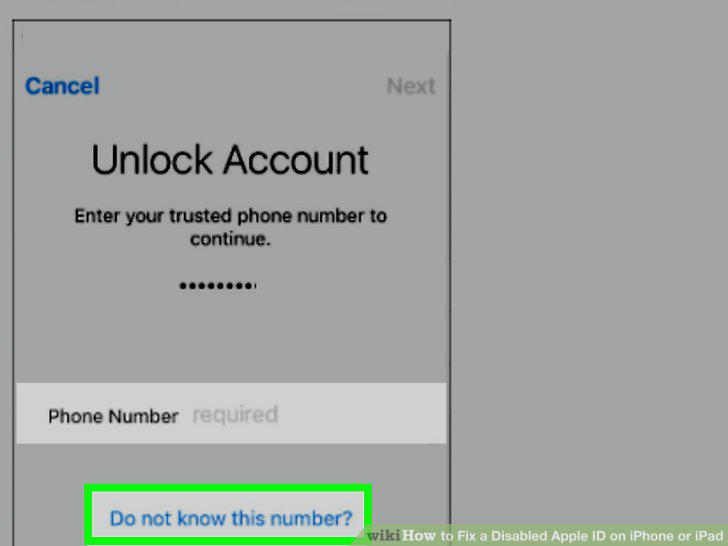
Tap Unlock with Phone Number.
5
Check your text messages.
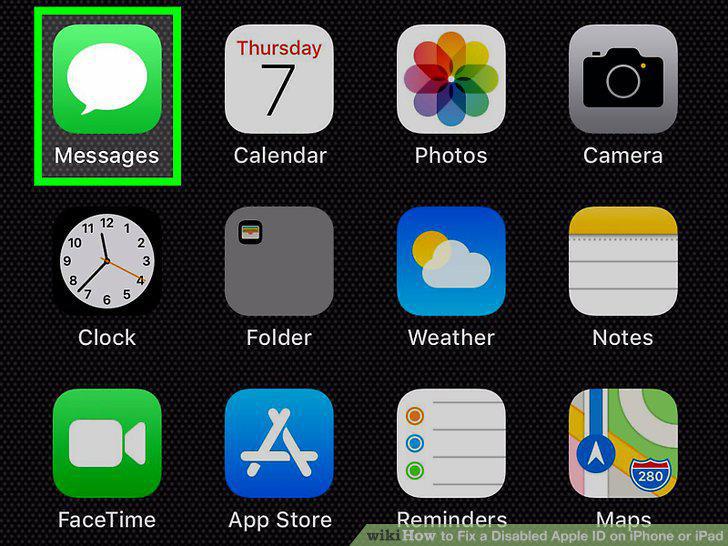
Check your text messages.
6
Type the 6-digit verification code.
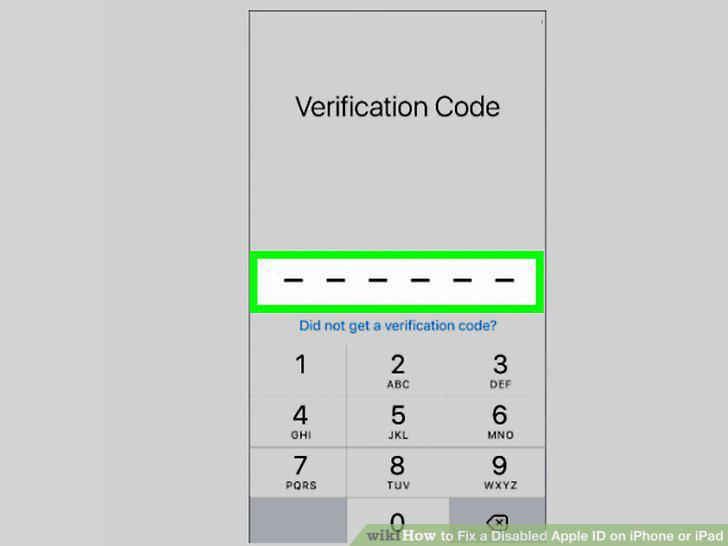
Type the 6-digit verification code.
7
Type your password and tap Next.
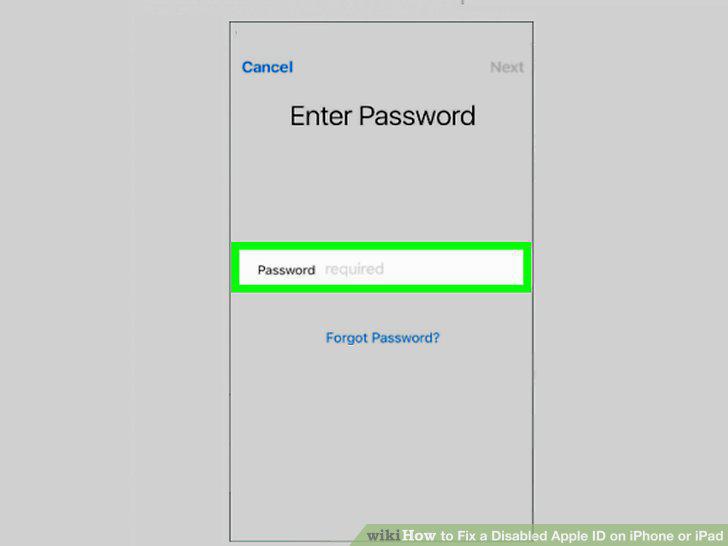
Type your password and tap Next.
8
Tap Unlock Account.
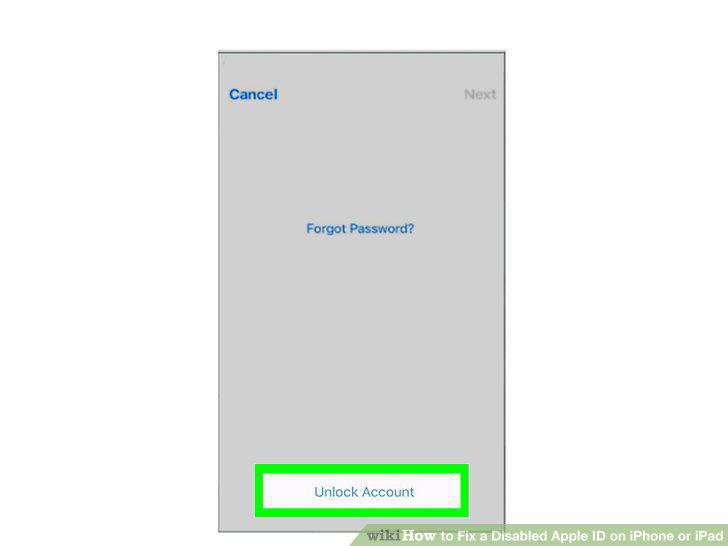
Tap Unlock Account.
9
Tap Continue.
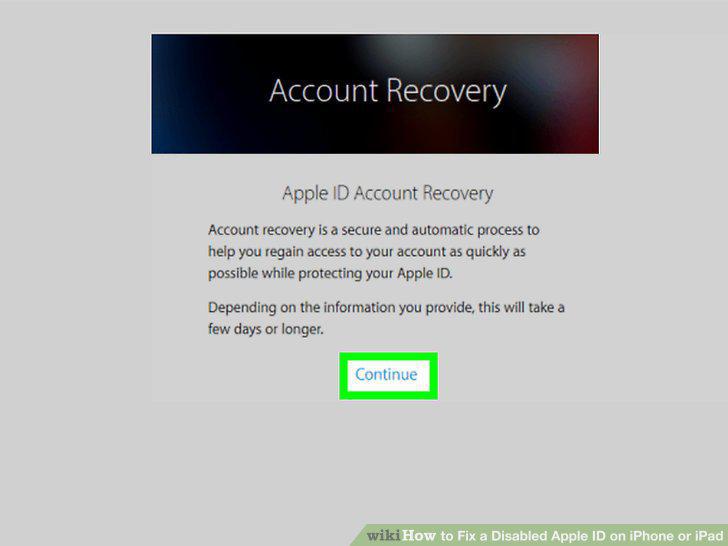
Tap Continue.
Comments (0)
No comments yet. Be the first to share your thoughts!