How to Post on Facebook Messenger from Your Camera Roll on iPhone or iPad
Open Facebook Messenger on your iPhone or iPad.. Tap the Home icon.. Tap a chat conversation.
Steps
1
Open Facebook Messenger on your iPhone or iPad.
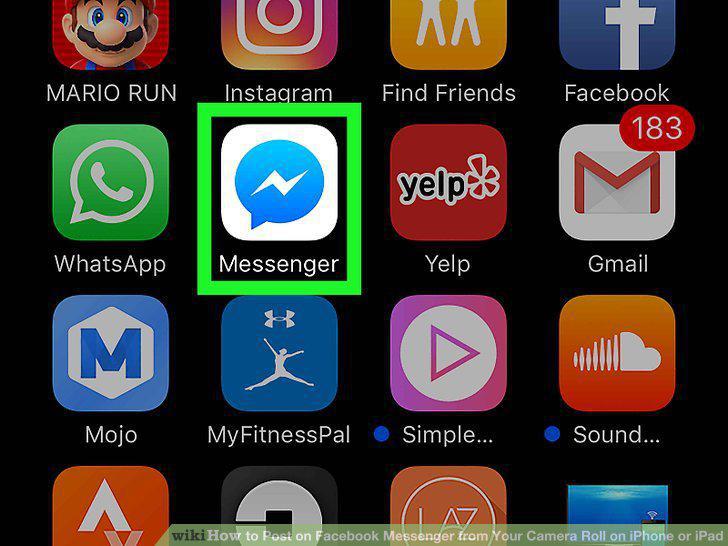
Open Facebook Messenger on your iPhone or iPad.
2
Tap the Home icon.
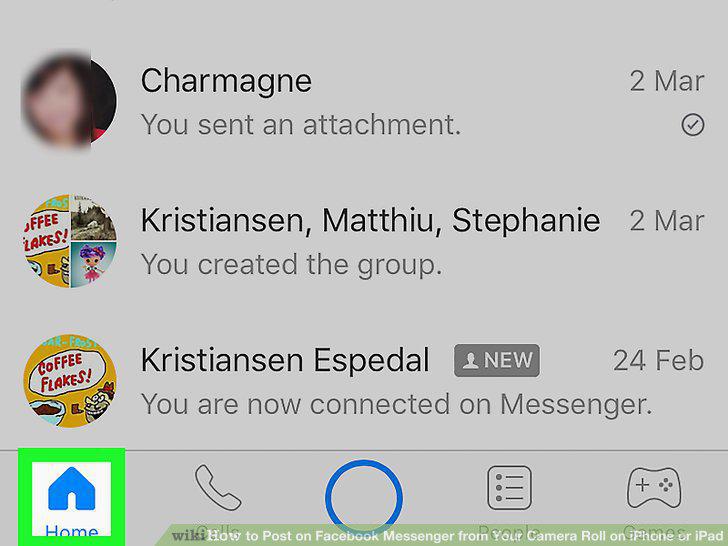
Tap the Home icon.
3
Tap a chat conversation.
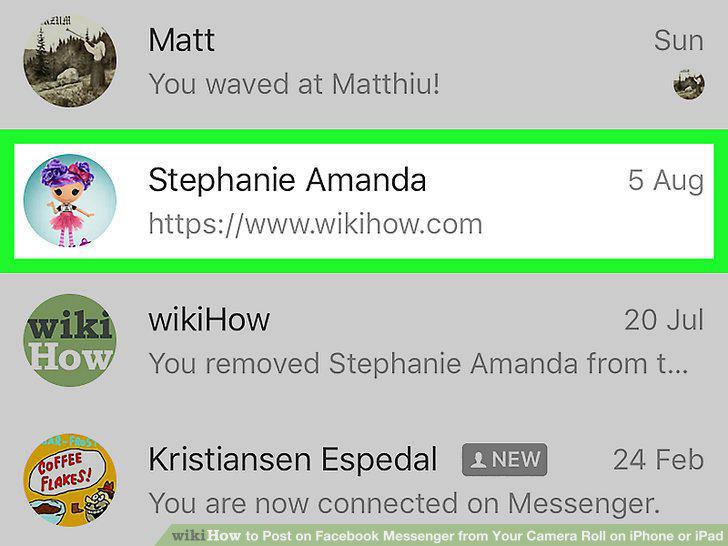
Tap a chat conversation.
4
Tap the picture icon.
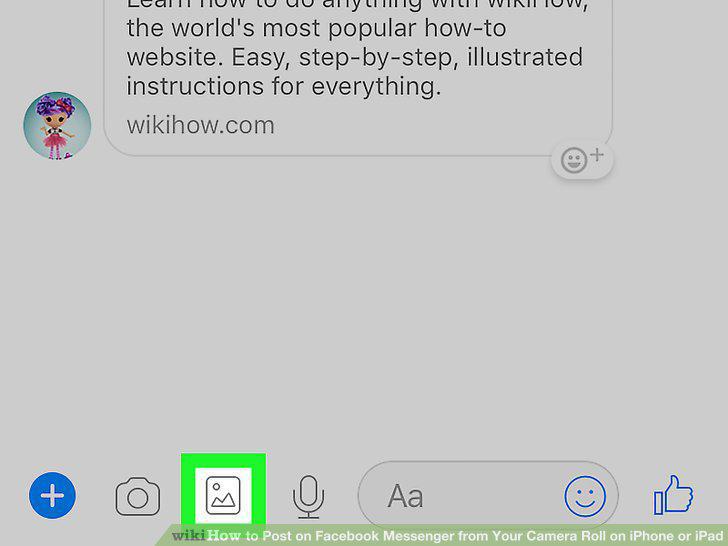
Tap the picture icon.
5
Tap the picture you want to send.
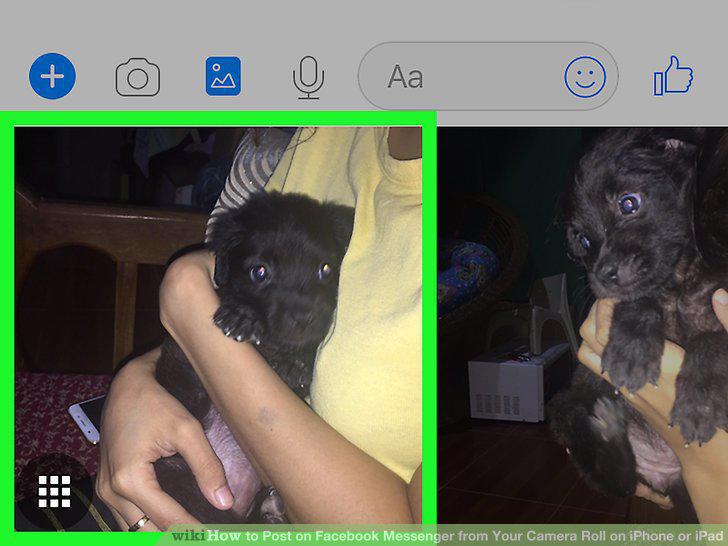
Tap the picture you want to send.
6
Tap the Send button.
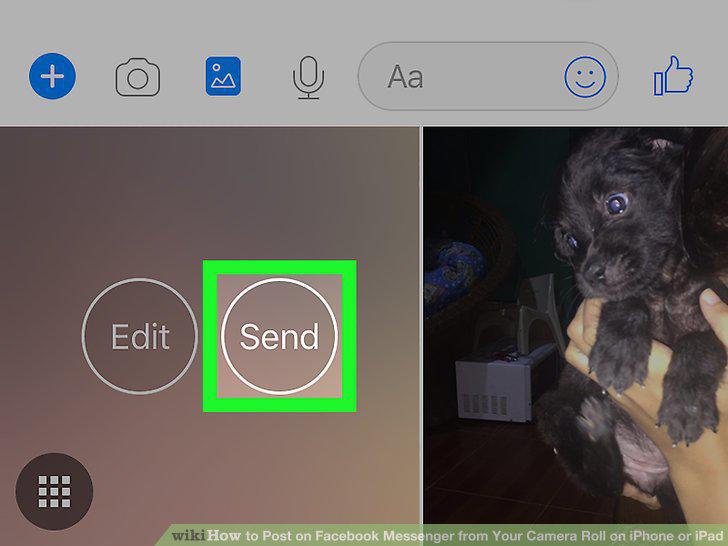
Tap the Send button.
7
Open the Photos app on your iPhone or iPad.
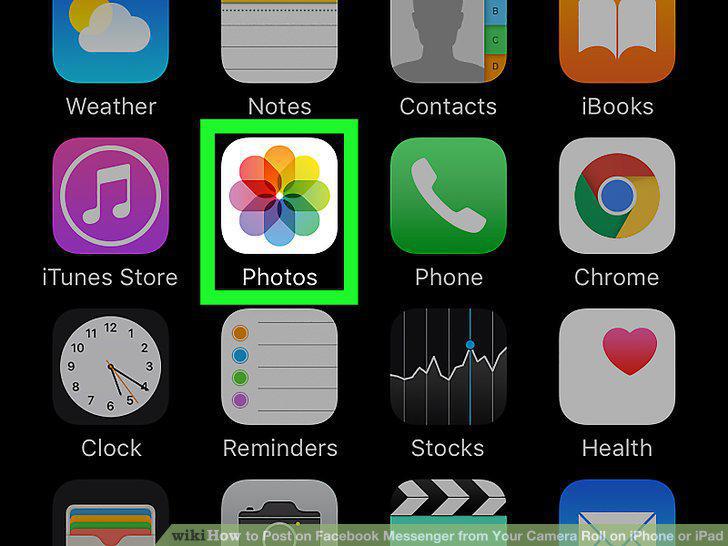
Open the Photos app on your iPhone or iPad.
8
Tap the Albums icon.
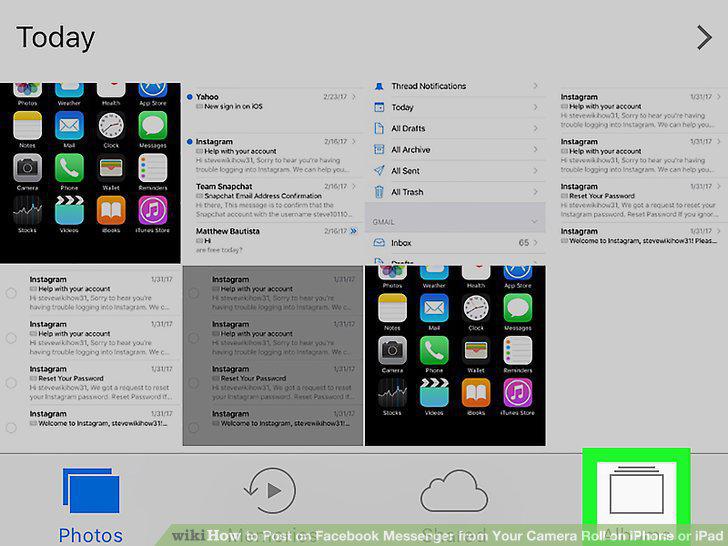
Tap the Albums icon.
9
Tap Camera Roll.
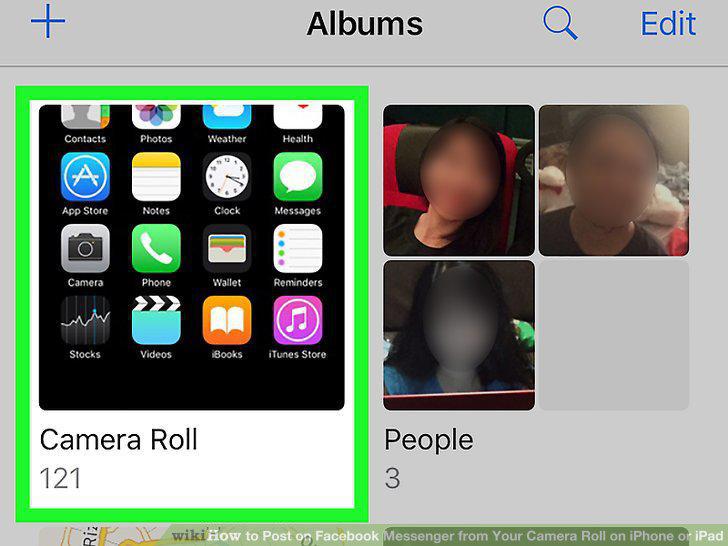
Tap Camera Roll.
10
Tap the picture you want to send.
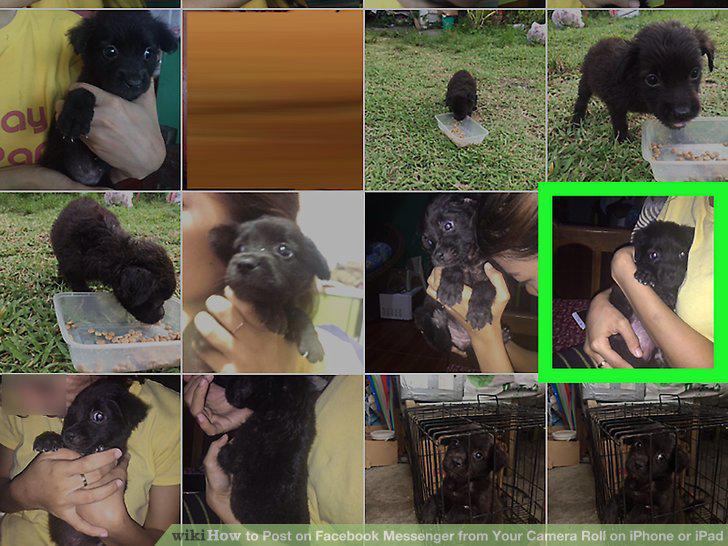
Tap the picture you want to send.
11
Tap the icon.
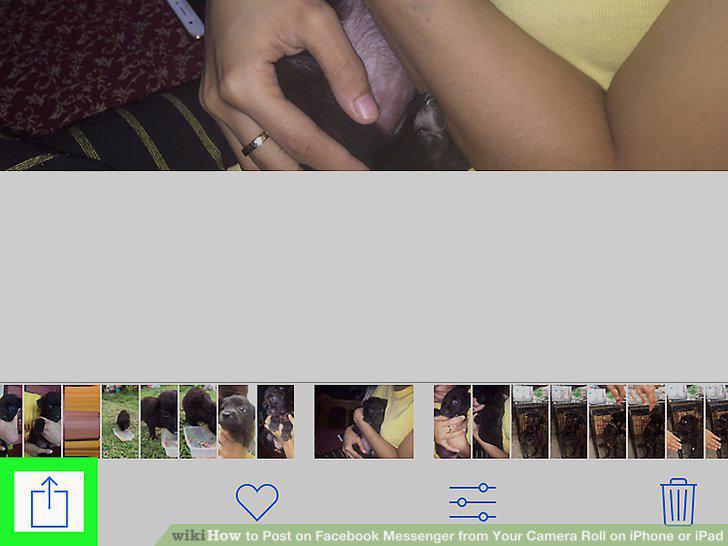
Tap the icon.
12
Find and tap the Messenger icon in the pop-up.
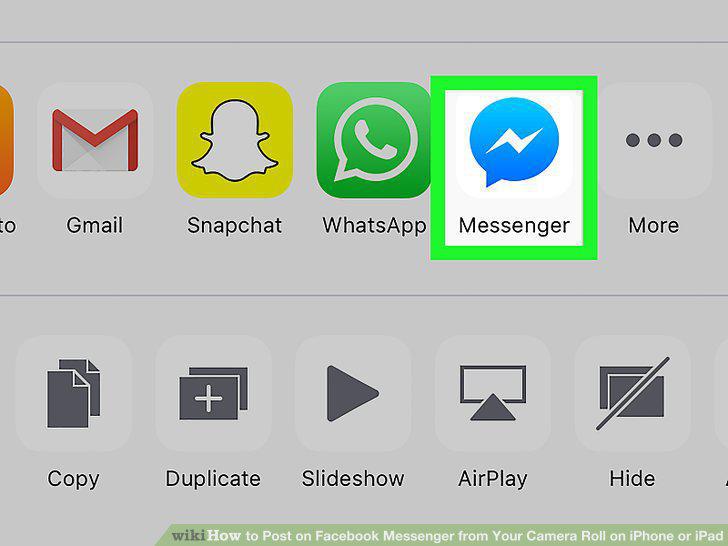
Find and tap the Messenger icon in the pop-up.
13
Select contacts to share your picture with.
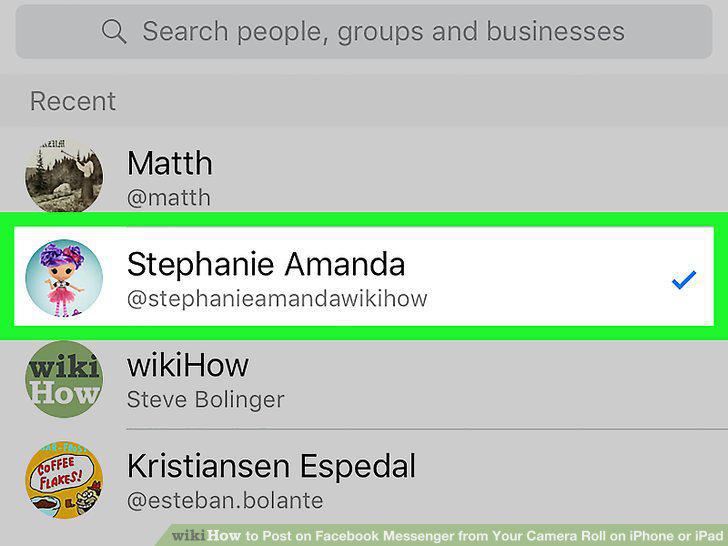
Select contacts to share your picture with.
14
Tap the Send button.
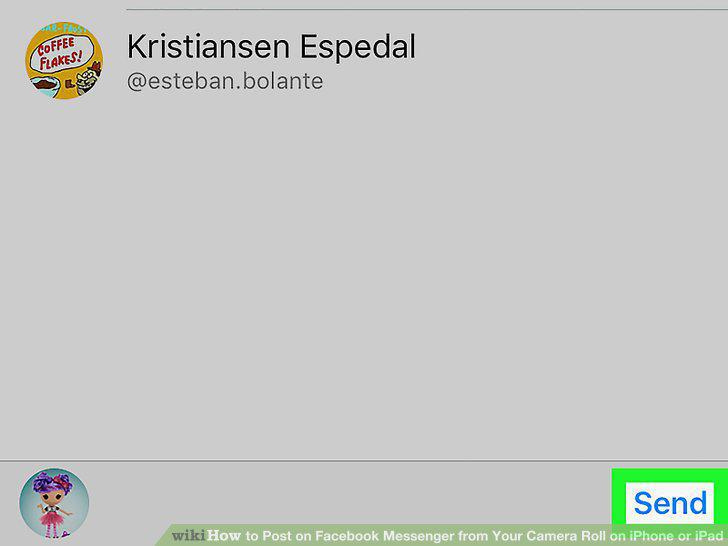
Tap the Send button.
Comments (0)
No comments yet. Be the first to share your thoughts!