How to Create a Silhouette in Photoshop
Open up an image with simple, easily differentiated background.. Duplicate the layer to ensure you don't ruin your original image.. Use the Quick Selection (w) tool to rapidly select the object you're making a silhouette.
Steps
Open up an image with simple, easily differentiated background.
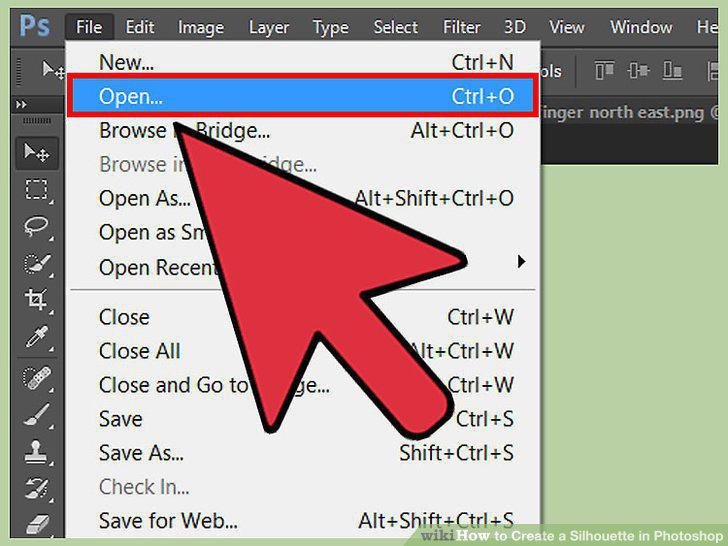
Open up an image with simple, easily differentiated background.
Duplicate the layer to ensure you don't ruin your original image.
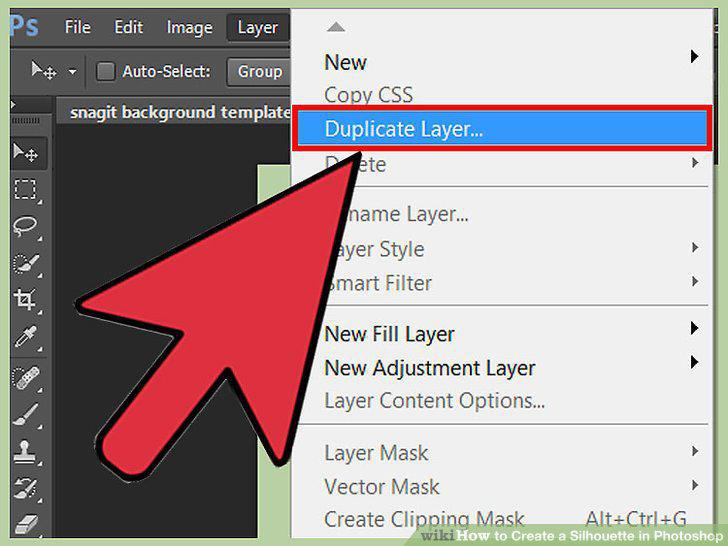
Duplicate the layer to ensure you don't ruin your original image.
Use the Quick Selection (w) tool to rapidly select the object you're making a si
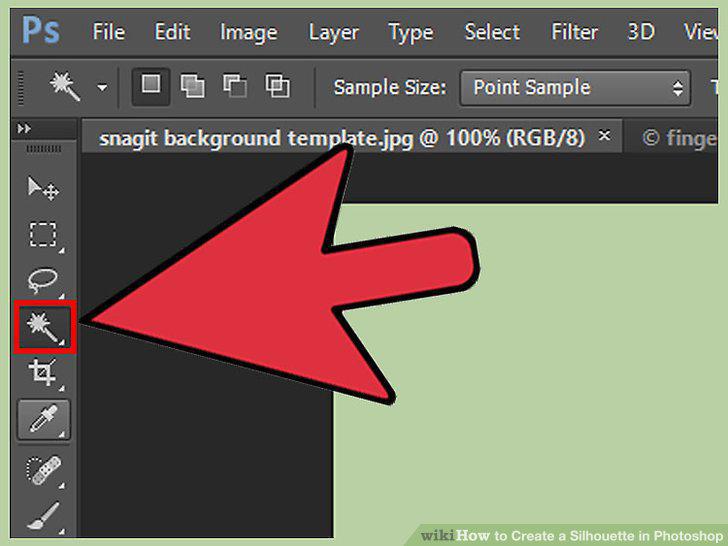
Use the Quick Selection (w) tool to rapidly select the object you're making a silhouette.
Pull up the "Hue and Saturation" adjustments for your selection.

Pull up the "Hue and Saturation" adjustments for your selection.
Check the "colorize" box in Hue/Saturation then pull all three sliders straight
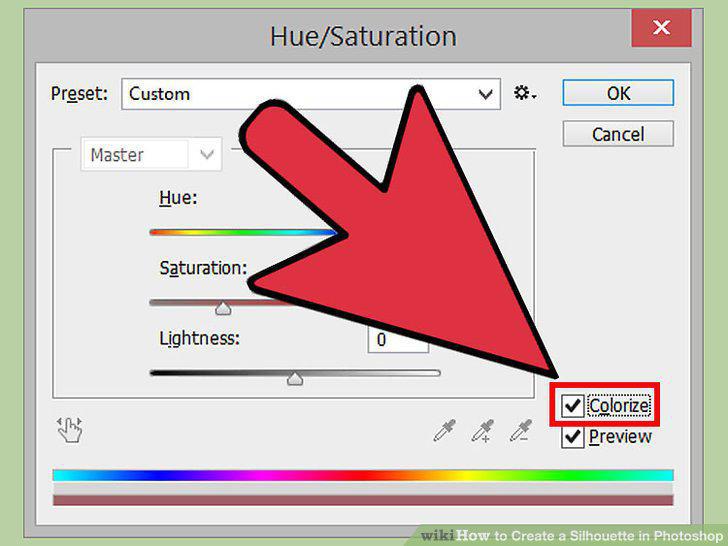
Check the "colorize" box in Hue/Saturation then pull all three sliders straight to the left.
Use vector silhouettes if you want to adjust, grow, shrink or export your silhou
Use vector silhouettes if you want to adjust, grow, shrink or export your silhouettes without losing quality.
Create a new layer above your original image.
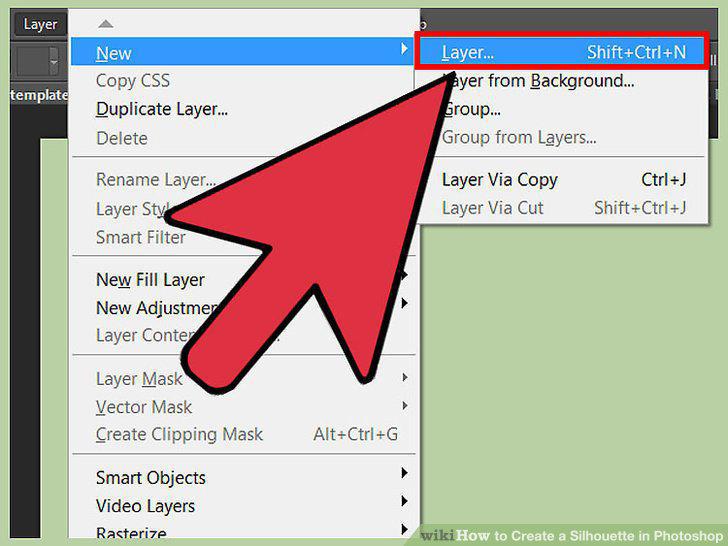
Create a new layer above your original image.
Select the image you want silhouetted with the Pen Tool.
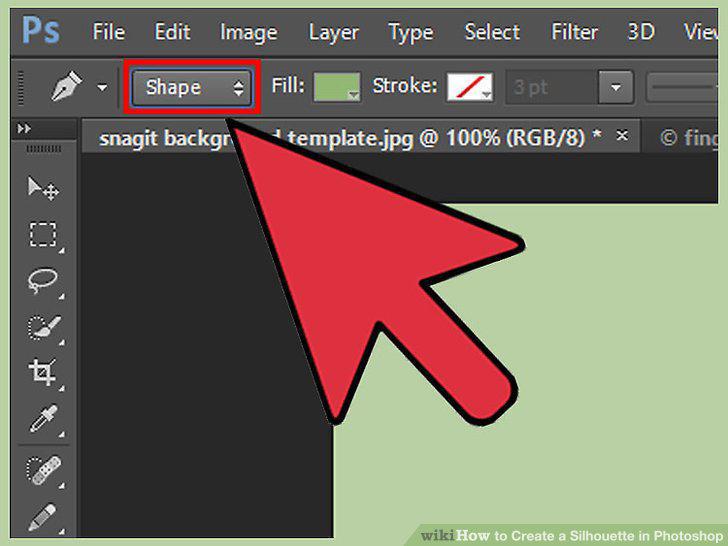
Select the image you want silhouetted with the Pen Tool.
Use the Pen Tool to trace out your entire silhouette.
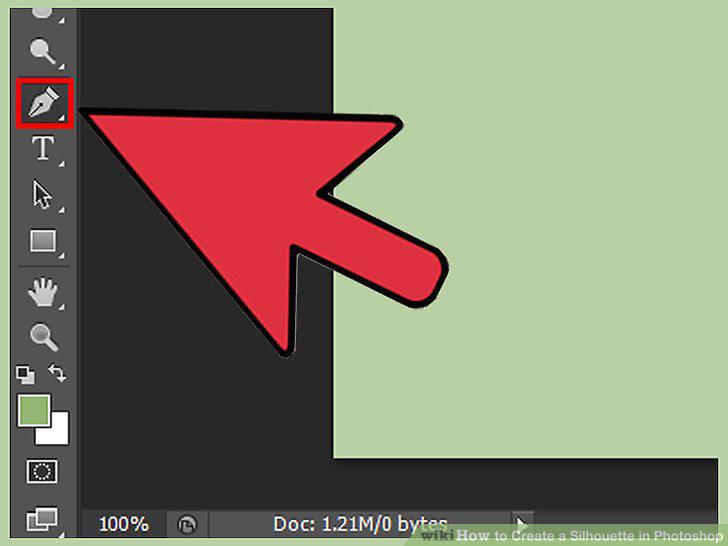
Use the Pen Tool to trace out your entire silhouette.
Connect the dots back to finish your silhouette.
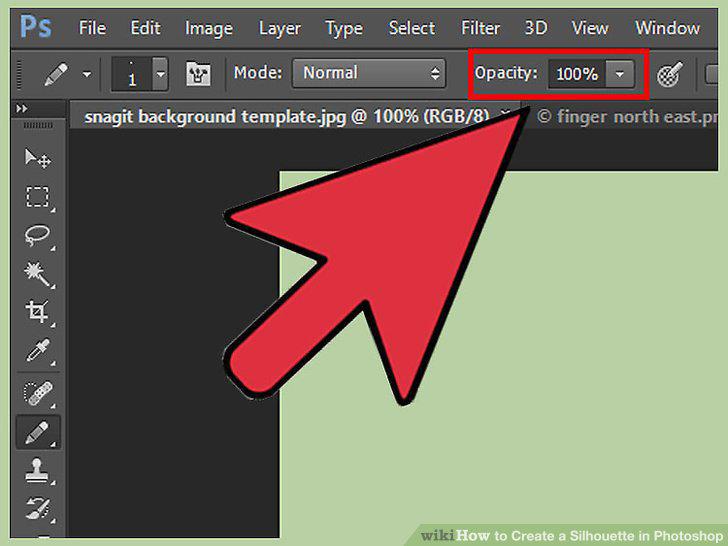
Connect the dots back to finish your silhouette.
Click and drag the silhouette into its own image, to Illustrator, or leave it to
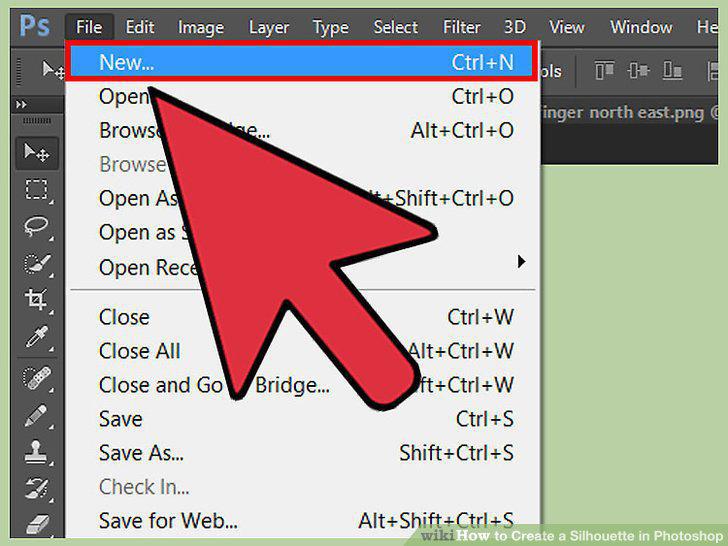
Click and drag the silhouette into its own image, to Illustrator, or leave it to finish your silhouette.
Duplicate your original image layer to get a spare copy for your silhouette.
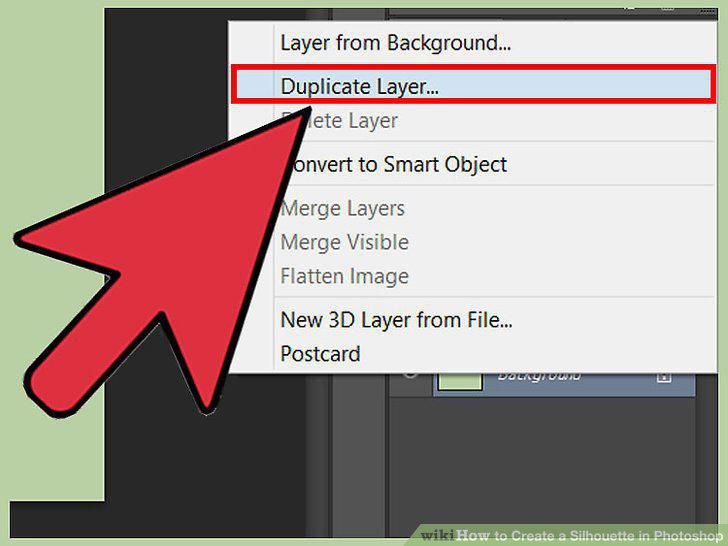
Duplicate your original image layer to get a spare copy for your silhouette.
Use the Pen Tool (P) for the most exact, perfect outlines to make silhouettes fr
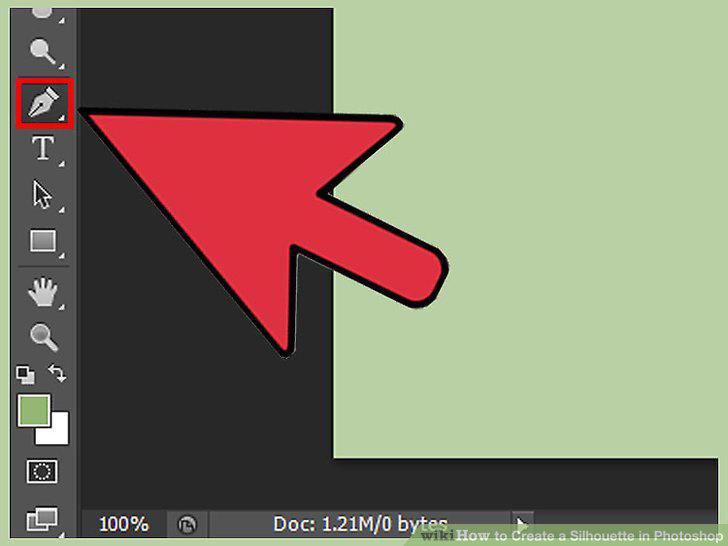
Use the Pen Tool (P) for the most exact, perfect outlines to make silhouettes from.
Use the Magic Wand (W) tool to separate a simple 1-2 color background.
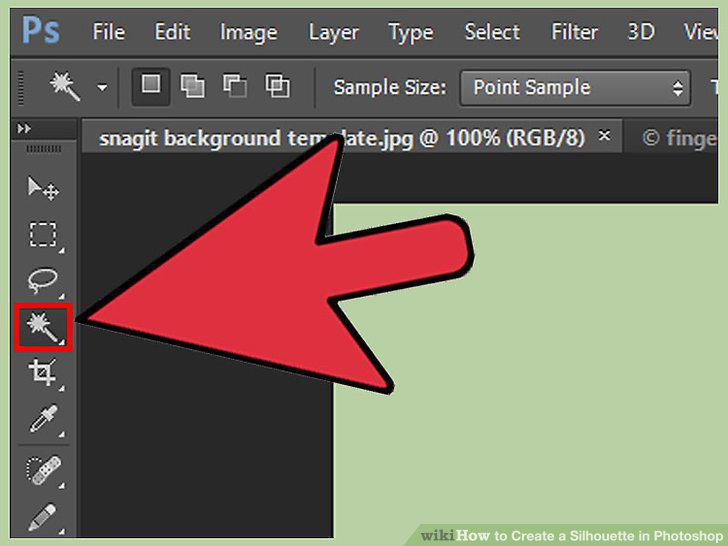
Use the Magic Wand (W) tool to separate a simple 1-2 color background.
Use the remaining selection tools to trace out simple objects.
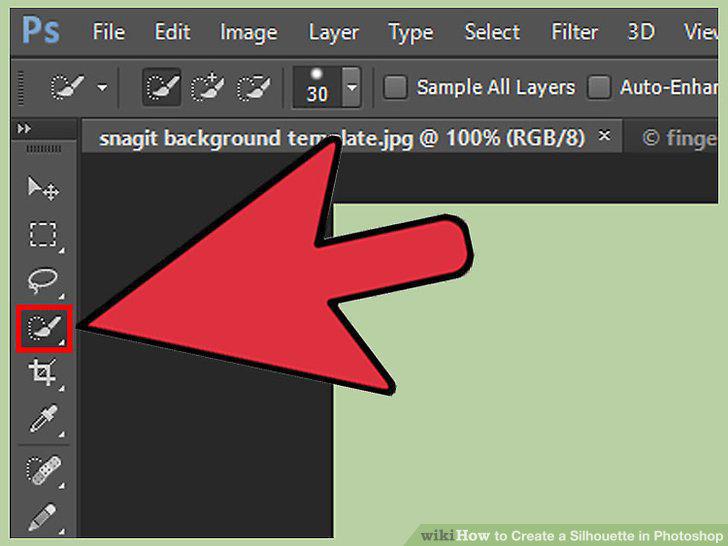
Use the remaining selection tools to trace out simple objects.
Ctrl-Click on a layer from the layers menu to automatically select it.
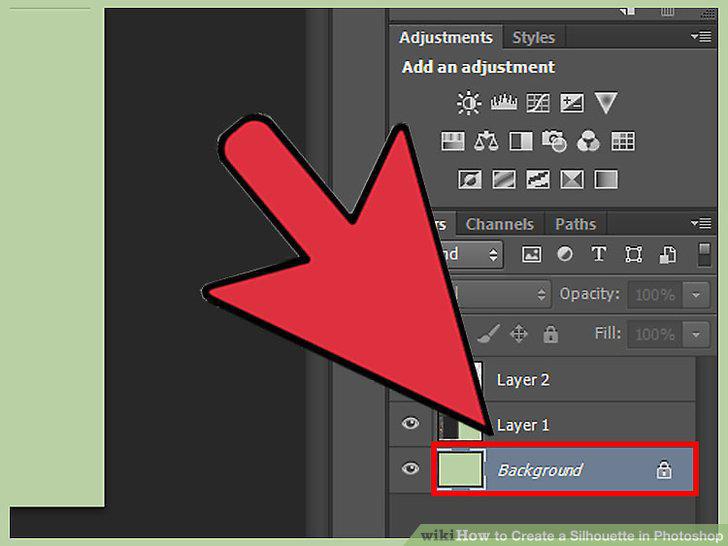
Ctrl-Click on a layer from the layers menu to automatically select it.
Use "Refine Edge" to get the perfect selection.
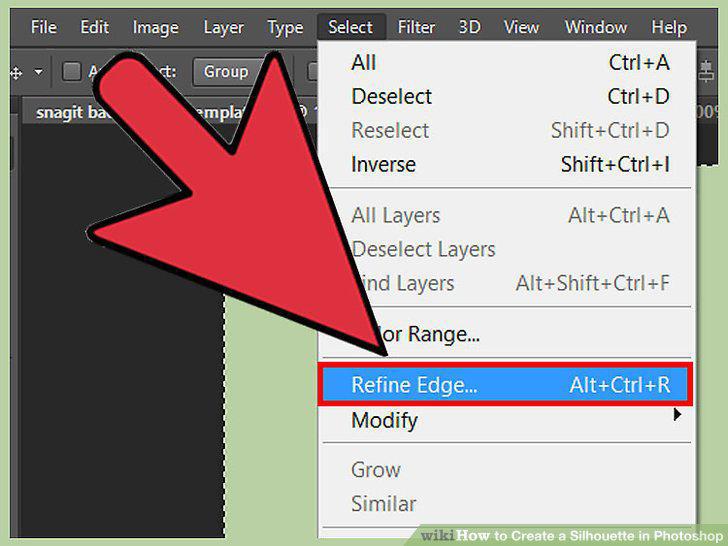
Use "Refine Edge" to get the perfect selection.
Comments (0)
No comments yet. Be the first to share your thoughts!