How to Block Ads (Unwanted Pop Ups) in Opera
Click the Opera menu button and select "Get extensions.". Search for "Adblock.". Pick an ad blocker that is well-reviewed.
Steps
Click the Opera menu button and select "Get extensions."
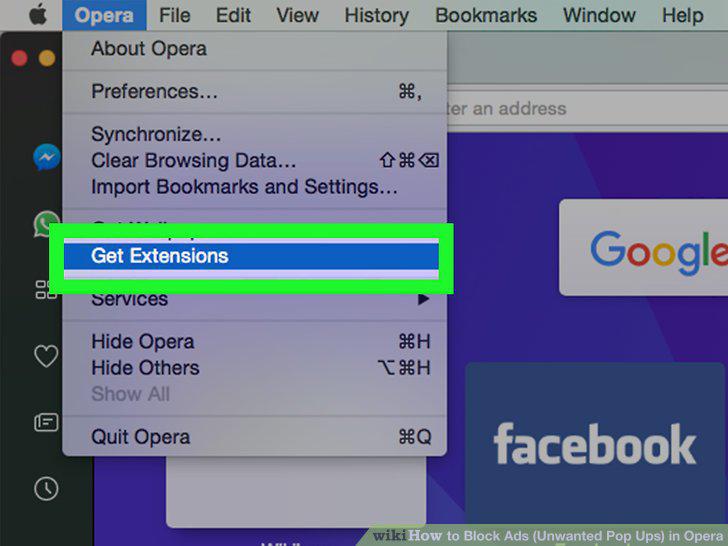
Click the Opera menu button and select "Get extensions."
Search for "Adblock."
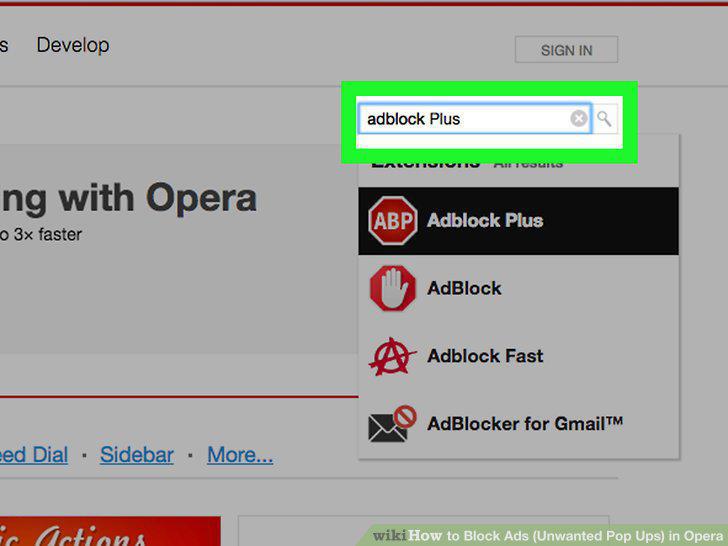
Search for "Adblock."
Pick an ad blocker that is well-reviewed.
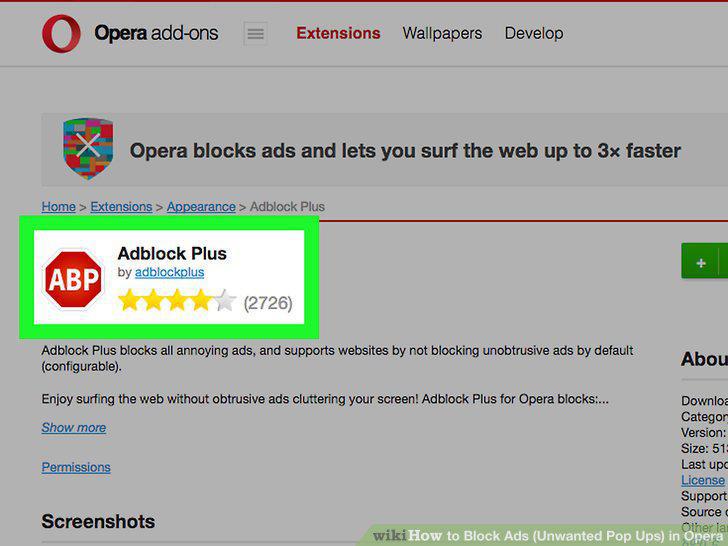
Pick an ad blocker that is well-reviewed.
Click "Add to Opera" on the add-on's page.
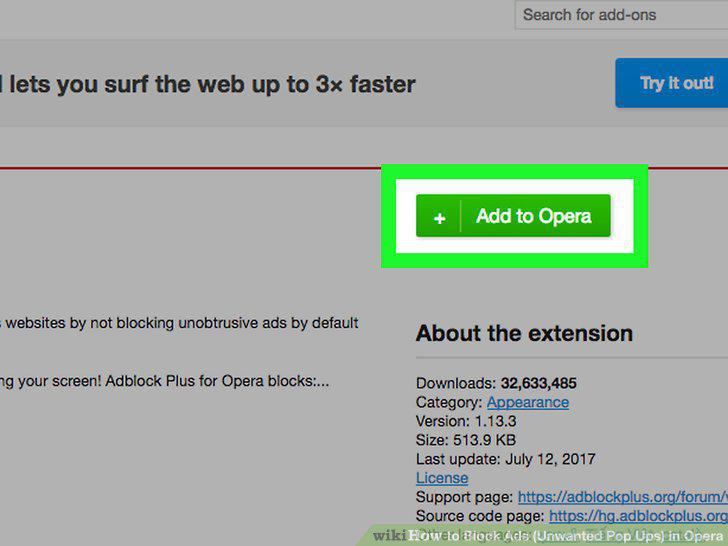
Click "Add to Opera" on the add-on's page.
Click the ad blocker's icon and select "Options" to adjust settings.
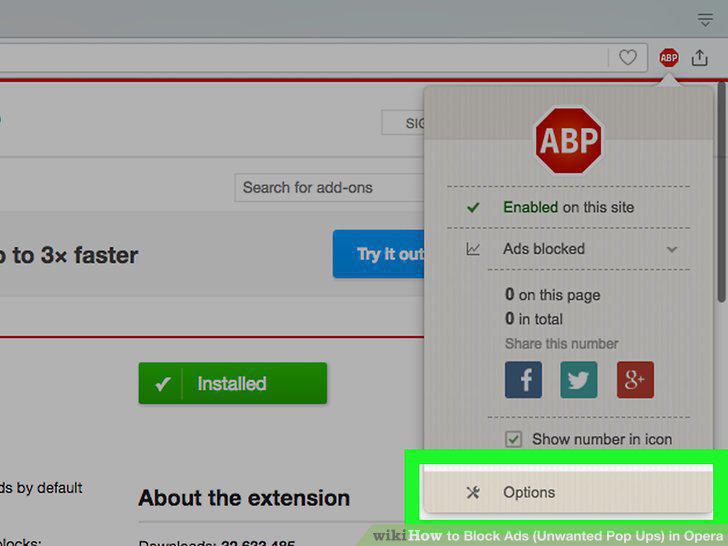
Click the ad blocker's icon and select "Options" to adjust settings.
Allow ads on your favorite sites.
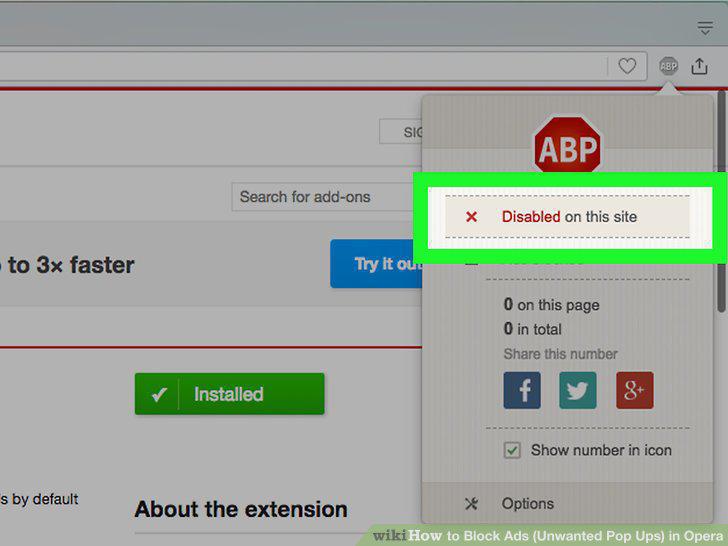
Allow ads on your favorite sites.
Remove adware when Opera is plagued with constant pop-ups and redirects.
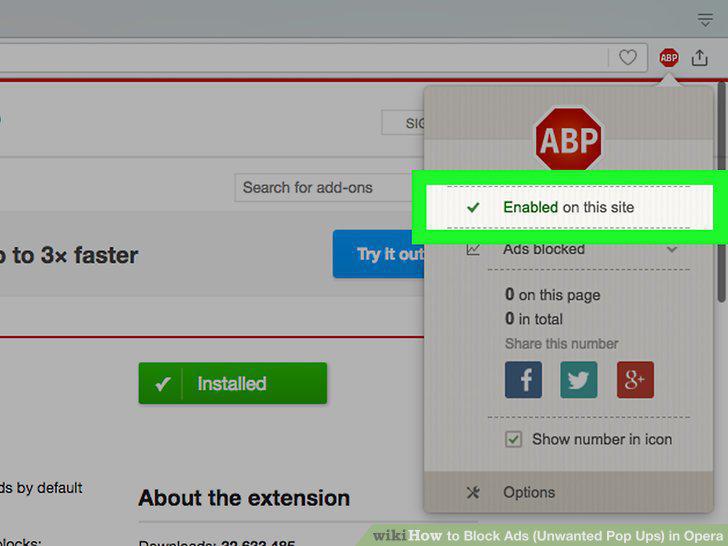
Remove adware when Opera is plagued with constant pop-ups and redirects.
Open the Control Panel.
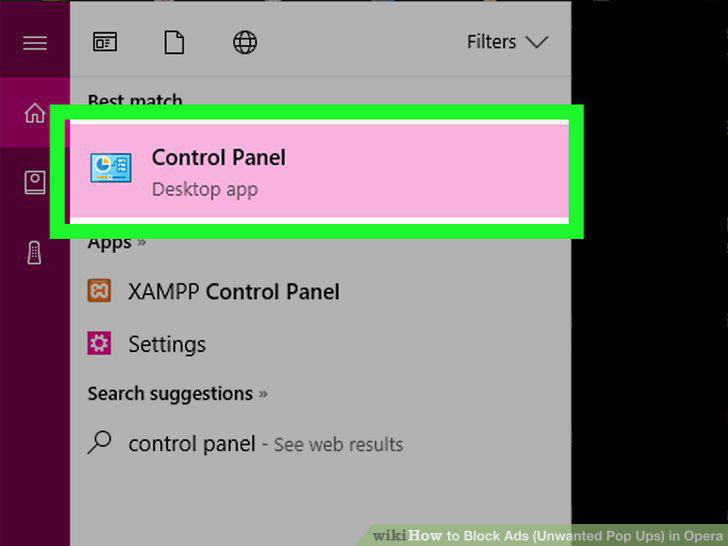
Open the Control Panel.
Click "Uninstall a program" or "Programs and Features."
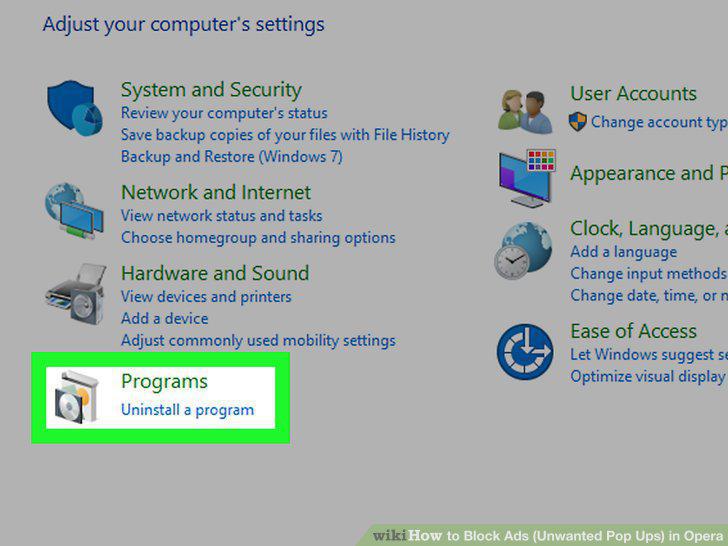
Click "Uninstall a program" or "Programs and Features."
Click the "Installed On" column to sort by the install date.
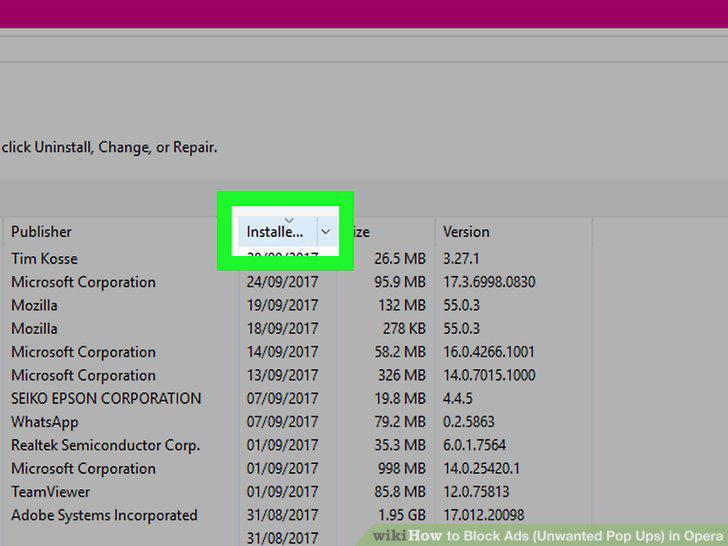
Click the "Installed On" column to sort by the install date.
Select programs that you don't recognize and click "Uninstall."
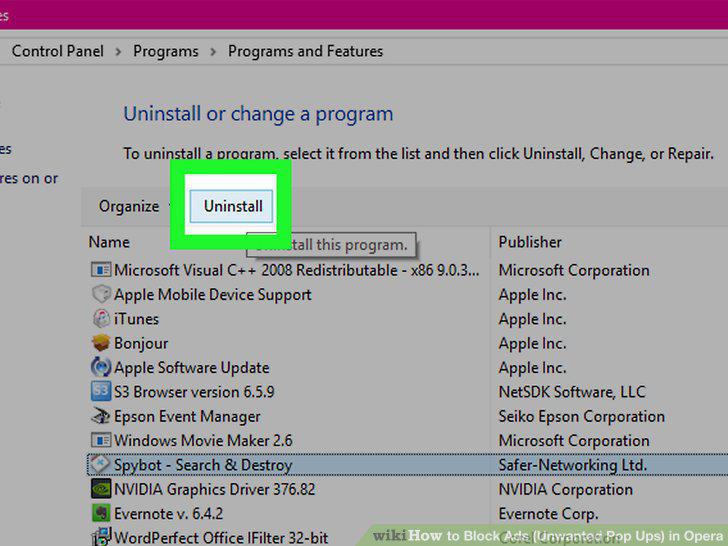
Select programs that you don't recognize and click "Uninstall."
Reset Internet Explorer.
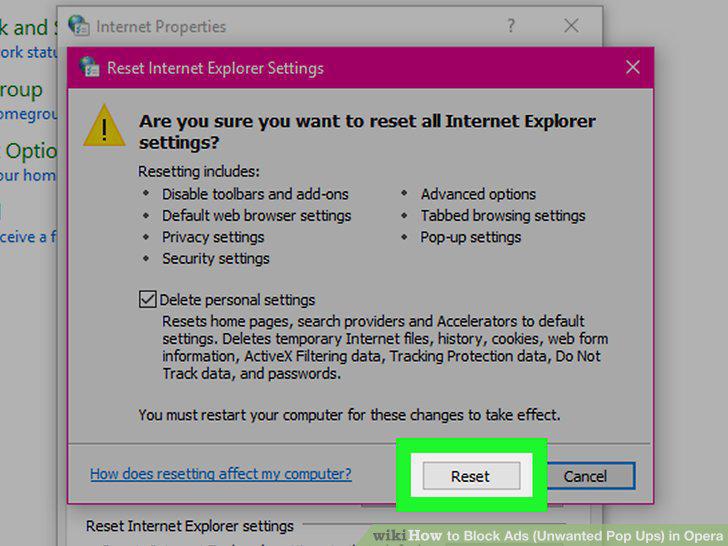
Reset Internet Explorer.
Reset Opera.
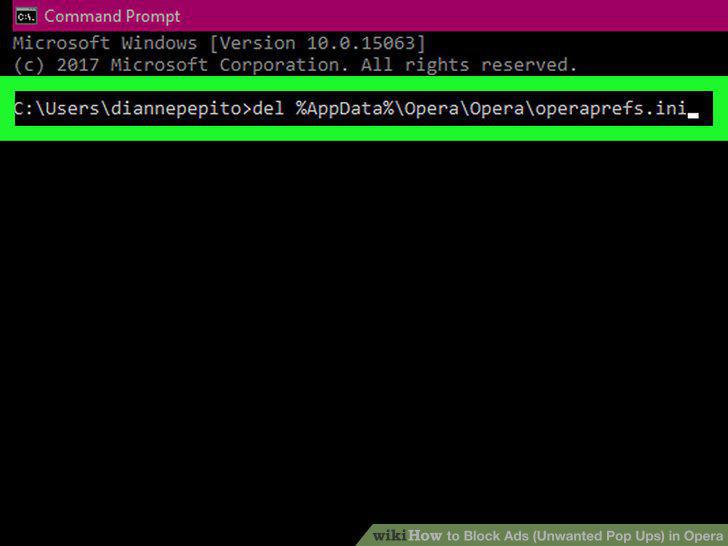
Reset Opera.
Download and run AdwCleaner.
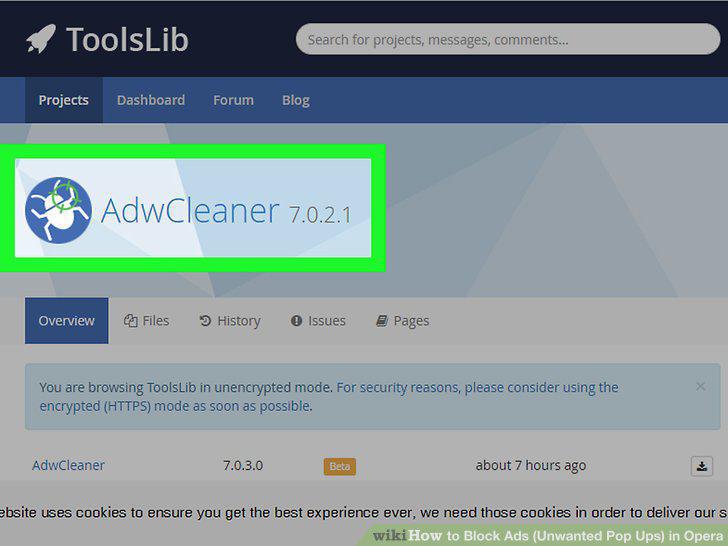
Download and run AdwCleaner.
Download and run Malwarebytes Antimalware.
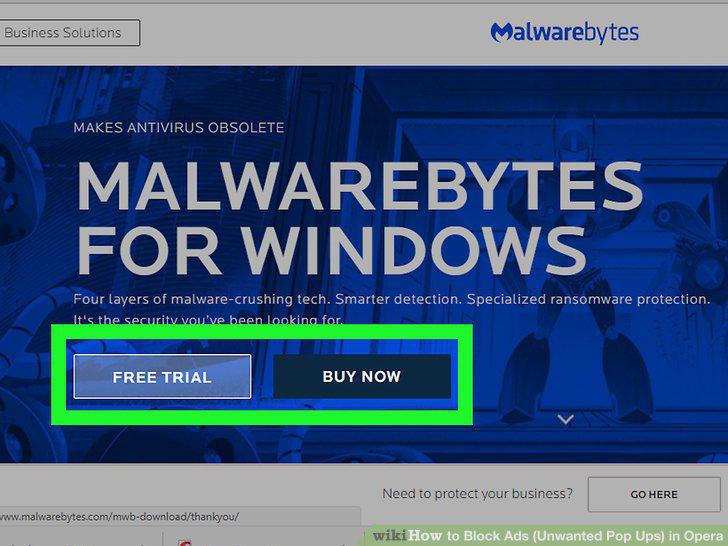
Download and run Malwarebytes Antimalware.
Download and run BleepingComputer's shortcut cleaner.
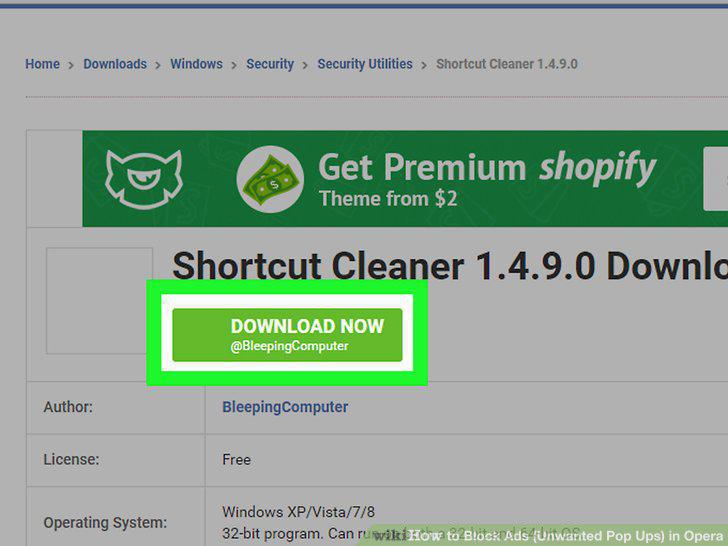
Download and run BleepingComputer's shortcut cleaner.
Comments (0)
No comments yet. Be the first to share your thoughts!