How to Change Text to Numbers in Excel
Open the Excel spreadsheet you want to edit.. Right-click the cell you want to edit.. Click Format Cells on the right-click menu.
Steps
1
Open the Excel spreadsheet you want to edit.

Open the Excel spreadsheet you want to edit.
2
Right-click the cell you want to edit.
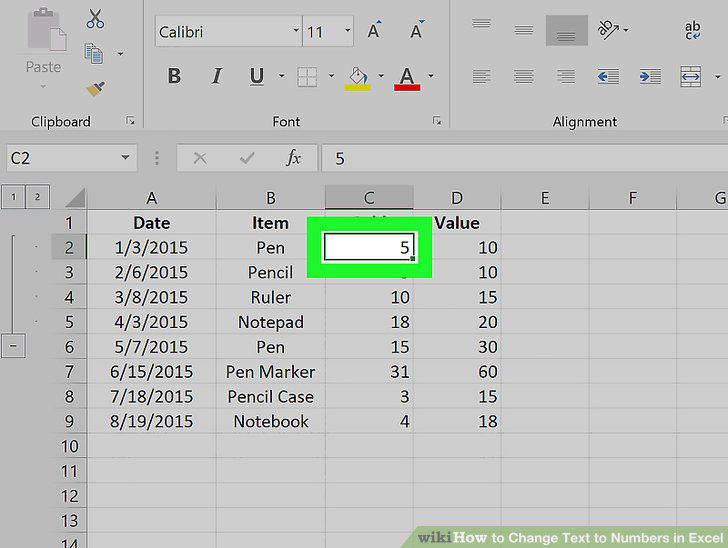
Right-click the cell you want to edit.
3
Click Format Cells on the right-click menu.
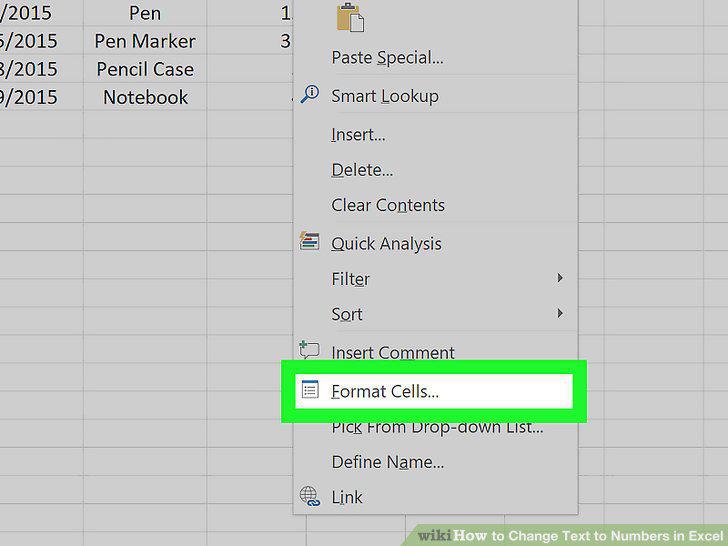
Click Format Cells on the right-click menu.
4
Select Number in the Category panel.
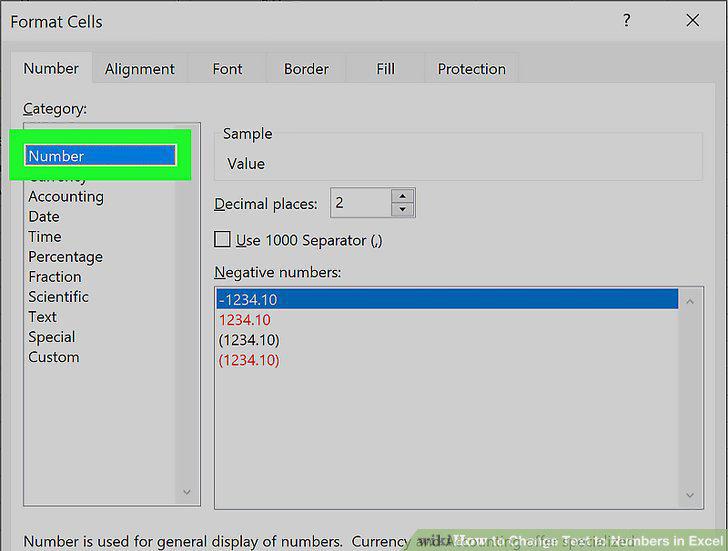
Select Number in the Category panel.
5
Select the decimal places you want to use (optional).
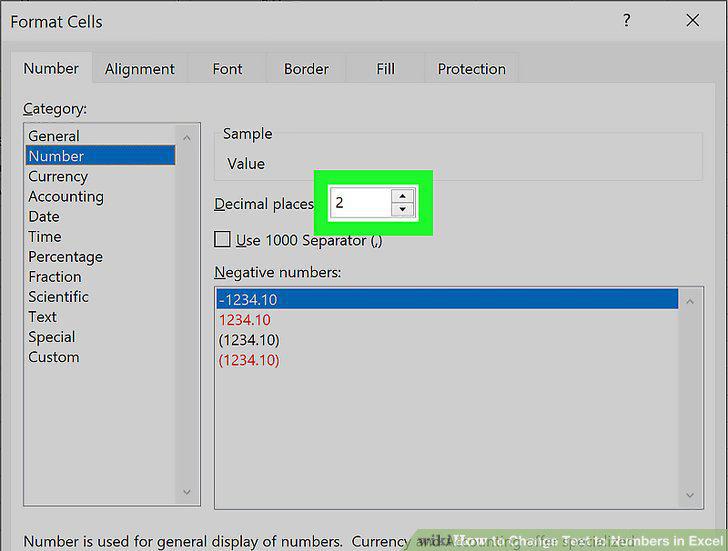
Select the decimal places you want to use (optional).
6
Select a display format for negative numbers (optional).
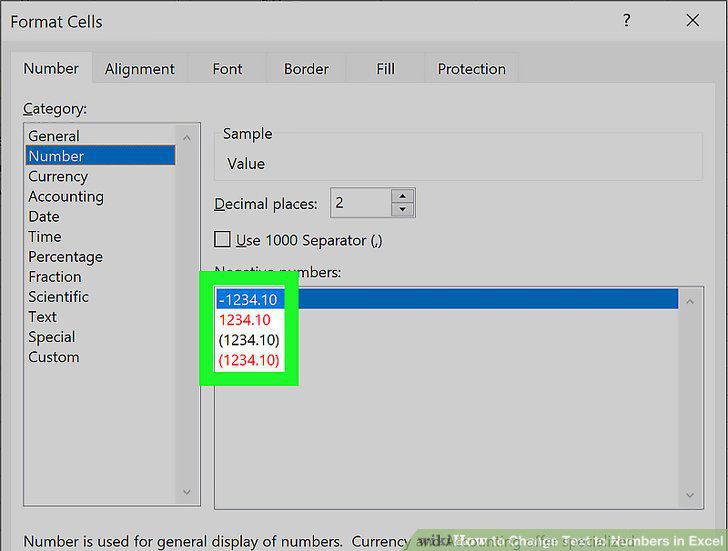
Select a display format for negative numbers (optional).
7
Click OK.
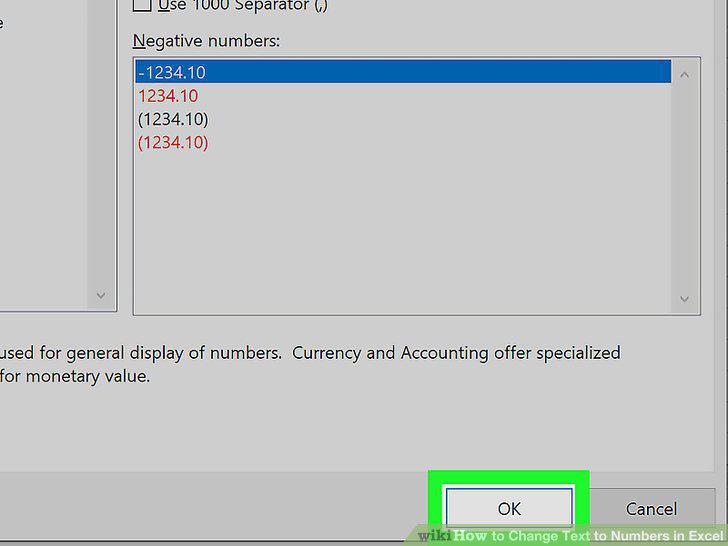
Click OK.
8
Open Excel on your phone or tablet.
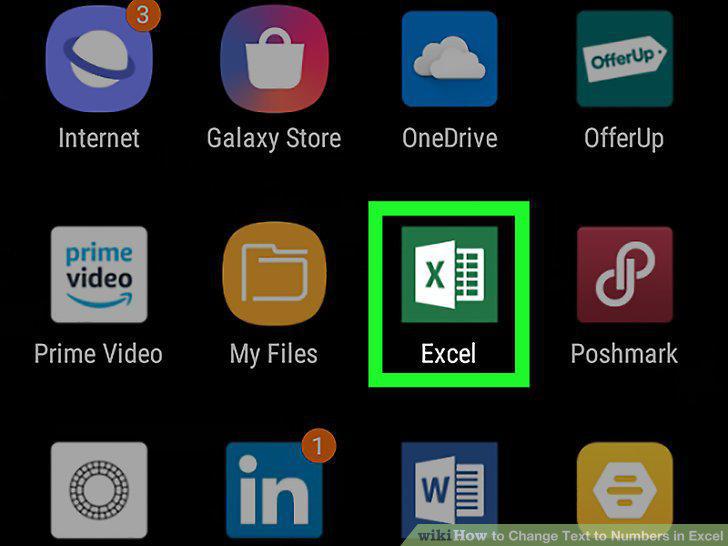
Open Excel on your phone or tablet.
9
Open the spreadsheet you want to edit.
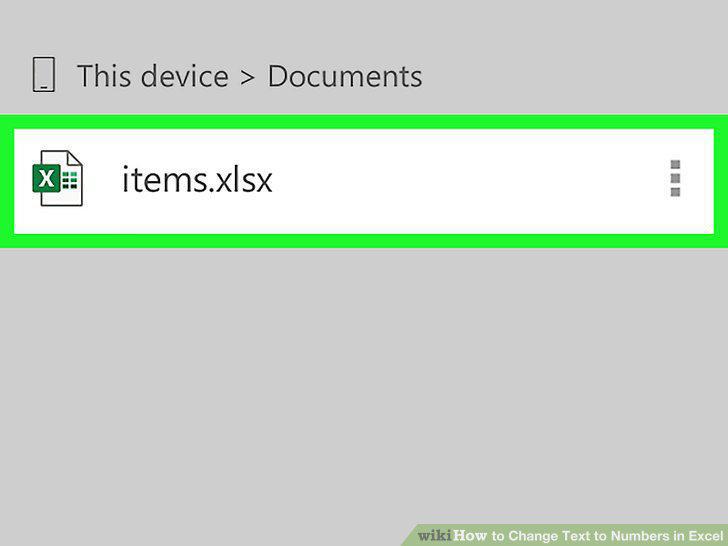
Open the spreadsheet you want to edit.
10
Tap the cell you want to edit.
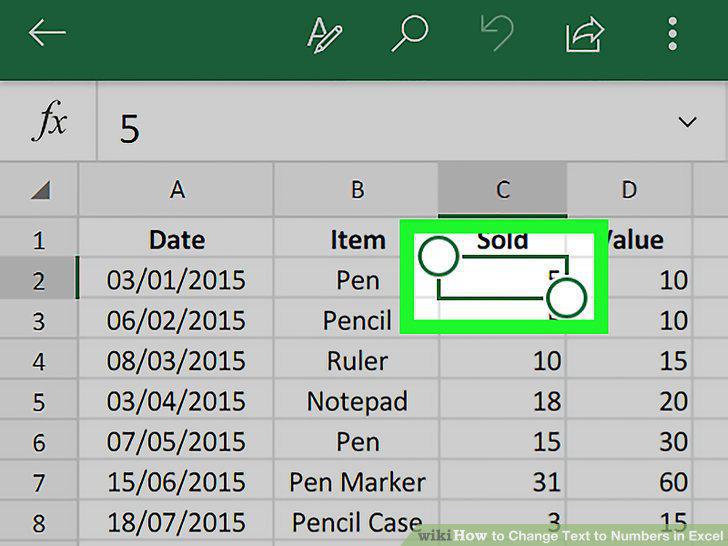
Tap the cell you want to edit.
11
Tap the A icon at the top.
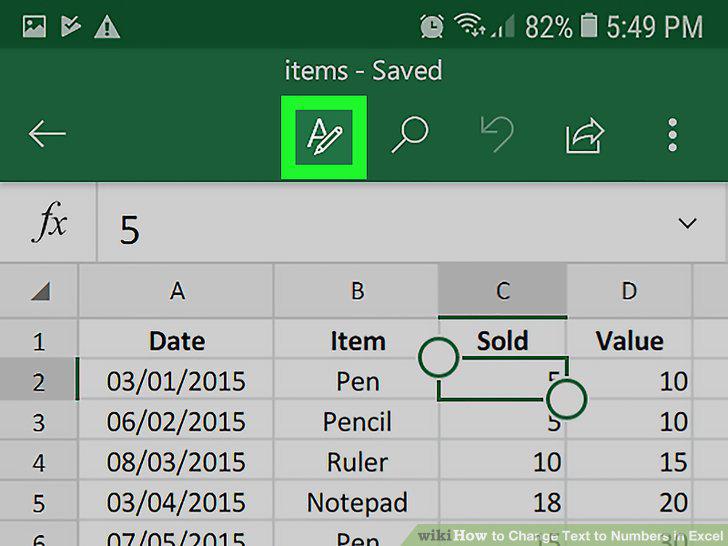
Tap the A icon at the top.
12
Scroll down and tap Number Format.
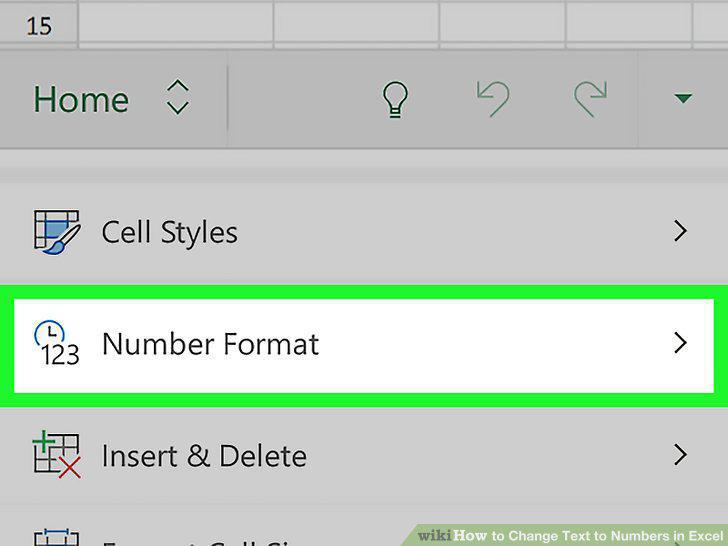
Scroll down and tap Number Format.
13
Select Number on the Number Format menu.
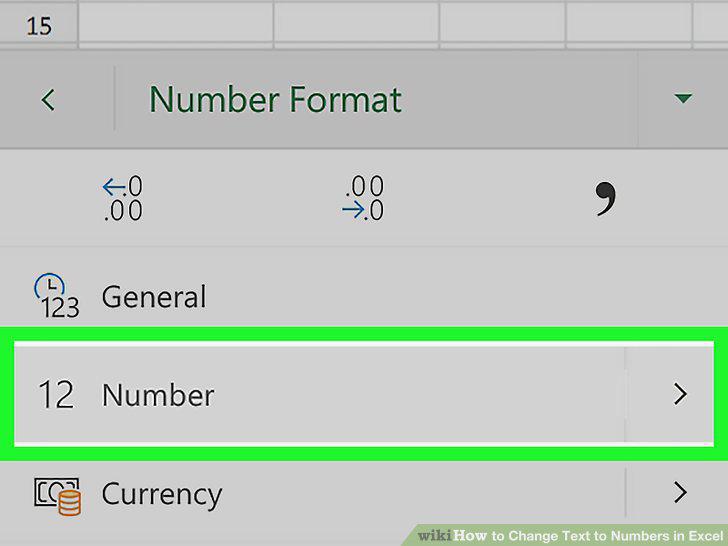
Select Number on the Number Format menu.
Comments (0)
No comments yet. Be the first to share your thoughts!