How to Login to a Website as an Admin
Make sure that you're trying to log into your own website.. Try logging into the website from the host address.. Determine the website's base address.
Steps
1
Make sure that you're trying to log into your own website.
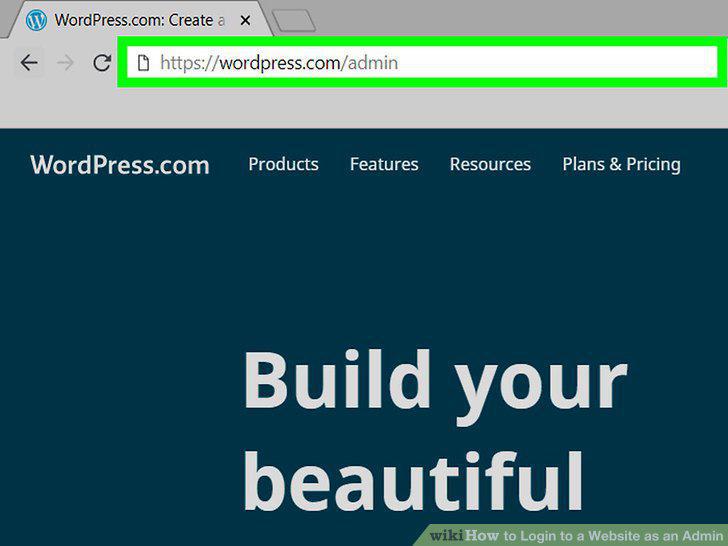
Make sure that you're trying to log into your own website.
2
Try logging into the website from the host address.
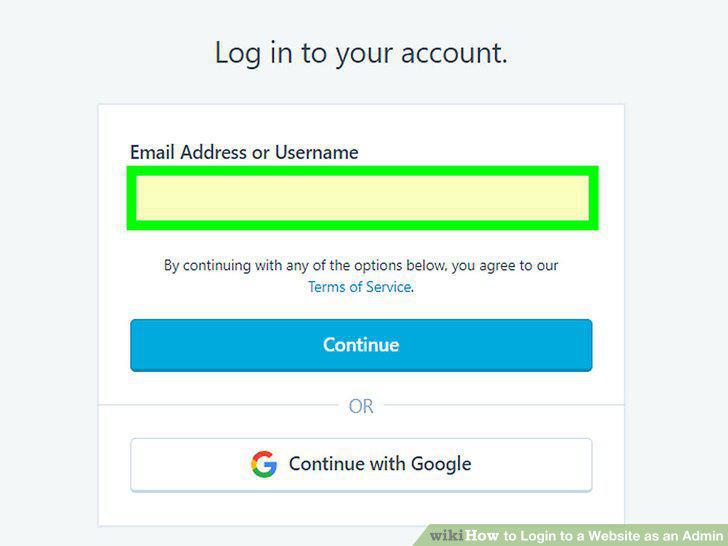
Try logging into the website from the host address.
3
Determine the website's base address.
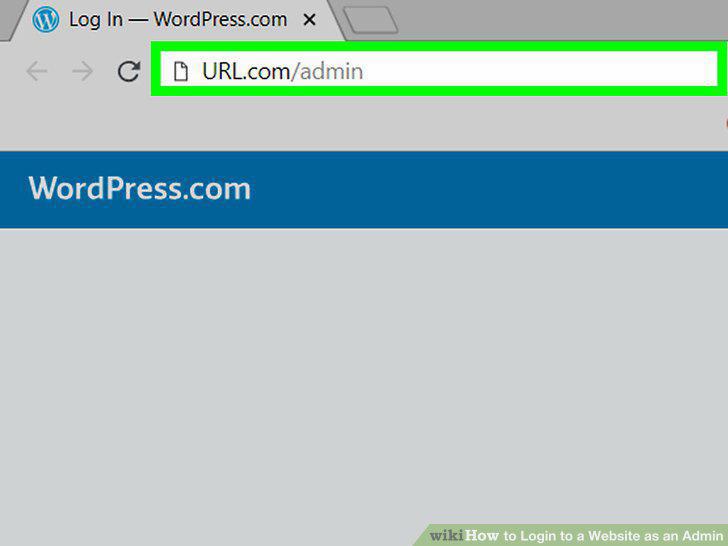
Determine the website's base address.
4
Add different "admin" tags to the base address.
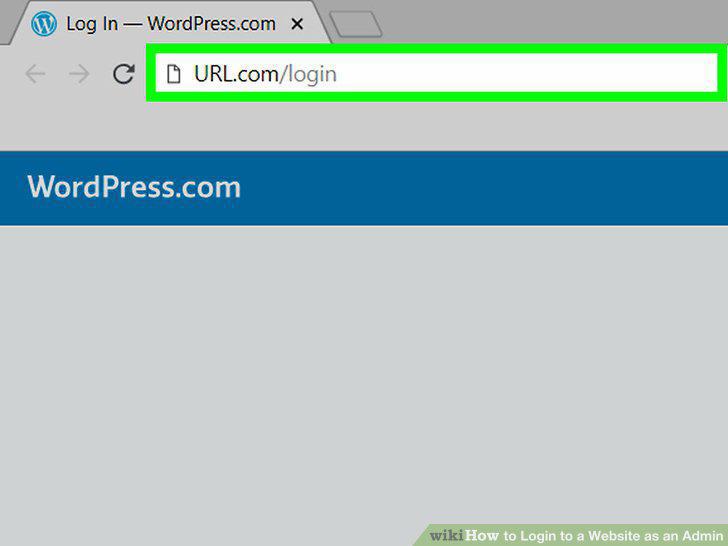
Add different "admin" tags to the base address.
5
Enter your username or email address.
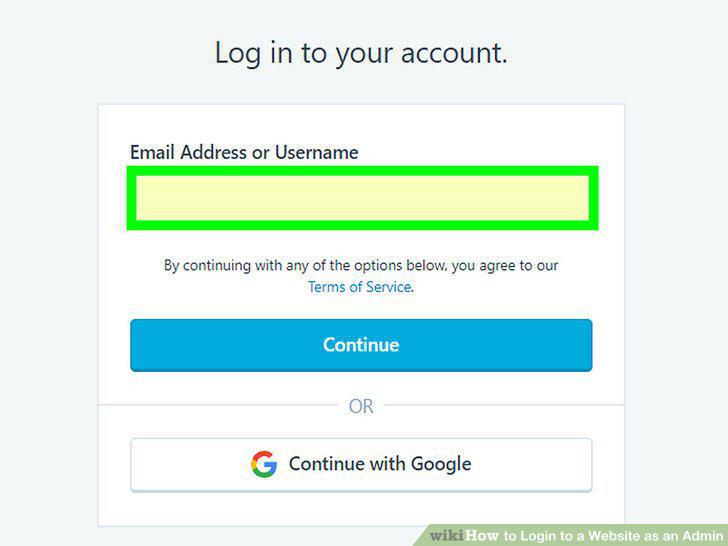
Enter your username or email address.
6
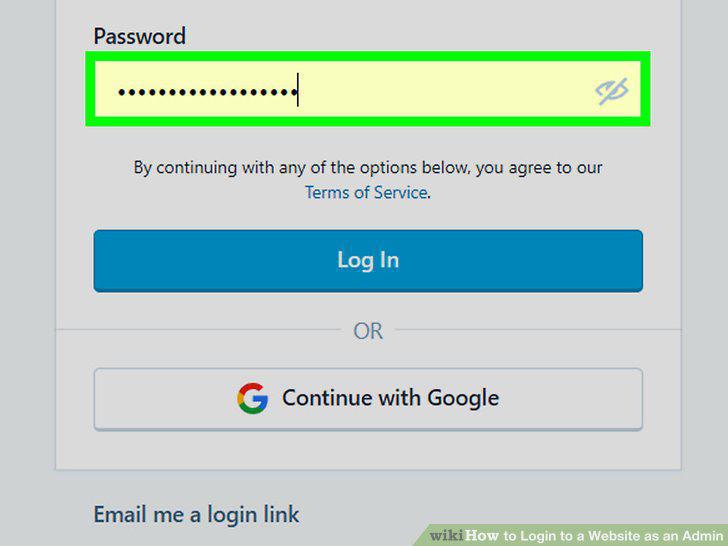
Enter your password.
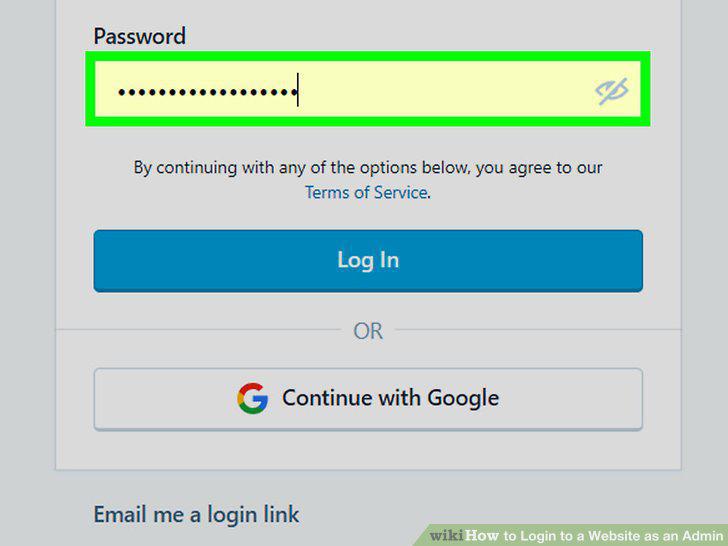
Enter your password.
7
Click the "Log In" button.
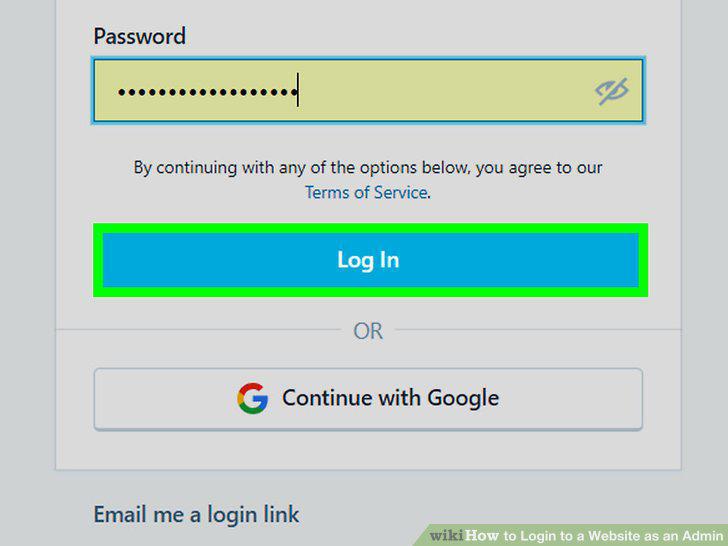
Click the "Log In" button.
8
Understand how this method works.
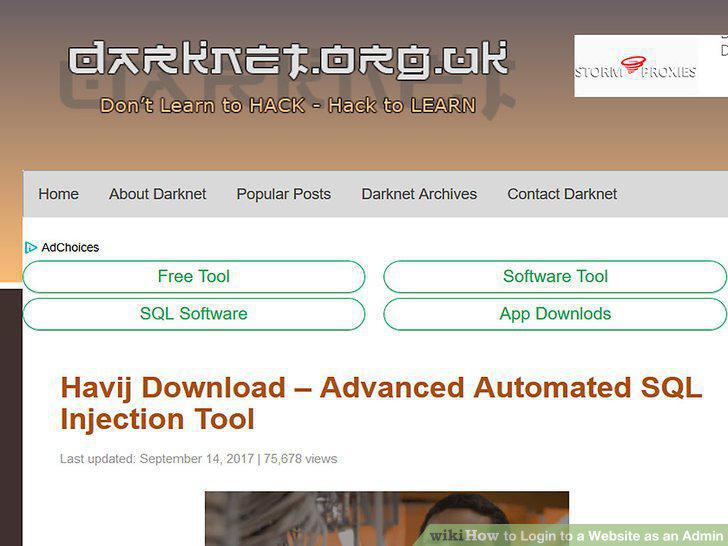
Understand how this method works.
9
Download Havij.
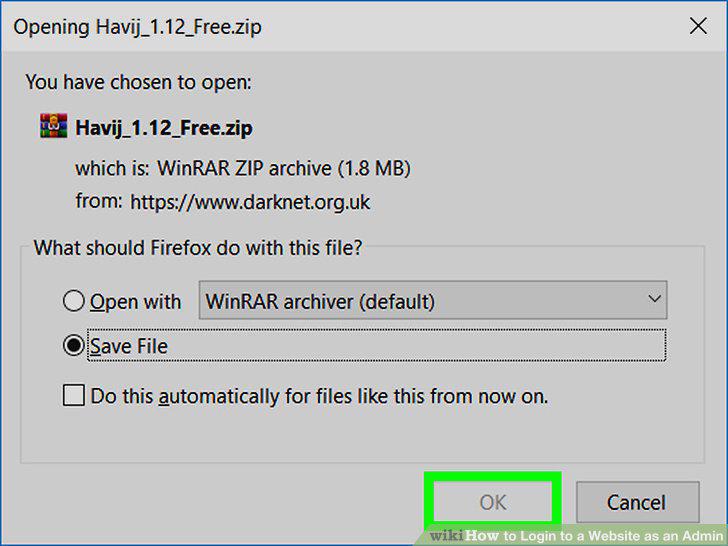
Download Havij.
10
Extract the file.
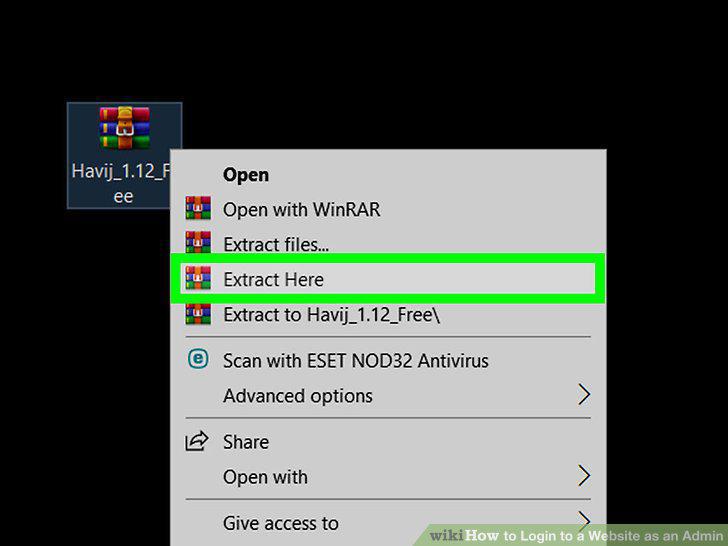
Extract the file.
11
Install Havij.
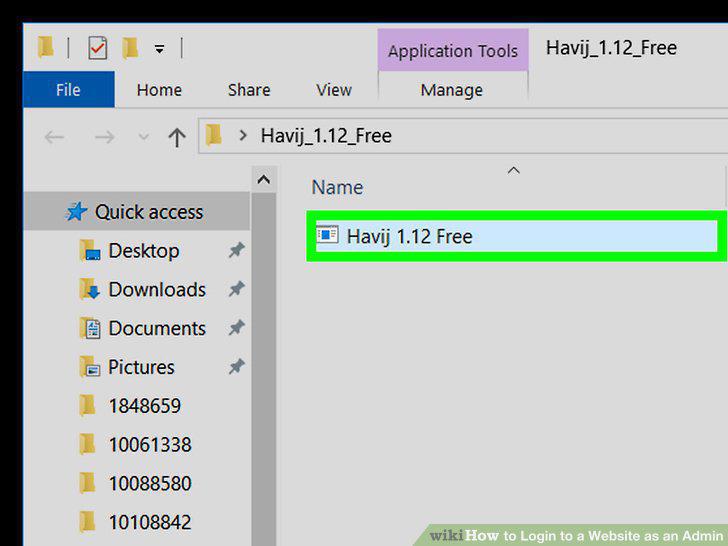
Install Havij.
12
Wait for Havij to open.
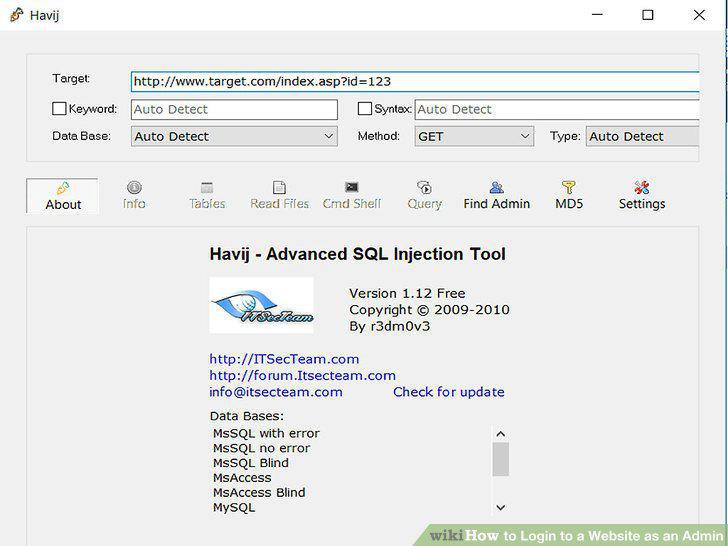
Wait for Havij to open.
13
Click Find Admin.
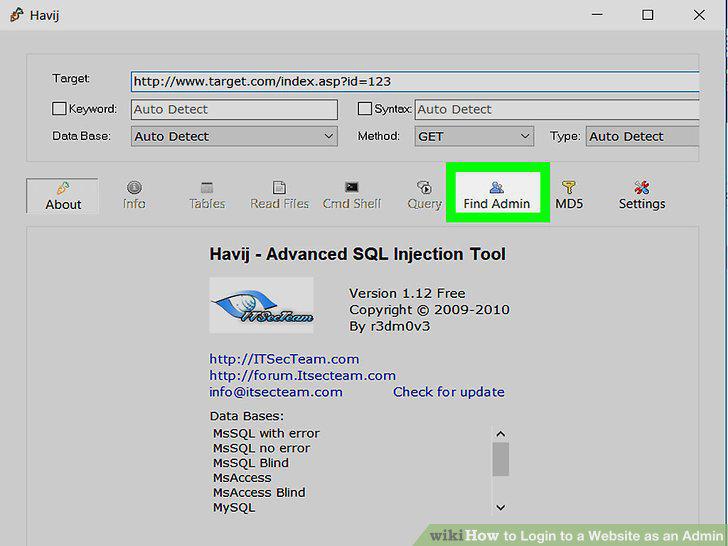
Click Find Admin.
14
Enter your website's address.
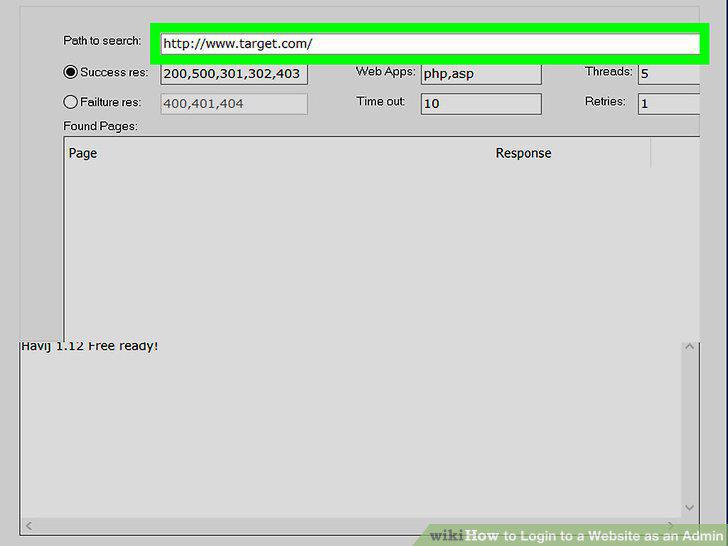
Enter your website's address.
15
Click Start.
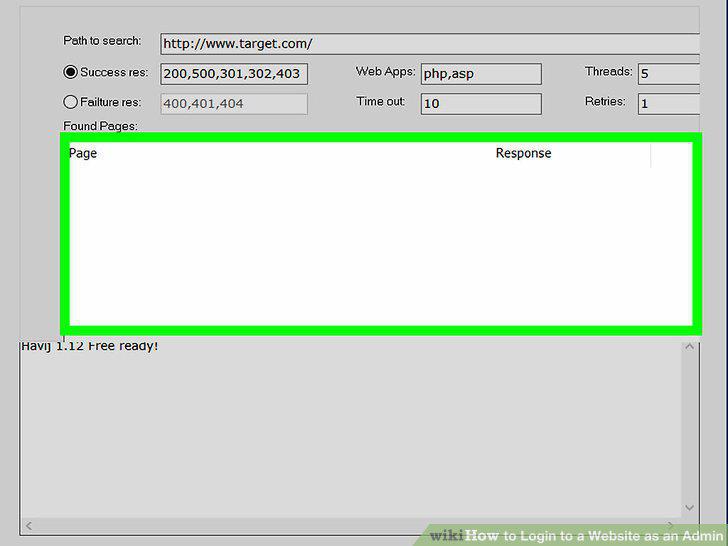
Click Start.
16
Wait for Havij to find the website's admin URL.
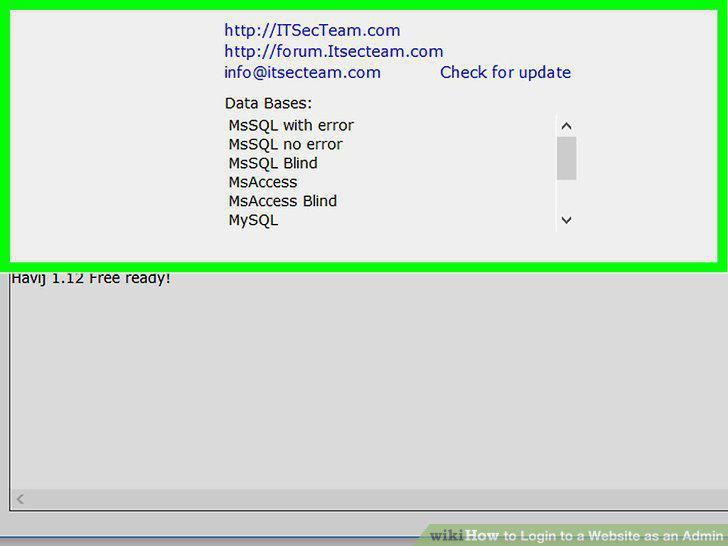
Wait for Havij to find the website's admin URL.
17
Try the URLs found by Havij.
Try the URLs found by Havij.
Comments (0)
No comments yet. Be the first to share your thoughts!