How to Upload from Premiere Pro to YouTube
Open your project in Premiere Pro.. Click File.. Hover your mouse over Export and click Media.
Steps
1
Open your project in Premiere Pro.
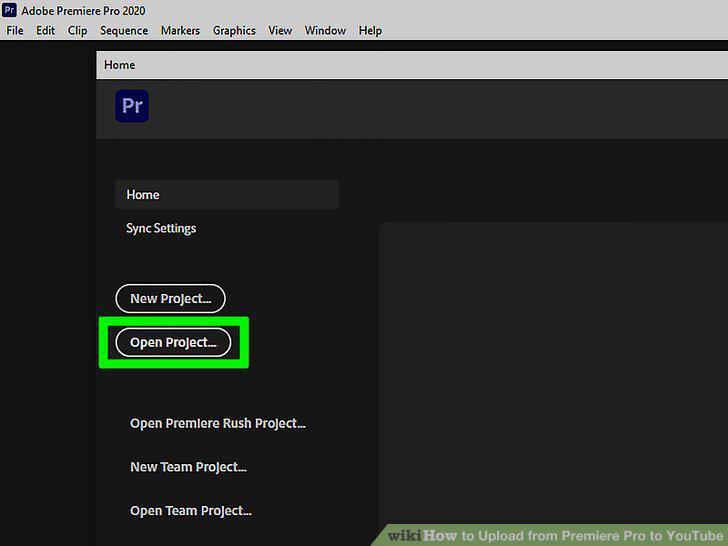
Open your project in Premiere Pro.
2
Click File.
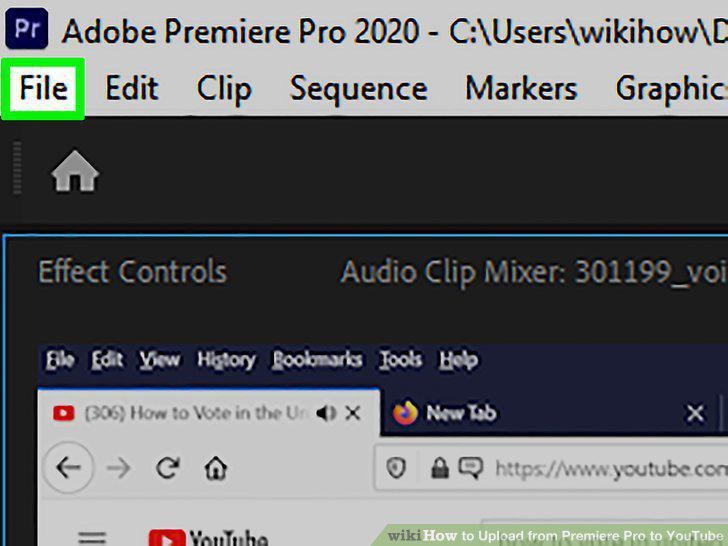
Click File.
3
Hover your mouse over Export and click Media.
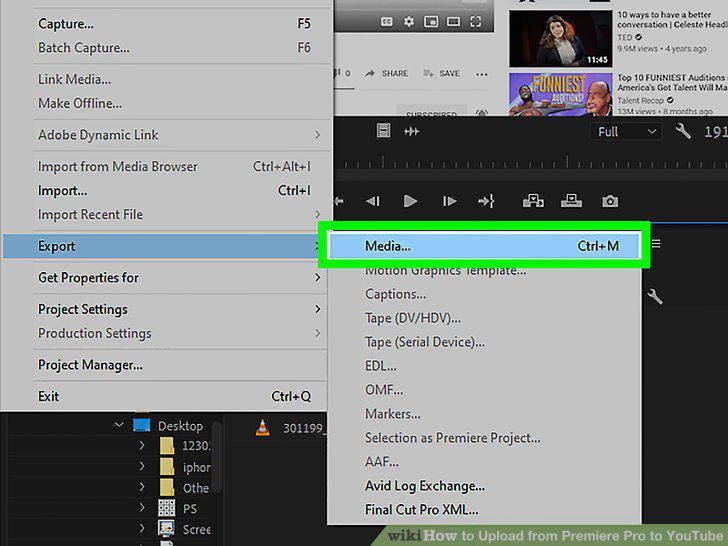
Hover your mouse over Export and click Media.
4
Click the Publish tab.
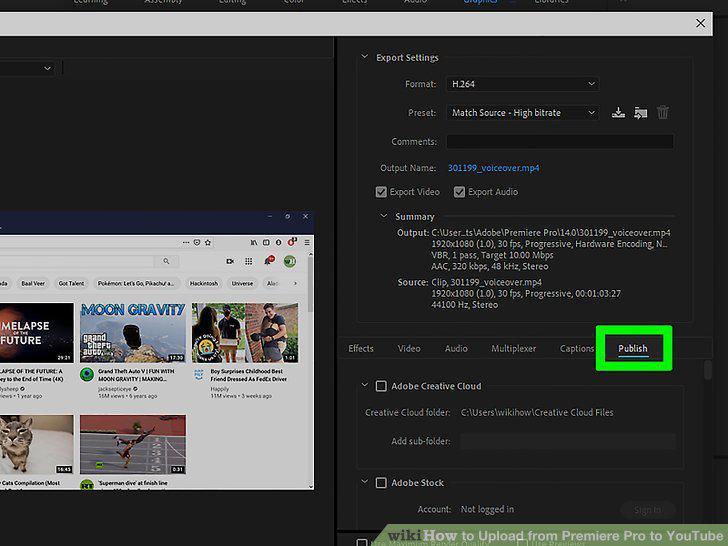
Click the Publish tab.
5
Click to select YouTube.
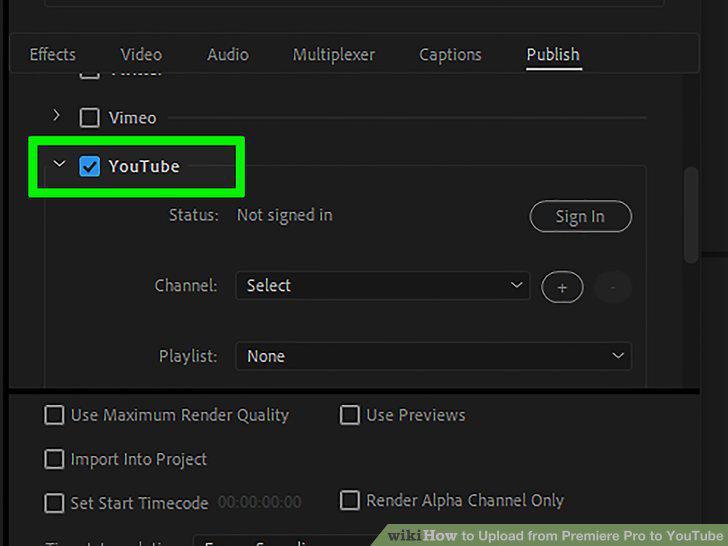
Click to select YouTube.
6
Log into your YouTube account (if necessary).
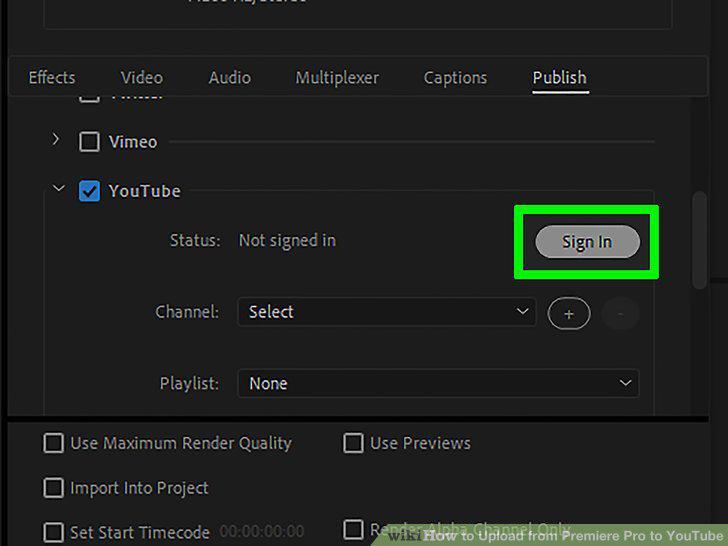
Log into your YouTube account (if necessary).
7
Change the privacy settings (if you want to).
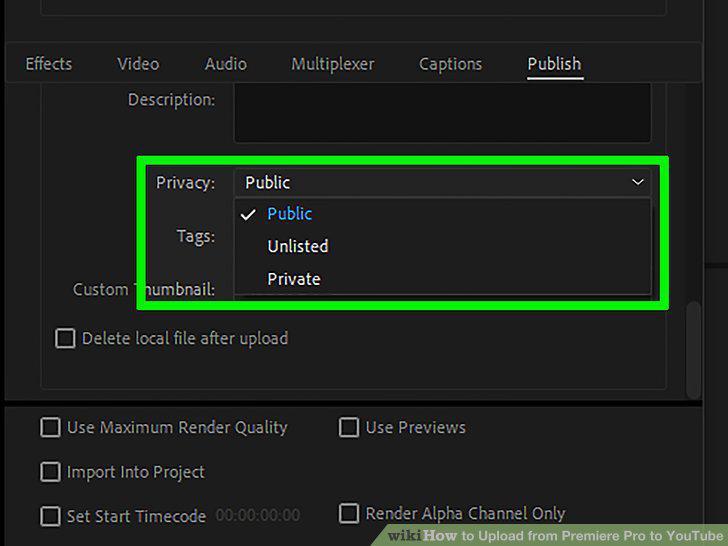
Change the privacy settings (if you want to).
8
Add tags and a video description.
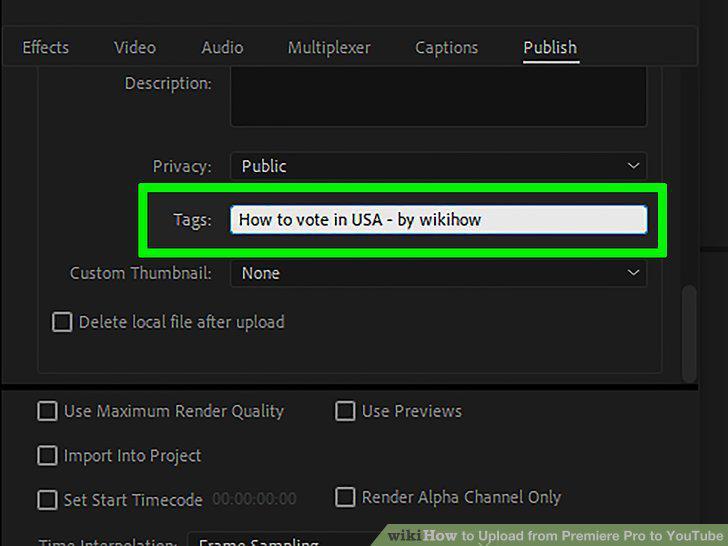
Add tags and a video description.
9
Click Export.
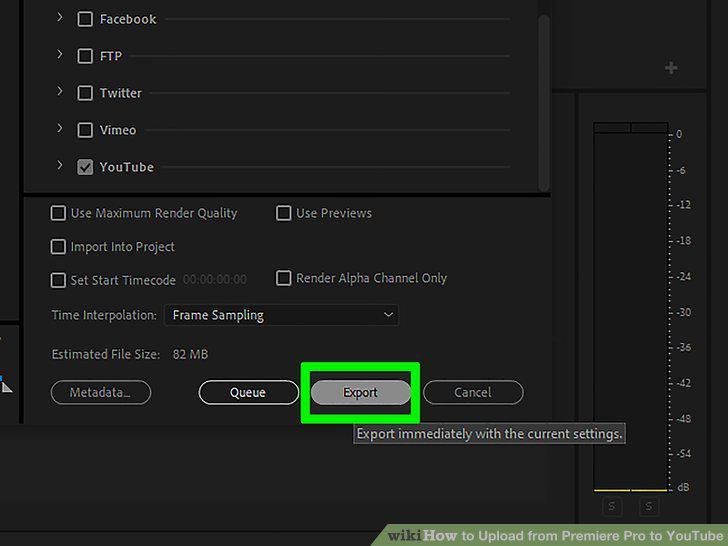
Click Export.
Comments (0)
No comments yet. Be the first to share your thoughts!