How to Log Out on Spotify on iPhone or iPad
Tap to open the Spotify app.. Navigate to the 'Home' at the bottom of the screen.. Tap the icon that looks like a gear in the top right corner of the page.
Steps
Tap to open the Spotify app.
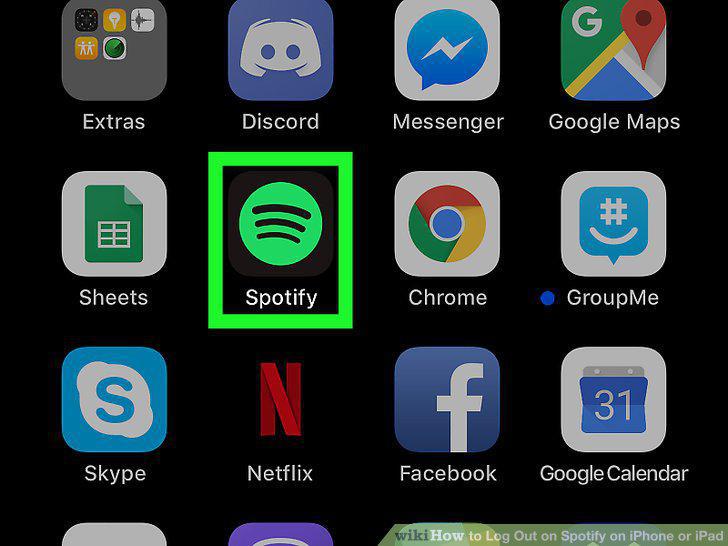
Tap to open the Spotify app.
Navigate to the 'Home' at the bottom of the screen.
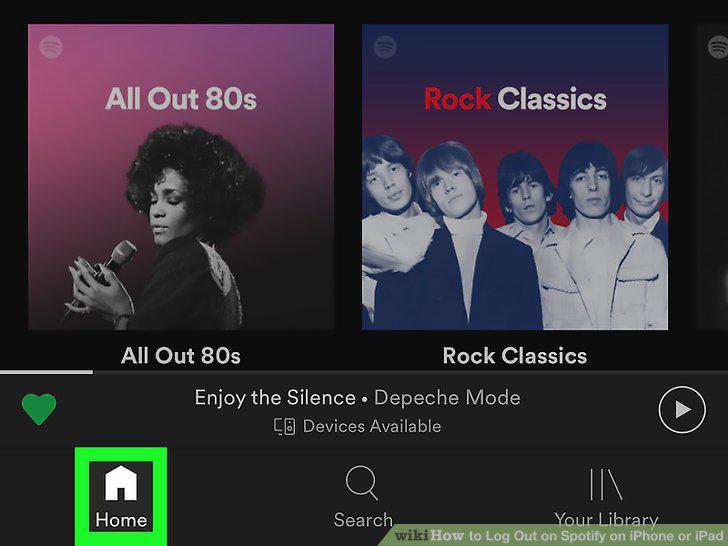
Navigate to the 'Home' at the bottom of the screen.
Tap the icon that looks like a gear in the top right corner of the page.
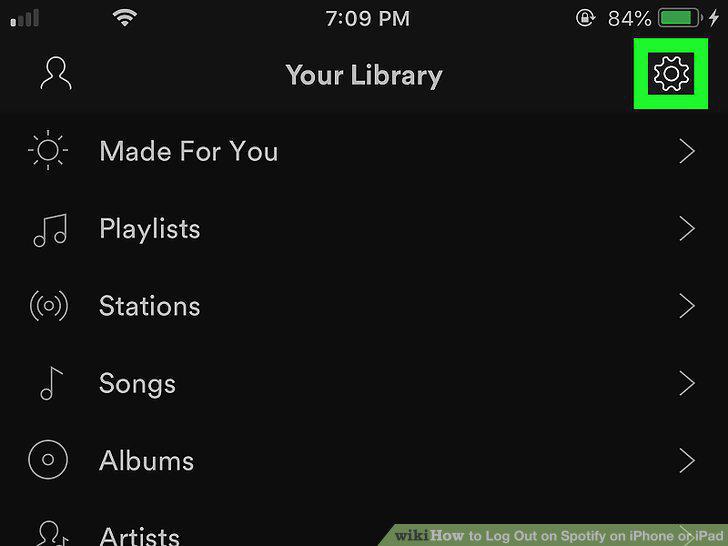
Tap the icon that looks like a gear in the top right corner of the page.
Scroll to the bottom of the settings menu, and tap the 'Log Out' button.
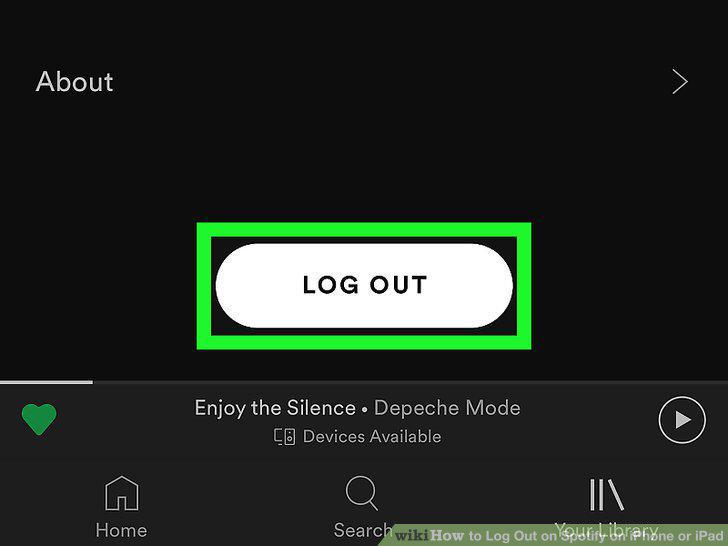
Scroll to the bottom of the settings menu, and tap the 'Log Out' button.
Tap 'Log Out' on the 'Are you sure you want to log out' prompt.
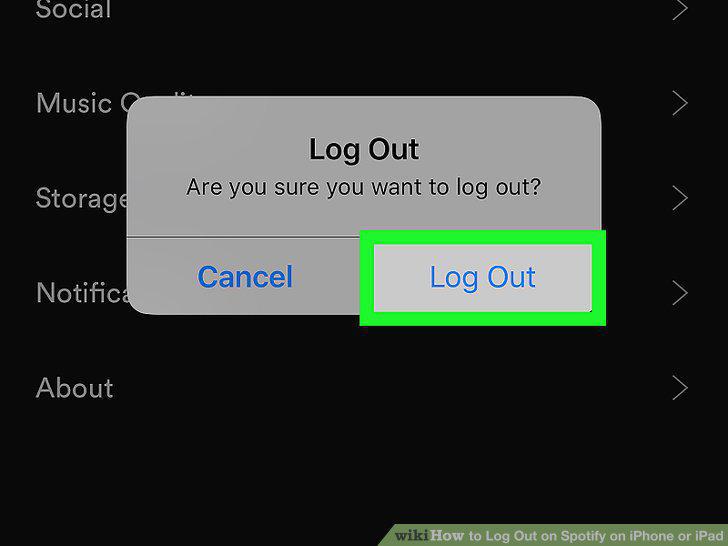
Tap 'Log Out' on the 'Are you sure you want to log out' prompt.
Open your mobile web browser of choice (Chrome, Safari, etc).
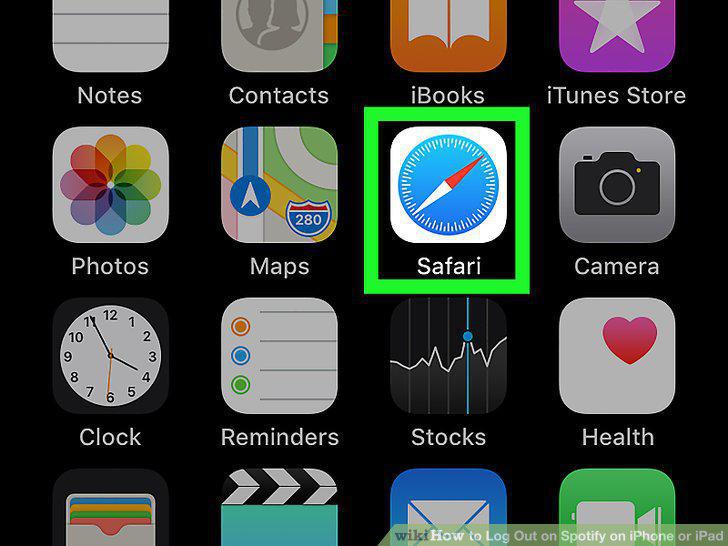
Open your mobile web browser of choice (Chrome, Safari, etc).
Navigate to www.spotify.com.
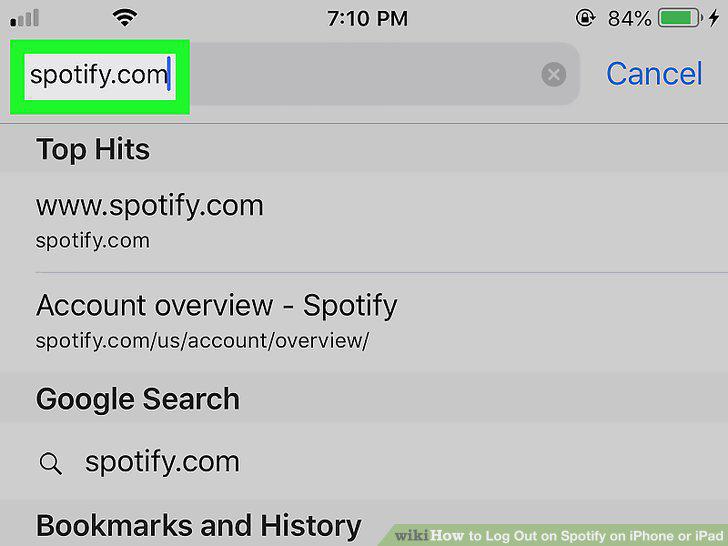
Navigate to www.spotify.com.
Log in using the 'Log In' link in the top right corner of the page.
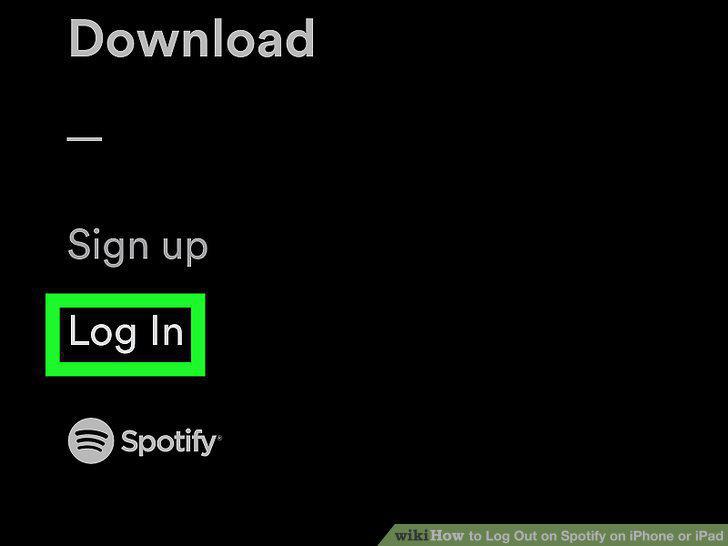
Log in using the 'Log In' link in the top right corner of the page.
Tap the Menu icon in the top right corner of the Spotify web page.
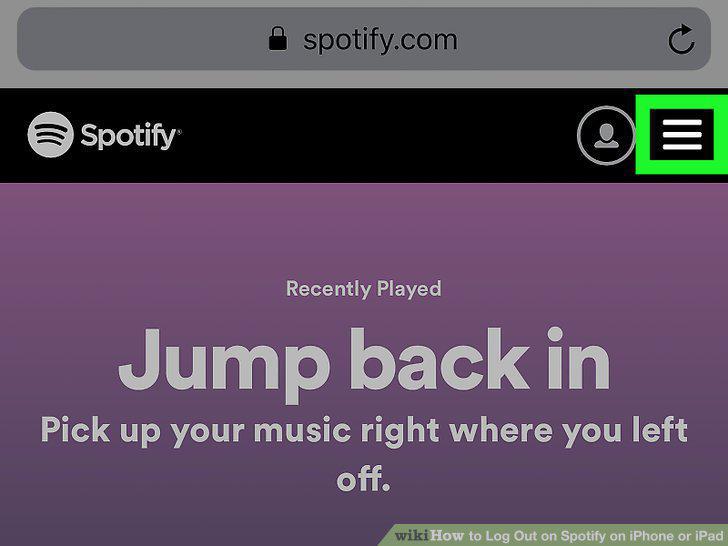
Tap the Menu icon in the top right corner of the Spotify web page.
Tap the 'Account' option.
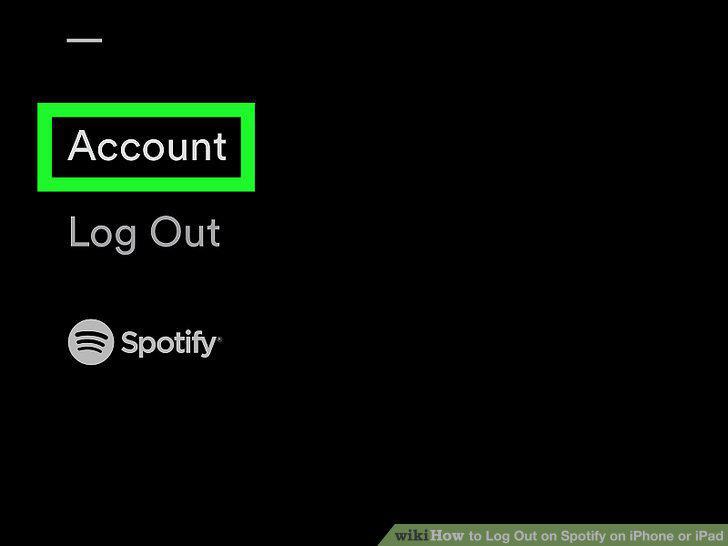
Tap the 'Account' option.
Scroll down to the section labeled 'Sign out everywhere'.
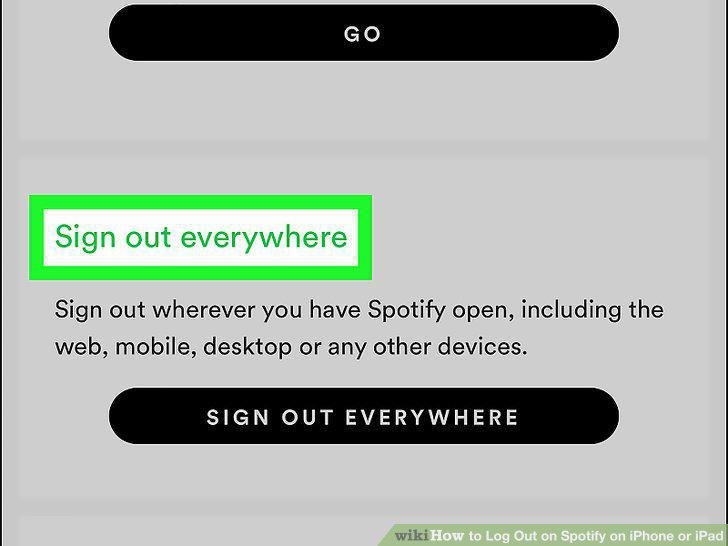
Scroll down to the section labeled 'Sign out everywhere'.
Tap the 'Sign Out Everywhere' button.
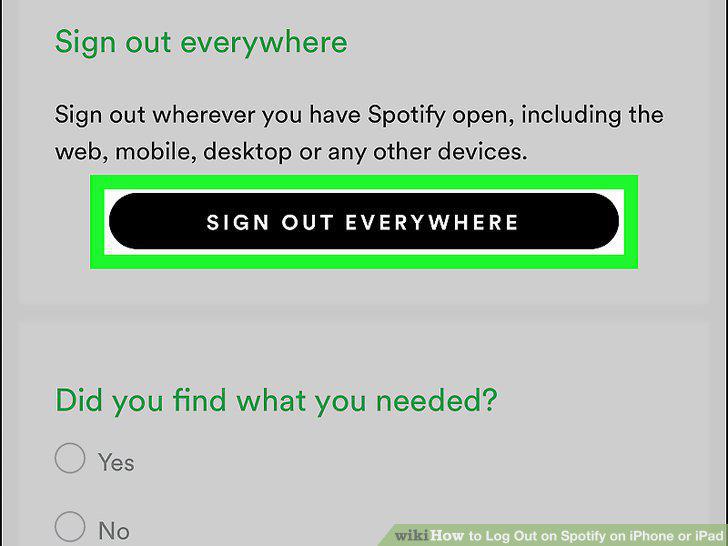
Tap the 'Sign Out Everywhere' button.
Comments (0)
No comments yet. Be the first to share your thoughts!