How to Change Your Profile Picture on SoundCloud
Open a browser on your computer.. Log in to your account.. Go to your profile.
Steps
1
Open a browser on your computer.

Open a browser on your computer.
2
Log in to your account.

Log in to your account.
3
Go to your profile.
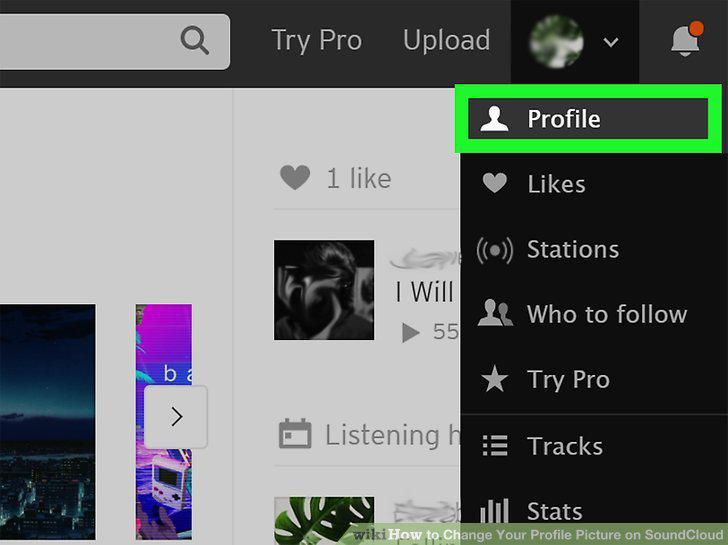
Go to your profile.
4
Hover over your profile picture and click Update image.
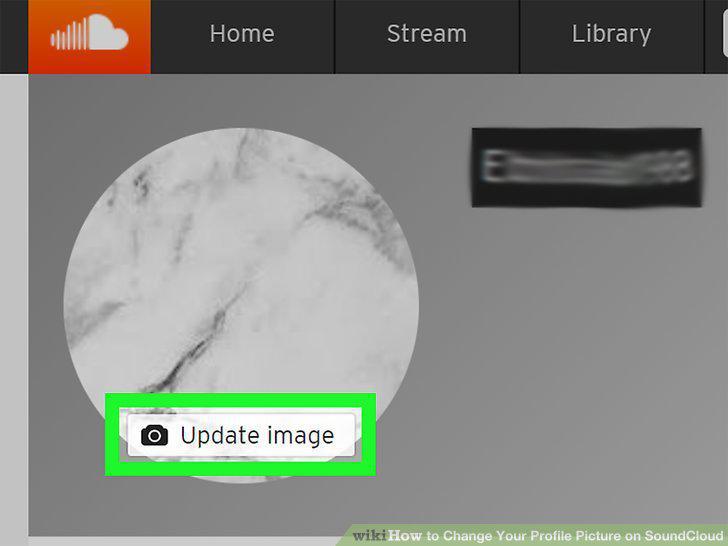
Hover over your profile picture and click Update image.
5
Select a new image.
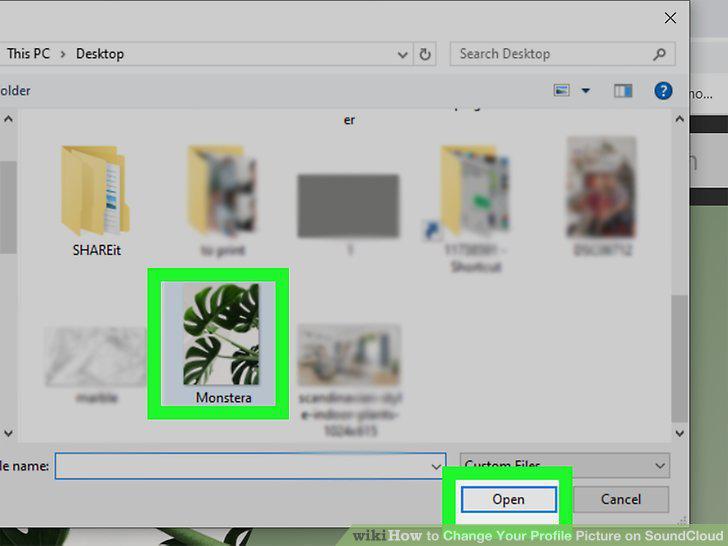
Select a new image.
6
Click Save Changes.
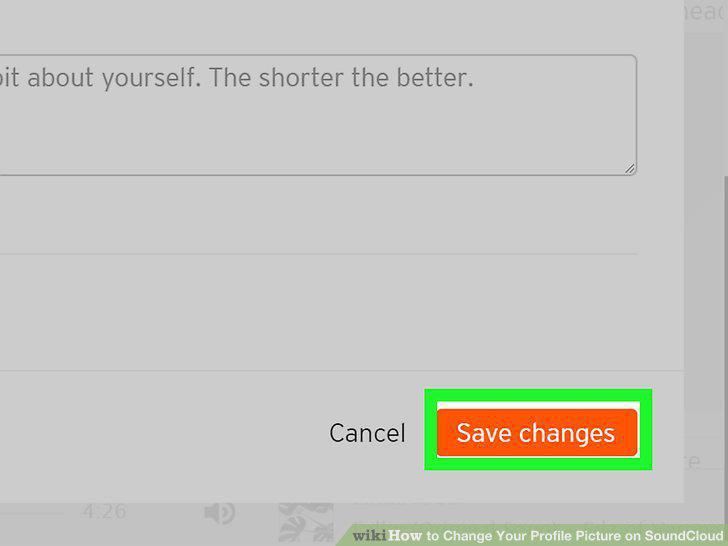
Click Save Changes.
7
Open the SoundCloud app on your device.

Open the SoundCloud app on your device.
8
Go to your collection.
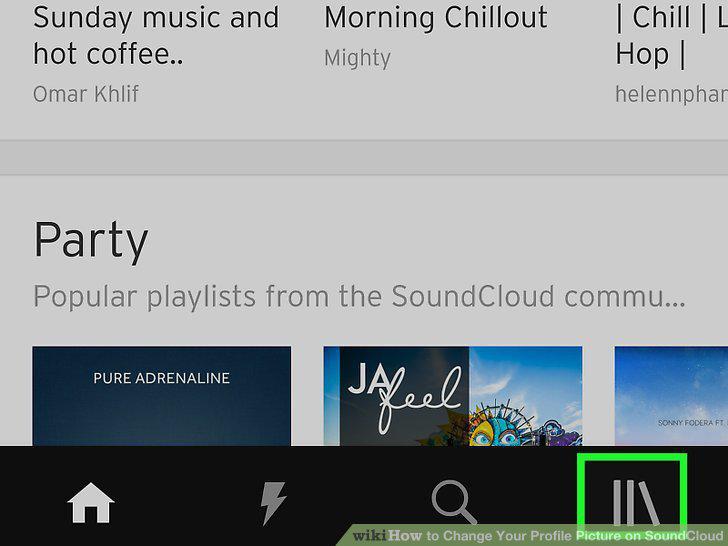
Go to your collection.
9
Go to your profile.
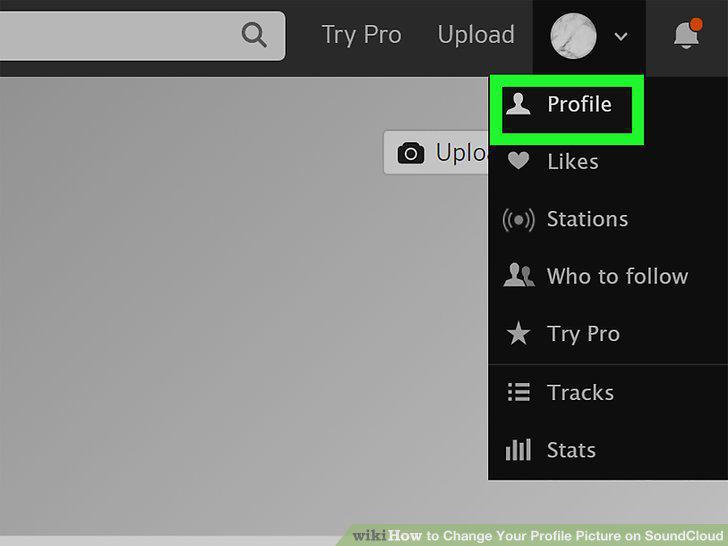
Go to your profile.
10
Tap Edit profile.
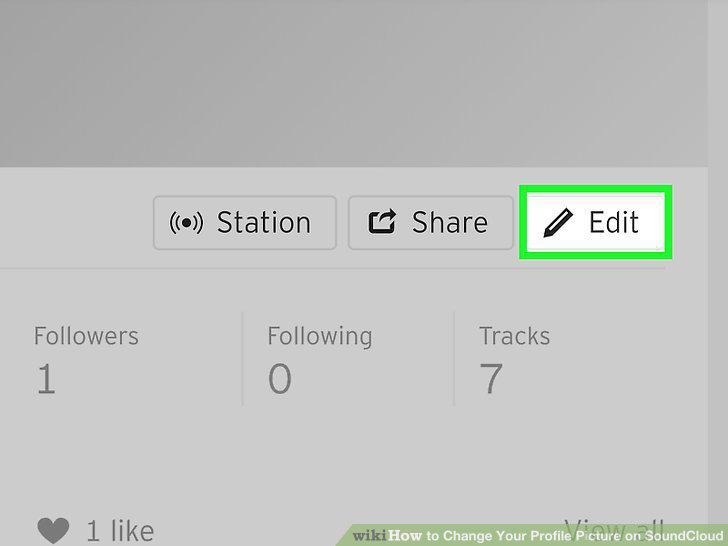
Tap Edit profile.
11
Tap on your profile picture.
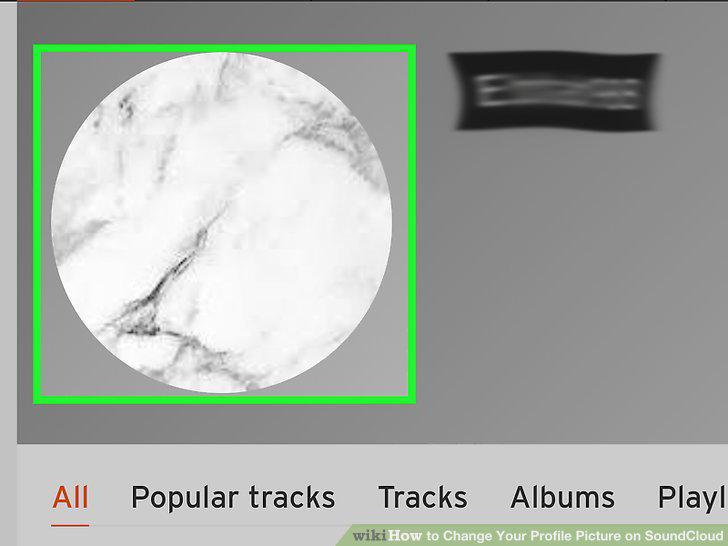
Tap on your profile picture.
12
Tap to select the image you would like to upload.
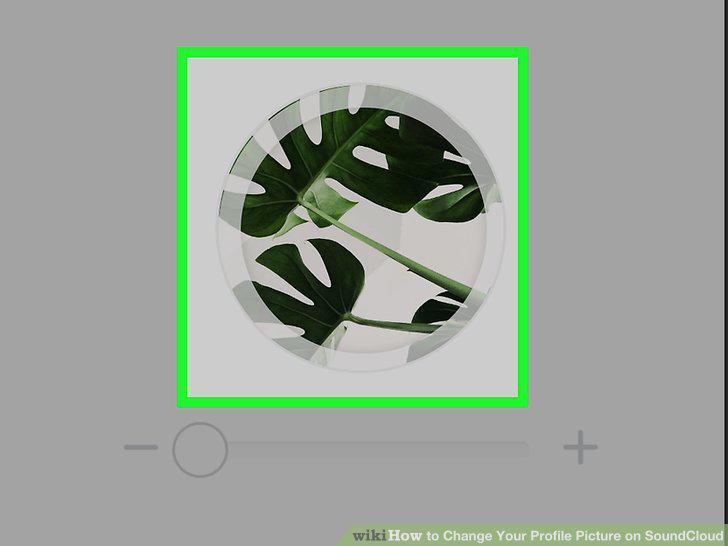
Tap to select the image you would like to upload.
13
Tap Save.
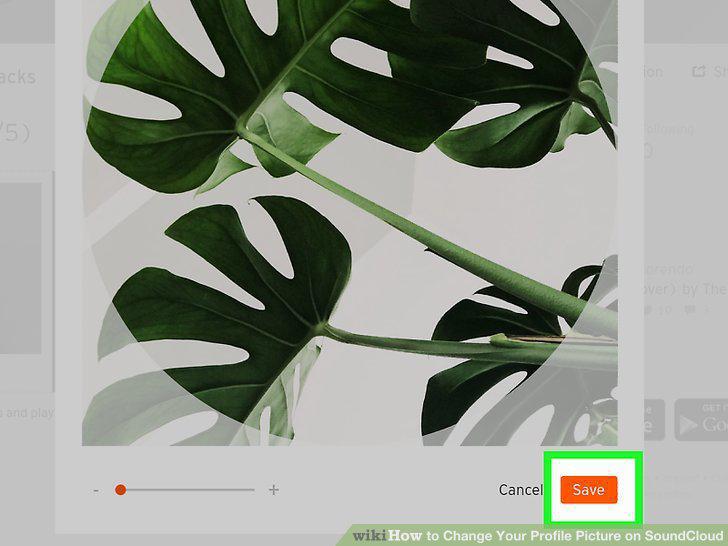
Tap Save.
14
Open a browser app on your device.

Open a browser app on your device.
15
Open the webpage as a desktop version.
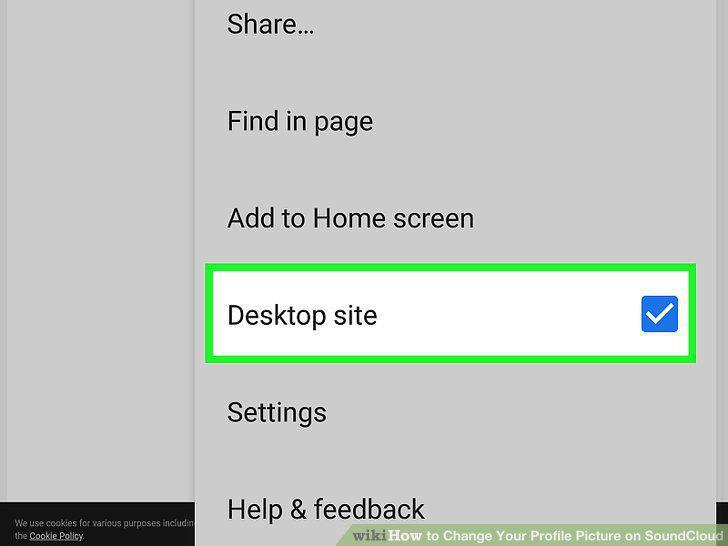
Open the webpage as a desktop version.
16
Log in to your account.
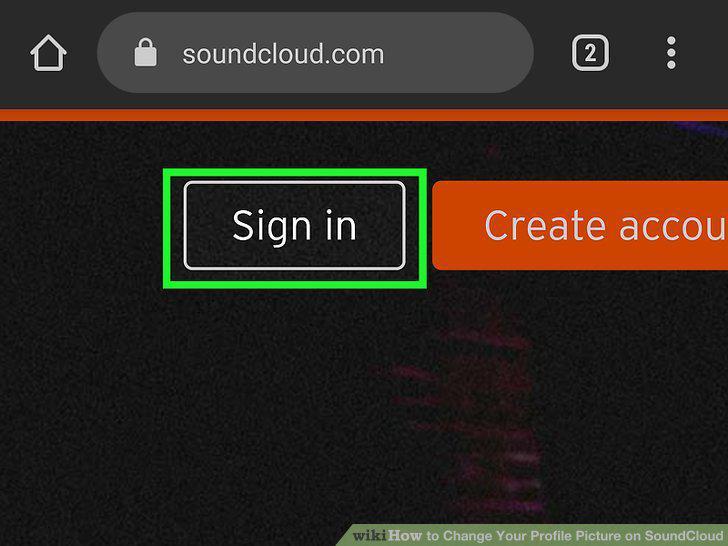
Log in to your account.
17
Go to your profile.
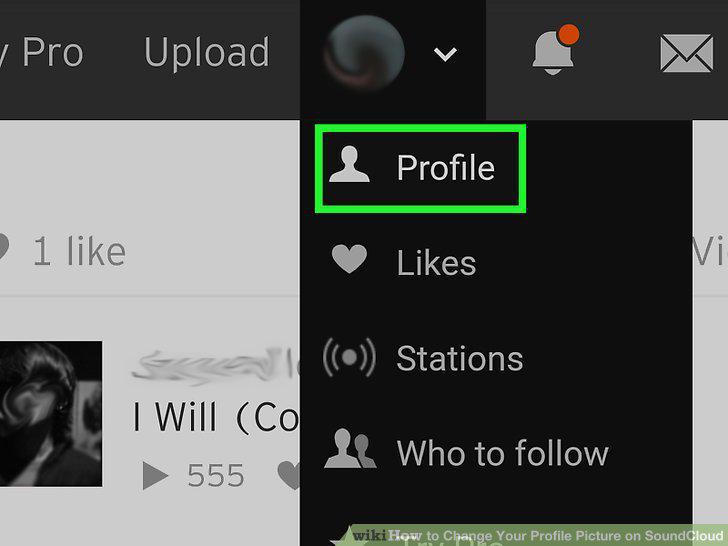
Go to your profile.
18
Edit your profile picture.
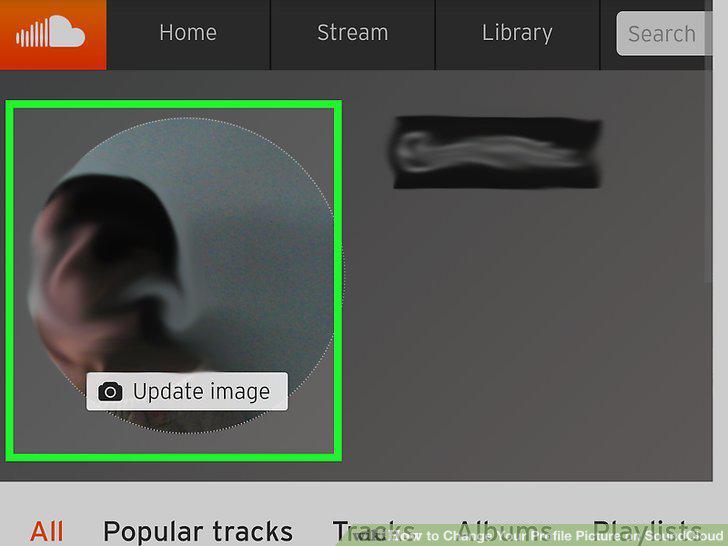
Edit your profile picture.
19
Select a new image from the files on your device.
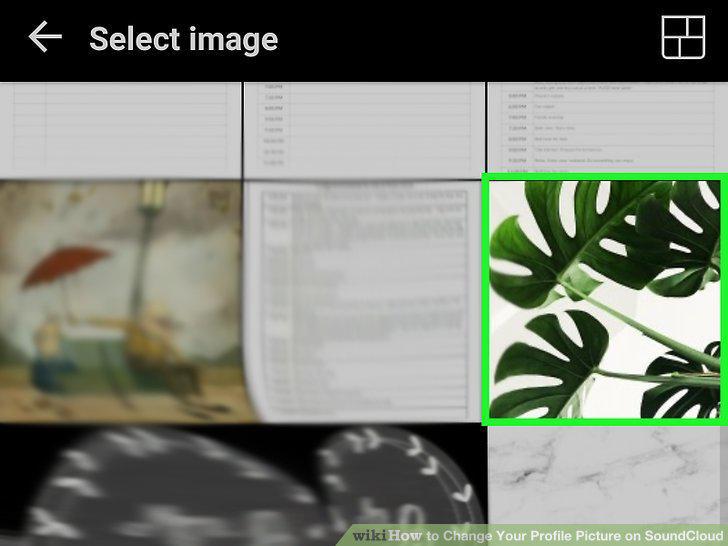
Select a new image from the files on your device.
Comments (0)
No comments yet. Be the first to share your thoughts!