How to Reduce Storage on Spotify on iPhone or iPad
Tap to open the Spotify app.. Tap Your Library.. Tap the button.
Steps
1
Tap to open the Spotify app.
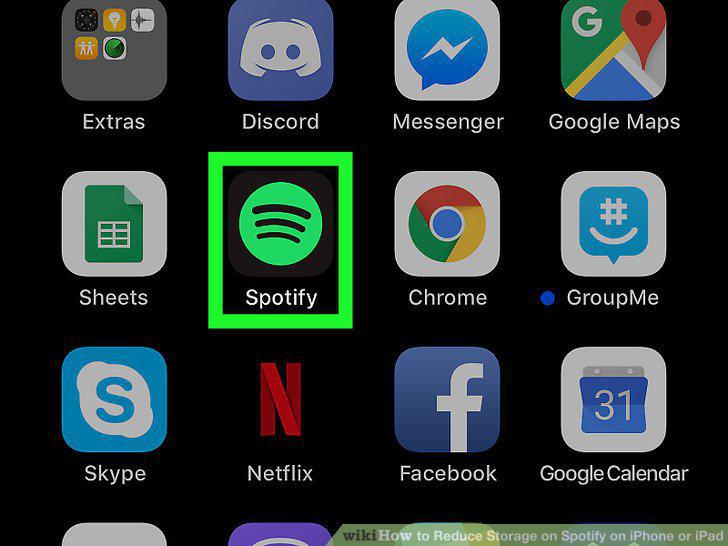
Tap to open the Spotify app.
2
Tap Your Library.
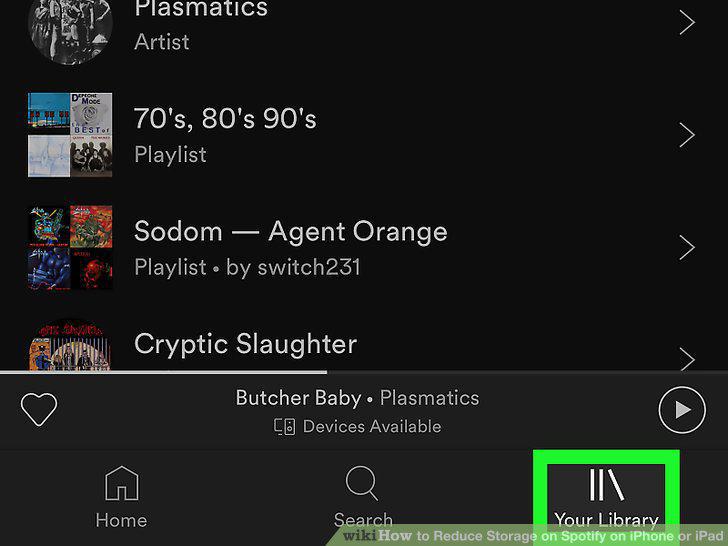
Tap Your Library.
3
Tap the button.
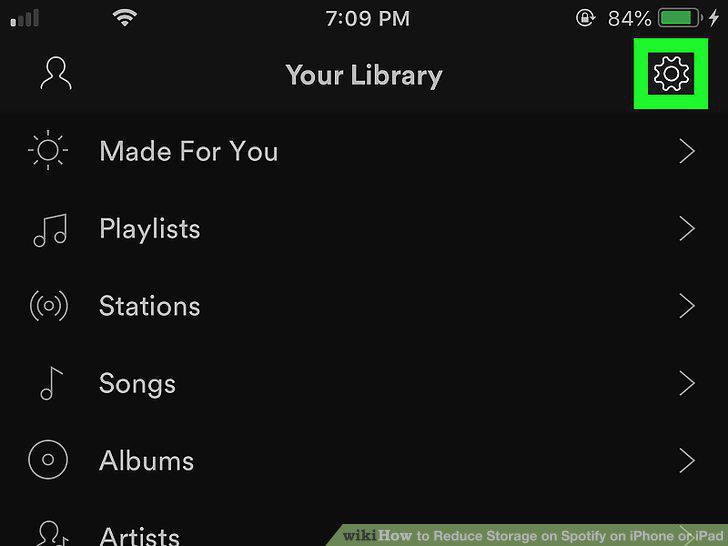
Tap the button.
4
Tap Music Quality.
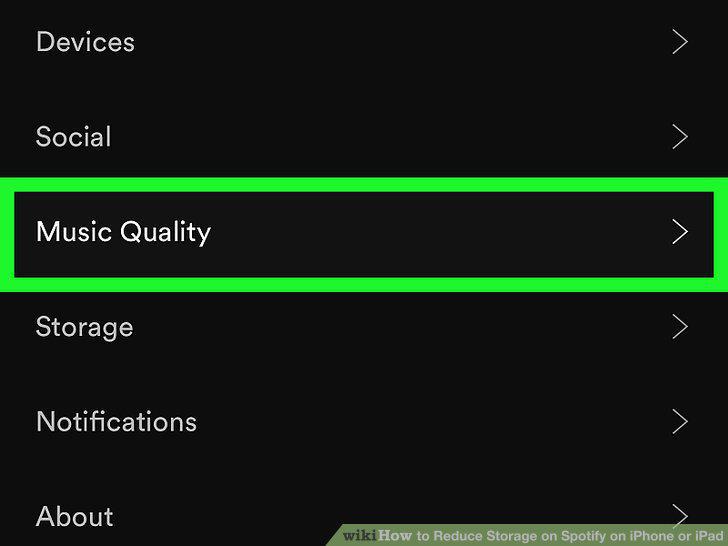
Tap Music Quality.
5
Scroll down and tap to lower the download quality.
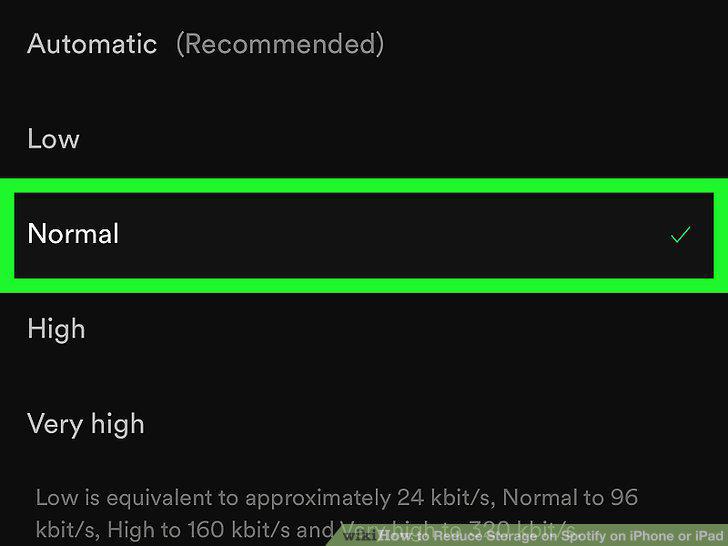
Scroll down and tap to lower the download quality.
6
Tap to open the Spotify app.
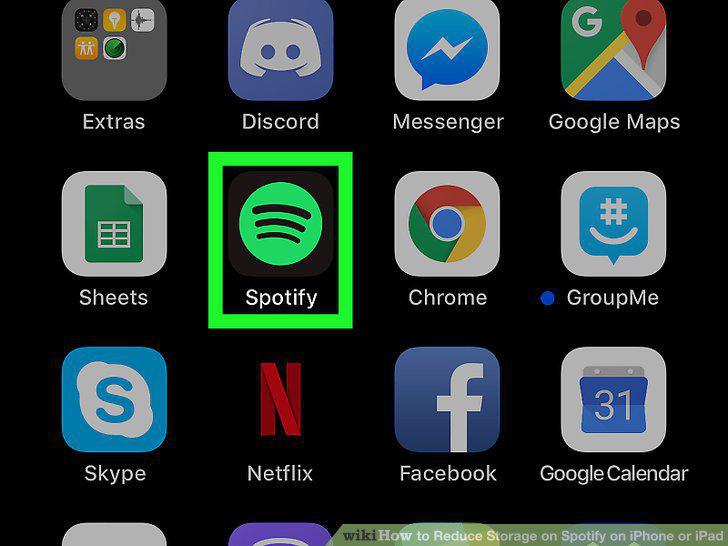
Tap to open the Spotify app.
7
Tap Your Library.
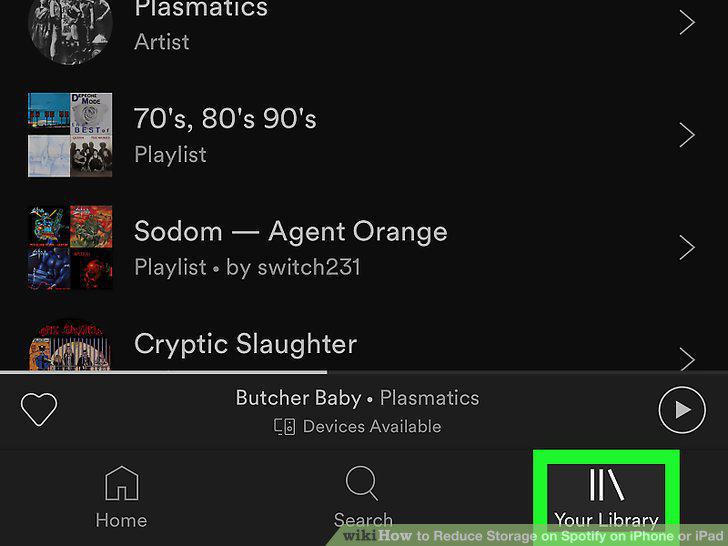
Tap Your Library.
8
Tap the button.
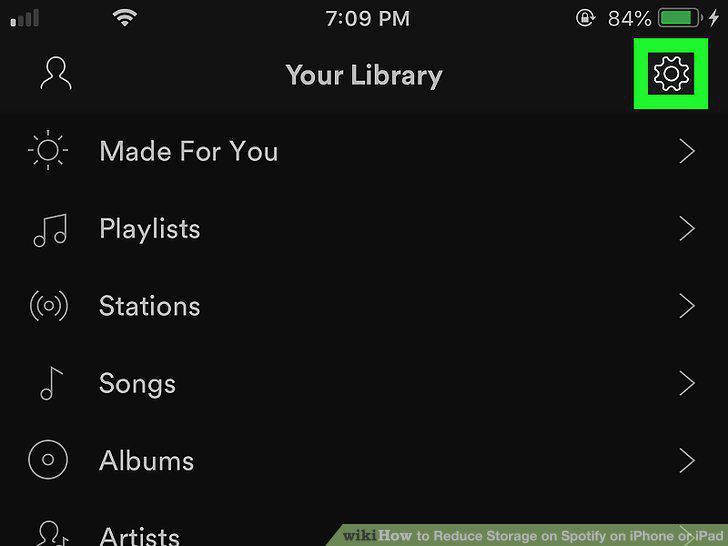
Tap the button.
9
Tap Storage.
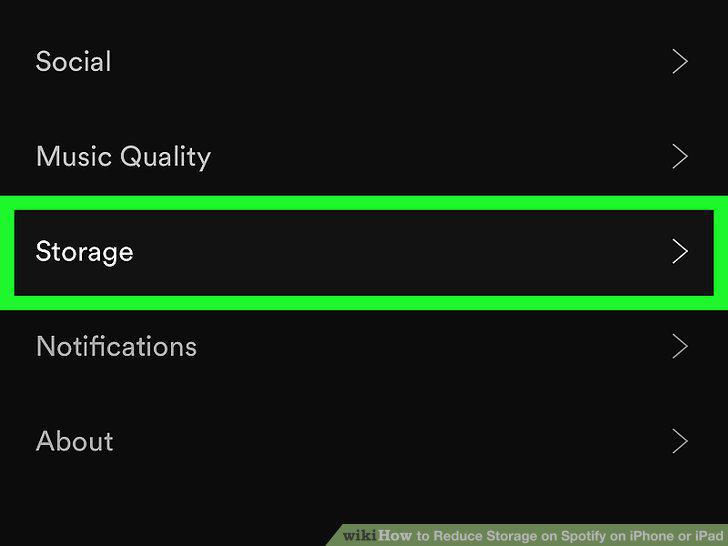
Tap Storage.
10
Tap the Delete Cache button.
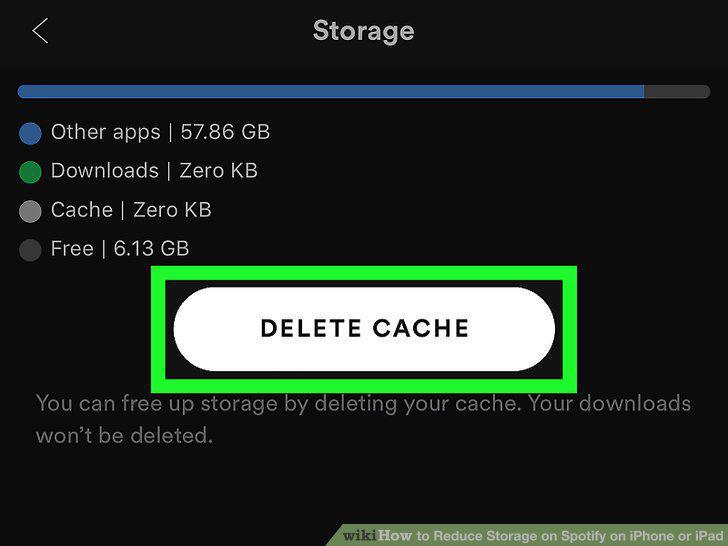
Tap the Delete Cache button.
11
Tap Delete cache on the confirmation screen.
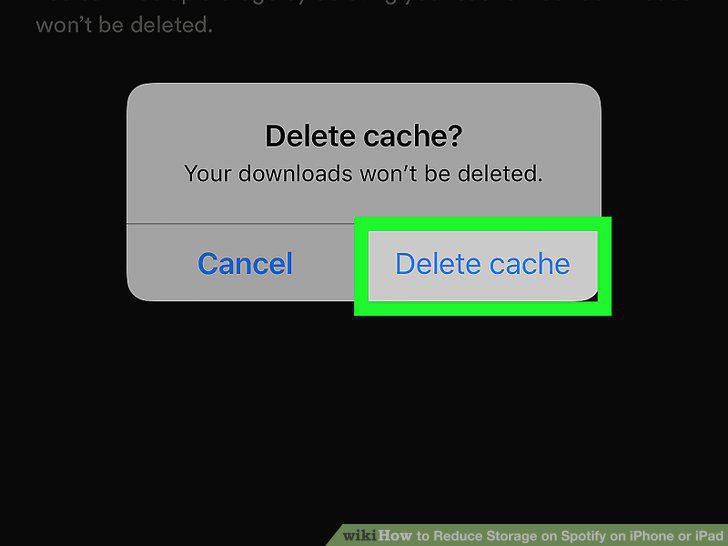
Tap Delete cache on the confirmation screen.
Comments (0)
No comments yet. Be the first to share your thoughts!