How to Convert a Video Into a Gif Animation
Open your version of Photoshop without opening your video.. Click on "File," then "Import," and select "Video Frames to Layers.. Choose the settings needed for your GIF.
Steps
Open your version of Photoshop without opening your video.
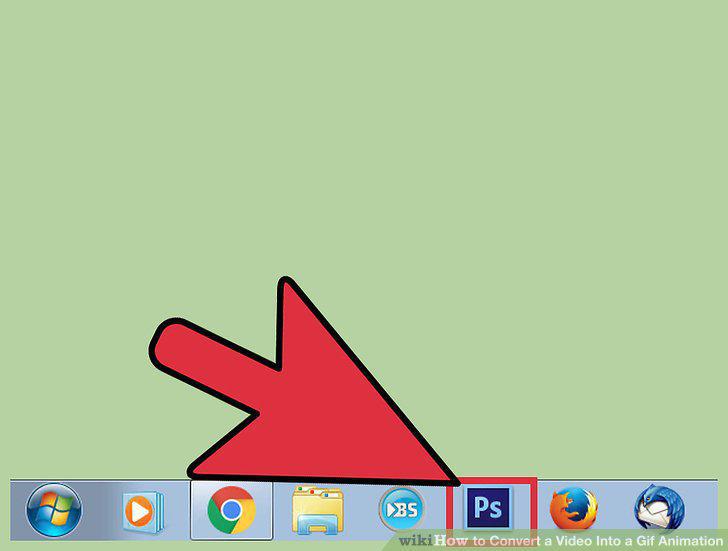
Open your version of Photoshop without opening your video.
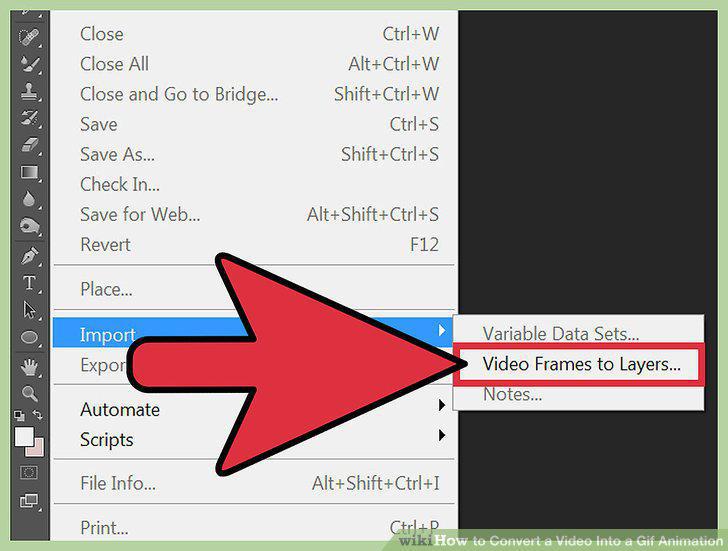
Click on "File," then "Import," and select "Video Frames to Layers.
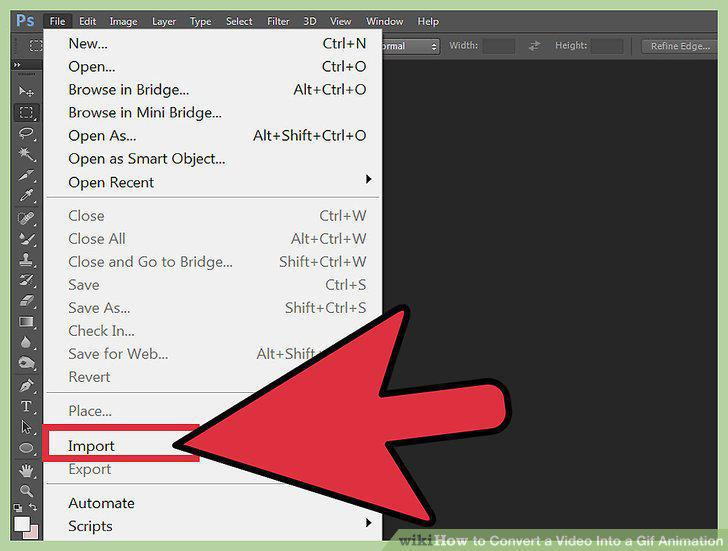
Click on "File," then "Import," and select "Video Frames to Layers.
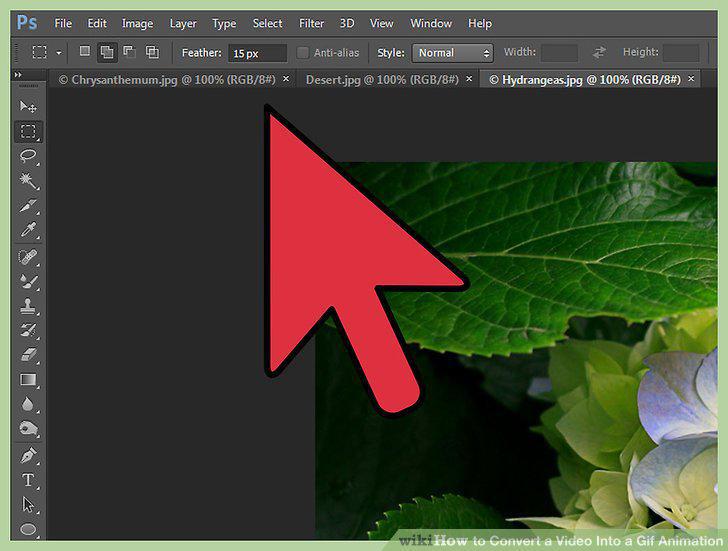
Choose the settings needed for your GIF.
Choose the settings needed for your GIF.
Edit or delete any frames you don't want in your final GIF.
Edit or delete any frames you don't want in your final GIF.
Click "File," then "Save for Web.
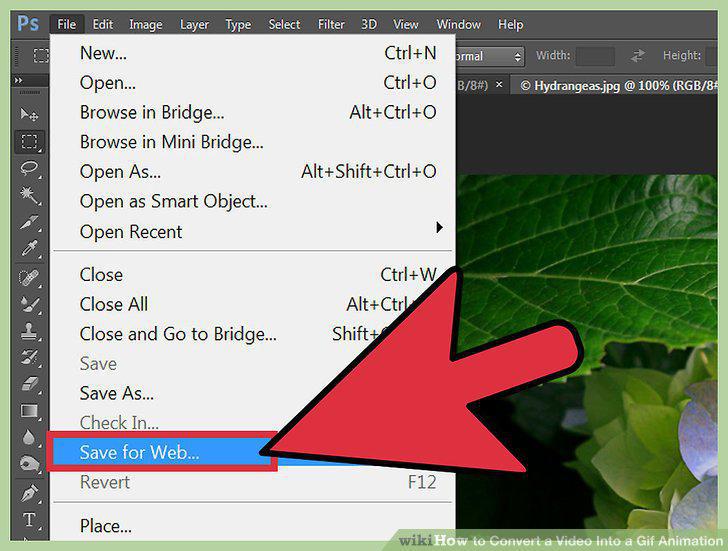
Click "File," then "Save for Web.
Search online for "Video to GIF" converter and find a site you feel comfortable
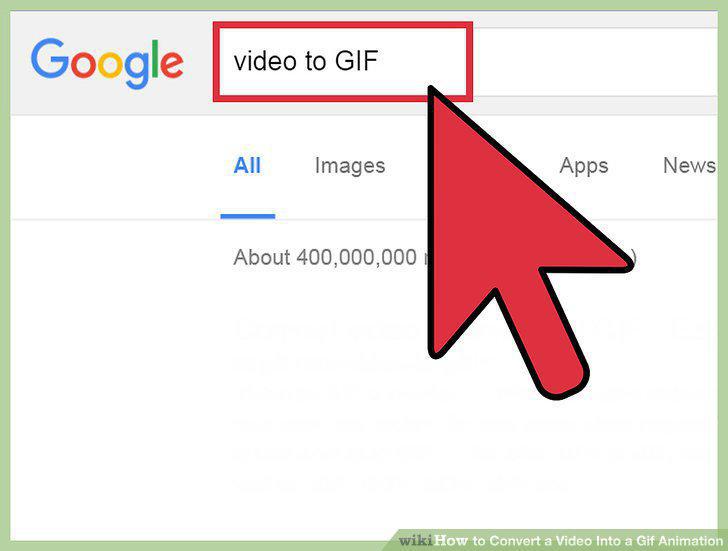
Search online for "Video to GIF" converter and find a site you feel comfortable using.
Find a video you want to make into a GIF online.
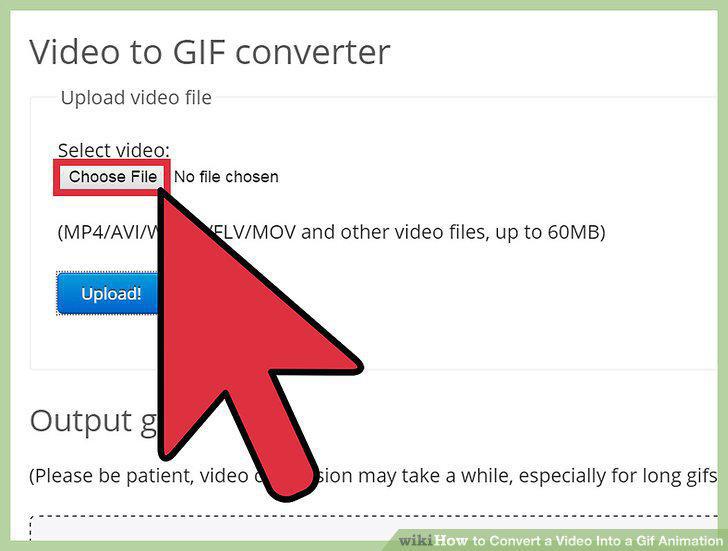
Find a video you want to make into a GIF online.
Locate the part of the video you want to convert.
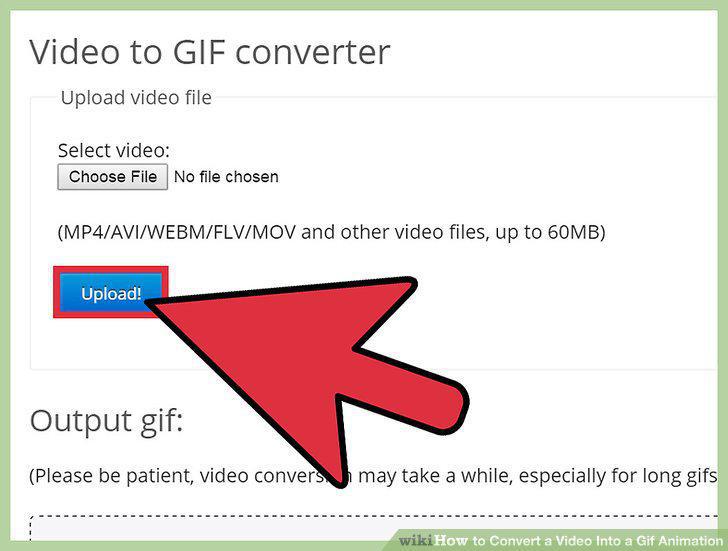
Locate the part of the video you want to convert.
If offered, decide what frame rate you want to use.
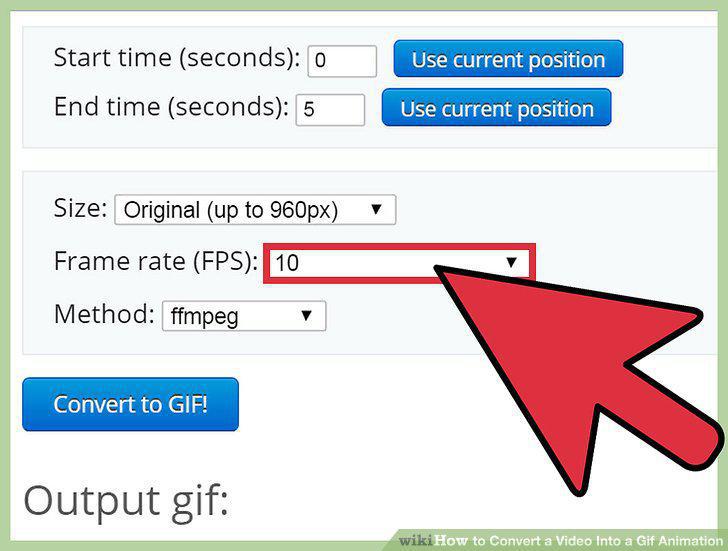
If offered, decide what frame rate you want to use.
Press the record, review, or save button to convert your video.
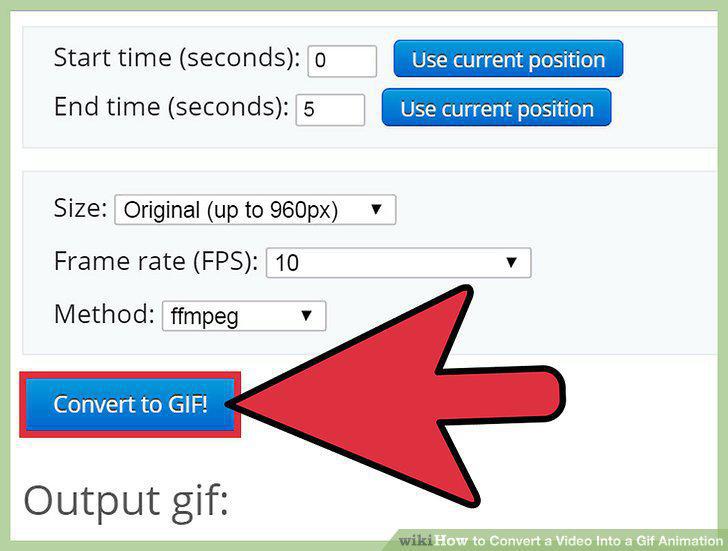
Press the record, review, or save button to convert your video.
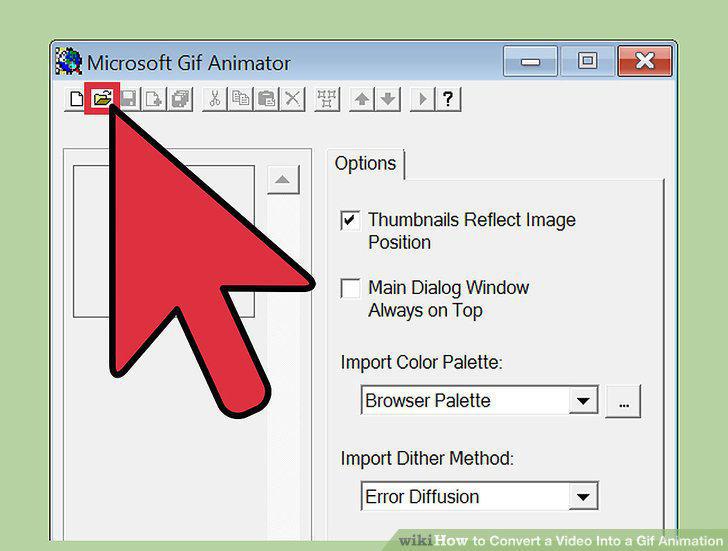
Open Microsoft GIF Animator and click the Open icon.
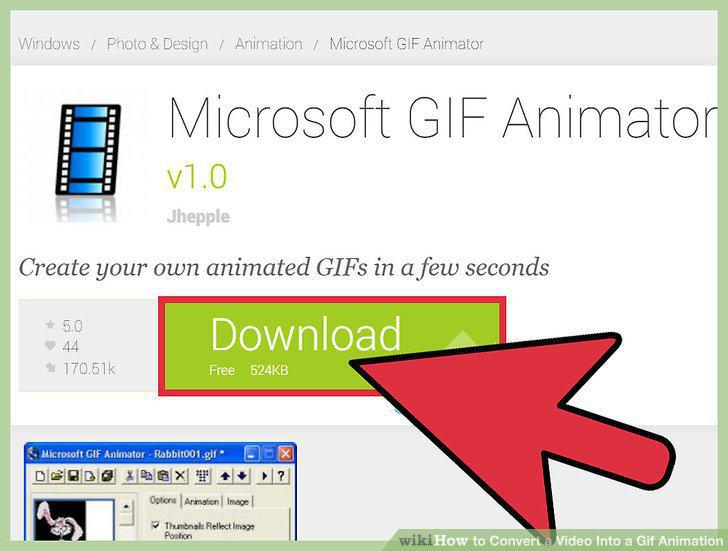
Open Microsoft GIF Animator and click the Open icon.
Navigate to the desired .avi video and select Open.
Navigate to the desired .avi video and select Open.
Edit, remove, or reorder the list of your frames along the side of the screen.
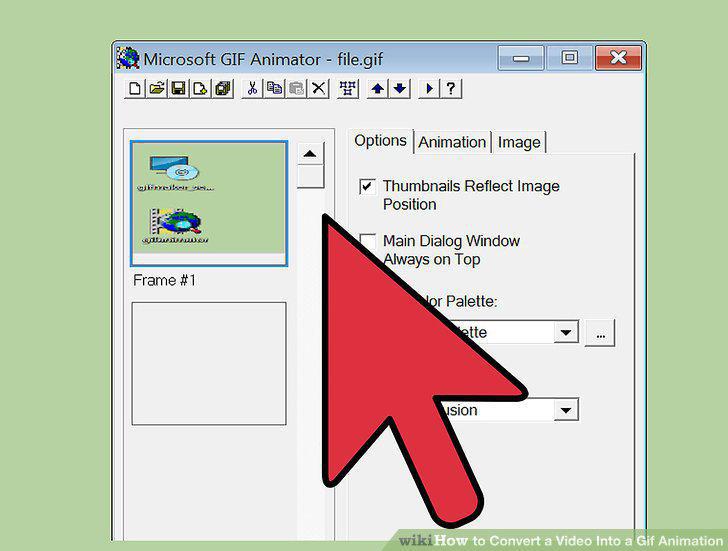
Edit, remove, or reorder the list of your frames along the side of the screen.
Loop your video like a real GIF.
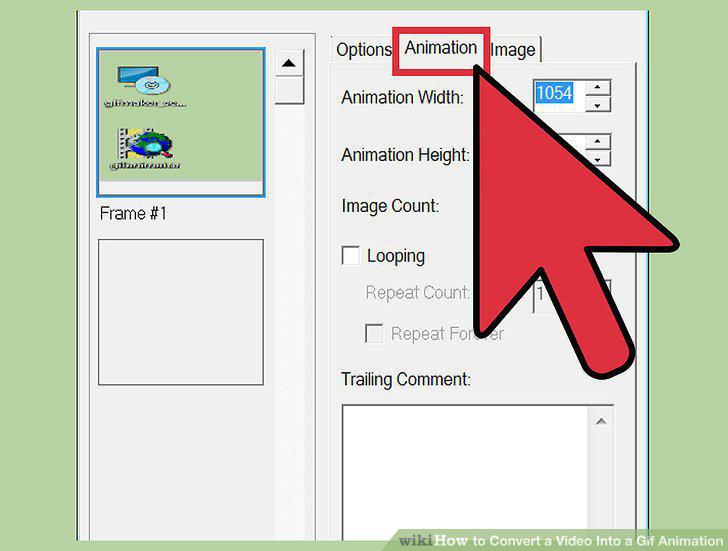
Loop your video like a real GIF.
Click the Image tab and set the duration of each frame using the slider.
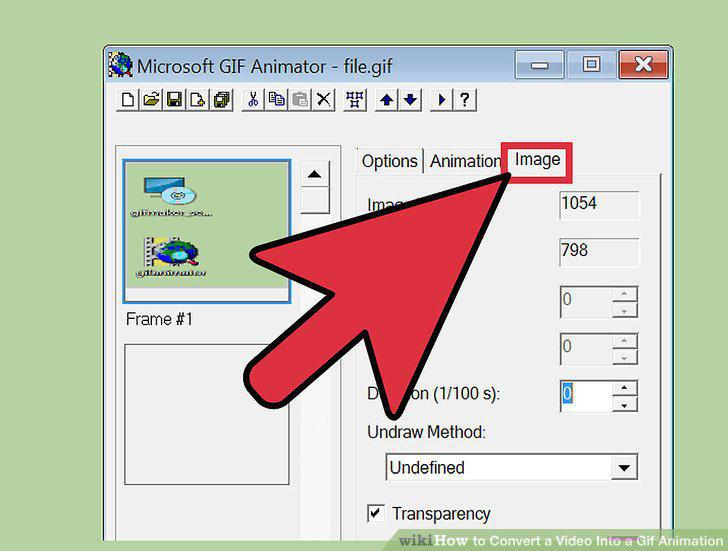
Click the Image tab and set the duration of each frame using the slider.
Click the Save As button to finish your GIF.
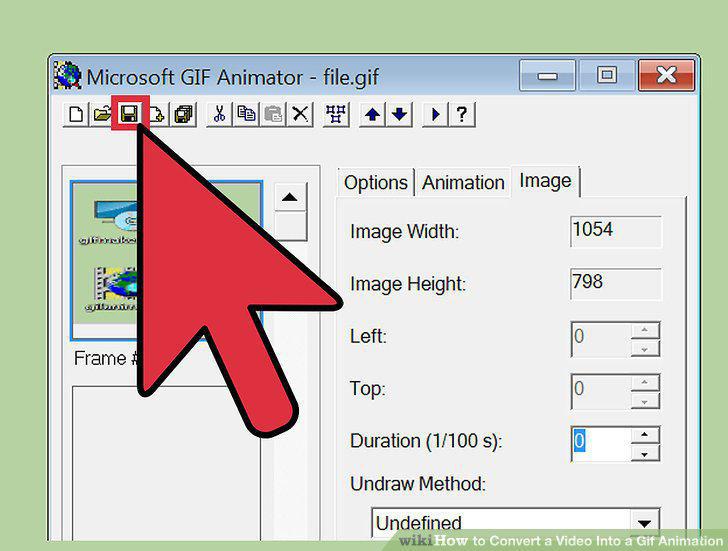
Click the Save As button to finish your GIF.
Comments (0)
No comments yet. Be the first to share your thoughts!