How to Use a Voxal Voice Changer
Download and run Voxal.. Select a voice to use by clicking on it.. Press the options button if you want to apply the effect right away.
Steps
Download and run Voxal.
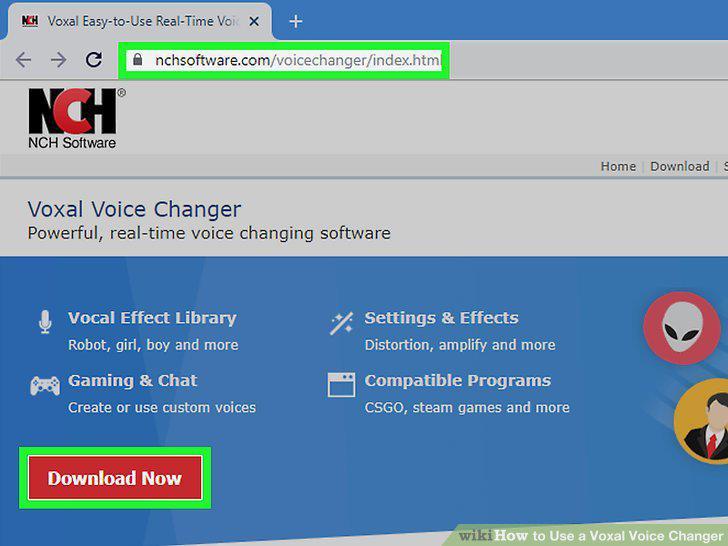
Download and run Voxal.
Select a voice to use by clicking on it.
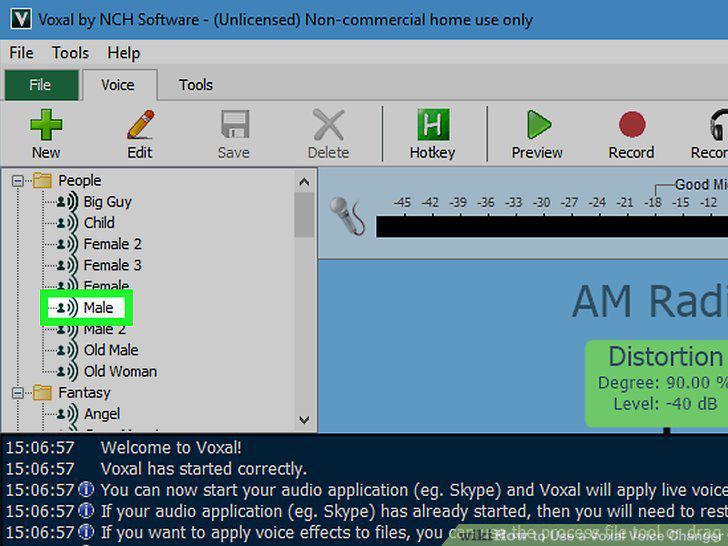
Select a voice to use by clicking on it.
Press the options button if you want to apply the effect right away.
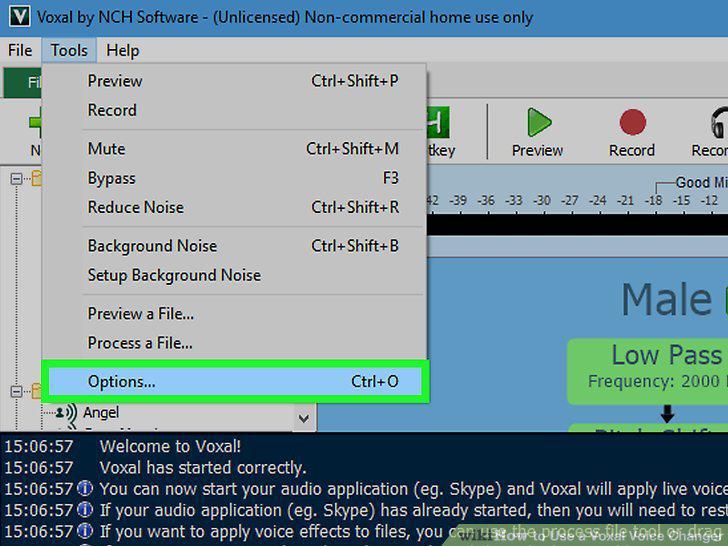
Press the options button if you want to apply the effect right away.
Open the other program you plan on using.
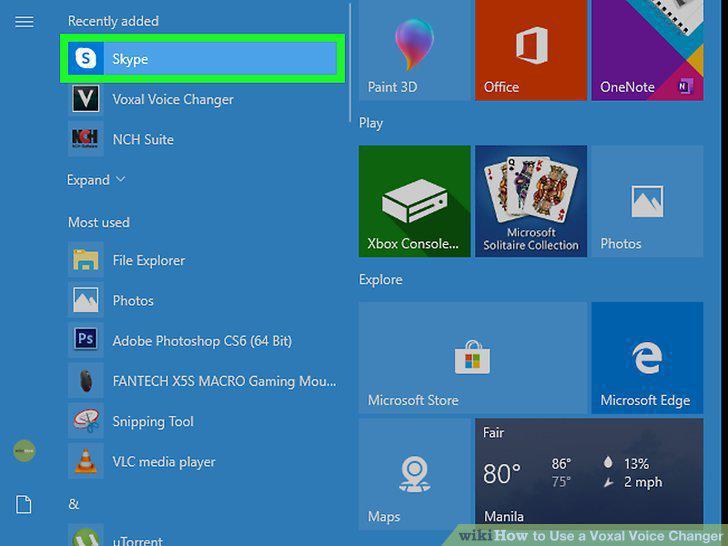
Open the other program you plan on using.
Start speaking so Voxal changes your voice.
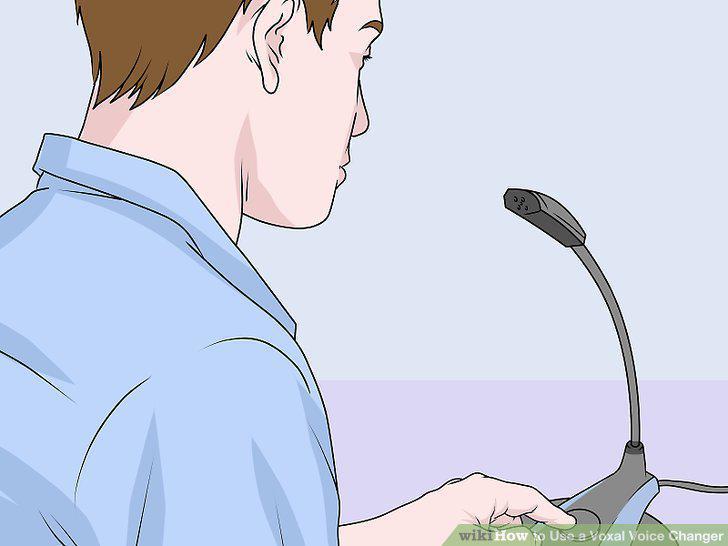
Start speaking so Voxal changes your voice.
Select a preset effect for a simple way to change your voice.
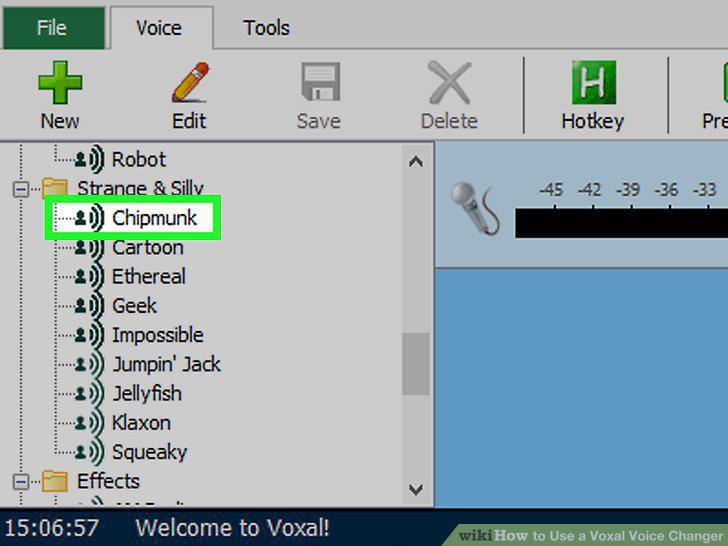
Select a preset effect for a simple way to change your voice.
Test the voice by clicking the preview button.
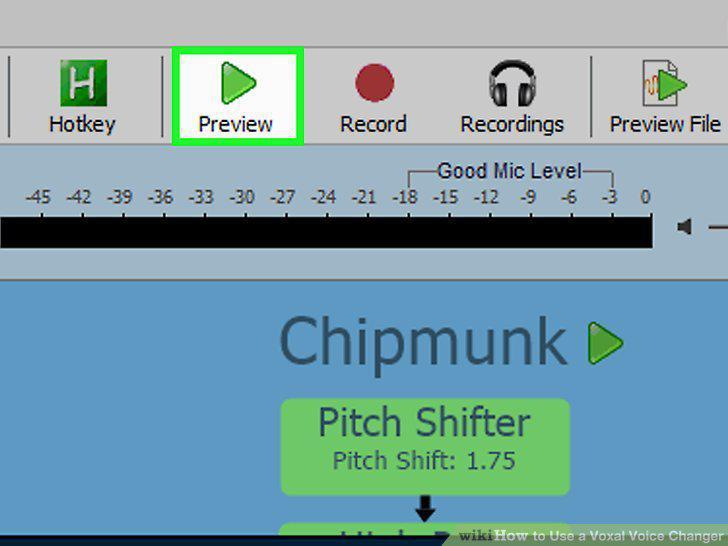
Test the voice by clicking the preview button.
Choose the edit option to customize the voice effect.
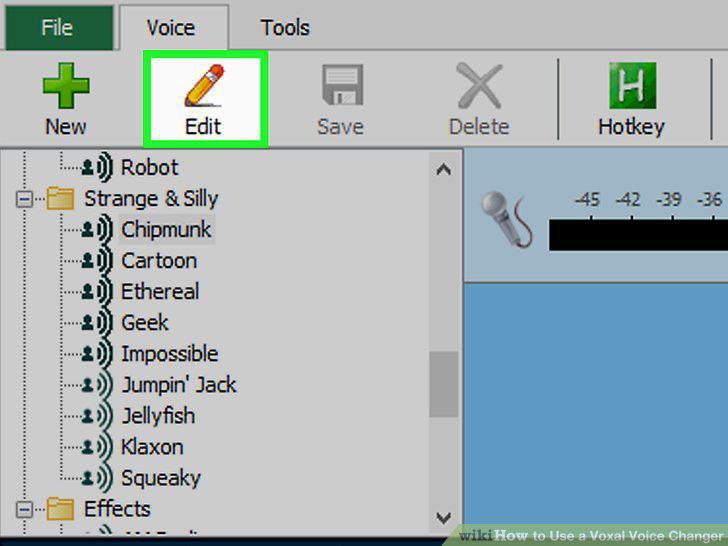
Choose the edit option to customize the voice effect.
Press the "new" button if you wish to make a custom voice.
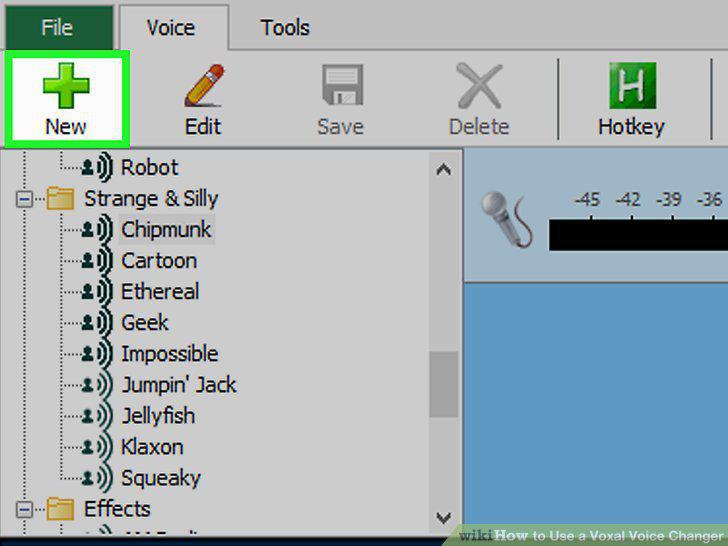
Press the "new" button if you wish to make a custom voice.
Record yourself with a voice effect by clicking the record button.
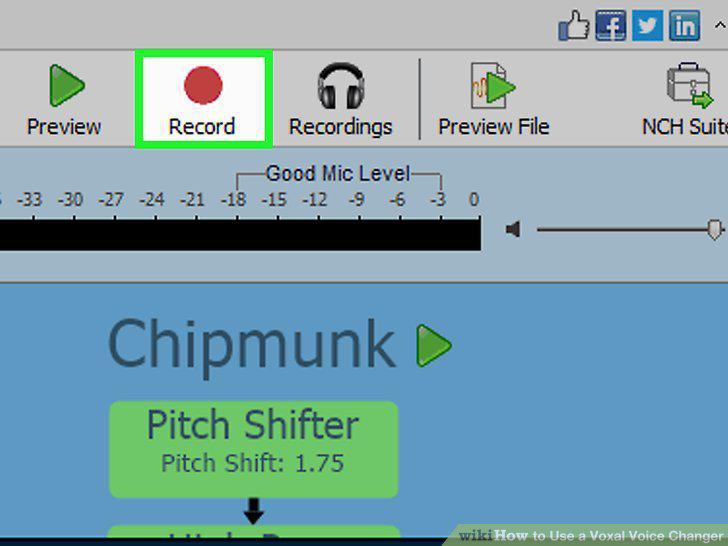
Record yourself with a voice effect by clicking the record button.
Use the open button to find the file on your computer.
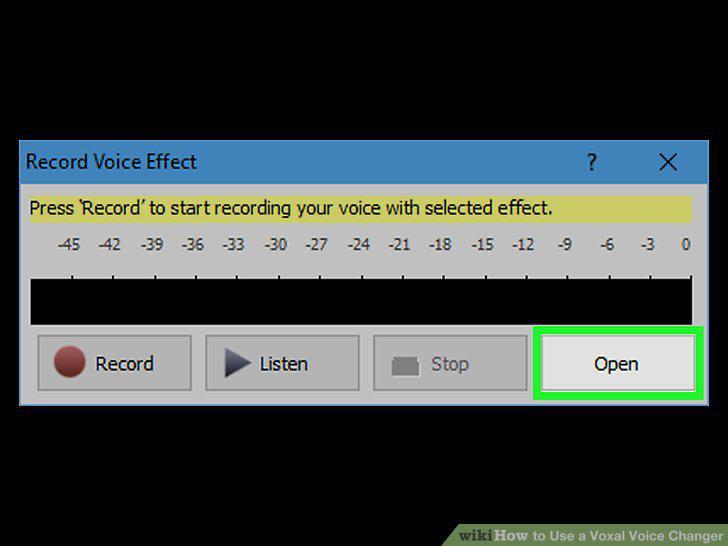
Use the open button to find the file on your computer.
Press the recordings button to list old recordings you have made.
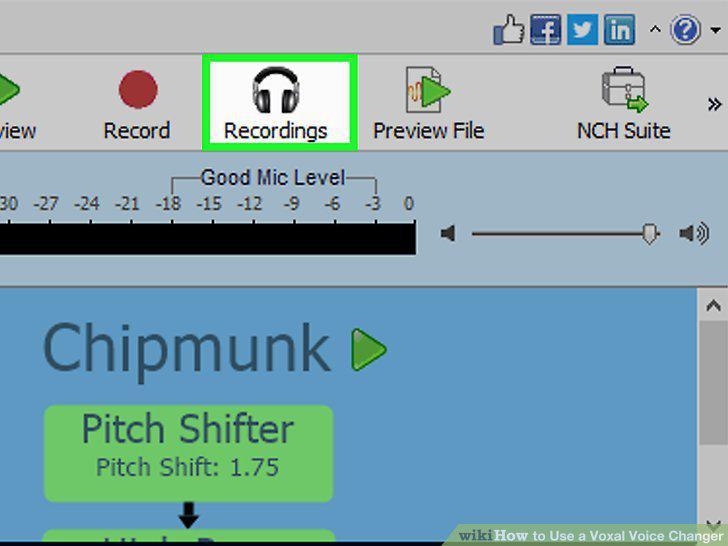
Press the recordings button to list old recordings you have made.
Add effects to existing voice files through the preview feature.
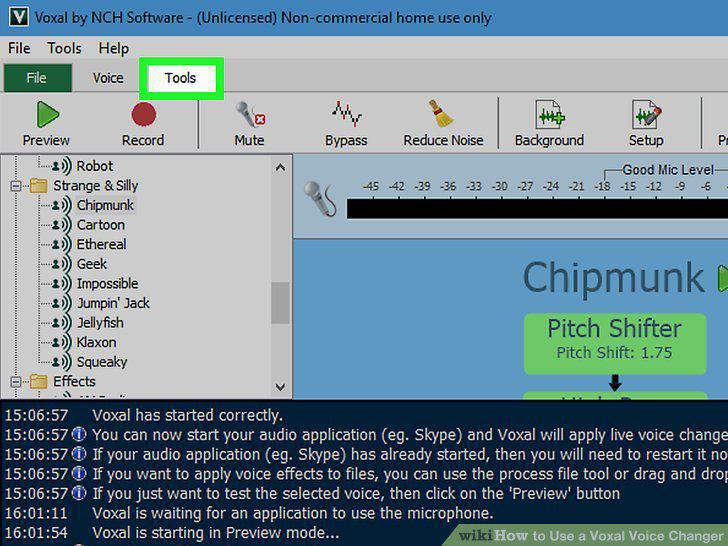
Add effects to existing voice files through the preview feature.
Use the synthesize text button if you need to read text files.
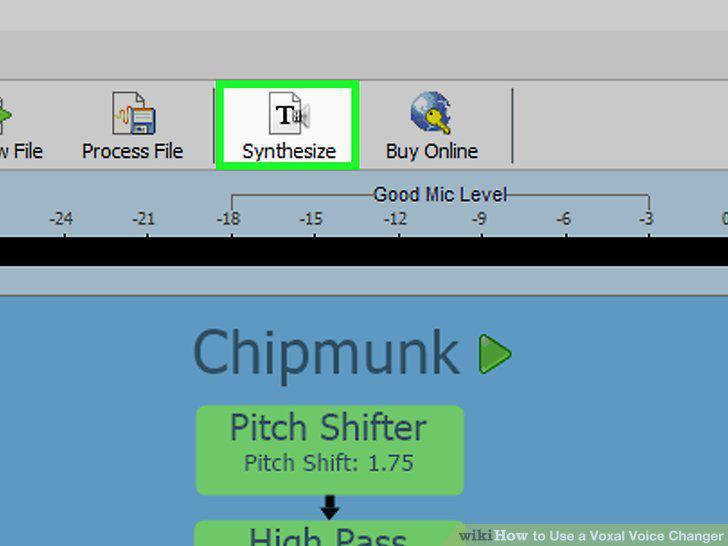
Use the synthesize text button if you need to read text files.
Comments (0)
No comments yet. Be the first to share your thoughts!